





Accessible summary
What this session covers
This foundational session helps you decide where work should be saved, shared and found. It focuses on choosing a location by ownership, audience and purpose, rather than choosing a technology from habit.
- how OneDrive, Teams and SharePoint support different stages of work
- how to distinguish personal drafts, team-owned files and published information
- how to choose a location by ownership, contributors and readers
- how Teams channel files connect to SharePoint
- how names, folders, metadata, Search, recent work, shortcuts and synchronisation help you return to files
Making the session work for you
The session is delivered through a Microsoft Teams webinar using PowerPoint Live. You can personalise how you follow and take part. The session is recorded, and you can watch rather than follow along unless the trainer asks you to try something.
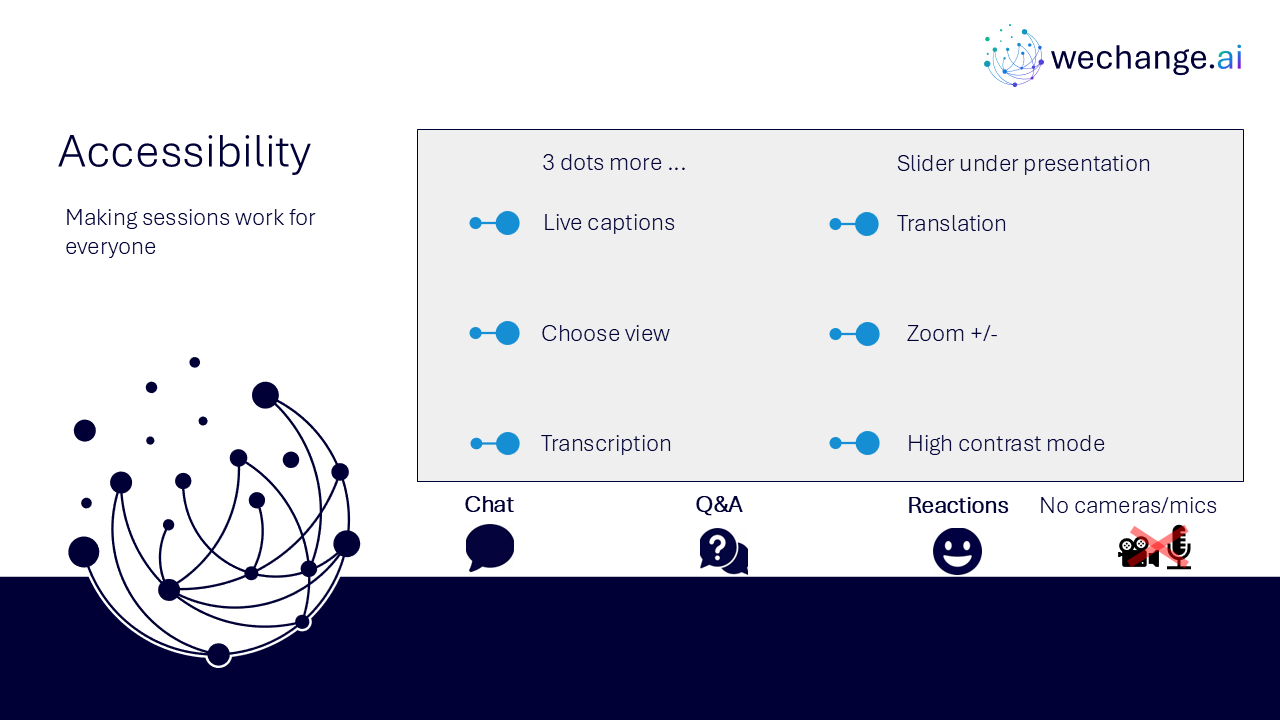
- use live captions or translation from the three-dots menu
- choose a view that gives you the clearest layout
- use the presentation slider or zoom controls to change the size
- keep your camera and microphone off unless you are invited to use them
- use Q&A for questions and keep chat closed when you are not typing
- use reactions or other participation options if they work better for you
- share respectful feedback and use the key links provided in chat
Everyone is on a confidence spectrum
These sessions are for everyone, whatever your starting point. You do not need to remember every route. The aim is to understand a dependable decision process and identify reliable ways to return to your work.
Navigator and WeChange.AI
Navigator is a personalised platform for WeChange.AI customers. It helps you discover tools, resources and upcoming sessions relevant to your role.
WeChange.AI supports public and third sector organisations to use technology with confidence by putting people first and focusing on practical change in day-to-day work.
Key concepts
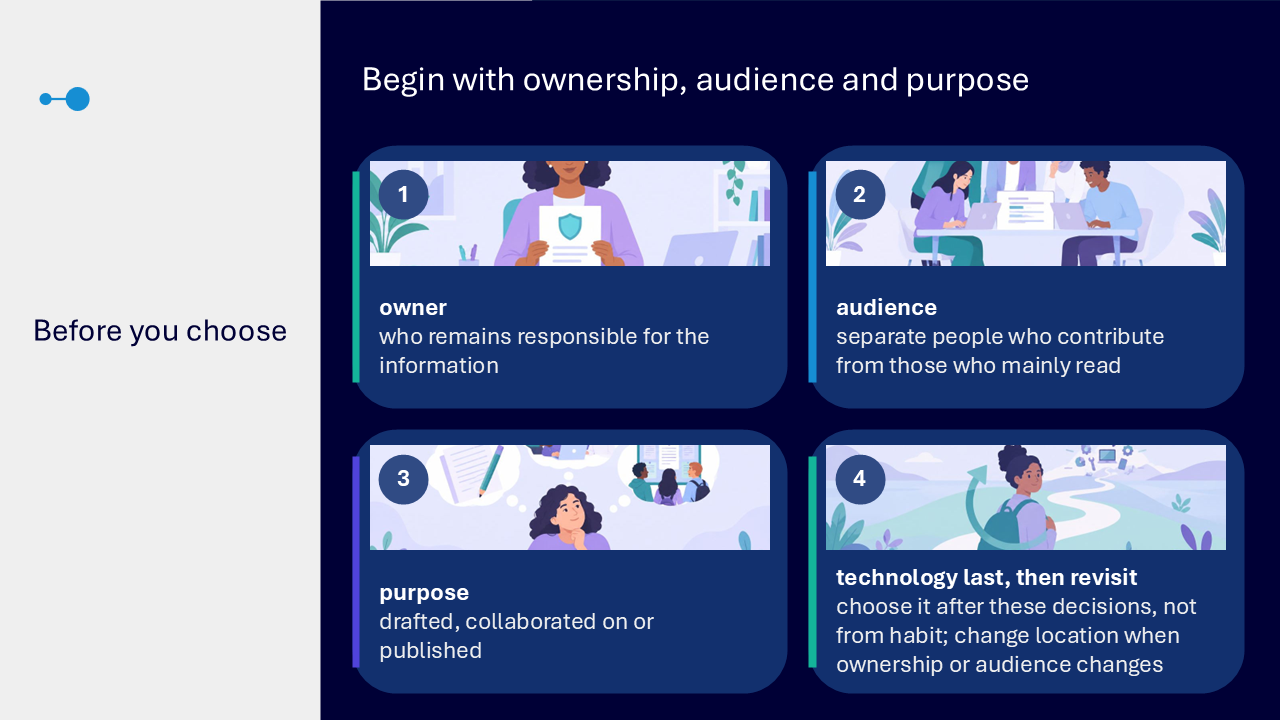
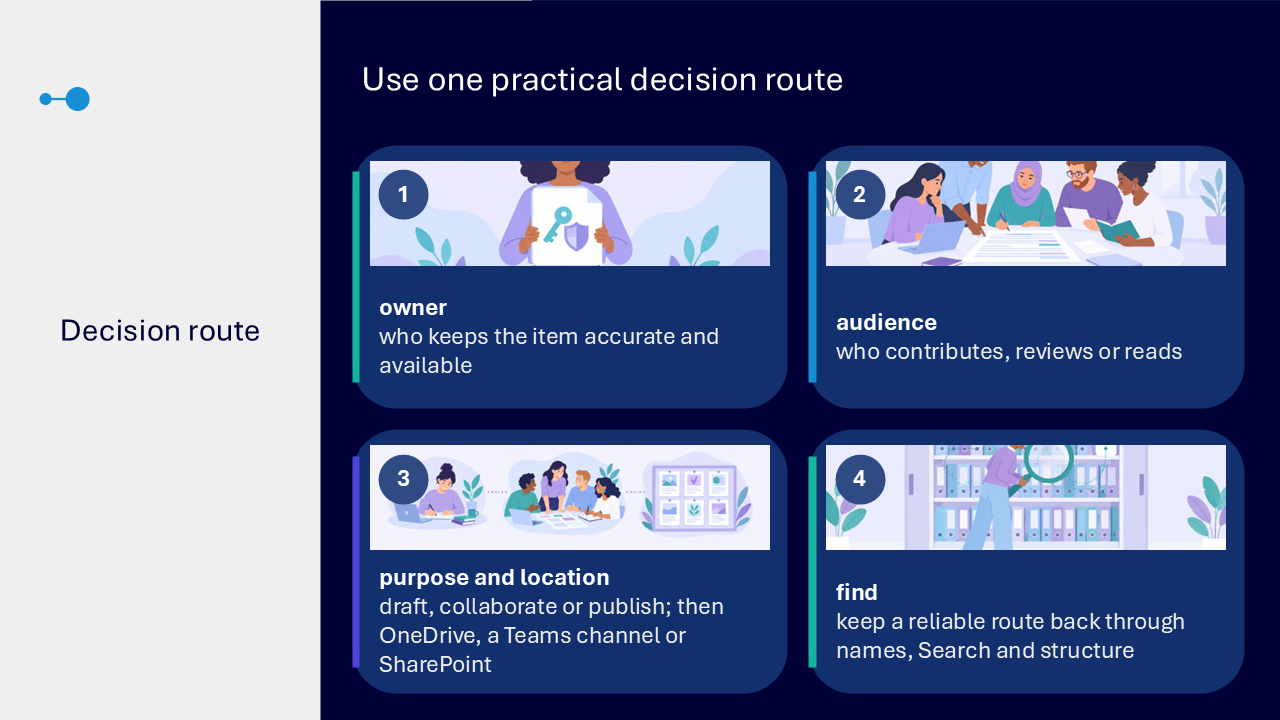
Begin with ownership, audience and purpose
Choose the location after deciding who owns the information, who needs to contribute or read it, and what stage the work has reached.
- owner: who keeps the item accurate and available
- audience: who contributes, reviews or reads
- purpose: whether the work is a draft, active collaboration or published information
- location: OneDrive, a Teams channel or SharePoint
- find: the reliable route back through clear names, Search and structure
Revisit the location if ownership or audience changes. A personal draft may later become a team-owned working file, and an agreed version may later be published for wider use.
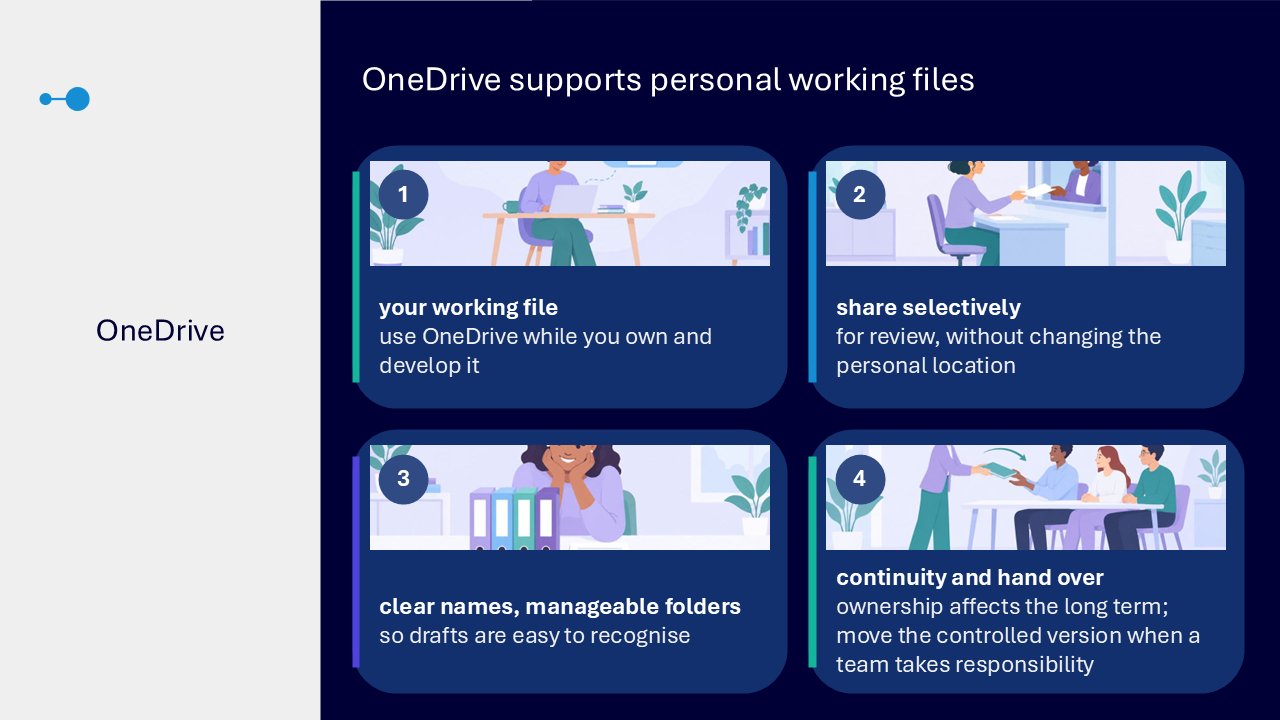
OneDrive: personal working files
OneDrive is a suitable starting point while you personally own and develop a working file. You can share it selectively for review without changing its personal location.
- use OneDrive for personal drafts and individual working files
- use clear names and manageable folders so drafts are recognisable
- remember that personal ownership can affect longer-term continuity
- move the controlled version when responsibility transfers to a team
Teams: active team collaboration
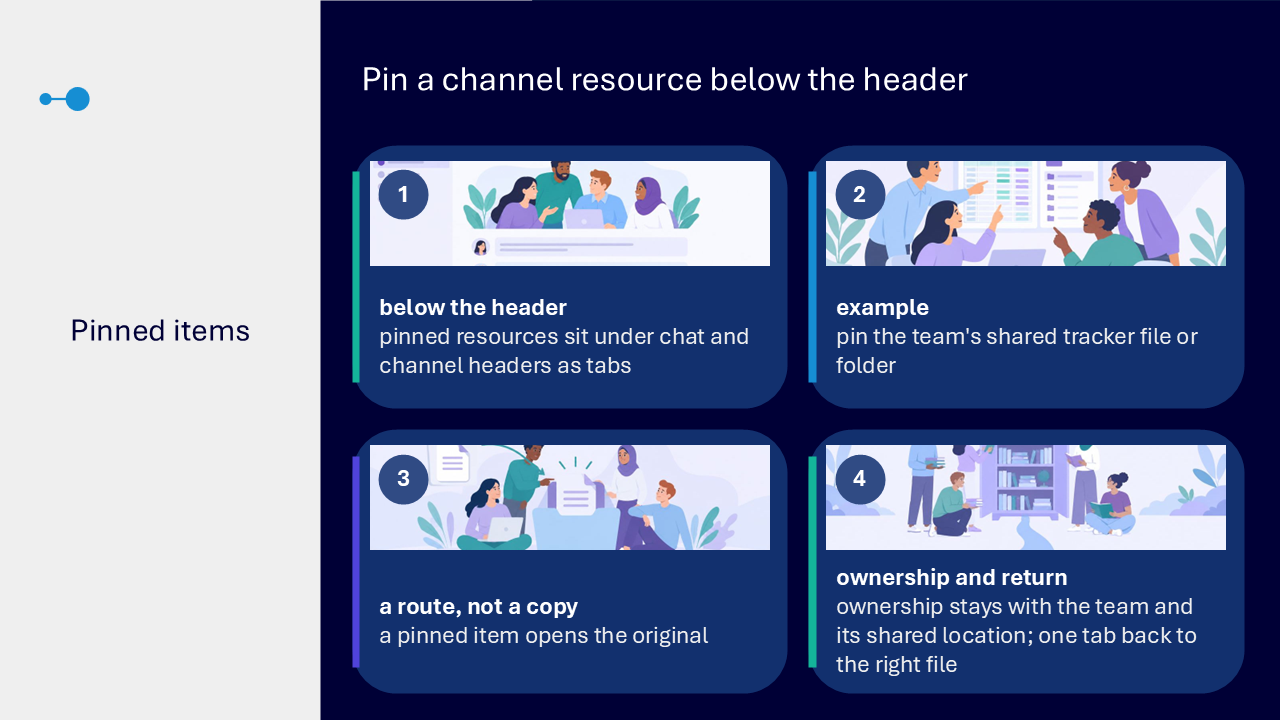
Use a relevant Teams channel when the work belongs to a team and contributors need one shared working copy alongside conversations and decisions.
- use a channel when the team or service owns the work
- keep conversation and decision context alongside the file
- make sure channel membership matches the people who need to contribute
- remember that Teams provides the collaboration route while SharePoint stores channel files
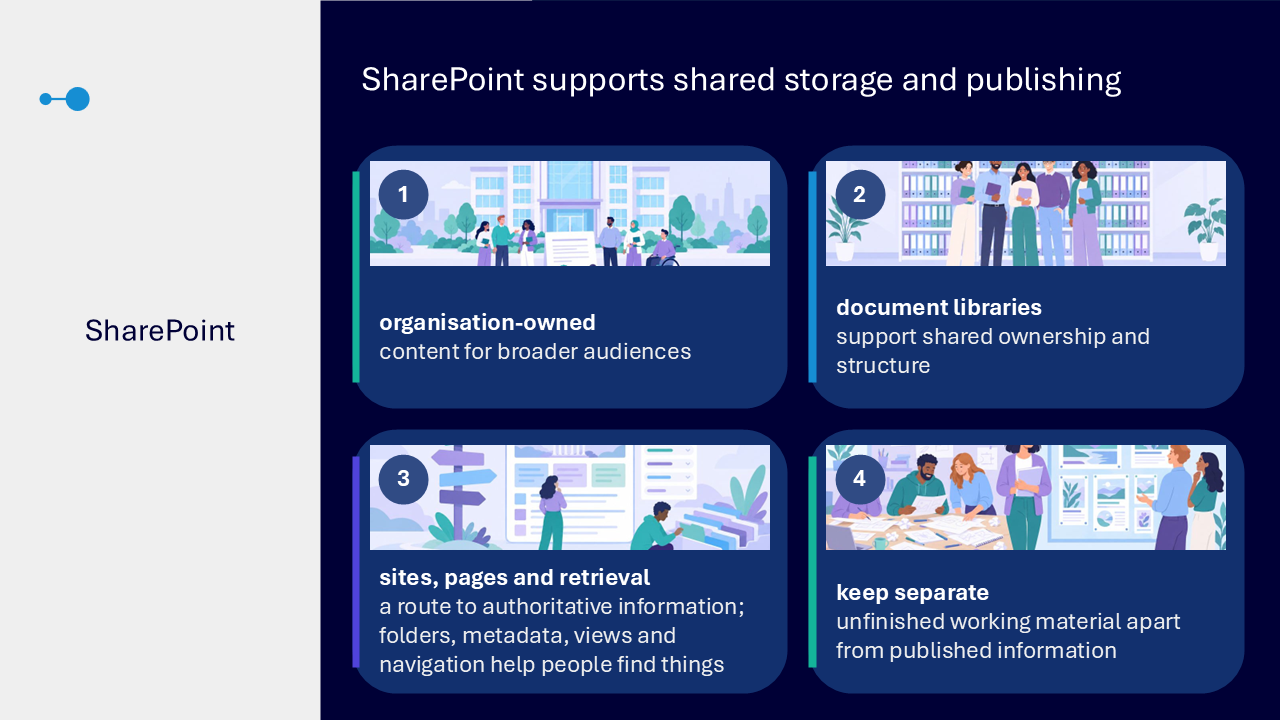
SharePoint: shared storage and publishing
Use SharePoint for organisation-owned content, shared document libraries and information intended for an established or wider audience.
- use sites, pages or libraries to provide a recognisable route to authoritative information
- use folders, metadata, views and navigation proportionately to support retrieval
- keep unfinished working material separate from published information
- maintain clear ownership so information remains accurate and current
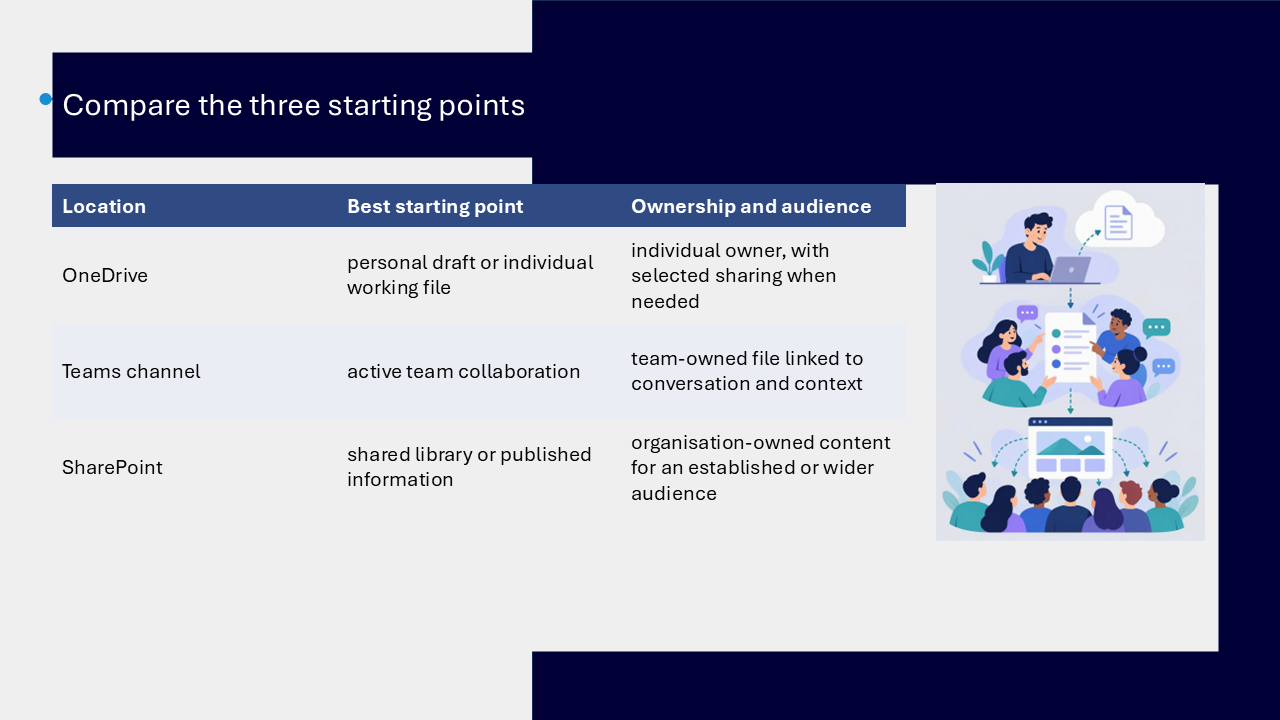
Comparison of the three starting points
The comparison visual shows that the best starting point depends on ownership, audience and stage of work.
| Location | Best starting point | Ownership and audience |
|---|---|---|
| OneDrive | personal draft or individual working file | individual owner, with selected sharing when needed |
| Teams channel | active team collaboration | team-owned file linked to conversation and context |
| SharePoint | shared library or published information | organisation-owned content for an established or wider audience |
Three practical examples
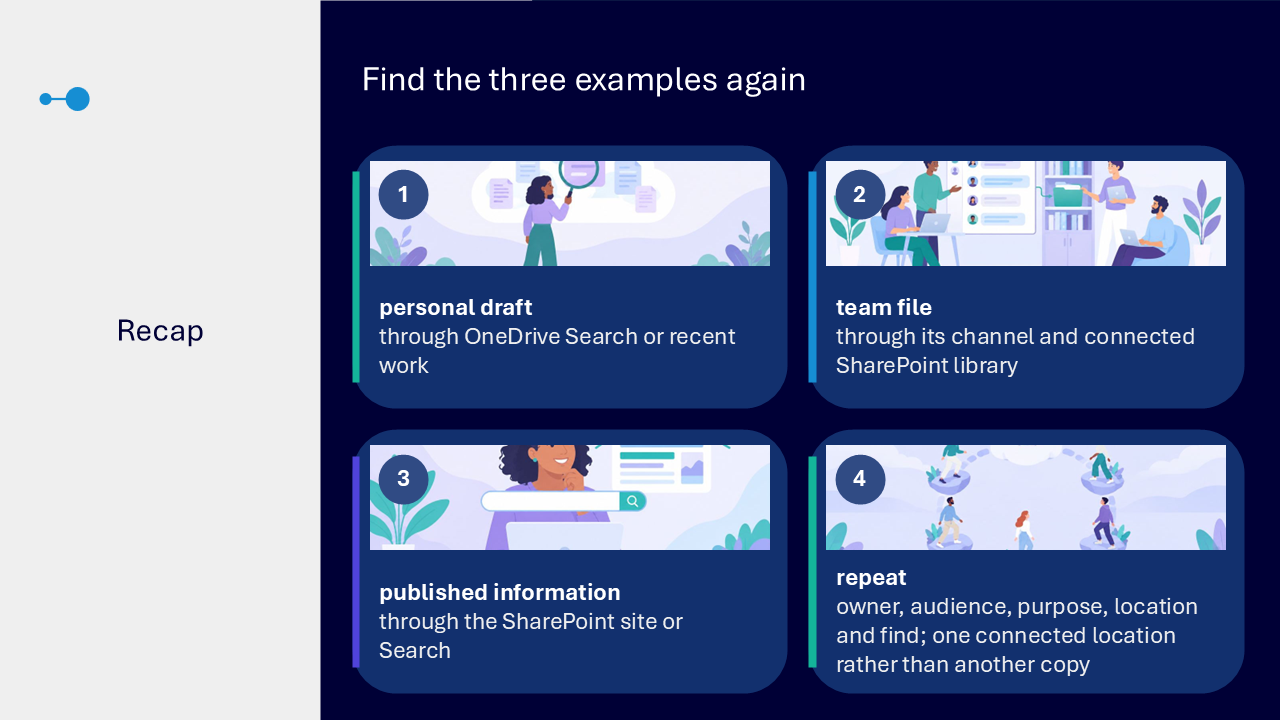
The session uses three examples to show how the same decision route applies at different stages.
1. Develop a personal draft
One person owns and develops unfinished content, with selected reviewers where needed. OneDrive is the suitable starting point. Move the agreed version when the team becomes responsible.
2. Collaborate on a team-owned file
The team or service owns the work, contributors need one shared working copy, and conversation continues alongside the file. A relevant Teams channel gives a clear working route, with the connected SharePoint library storing the file.
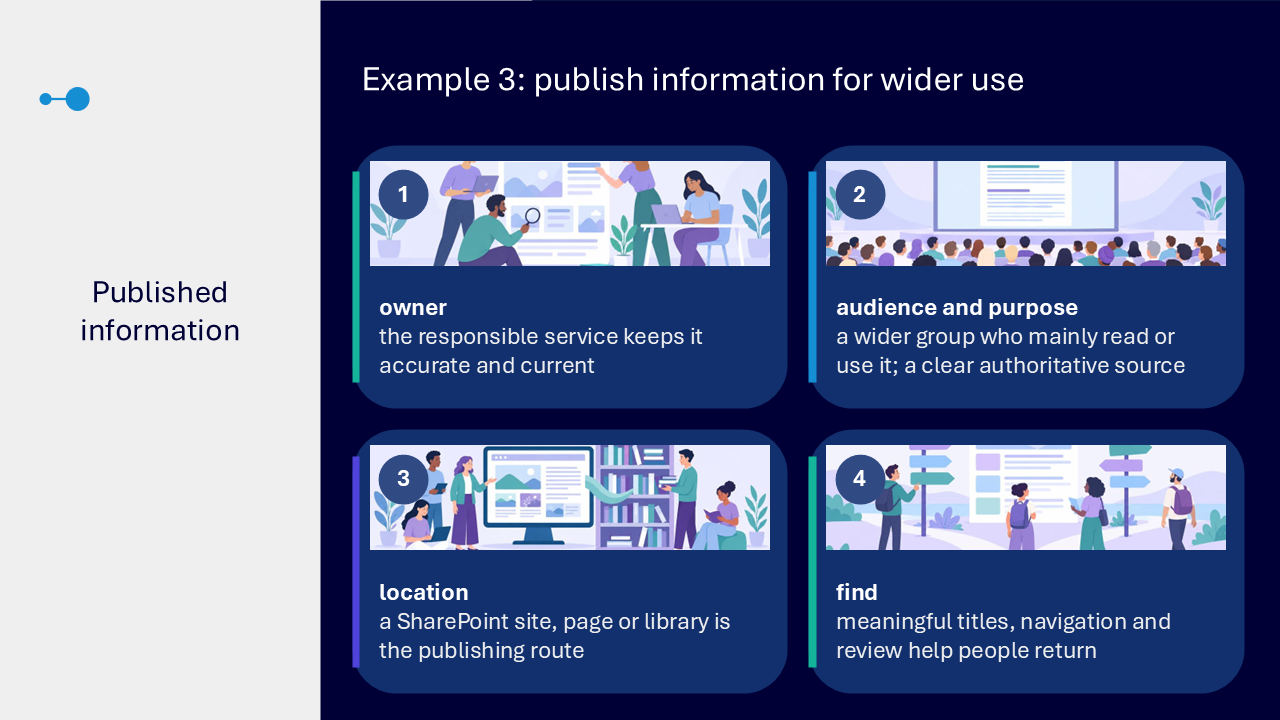
3. Publish information for wider use
The responsible service keeps the information accurate and current while a wider audience mainly reads or uses it. A SharePoint site, page or library provides the publishing route, supported by meaningful titles, navigation and review.
How Teams and SharePoint connect
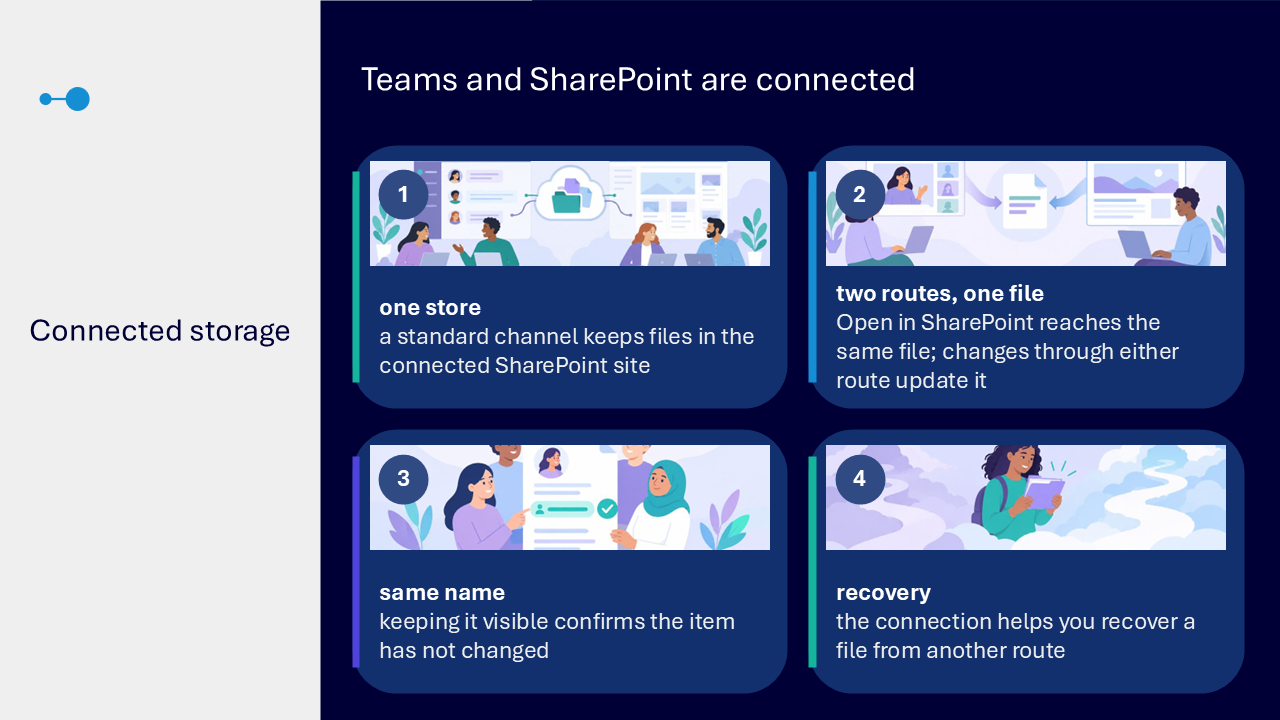
The connection diagram and demonstration show that a standard Teams channel stores its files in the connected SharePoint site. Selecting Open in SharePoint follows another route to the same shared file rather than creating a new copy.
- changes made through Teams or SharePoint update the same shared file
- keeping the distinctive file name visible helps confirm it is the same item
- the connected routes can help you recover a file from another location
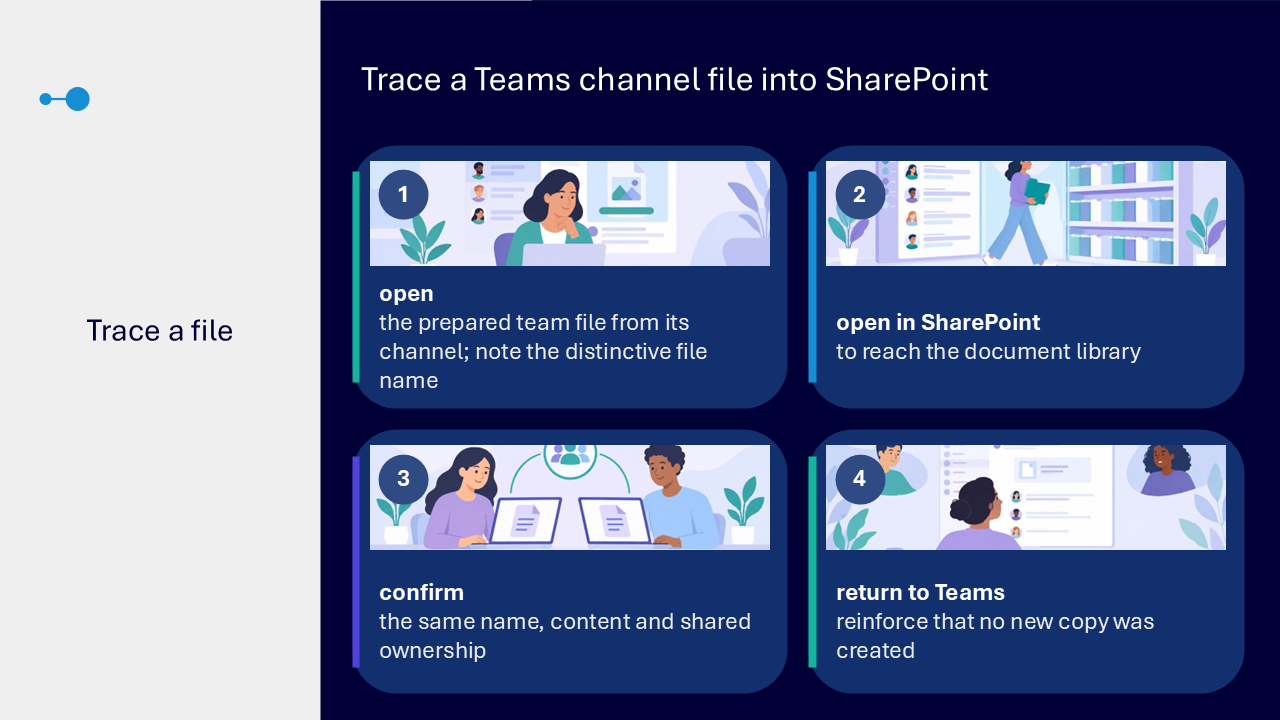
- use Open in SharePoint to trace a channel file to its document library
Channel files and chat files
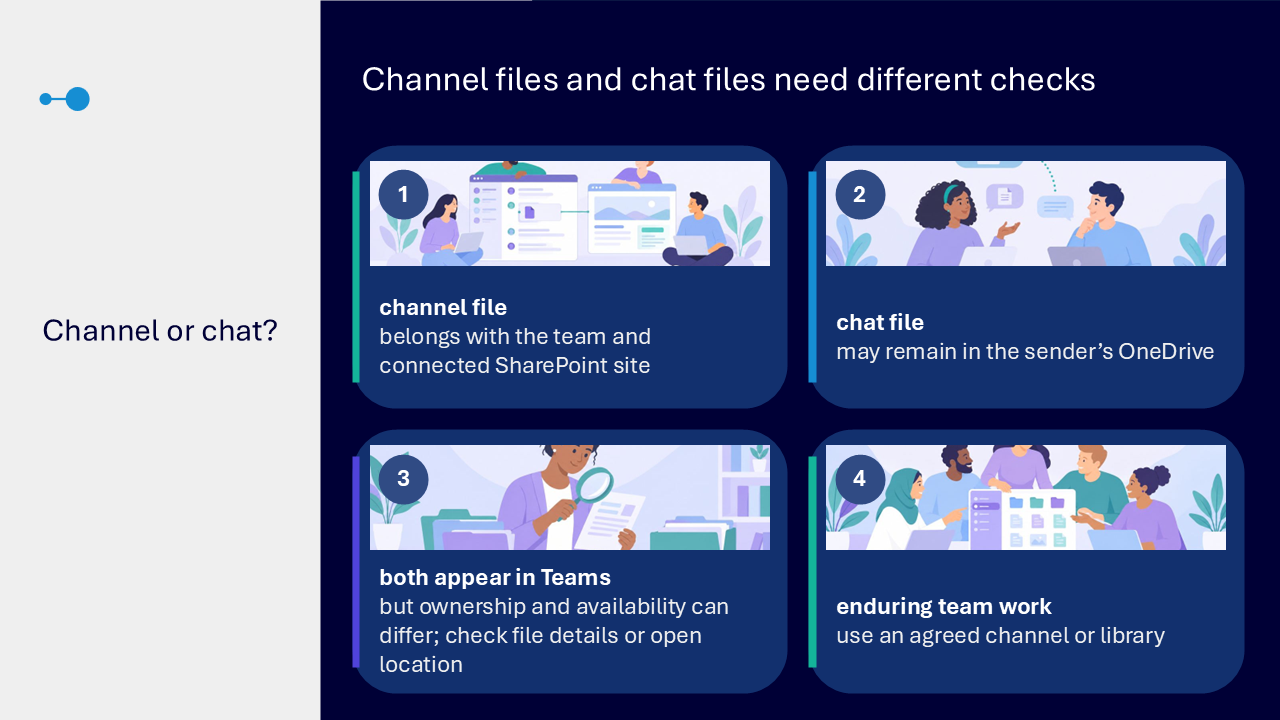
Files visible in Teams do not always have the same ownership. A channel file belongs with the team and connected SharePoint site. A file shared in a chat may remain in the sender’s OneDrive.
- check file details or open the location when ownership matters
- use an agreed channel or library for enduring team work
- confirm ownership and availability before relying on a chat file as a team record
Use names, folders and metadata proportionately
Clear file names and a manageable structure help people recognise and retrieve information without relying on memory.
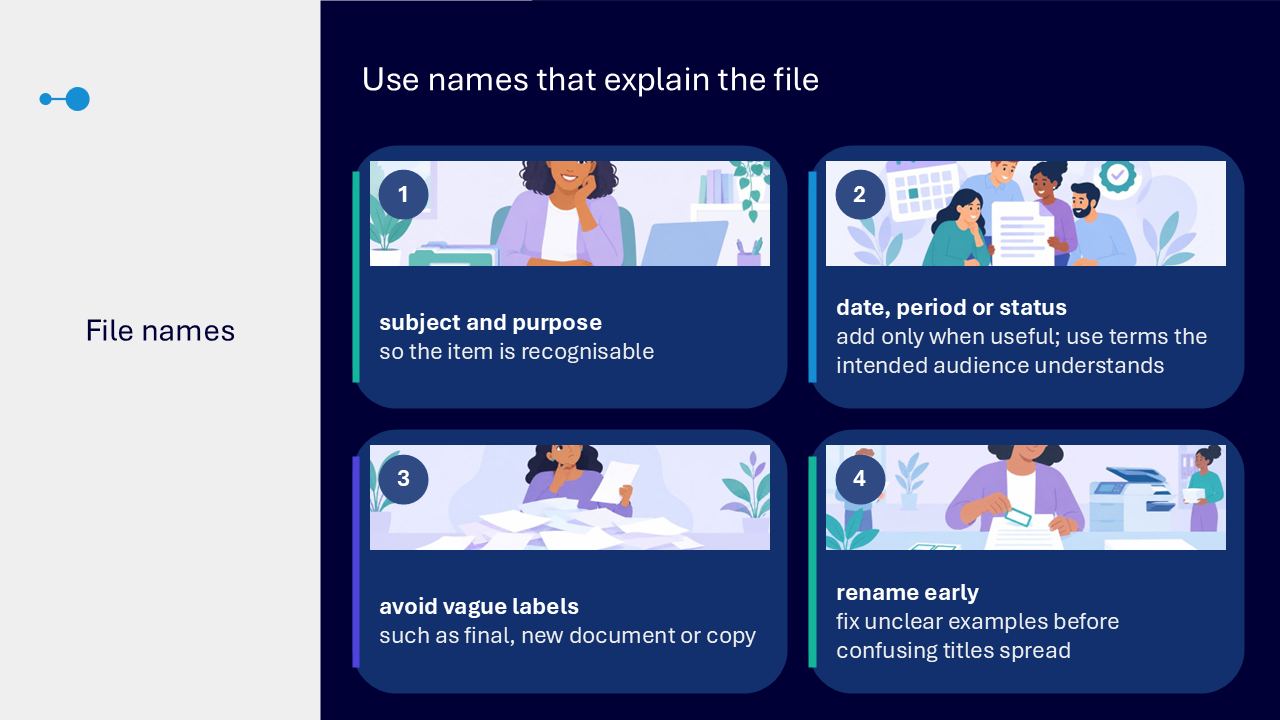
- include the subject and purpose in the file name
- add a date, period or status only when it is useful
- avoid vague labels such as final, new document or copy
- use wording the intended audience understands
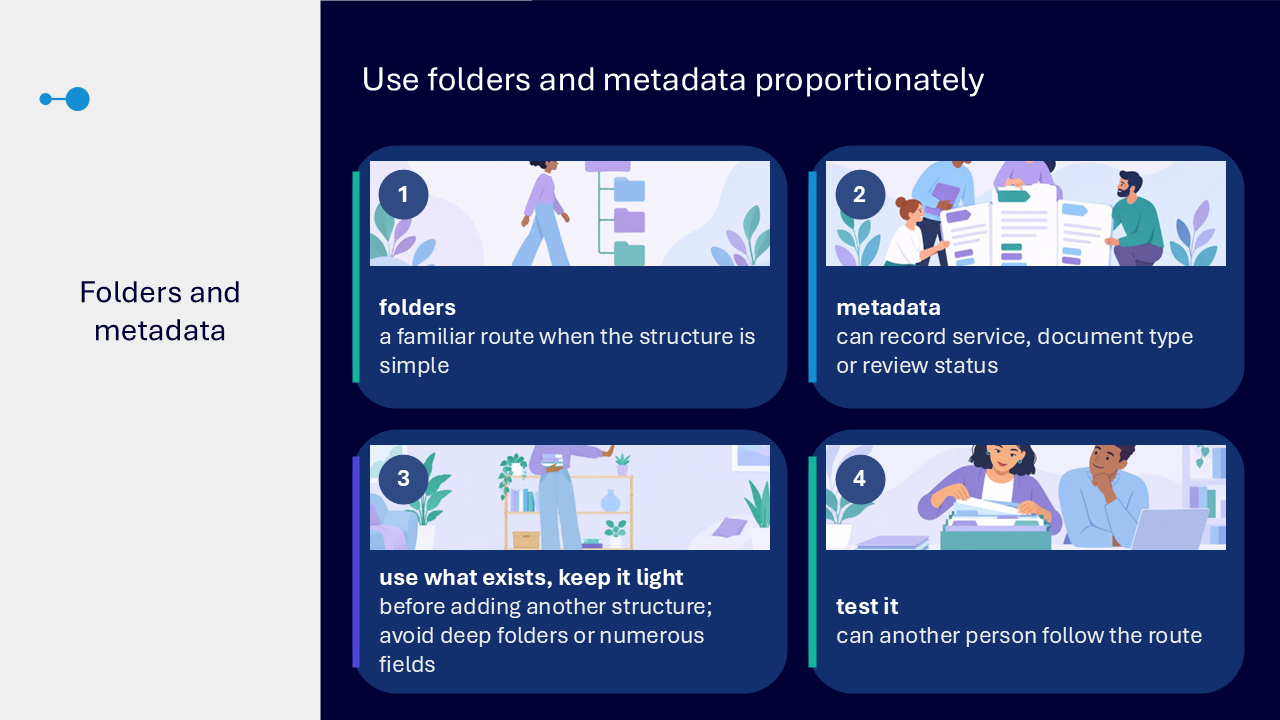
- use simple folders where they provide a familiar route
- use metadata for details such as service, document type or review status when it adds value
- avoid deep folders or numerous fields that create extra decisions
- test whether another person can follow the route
Return through recent work and Search
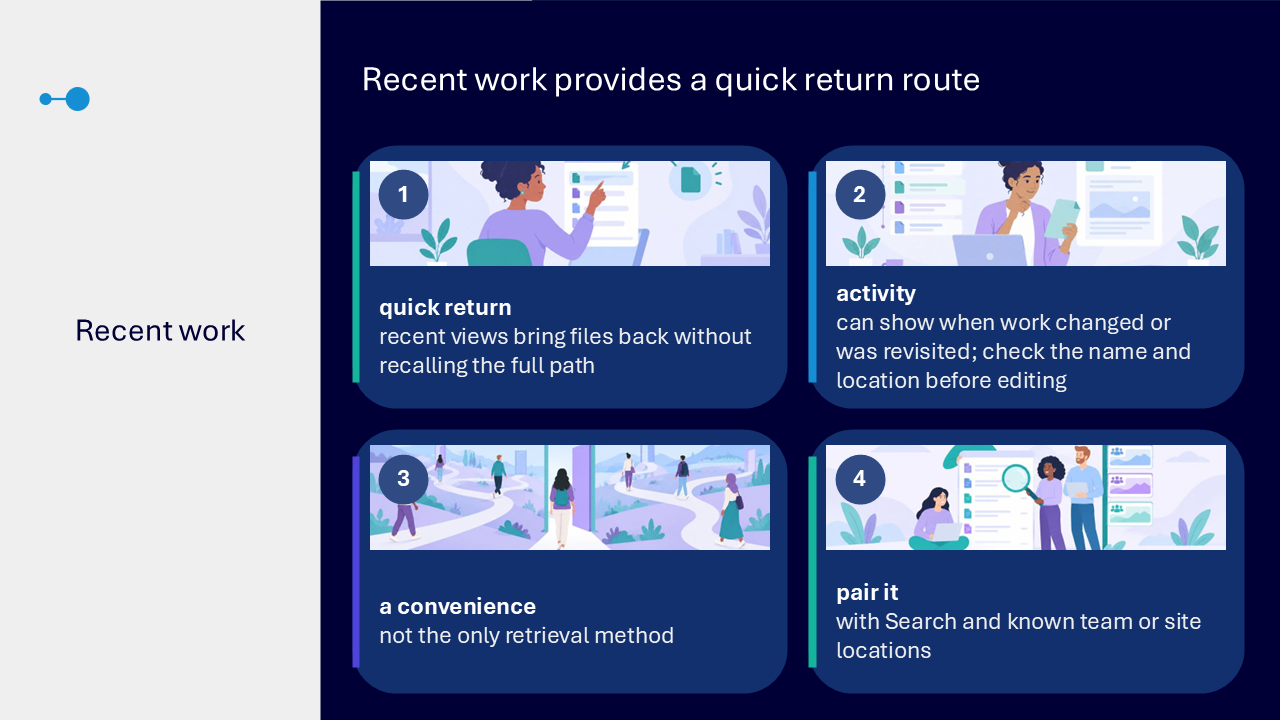
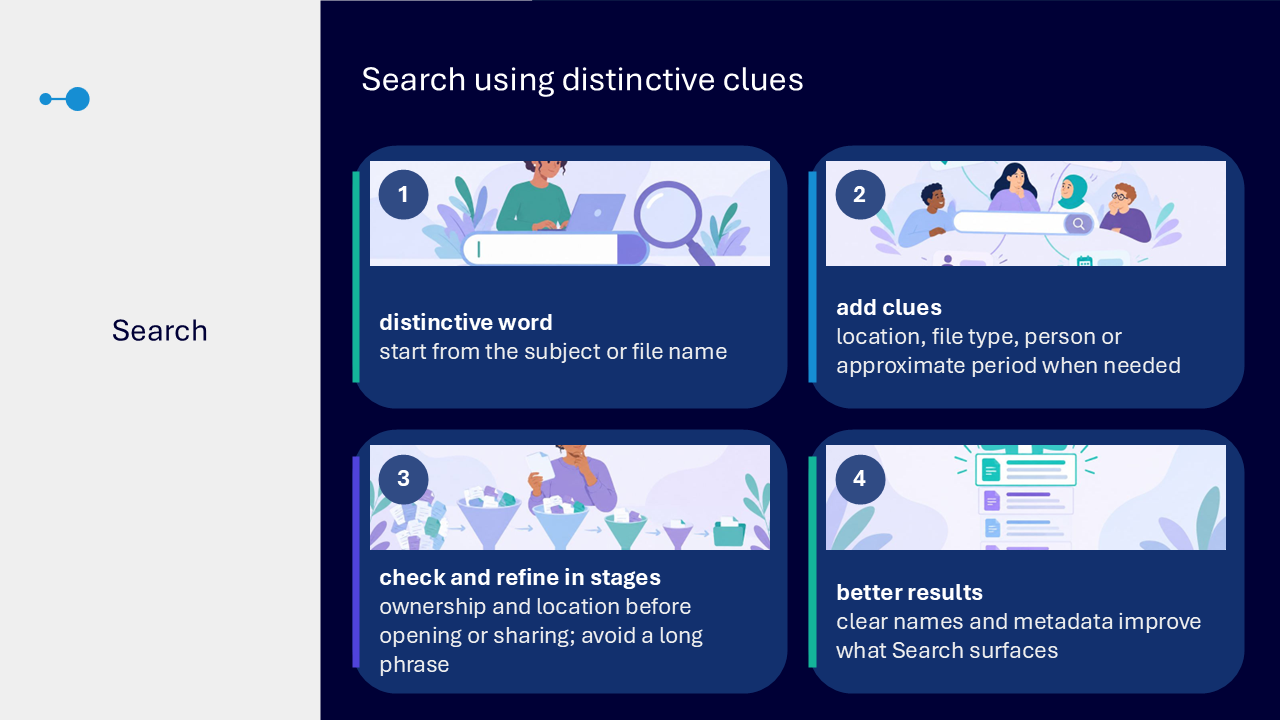
Recent views can provide a quick route back when you cannot remember the full path. Search is stronger when you use distinctive clues and confirm the result before editing or sharing.
- confirm the file name and location before editing
- treat recent work as a convenience rather than the only retrieval method
- pair recent work with Search and known team or site locations
- start Search with a distinctive word from the subject or file name
- add a location, file type, person or approximate period only when needed
- refine the search in stages instead of starting with a long phrase
Shortcuts and synchronisation
The session demonstrates two ways to make shared cloud files easier to reach without creating another copy.
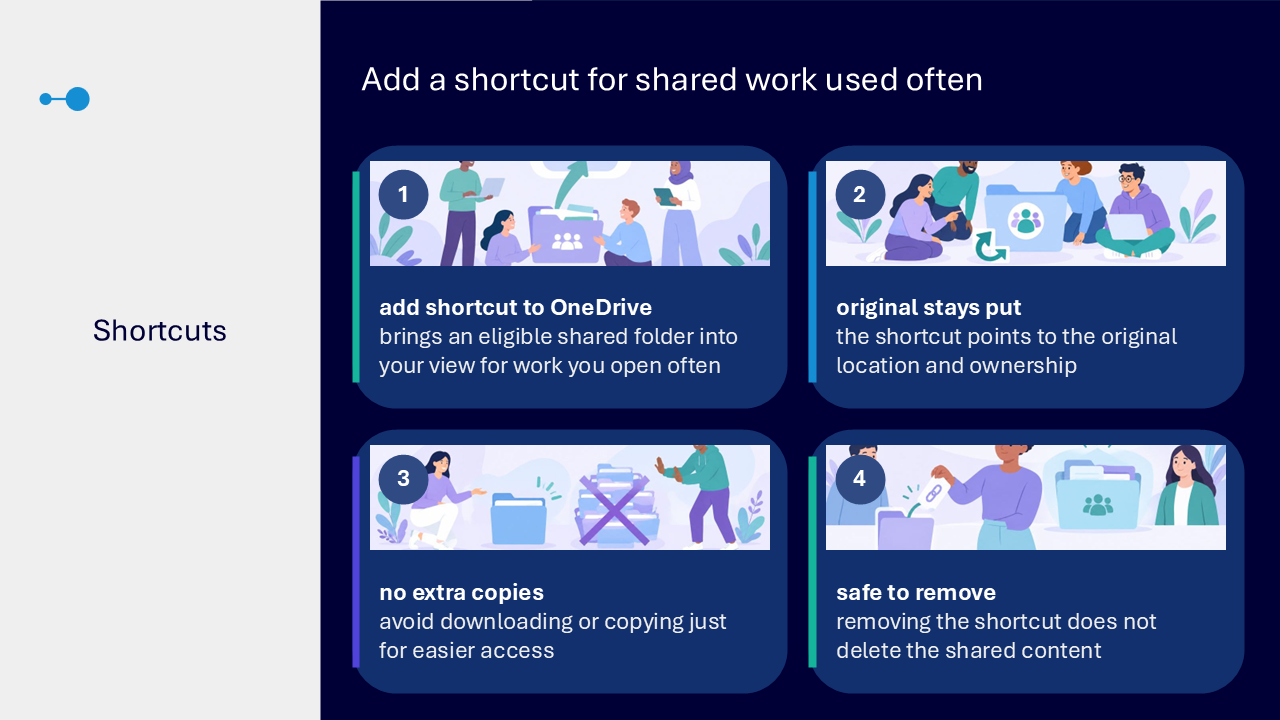
Add shortcut to OneDrive brings an eligible shared folder into your OneDrive view. The shortcut continues to point to the original location and ownership.
- use a shortcut for shared work you open regularly
- avoid downloading or copying a file only to make access easier
- remove the shortcut without deleting the shared content
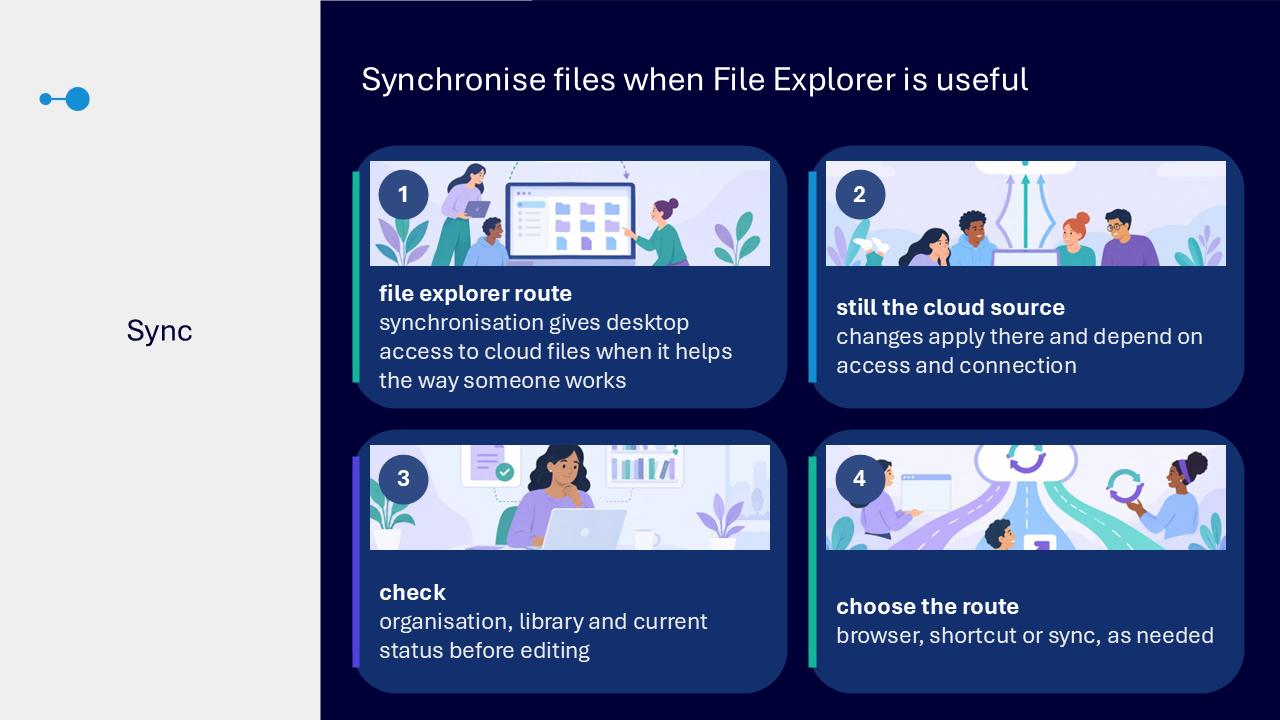
Synchronisation creates a File Explorer route to cloud files. Changes still apply to the cloud source and depend on your access and connection.
- use synchronisation when desktop access supports the way you work
- confirm the organisation, library and current status before editing
- choose the browser, a shortcut or synchronisation according to the route you need
What the visuals and demonstrations showed
The session uses a practical decision flow rather than relying on the slide layout. It moves from owner, audience and purpose to location and then to a reliable way to find the work again.
- selecting OneDrive for a personal draft
- using a Teams channel for a team-owned working file
- using SharePoint for shared or published information
- tracing a Teams channel file into its connected SharePoint library
- renaming a vague file so its subject and purpose are clear
- using proportionate folders or metadata
- returning through recent work and Search
- adding a OneDrive shortcut to shared work used often
- using synchronisation when File Explorer is the helpful route
Key takeaways
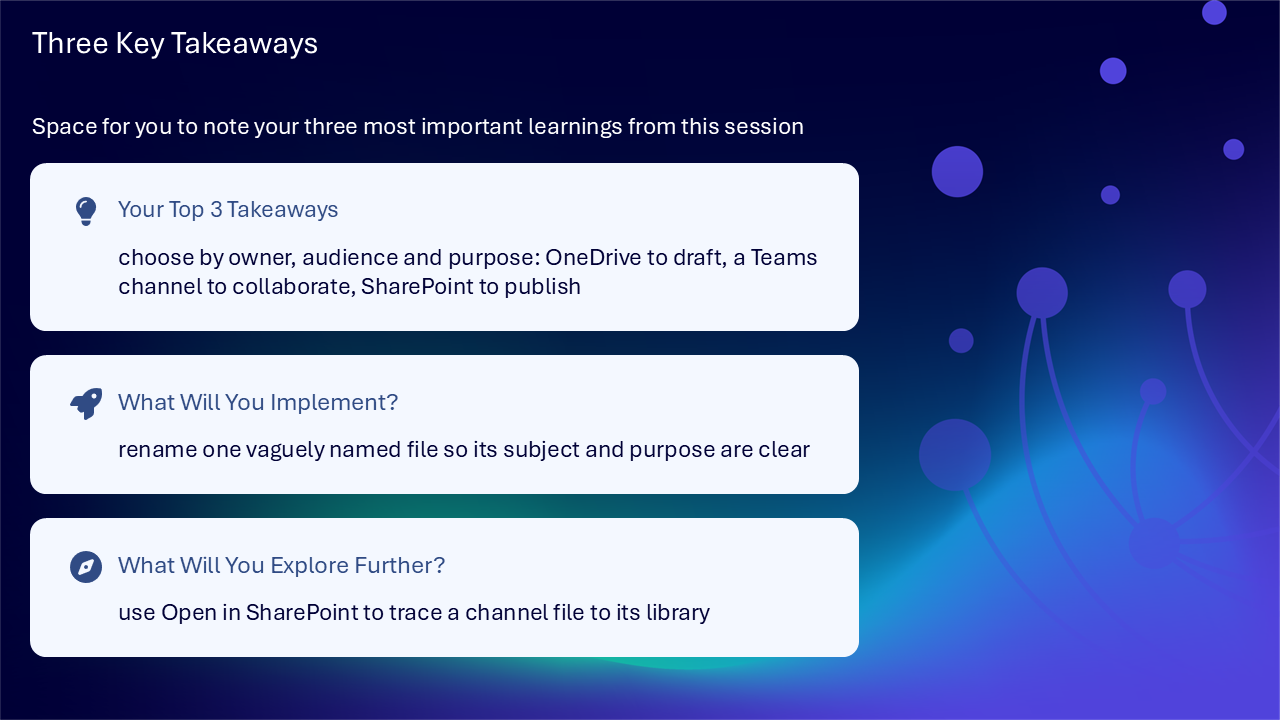
- choose by owner, audience and purpose: OneDrive to draft, a Teams channel to collaborate, and SharePoint to publish
- Teams channel files are stored in a connected SharePoint site, so Teams and SharePoint can be two routes to the same file
- make work easier to find through clear names, proportionate structure, Search and reliable return routes
A clear decision route
- identify who owns the information
- separate contributors from people who mainly read
- decide whether the work is being drafted, collaborated on or published
- choose OneDrive, a Teams channel or SharePoint
- preserve a reliable route back through names, Search and structure
- revisit the location when ownership or audience changes
Actions you can take
Try the tip of the month
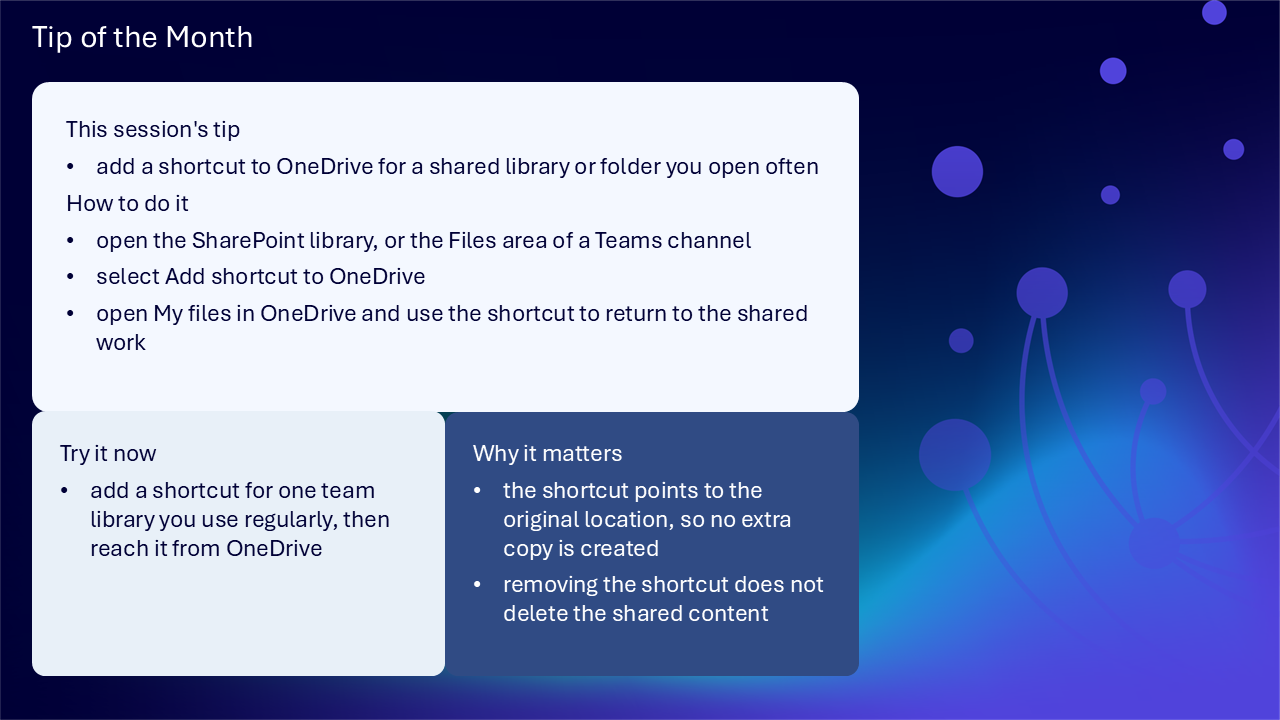
This session’s tip: add a shortcut to OneDrive for a shared library or folder you open often
How to do it:
- Open the SharePoint library or the Files area of a Teams channel.
- Select Add shortcut to OneDrive.
- Open My files in OneDrive and use the shortcut to return to the shared work.
Why it matters: the shortcut points to the original shared location, so no extra copy is created. Removing the shortcut does not delete the shared content.
Try it now: add a shortcut for one team library you use regularly, then reach it from OneDrive.
Build confidence with one reliable route
- rename one vaguely named file so its subject and purpose are clear
- use Open in SharePoint to trace a channel file to its library
- check whether one file belongs to an individual, a team or the organisation
- find a recent file again using a distinctive search clue
- test whether another person can follow the folder, metadata or navigation route
- choose one shared folder that would be easier to reach through a OneDrive shortcut
Questions and feedback
Questions are welcome. If something is unclear, ask for it to be explained another way or demonstrated again. Feedback helps WeChange.AI understand what matters to you.
Complete the Support and Skilling Week feedback form
Contact WeChange.AI
For skilling queries, email training@wechange.ai.
- Andrew Boxall, Managing Director: andrew@wechange.ai
- Paul Ford, Industry Director for Education and Philanthropies: paul@wechange.ai
- Josh Wilson, Industry Specialist: josh@wechange.ai
- Elle Avilla, Customer Success and Delivery Skilling Lead: elle@wechange.ai
- Izzy Pochin, Resources and Accessibility Lead: izzy@wechange.ai
Activity sheet
Follow the route at your own pace. Choose by ownership, audience and purpose, then keep a reliable route back.
How to use this activity sheet
This sheet supports Session 2: OneDrive, Teams and SharePoint. Use it after the live session, or follow selected steps while your trainer demonstrates them. The activities move from choosing a suitable location to finding the same work again.
- work at your own pace and pause after each activity
- use practice files or non-sensitive work content
- use the web versions of OneDrive, Teams and SharePoint unless your trainer gives a different route
- your screen may look different because your organisation controls licences, settings, permissions and available features
- if a step does not match your screen, note what you can see and ask your trainer or local support team
- do not move, rename, synchronise or share a live team file unless you have permission
What you will achieve
- explain how OneDrive, Teams and SharePoint support different stages of work
- distinguish personal drafts, team-owned working files and published information
- choose a location by ownership, contributors, readers and purpose
- recognise that Teams channel files are stored in connected SharePoint sites
- use clear names, manageable structure, Recent and Search to return to work
- add a OneDrive shortcut to shared work used often
- recognise when synchronisation can provide a File Explorer route
Your learning route
| Stage | You will practise |
|---|---|
| 1. Decide where work belongs | owner, audience, purpose and stage |
| 2. Use OneDrive for a personal draft | create, name and find an individual working file |
| 3. Use Teams for team-owned work | recognise one shared working copy and its context |
| 4. Trace Teams files into SharePoint | follow another route to the same shared file |
| 5. Make work easier to find | clear names, folders, metadata, Recent and Search |
| 6. Create a reliable return route | add a OneDrive shortcut and recognise synchronisation |
| 7. Apply the decision route | choose locations for realistic public and third sector examples |
Before you start
- sign in with your work or learning account
- open OneDrive, Teams and SharePoint in your browser if they are available to you
- choose a safe practice file, or create a blank Word document containing no personal, confidential or service-user information
- open this activity sheet on screen or use a printed copy
- complete one activity at a time; you do not need to finish everything in one sitting
Notice: The labels and routes available to you depend on your organisation. If a button is missing, this may be a permissions, licence or organisational setting rather than something you have done incorrectly.
Activity 1: Decide where work belongs
Outcome: Use owner, audience and purpose to choose a suitable starting point.
Use the five-question decision route
- owner: who keeps the information accurate and available
- sudience: who contributes, reviews or reads it
- purpose: is the work a personal draft, active collaboration or published information
- location: should the starting point be OneDrive, a Teams channel or SharePoint
- find: what dependable route will help people return to it
Compare the three starting points
| Location | Best starting point | Ownership and audience |
|---|---|---|
| OneDrive | personal draft or individual working file | individual owner, with selected sharing when needed |
| Teams channel | active team collaboration | team-owned file linked to conversation and context |
| SharePoint | shared library or published information | organisation-owned content for an established or wider audience |
Try three short scenarios
Scenario: You are drafting a briefing that you own and only one colleague will review.
My starting point and reason: __________________________________________________________________
Scenario: A service team is developing one shared procedure and discussing changes together.
My starting point and reason: __________________________________________________________________
Scenario: An approved policy must be available as an authoritative source for a wider audience.
My starting point and reason: __________________________________________________________________
Notice: A file may move as ownership or audience changes. The first location does not have to remain the final location.
Pause and check
☐ I can identify the owner, audience and purpose
☐ I can distinguish drafting, collaboration and publishing
☐ I can explain why I chose a starting point
Activity 2: Use OneDrive for a personal draft
Outcome: Create or identify a personally owned working file, give it a clear name and return to it.
Create or choose a practice file
- Open OneDrive for work or school in your browser.
- Open My files.
- Select New, then choose Word document, or use an existing safe practice file.
- Add one or two lines of practice text.
- Confirm that the file is saved in your OneDrive location.
Rename the file so it explains itself
- Select the file, or open its More options menu.
- Choose Rename.
- Use a name that includes the subject and purpose, for example Community outreach briefing – draft.
- Add a date, period or status only if it helps people recognise the file.
- Avoid vague names such as Final, New document or Copy.
My clear practice file name is: __________________________________________________________________
Return through Recent or Search
- Move away from the file by opening another OneDrive area.
- Open Recent and look for the practice file.
- Check the file name and location before opening it.
- Try Search using one distinctive word from the file name.
- Open the result only after confirming that it is the correct item.
Notice: OneDrive is a suitable starting point while you personally own and develop the working file. Selective sharing does not automatically make it team-owned.
Pause and check
Activity 3: Recognise team-owned work in Teams
Outcome: Identify a channel file as one shared working copy connected to team conversation and context.
Open a safe channel and inspect its files
- Open Teams in your browser.
- Open a team and standard channel that your trainer has identified for practice.
- Open the Files or Shared area shown for that channel.
- Find the prepared practice file and keep its distinctive name visible.
- Open the file and notice that the working copy sits alongside the channel context.
Check whether the location matches the work
- does the team or service own this work
- do contributors need one shared working copy
- do discussions and decisions belong alongside the file
- does channel membership match the people who need to contribute
The reason this file belongs in the channel is: __________________________________________________________________
Channel files and chat files
Both can appear in Teams, but they may have different ownership and availability. A channel file belongs with the team and connected SharePoint site. A file shared in a chat may remain in the sender’s OneDrive.
- check the file details or open its location when ownership matters
- use an agreed channel or library for enduring team work
- do not rely on a chat attachment as a team record until ownership and availability are clear
Pause and check
Activity 4: Trace a Teams channel file into SharePoint
Outcome: Follow another route to the same shared file and confirm that no new copy is created.
Follow the connected route
- Return to the prepared practice file in the Teams channel.
- Keep the distinctive file name visible.
- Use Open in SharePoint from the channel file area or file menu.
- In the SharePoint document library, find the same file name.
- Open the file and compare the practice content.
- Return to Teams and confirm that you are looking at another route to the same shared item.
Notice: For a standard Teams channel, SharePoint stores the channel files. Changes through Teams or SharePoint update the same shared file.
Record the connected landmarks
Team name: __________________________________________________________________
Channel name: __________________________________________________________________
SharePoint site or library name: __________________________________________________________________
Distinctive file name: __________________________________________________________________
Check before you edit or share
- confirm the file name
- confirm the team, site or library location
- confirm that you have the expected access
- check that the item is the shared working copy, not a downloaded or copied version
Pause and check
Activity 5: Make shared work easier to find
Outcome: Use proportionate names, structure, Recent and Search without creating unnecessary complexity.
Improve one unclear name
Use a practice item supplied by your trainer, or write an improved name without renaming a live file.
Unclear name: __________________________________________________________________
Improved name: __________________________________________________________________
- include the subject and purpose
- use wording the intended audience understands
- add a date, period or status only when useful
- avoid labels such as final, new document or copy
Choose folders or metadata proportionately
Look at a safe document library. Identify the structure already available before suggesting anything new.
- use simple folders when they provide a familiar route
- use metadata for details such as service, document type or review status when it adds value
- avoid deep folders or numerous fields that create extra decisions
- test whether another person could follow the route
One existing route that is easy to follow: __________________________________________________________________
One possible improvement, if needed: __________________________________________________________________
Search using distinctive clues
- Start Search with one distinctive word from the subject or file name.
- Review the first results and check their locations.
- Add a location, file type, person or approximate period only if needed.
- Refine the search in stages rather than beginning with a long phrase.
- Confirm ownership and location before editing or sharing.
Notice: Recent is a convenient return route, but not the only one. Pair it with Search and a known team or site location.
Pause and check
Activity 6: Add a shortcut to shared work used often
Outcome: Bring an eligible shared folder into your OneDrive view without creating another copy.
Add the shortcut
- Open the SharePoint library, or the Files area of a Teams channel, identified for practice.
- Select the eligible shared folder.
- Select Add shortcut to OneDrive.
- Open OneDrive and then My files.
- Find the shortcut and use it to return to the shared work.
Check what the shortcut means
- the shortcut points to the original shared location
- the original ownership and permissions still apply
- you have not downloaded or created another copy
- removing the shortcut does not delete the shared content
The shared folder I can now reach from OneDrive is: __________________________________________________________________
Notice: Use a shortcut for shared work you open regularly. Your organisation may limit which locations are eligible.
Pause and check
Activity 7: Recognise synchronisation
Outcome: Understand when a File Explorer route may support the way you work.
Inspect the route before using it
- Open a SharePoint document library that your organisation allows you to synchronise.
- Look for Sync, but do not select it unless your trainer or organisation permits this.
- Confirm the organisation, site and library name.
- Identify where the library would appear in File Explorer on your device.
- Discuss whether browser access, a OneDrive shortcut or synchronisation is the most useful route.
Notice: Synchronisation creates a File Explorer route to cloud files. Changes still apply to the cloud source and depend on your access and connection. Device management rules may affect whether Sync is available.
For this shared work, my most useful route is: __________________________________________________________________
My reason is: __________________________________________________________________
Pause and check
Activity 8: Apply the complete decision route
Outcome: Choose a location and a dependable way back for realistic work scenarios.
Scenario 1
A community engagement officer is developing an early draft survey. They own the draft and will ask two colleagues to review it.
Owner: __________________________________________________________________
Audience: __________________________________________________________________
Purpose: __________________________________________________________________
Location: __________________________________________________________________
Reliable route back: __________________________________________________________________
Scenario 2
A safeguarding team is jointly updating a working procedure. Discussion and decisions need to remain with the shared file.
Owner: __________________________________________________________________
Audience: __________________________________________________________________
Purpose: __________________________________________________________________
Location: __________________________________________________________________
Reliable route back: __________________________________________________________________
Scenario 3
An approved grants policy needs to be available as the current authoritative source for staff across the organisation.
Owner: __________________________________________________________________
Audience: __________________________________________________________________
Purpose: __________________________________________________________________
Location: __________________________________________________________________
Reliable route back: __________________________________________________________________
Scenario 4
A volunteer coordinator regularly opens a shared events folder owned by their team and wants a quicker route from OneDrive.
Owner: __________________________________________________________________
Audience: __________________________________________________________________
Purpose: __________________________________________________________________
Location: __________________________________________________________________
Reliable route back: __________________________________________________________________
Use the route when work changes
- revisit the location when ownership changes
- revisit the location when the audience changes
- move the controlled version when responsibility transfers to a team
- keep unfinished working material separate from published information
- preserve a reliable route back through names, Search and structure
Pause and check
Quick reference: choose and return
| If the work is… | Start with… | Return through… |
|---|---|---|
| a personal draft or individual working file | OneDrive | My files, Recent or Search |
| active, team-owned collaboration | a relevant Teams channel | the channel, connected SharePoint library or Search |
| shared or published organisational information | SharePoint | site navigation, library, Search or an approved shortcut |
A clear route through your work
- identify who owns the information
- separate contributors from people who mainly read
- decide whether the work is being drafted, collaborated on or published
- choose OneDrive, a Teams channel or SharePoint
- use a meaningful name and proportionate structure
- preserve a reliable route back through a known location, Recent, Search, shortcut or synchronisation
- revisit the location when ownership or audience changes
Your three takeaways
My most useful learning: __________________________________________________________________
What I will implement: __________________________________________________________________
What I will explore further: __________________________________________________________________
If you need help
- describe what you were trying to do
- say whether you started in OneDrive, Teams or SharePoint
- provide the file name and the location you expected
- note the exact wording of any message shown on screen
- ask whether permissions, licences, organisational settings or device management affect the route
- avoid sharing sensitive content or screenshots containing personal information unless an approved support process requires it
Notice: Confidence grows through repeatable routes, not through remembering every possible route.
Reflective journal
Why we ask you to reflect
Continuing Professional Development (CPD) is formative and it is about what it achieves for you and your organisation.
Instead of formally assessing your learning, we ask you to write a reflective note. This should reflect on how the learning was relevant and how it will impact your working practices.
Taking time to reflect on your learning makes it more likely you will embed it in your future practice.
What to cover and when
What your reflection should cover
- how the learning was relevant to you
- how the learning will impact your practice
When to complete it
Reflect as soon as possible following the skilling session. This keeps your note contemporaneous (written close to the time) and meaningful. Fill it in on your device, so the boxes expand as you type.
| Topic | What to know |
|---|---|
| Timing | Complete the note as soon as possible after the training event. |
| Purpose | To embed the learning within your subsequent practice. |
| Focus | How the learning was relevant and how it will impact your practice. |
Your reflective note
Complete each row below. Write in your own words. Your notes are private to you unless you choose to share them.
| Prompt | Your response |
|---|---|
| Skilling session title | |
| Date of the skilling session | |
| Date you completed this note | |
| How was the learning relevant to you and your work? | |
| How will the learning impact your practice? |
Recommended resources
These curated resources accompany the WeChange.AI skilling offer of Continuing Professional Development (CPD) accredited, and non-accredited, sessions. Use them before a session to build familiarity, or afterwards to revisit and apply the learning in day-to-day work.
Alongside these resources, Navigator helps WeChange.AI customers find personalised recommendations and available learning on Microsoft 365 tools, accessibility and AI relevant to their role. Returning to Navigator after a session can help you connect new knowledge with practical workplace needs, choose a useful next step and keep learning visible as confidence grows
An introduction to creating, managing and sharing files in OneDrive and SharePoint. It helps you see how personal storage and shared team storage fit together before you decide where a file should live.
Explains that files shared in a channel are stored in the team’s SharePoint folder, while files sent in a chat are stored in your OneDrive and shared only with people in that conversation. Knowing this makes it easier to find a file again.
Shows how to add shared folders to My files so they sit alongside your own work. Shared folders added this way do not use your own OneDrive storage space.
Explains the two options for bringing SharePoint and Teams files to your computer: OneDrive shortcuts, which work across devices, or the Sync button, which is tied to one device. It also covers how to change what syncs.
The OneDrive support hub, with guides, troubleshooting tips and training materials in one place. A good bookmark when you want to look something up later.
The SharePoint support hub, with resources for managing documents and working together. Helpful for seeing what else sites and libraries can do.
The Teams help centre, with guidance across everyday features. Useful when you want to explore how Teams connects with your files.