

Accessible summary
What this session covers
This foundational session explains how to choose an appropriate Teams space, communicate clearly, prepare and run inclusive meetings, and leave a usable record. It follows one connected journey from the Events app through to meeting Recap, Whiteboard and next steps.
- choosing between chat, a channel and a meeting
- writing messages with clear context and an explicit response
- preparing meeting options and participation routes
- sharing content accessibly during a meeting
- using Whiteboard to capture and organise contributions
- recording decisions, owners, actions and next steps
Making the session work for you
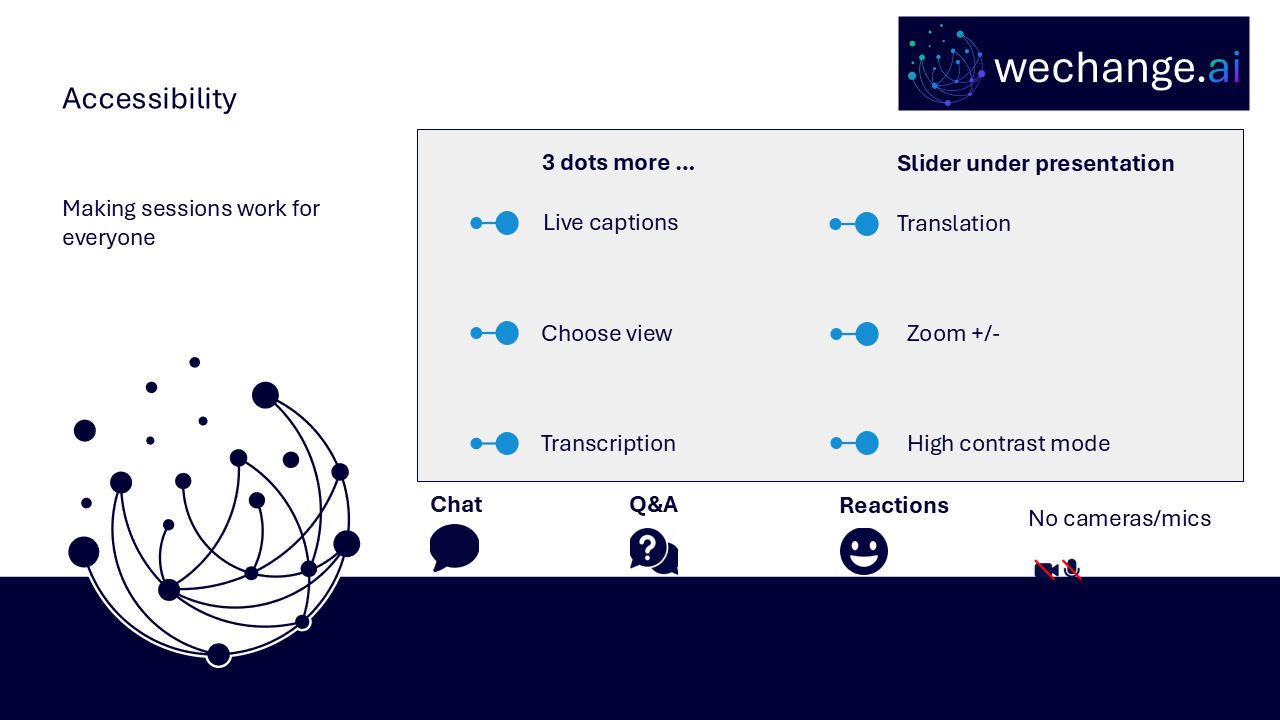
The session is delivered through a Microsoft Teams webinar using PowerPoint Live. You can personalise how you follow and take part. The session is recorded, and you can watch rather than follow along unless the trainer asks you to try something.
- use live captions or translation from the three-dots menu
- choose a view that gives you the clearest layout
- use the presentation slider to zoom in or out
- keep your camera and microphone off unless you are invited to use them
- use Q&A for questions and keep chat closed when you are not typing
- use reactions or another participation route if that works better for you
- share respectful feedback and use the key links provided in chat
Everyone is on a confidence spectrum
These sessions are for everyone, whatever your starting point. You do not need to remember every feature. The aim is to understand the meeting journey and identify a few dependable choices that improve communication, participation and follow-up.
Navigator and WeChange.AI
Navigator is a personalised platform for WeChange.AI customers. It helps you discover Microsoft 365 tools, resources and upcoming sessions relevant to your work.
WeChange.AI supports public and third sector organisations to use technology with confidence, purpose and impact. The focus is practical, people-centred change in day-to-day work.
Key concepts
The challenge
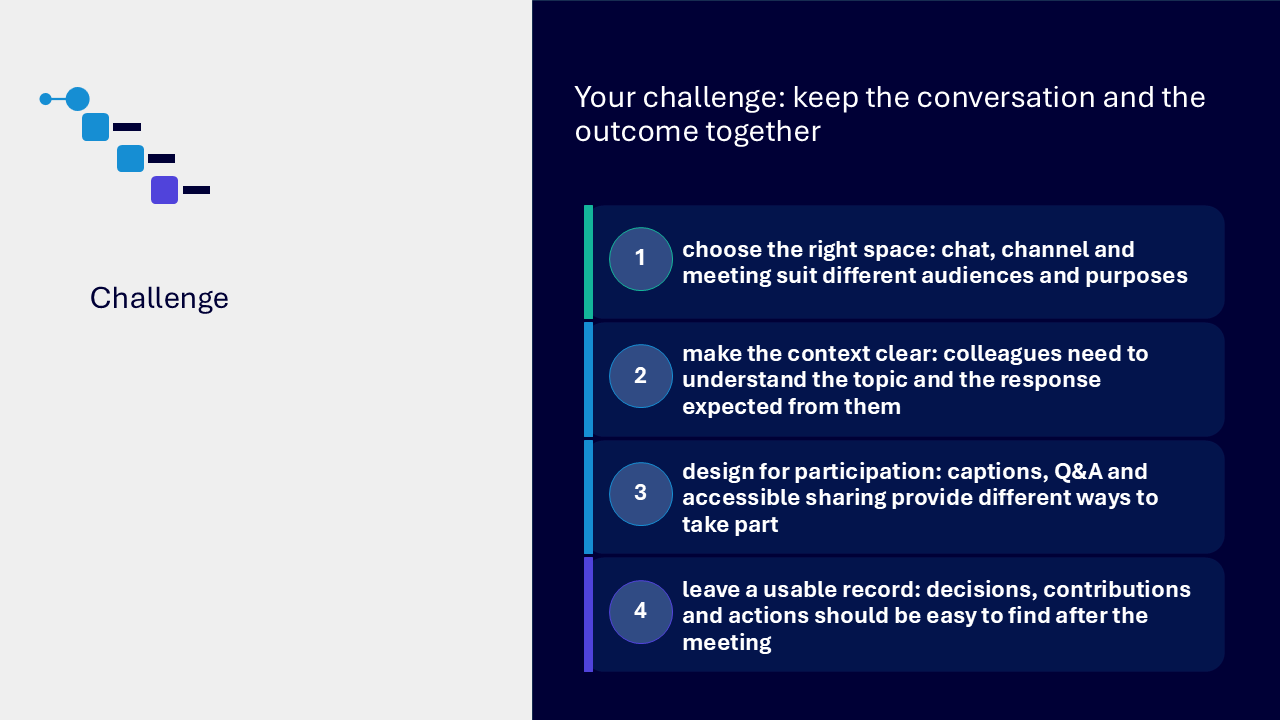
The challenge visual presents four connected needs. Choose a space that fits the audience and purpose, make the context and expected response clear, offer different ways to participate, and leave decisions and actions somewhere people can find them after the meeting.
Your route through the session
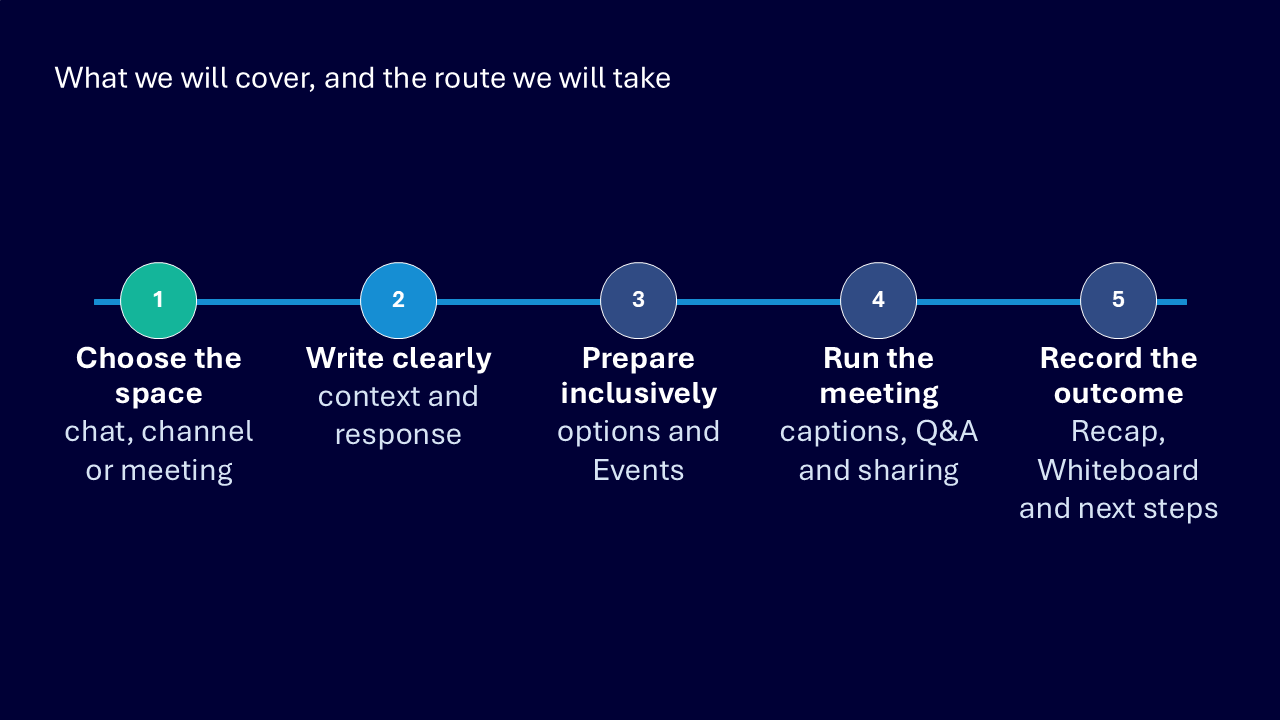
The route graphic presents five stages that keep the communication and its outcome connected.
- choose the space: chat, channel or meeting
- write clearly: purpose, context and response
- prepare inclusively: participation options and Events
- run the meeting: captions, Q&A and accessible sharing
- record the outcome: Recap, Whiteboard and next steps
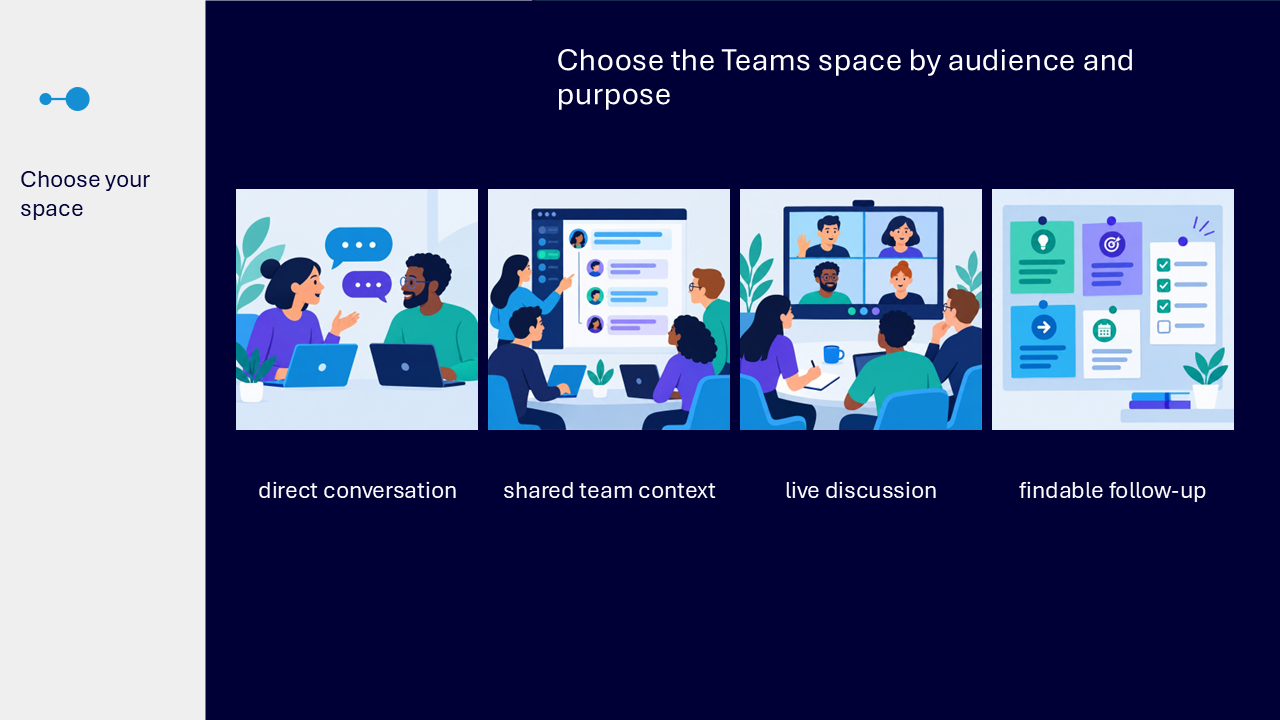
Choose the Teams space by audience and purpose
Chat, channels and meetings serve different communication needs. Consider both who needs the information now and where decisions or next steps should remain visible afterwards.
- use a one-to-one or group chat for a focused set of people
- use a channel when the conversation belongs with wider team work
- use a meeting when live discussion or collaboration will improve the work
- choose a space that gives people a dependable route back to the outcome
Use chat for focused conversations
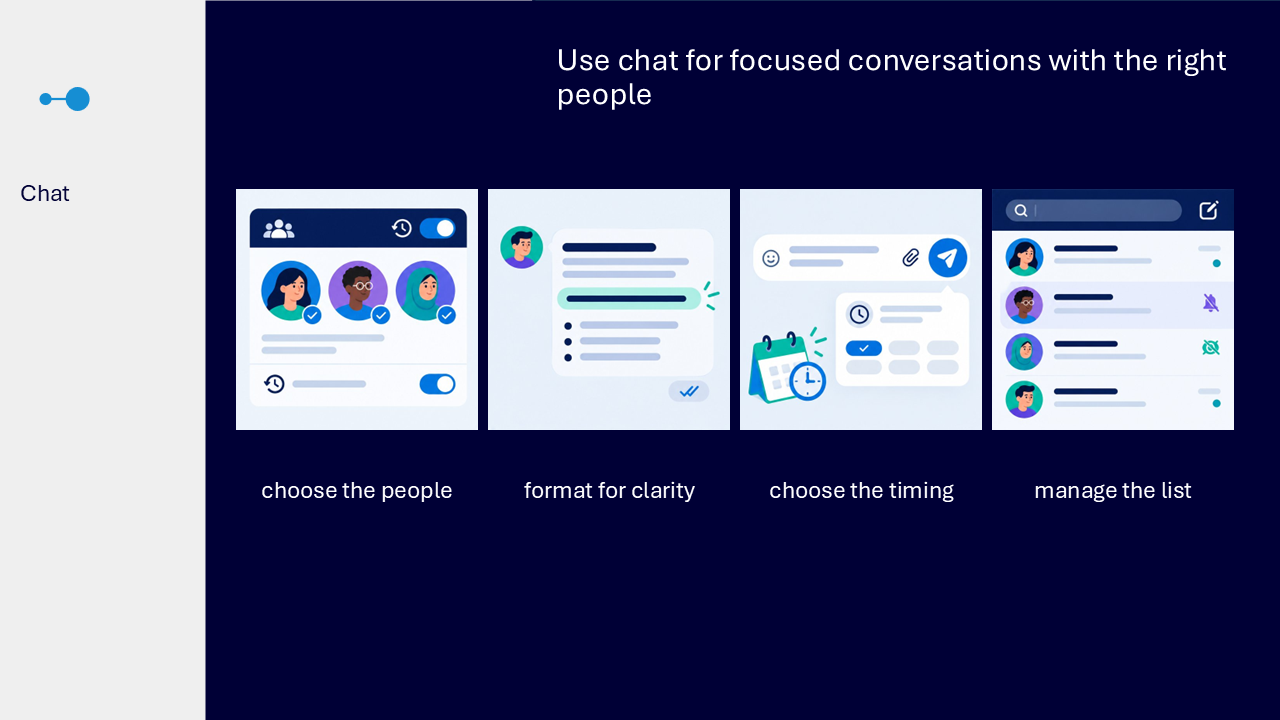
Chat supports direct conversations with one person or a group. The visual highlights choices that make a chat easier to understand and manage.
- select the people and choose a suitable history option for a group chat
- format the message so its purpose and important detail are easy to scan
- use schedule send when the message should arrive at a more suitable time
- leave, hide or mute chats that no longer need the same level of attention
Use channels for shared team context
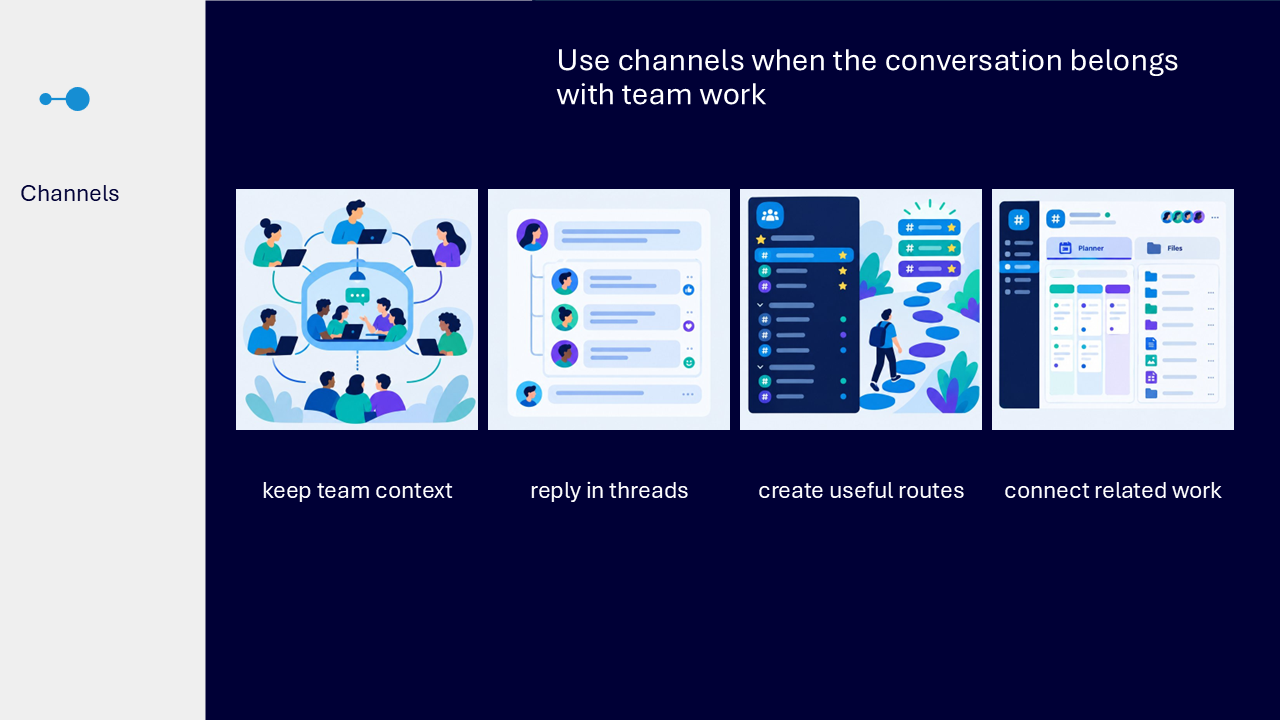
A channel places communication within the relevant Team and its wider work. It gives colleagues a shared route to the conversation, connected files and other resources.
- reply in threads so related responses stay with the original post
- use sections and favourites to make important channels easier to return to
- use tabs such as Shared or Planner to keep related work close to the conversation
- preserve context so colleagues can understand the discussion without relying on a private chat
Use a meeting when live interaction helps
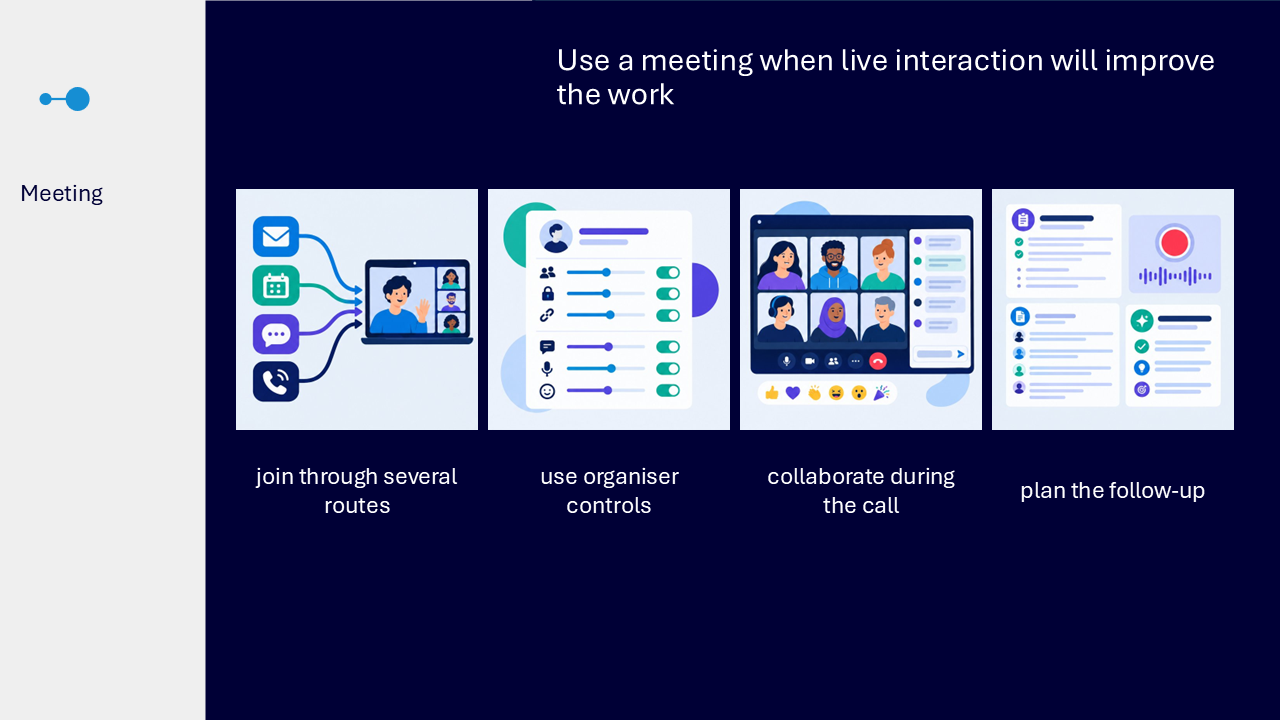
A Teams meeting is suitable when people need to talk or collaborate together in real time. People may join from an email link, calendar, chat, channel, direct call or a meeting started immediately.
- use organiser controls and meeting options to shape access and participation
- use meeting chat, participants, reactions and view choices during the live session
- plan how notes, recording, transcription or Recap will support follow-up where available
- use a meeting only when live participation supports the intended outcome
Write messages that make the next step obvious
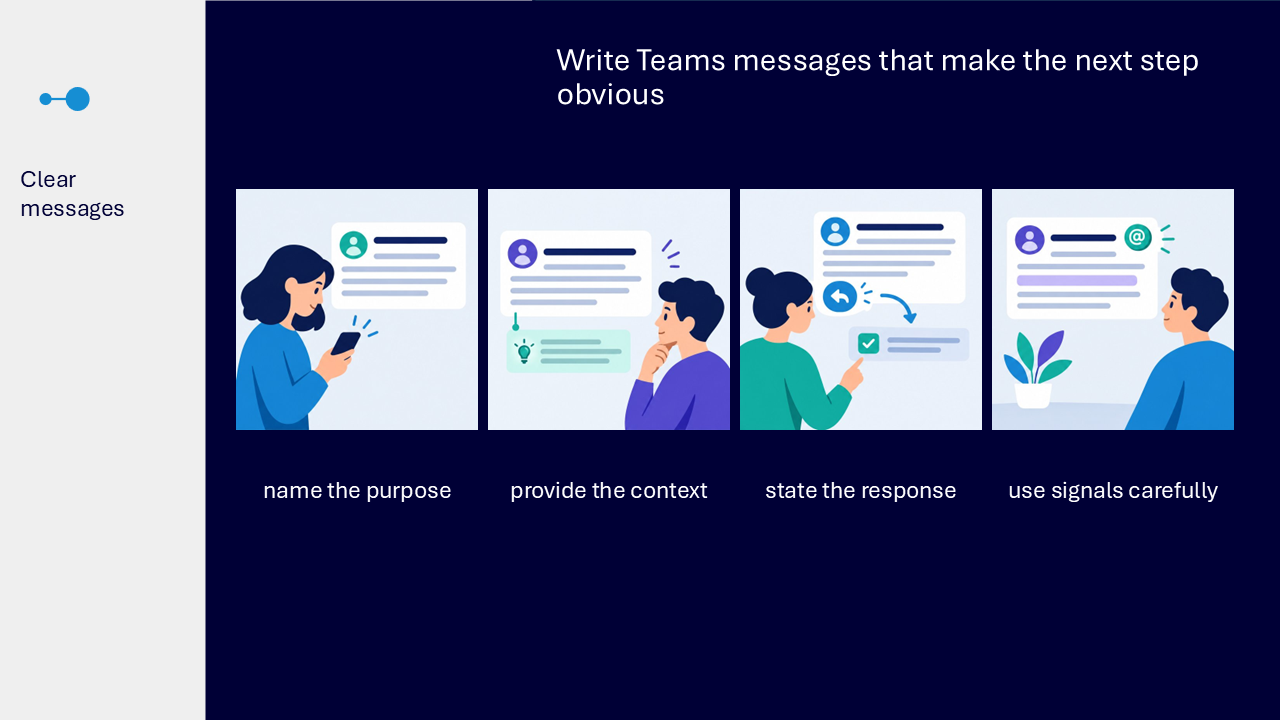
The clear-message visual uses a short sequence: name the purpose, provide the context, state the response and use attention signals carefully.
- start with what the message is about
- include only the context the audience needs
- make the expected reply, contribution or action explicit
- use formatting and @mentions selectively rather than making every line urgent
Keep communication organised and findable
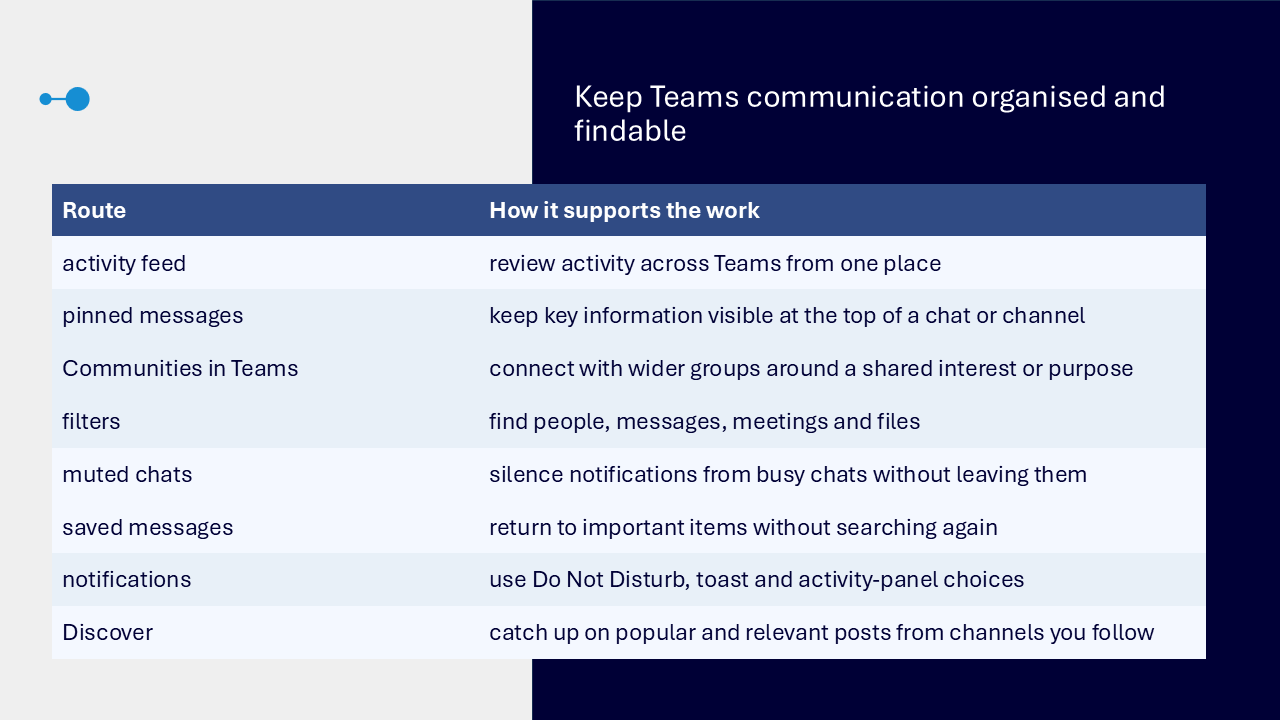
The comparison visual shows several return routes and attention controls in Teams.
- activity feed for reviewing activity across Teams
- pinned messages for keeping key information visible
- Communities in Teams for connecting with wider groups around a shared interest or purpose
- filters for finding people, messages, meetings and files
- muted chats for silencing notifications without leaving
- saved messages for returning to important items
- notification choices such as Do Not Disturb, toast notifications and the activity panel
- Discover for catching up on popular and relevant posts from channels you follow
Prepare an inclusive meeting
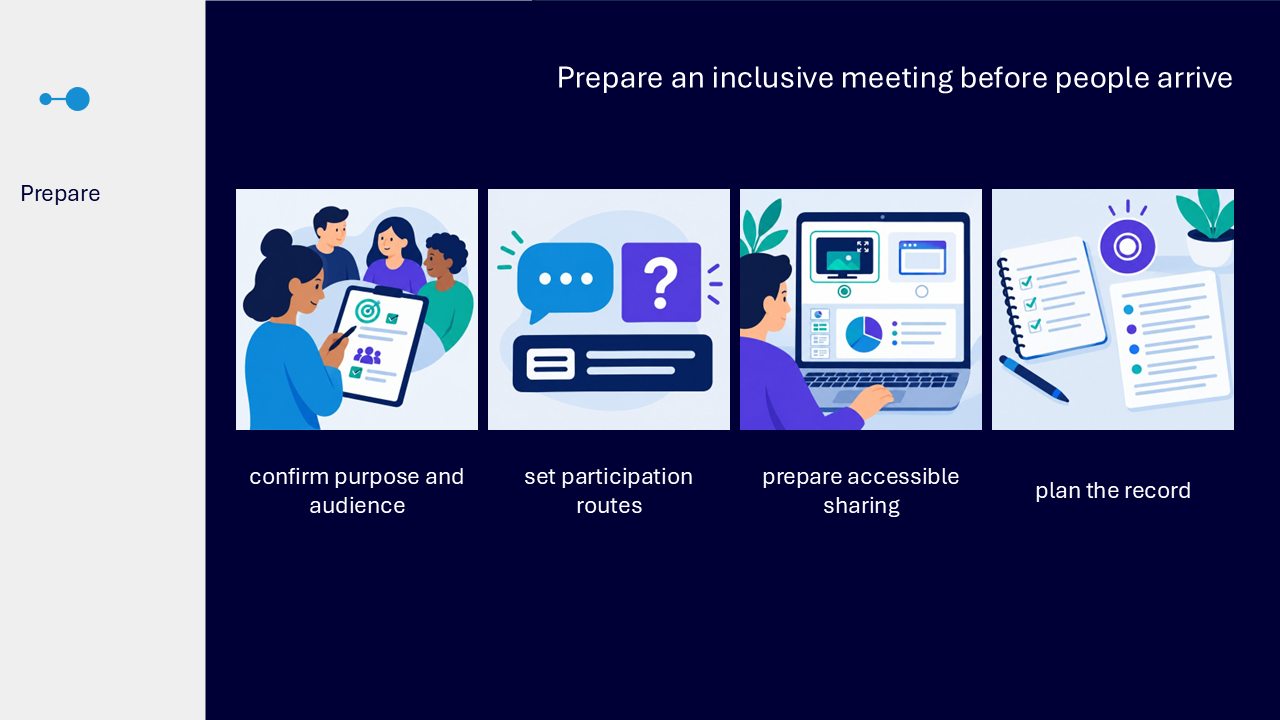
Preparation begins with the audience and intended outcome. Plan the participation routes, sharing method and meeting record before people arrive.
- confirm that live participation supports the purpose
- explain how chat, Q&A, captions and other participation options will be used
- choose the screen, window or Live experience that presents content clearly
- plan how notes, recording, transcription or follow-up information will be handled
- check organisational settings because feature availability may vary
Use Events to find and manage meeting information
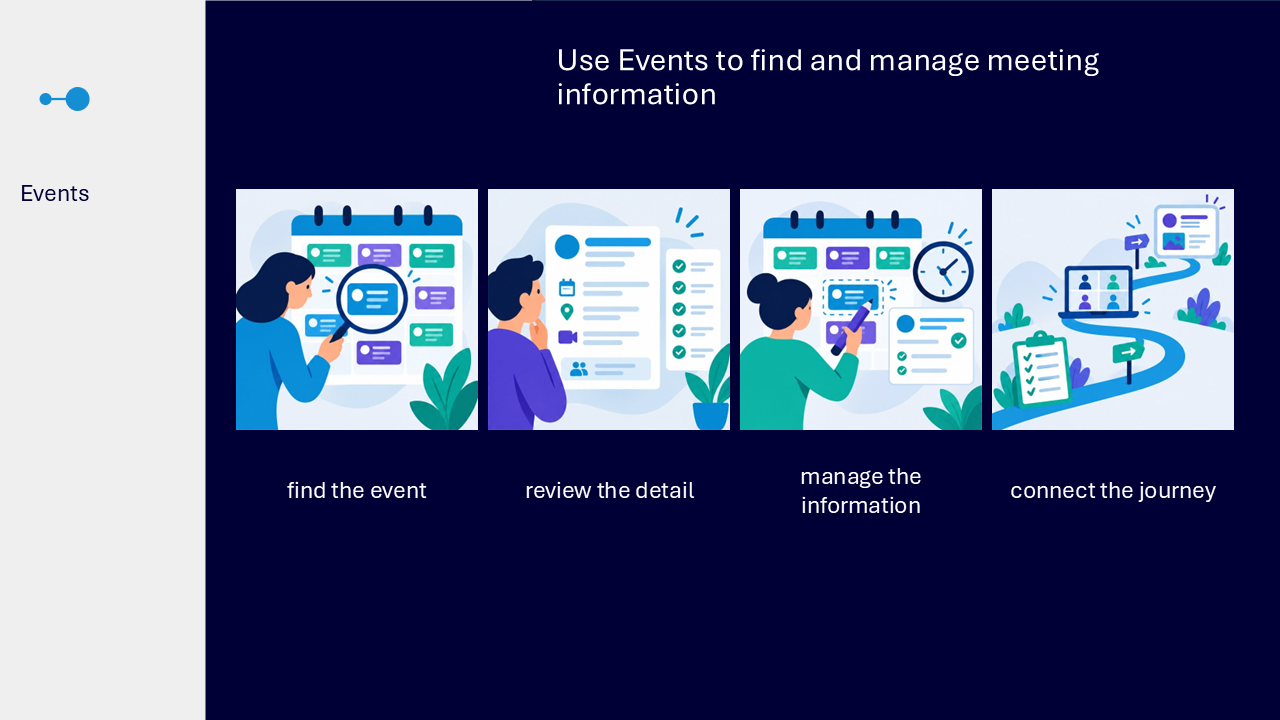
The Events app forms part of the journey from meeting preparation to follow-up. Use it to locate the relevant meeting or event, review the details needed for preparation and keep that information available as plans develop.
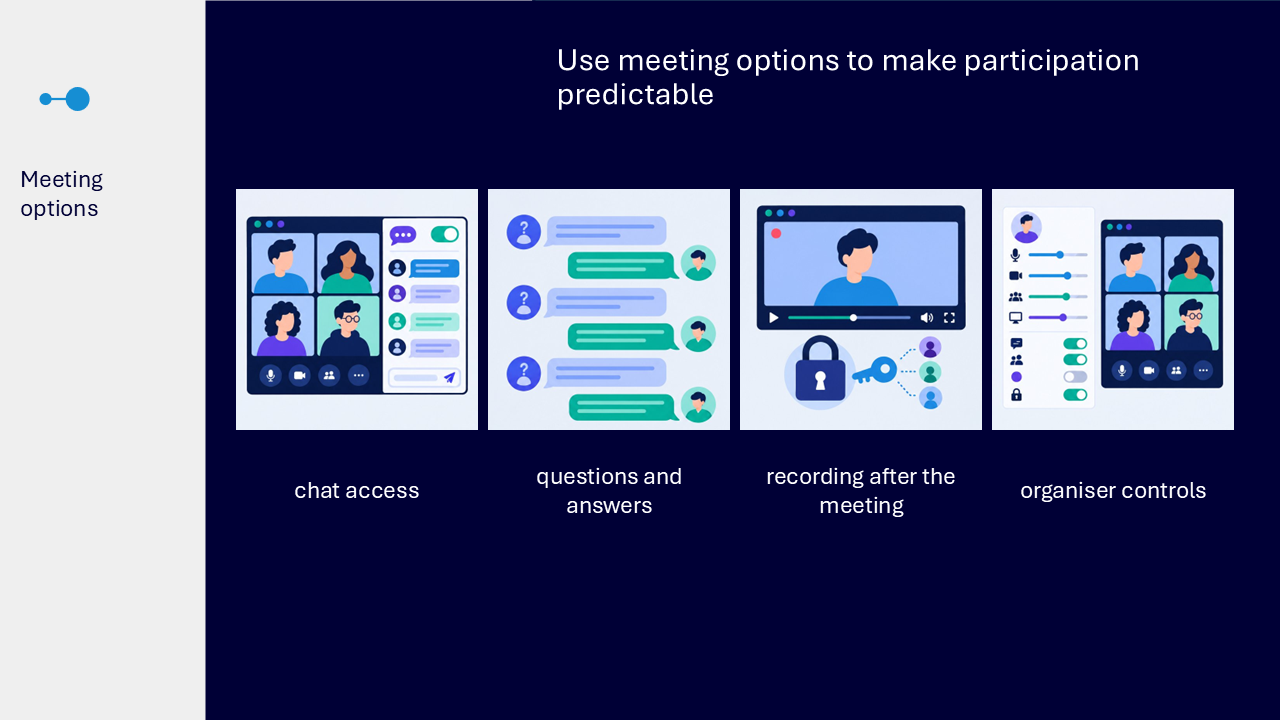
Use meeting options to make participation predictable
Meeting options help organisers shape the intended experience. Review only the controls relevant to the meeting and explain the chosen participation routes clearly.
- review how meeting chat will be available
- use Q&A when a structured route for questions will help
- consider what recording access may be available afterwards
- use organiser controls to support the planned meeting experience
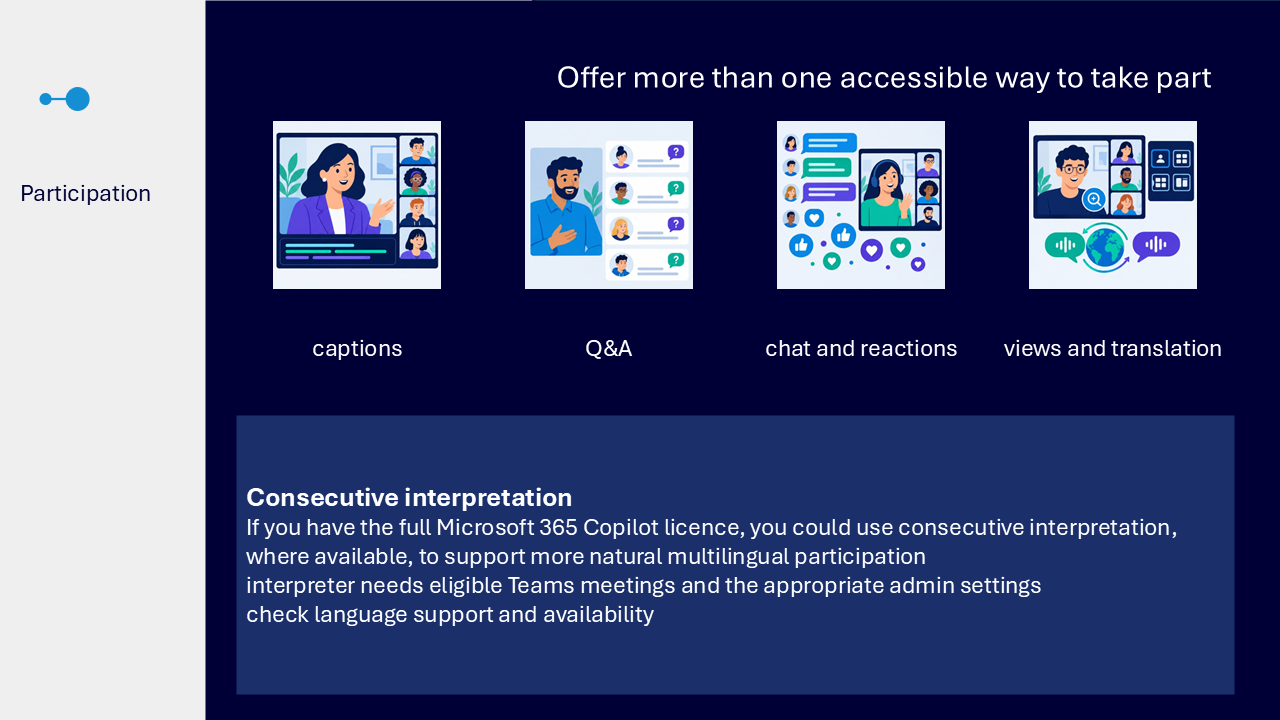
Offer more than one way to take part
The participation visual presents options rather than assumptions about what any individual needs. Explain the available routes at the start so participants can choose what works for them.
- signpost live captions so spoken content is also available as text
- use Q&A as a structured place to ask and review questions
- offer chat and reactions as lightweight ways to contribute
- signpost view, zoom and translation choices
If you have a full Microsoft 365 Copilot licence, consecutive interpretation may be available for eligible Teams meetings with the appropriate administrator settings. Check language support and availability before relying on it.
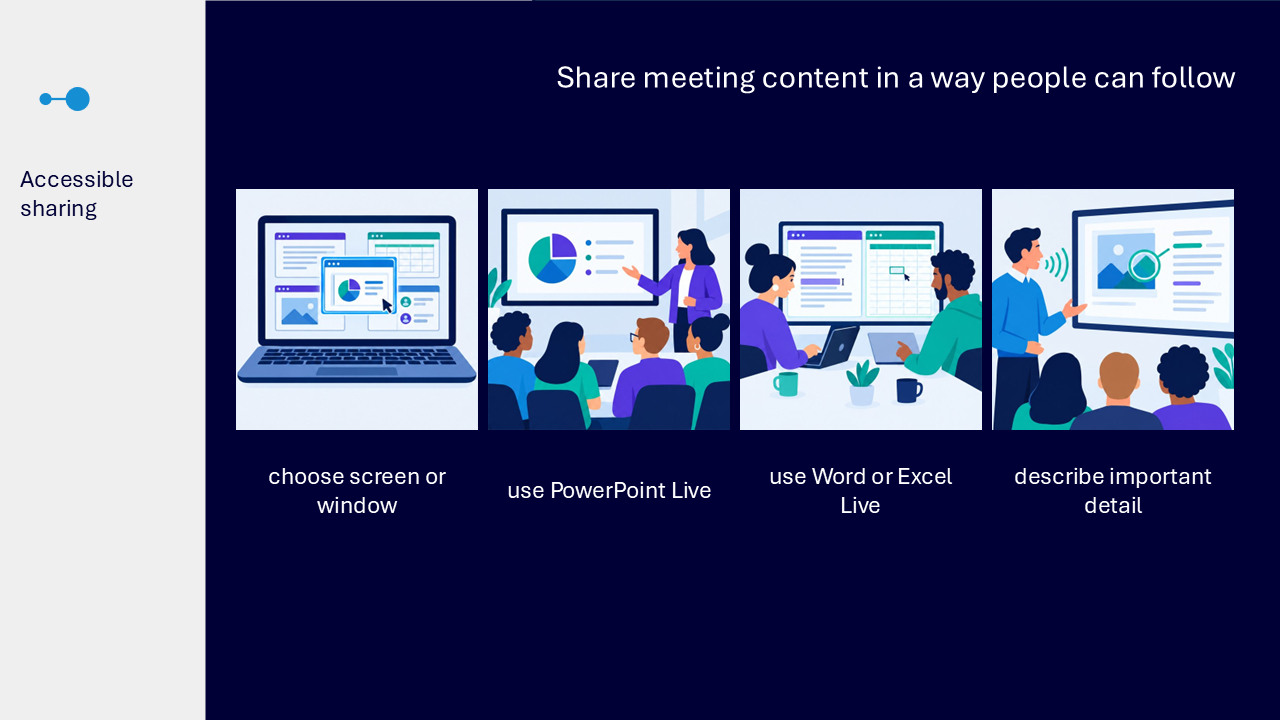
Share meeting content accessibly
The sharing visual compares several ways to present or collaborate. Choose the route that fits the content, share only what is needed and describe significant on-screen information as it appears.
- share a screen or window that keeps the audience oriented
use PowerPoint Live when presenting
- use Word or Excel Live when people need to collaborate with a document or spreadsheet
verbalise important visual information, relevant changes, and chat
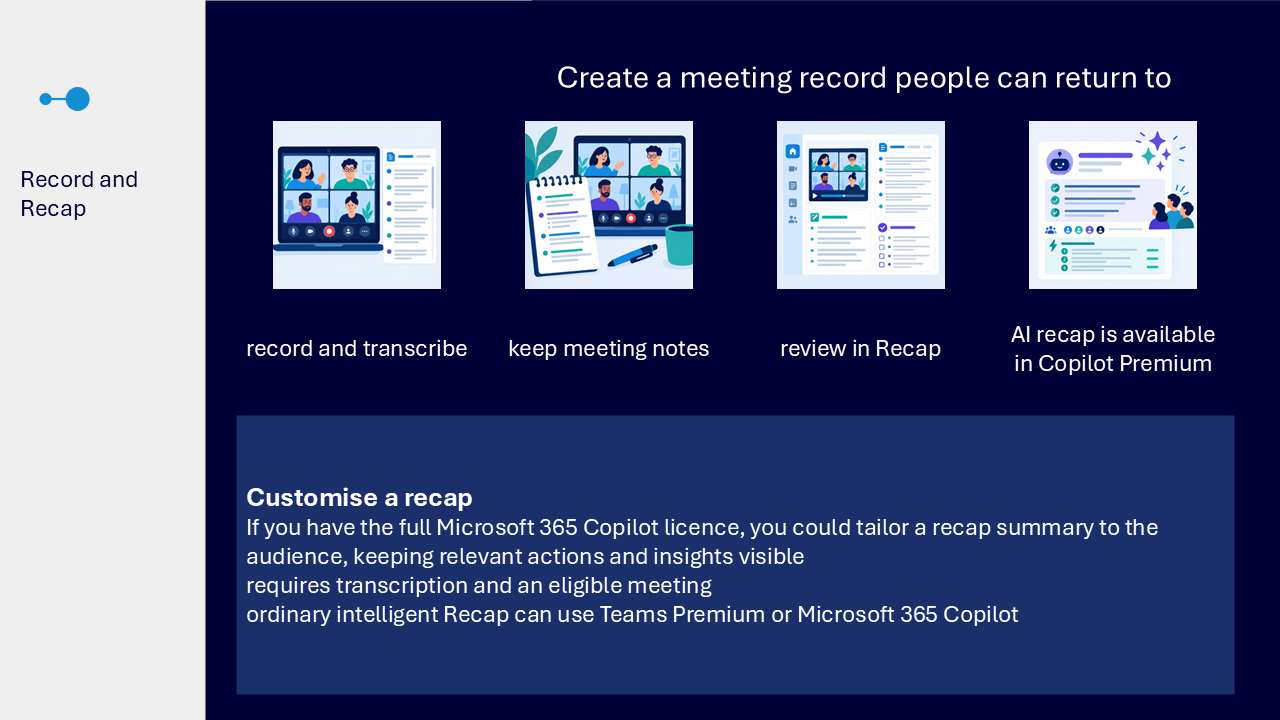
Create a meeting record people can return to
A useful meeting record reduces reliance on memory. Recording, transcription, notes and Recap may create different routes back to the discussion and follow-up information, depending on organisational settings.
- record and transcribe when available and appropriate
- capture useful meeting notes alongside the meeting
- use Recap to return to available recordings, transcripts, notes and follow-up information
- confirm what is available rather than assuming every meeting has the same record
A customised recap summary may be available with a full Microsoft 365 Copilot licence for an eligible transcribed meeting. Intelligent Recap may use Teams Premium or Microsoft 365 Copilot.
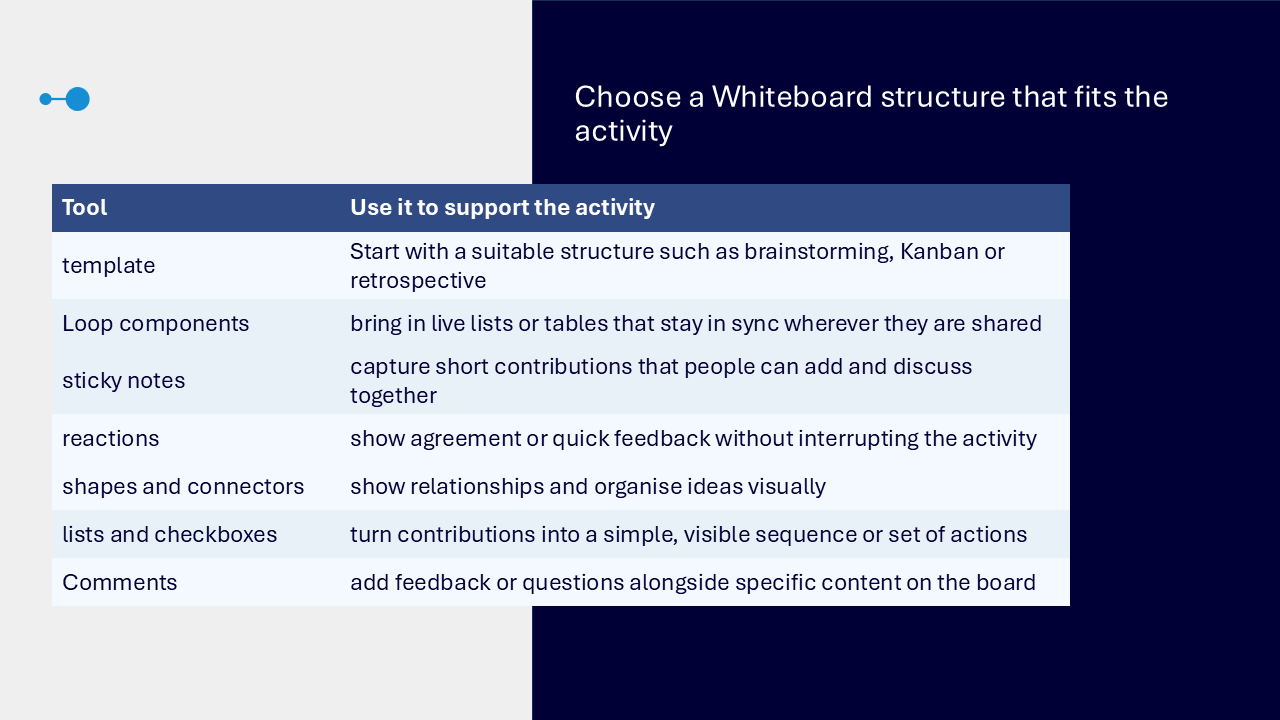
Choose a Whiteboard structure that fits the activity
The Whiteboard comparison connects each tool to a collaboration purpose.
- templates provide a starting structure such as brainstorming, Kanban or retrospective
- Loop components can bring in live lists or tables that remain in sync where they are shared
- sticky notes capture short contributions
- reactions show agreement or quick feedback
- shapes and connectors show relationships between ideas
- lists and checkboxes turn contributions into a visible sequence or set of actions
- comments add feedback or questions alongside specific board content
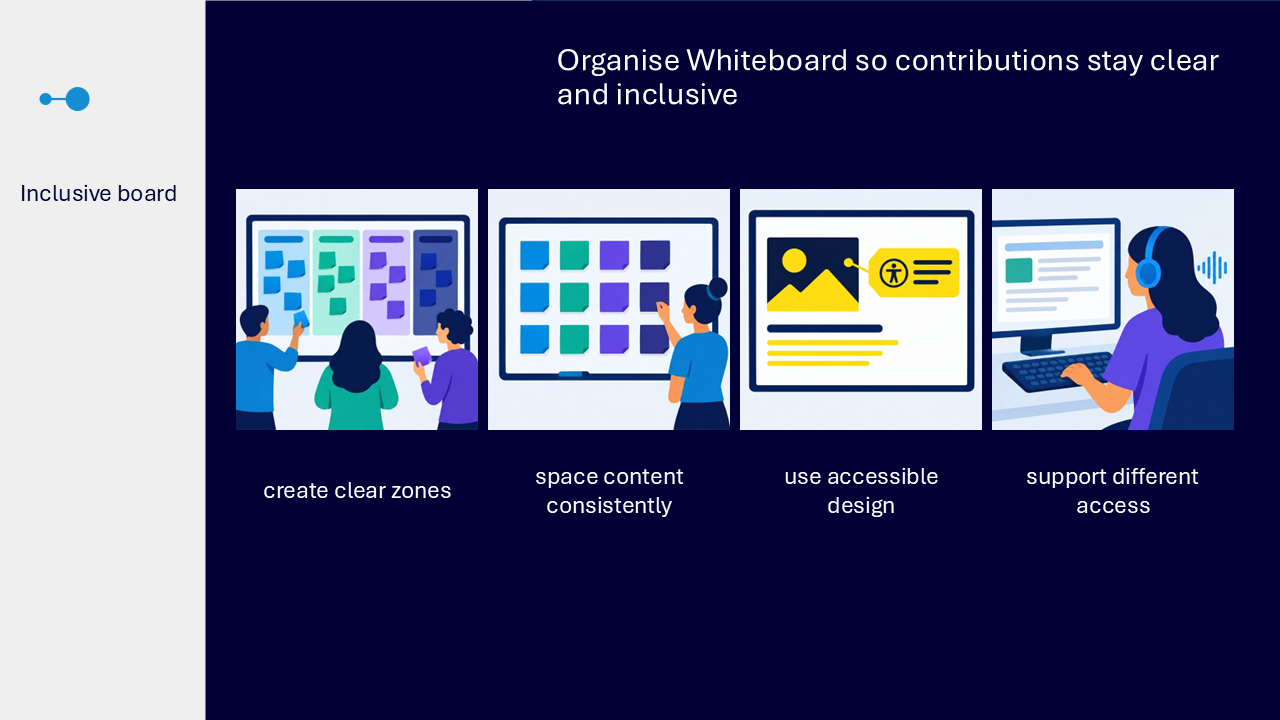
Organise Whiteboard for clear and inclusive participation
The inclusive-board visual shows how layout and accessibility choices can reduce effort when several people contribute.
- create clear zones or sections for different contributions
- use consistent alignment and spacing
- use high contrast, alternative text and an uncluttered layout
- consider keyboard shortcuts, screen reader navigation and cognitive load
- use a suitable template to provide a clear starting structure
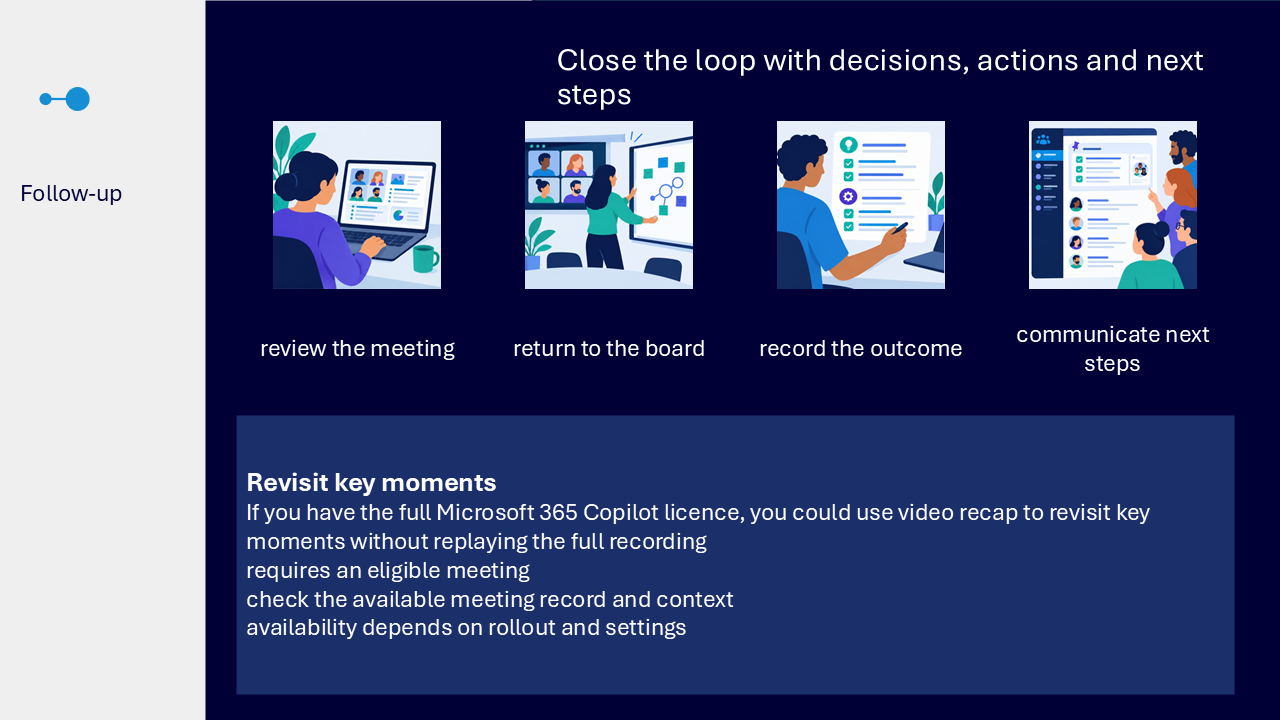
Close the loop with decisions and actions
The follow-up flow returns from the meeting record and Whiteboard to the relevant Teams space. Its purpose is to make the outcome and next steps findable.
- review the available meeting information in Recap
- open the meeting Whiteboard again from Teams when it supports follow-up
- record the decisions and actions created by the discussion
- share next steps in the Teams space where participants can find them
If you have a full Microsoft 365 Copilot licence, video recap may be available for an eligible meeting to revisit key moments. Availability depends on rollout, settings and the available meeting record.
What the visuals and demonstrations showed
The visual sequence follows one meeting journey rather than presenting isolated features. It moves from choosing a communication space through preparation and participation to a clear record of the outcome.
- comparing chat, a channel and a meeting by audience and purpose
- writing one prepared message with a clear response
- using Events and meeting options to prepare
- signposting captions, Q&A, chat, reactions, view and translation choices
- choosing an appropriate screen, window or Live sharing experience
- using Recap as a route back to available meeting content
- selecting a Whiteboard template and grouping contributions clearly
- recording one decision, one owner and one action
- returning the outcome to a findable Teams space
Key takeaways
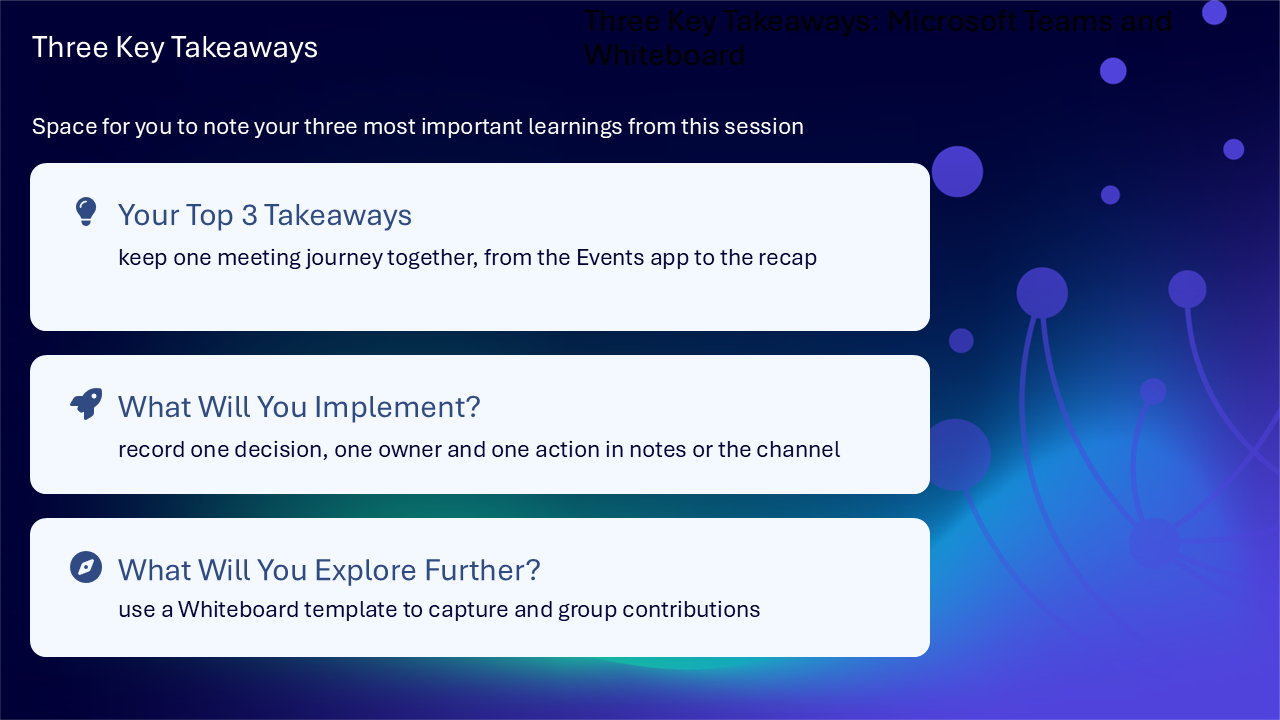
- keep one meeting journey together from the Events app to the recap
- record one decision, one owner and one action in notes or the channel
- use a Whiteboard template to capture and group contributions
- choose chat, a channel or a meeting according to audience and purpose
- offer more than one accessible way to follow and contribute
A clear route for better meetings
- choose the communication space
- make the purpose, context and response clear
- prepare participation and sharing options
- run the meeting with accessible routes
- record decisions, owners and actions
- share next steps where people can find them
Actions you can take
Try the tip of the month
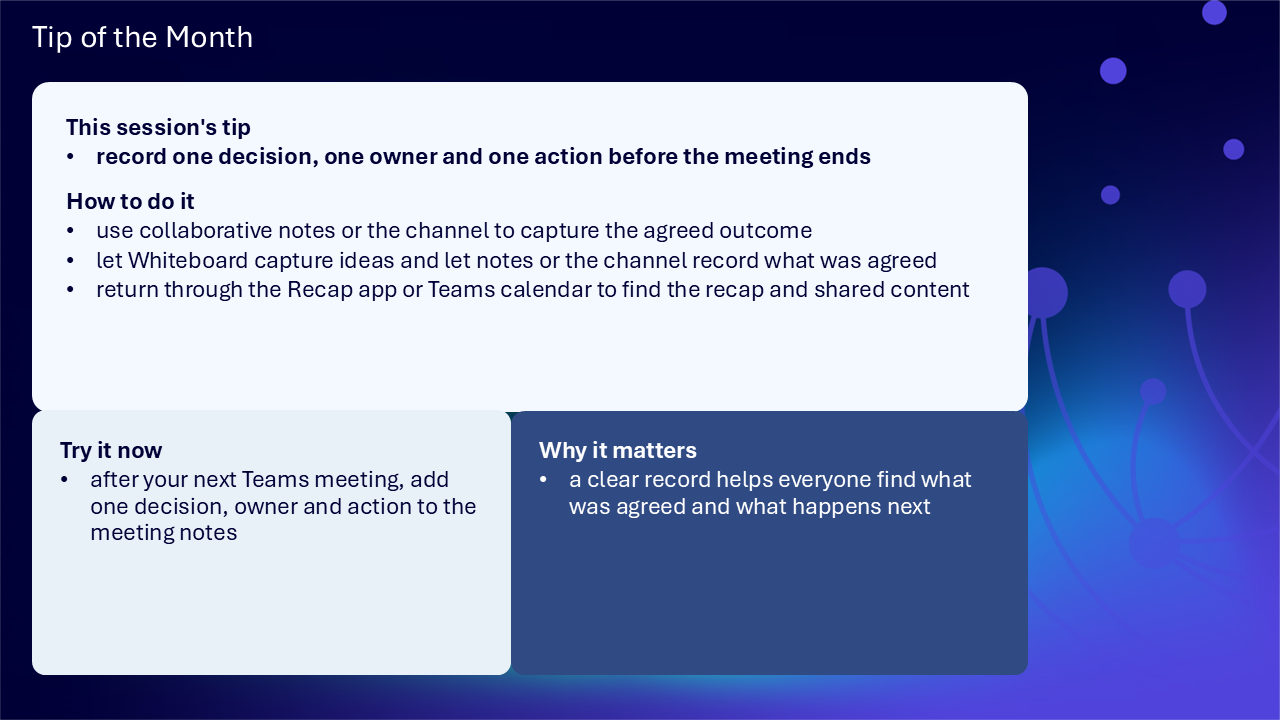
This session’s tip: record one decision, one owner and one action before the meeting ends
How to do it: use collaborative notes or the channel to capture the agreed outcome, let Whiteboard capture ideas, then return through the Recap app or Teams calendar to find the recap and shared content
Why it matters: a clear record helps everyone find what was agreed and what happens next
Try it now: after your next Teams meeting, add one decision, owner and action to the meeting notes
Build confidence with one practical route
- review one current conversation and decide whether chat, a channel or a meeting is the clearest space
- rewrite one Teams message so the purpose, context and required response are explicit
- check the participation routes planned for your next meeting
- choose the most appropriate screen, window or Live sharing method
- open one suitable Whiteboard template and create clear contribution zones
- finish your next meeting by recording one decision, one owner and one action
- share the follow-up in the Teams space participants can return to
Questions and feedback
Questions are welcome. If something is unclear, ask for it to be explained another way or demonstrated again. Feedback helps WeChange.AI understand what matters to you.
Complete the Support and Skilling Week feedback form
Contact WeChange.AI
For skilling queries, email training@wechange.ai.
Andrew Boxall, Managing Director: andrew@wechange.ai
Paul Ford, Industry Director for Education and Philanthropies: paul@wechange.ai
Josh Wilson, Industry Specialist: josh@wechange.ai
Elle Avilla, Customer Success and Delivery Skilling Lead: elle@wechange.ai
Izzy Pochin, Resources and Accessibility Lead: izzy@wechange.ai
Activity sheet
Follow one practical journey from choosing where to communicate through to leaving an inclusive and usable meeting record.
How to use this activity sheet
This sheet supports Session 6: Microsoft Teams and Whiteboard. Use it after the live session, or follow selected steps while your trainer demonstrates one prepared meeting scenario.
- work at your own pace and pause after each activity
- use practice content and avoid personal, confidential or sensitive information
- complete only activities you have permission to carry out
- your screen may differ because your organisation controls licences, settings and features
What you will achieve
- choose between chat, channel and meeting
- write a clear message with purpose, context and expected response
- prepare and run a more inclusive Teams meeting
- share content in a way people can follow
- use a Whiteboard structure to capture and group contributions
- record one decision, one owner and one action
- return to available meeting content and communicate next steps
Your learning route
| Stage | You will practise |
|---|---|
| 1. Choose the space | chat, channel or meeting |
| 2. Write clearly | purpose, context and response |
| 3. Prepare inclusively | options and meeting information |
| 4. Run the meeting | captions, Q&A and sharing |
| 5. Collaborate | Whiteboard structure and contributions |
| 6. Record the outcome | decision, owner and action |
| 7. Close the loop | Recap, board and next steps |
Before you start
- sign in to Microsoft Teams
- choose a safe practice chat, team, channel or fictional scenario
- close or minimise anything you should not display
- allow about 45 to 60 minutes, or complete one activity at a time
Notice: Q&A, recording, transcription, Recap, Events and some Whiteboard features depend on meeting type, licence, permissions and organisational settings.
Activity 1: Choose the right Teams space
Outcome: Choose a space according to the audience, purpose and follow-up need.
| Space | Use it when | Follow-up |
|---|---|---|
| chat | a focused set of people need a direct conversation | the conversation stays with those participants |
| channel | the conversation belongs with wider team work | threads keep shared context together |
| meeting | people need to collaborate in real time | notes, chat and available recap support later review |
- Identify who needs to contribute.
- Decide whether the work needs direct conversation, shared team context or live interaction.
- Consider where the decision and next steps should remain visible.
- Record your choice and reason.
The space I would choose: ____________________________________________________________________
My reason: ____________________________________________________________________
Pause and check
Activity 2: Write a clear Teams message
Outcome: Make the topic, context and response expected easy to understand.
- Open a safe practice chat or channel.
- Start with a short sentence naming the purpose.
- Add only the context the audience needs.
- State the reply, contribution or action expected.
- Use formatting or an @mention only where it helps the right people notice.
- Review before sending, or keep it as a practice draft.
Purpose: ____________________________________________________________________
Context: ____________________________________________________________________
Response or action needed: ____________________________________________________________________
Pause and check
Activity 3: Keep communication organised and findable
Outcome: Choose one route back to important information and one way to manage attention.
- Open the Activity feed.
- Use Search or a filter to find a safe person, message, meeting or file.
- Open the result and notice its chat, channel or meeting context.
- Pin or save a safe item if available, then practise returning to it.
- Review mute or notification choices for a non-critical practice chat.
- Restore the earlier setting if the change should not remain.
My reliable route back: ____________________________________________________________________
My attention-management choice: ____________________________________________________________________
Pause and check
Activity 4: Prepare an inclusive meeting
Outcome: Plan a meeting with clear purpose, participation choices and a useful record.
- Write the intended outcome.
- Identify who needs to attend or contribute.
- Check that live interaction will improve the work.
- Review relevant meeting options if you are authorised to manage them.
| Decision | Your plan |
|---|---|
| how participants can contribute | |
| how chat or Q&A will be used | |
| how captions and viewing choices will be signposted | |
| what will be shared and how | |
| how notes, recording or transcription will be handled | |
| where decisions and actions will be recorded |
Pause and check
Activity 5: Offer more than one way to take part
Outcome: Explain participation choices clearly at the start of a meeting.
| Route | How it can support participation |
|---|---|
| captions | make spoken content available as text |
| Q&A | provide a structured place for questions |
| chat | allow written contributions |
| reactions | offer lightweight feedback |
| view, zoom and translation choices | support different ways of following |
Captions or text route: ____________________________________________________________________
Questions route: ____________________________________________________________________
Other contribution route: ____________________________________________________________________
How to ask for help: ____________________________________________________________________
Pause and check
Activity 6: Share meeting content accessibly
Outcome: Choose a sharing method that helps people remain oriented.
| Choice | Helpful when |
|---|---|
| screen | people need to see movement across applications |
| window | only one application or item is needed |
| PowerPoint Live | sharing slides |
| Word or Excel Live | people need to collaborate without losing meeting context |
- Close unrelated or sensitive content.
- Choose the screen, window or live experience that fits the task.
- Share only what participants need.
- State what has appeared on screen.
- Describe important visual detail and changes.
- Pause so people can reorient.
- Stop sharing when finished.
My sharing choice: ____________________________________________________________________
The detail I would describe: ____________________________________________________________________
Pause and check
Activity 7: Create an inclusive Whiteboard
Outcome: Choose a structure and organise contributions clearly.
| Tool | Use it to |
|---|---|
| template | begin with a structure such as mindmapping or Kanban |
| sticky notes | capture short contributions |
| reactions | show agreement or quick feedback |
| shapes and connectors | show relationships |
| lists and checkboxes | create a visible sequence or actions |
| comments | add feedback beside specific content |
- Open Whiteboard from the meeting, chat or channel.
- Choose a blank board or suitable template.
- Create clear zones for ideas, decisions and actions.
- Add three short practice contributions.
- Align and space content consistently.
- Use sufficient contrast and an uncluttered layout.
- Add alternative text to meaningful images where available.
- Consider keyboard, screen-reader and cognitive access.
The structure I chose: ____________________________________________________________________
How I kept it clear: ____________________________________________________________________
Pause and check
Activity 8: Record one decision, one owner and one action
Outcome: Leave a concise record that makes the outcome and next step visible.
- Open meeting notes or the appropriate channel.
- Write one decision in plain language.
- Add an action and the owner responsible for the next action.
- Check the wording matches what was agreed.
- The record will remain visible to attendees.
| Record | Your entry |
|---|---|
| decision | |
| owner | |
| action | |
| review point, if applicable |
Notice: Whiteboard can capture ideas. Notes or the channel should record what was agreed in a form people can readily find.
Pause and check
Activity 9: Return to the meeting record
Outcome: Find available meeting content and communicate the next steps.
- Return through the Teams calendar, Recap app, meeting chat or organisational route.
- Review any available recording, transcript, notes or follow-up information.
- Reopen the Whiteboard from Teams if it supports follow-up.
- Compare contributions with the written decision, owner and action.
- Confirm next steps in the appropriate Teams space.
My route back to the record: ____________________________________________________________________
Where I would communicate next steps: ____________________________________________________________________
Pause and check
Put it into practice: one connected journey
- choose chat, channel or meeting by audience and purpose
- write a message naming purpose, context and response
- prepare participation choices before people arrive
- share only needed content and describe important detail
- use Whiteboard to capture and group contributions
- record one decision, one owner and one action
- return to available meeting content and share next steps where people can find them
The initial Teams space: ____________________________________________________________________
The participation choices: ____________________________________________________________________
The Whiteboard structure: ____________________________________________________________________
The final location for decisions and actions: ____________________________________________________________________
Quick reference
| If you need to… | Try… |
|---|---|
| speak with a focused set of people | chat |
| keep discussion with wider team work | a channel and threaded replies |
| collaborate in real time | a meeting |
| make the next step obvious | purpose, context and action wording |
| provide structured questions | Q&A, where available |
| present slides | PowerPoint Live |
| capture ideas visually | a suitable Whiteboard template |
| leave a usable outcome | one decision, one owner and one action |
| return to meeting content | calendar, meeting chat or Recap |
Your three takeaways
My most useful learning: ____________________________________________________________________
What I will implement: ____________________________________________________________________
What I will explore further: ____________________________________________________________________
If you need help
- describe whether you were in chat, channel, meeting, Recap or Whiteboard
- say whether you used Teams on the web or desktop
- note the exact wording of any message
- ask your local support route about permissions, recording, transcription, licences or unavailable features
- avoid screenshots containing personal, confidential or sensitive information
Confidence grows through a repeatable route: choose the right space, make the next step clear, support different ways to participate and leave a record people can find.
Reflective journal
Why we ask you to reflect
Continuing Professional Development (CPD) is formative and it is about what it achieves for you and your organisation.
Instead of formally assessing your learning, we ask you to write a reflective note. This should reflect on how the learning was relevant and how it will impact your working practices.
Taking time to reflect on your learning makes it more likely you will embed it in your future practice.
What to cover and when
What your reflection should cover
- how the learning was relevant to you
- how the learning will impact your practice
When to complete it
Reflect as soon as possible following the skilling session. This keeps your note contemporaneous (written close to the time) and meaningful. Fill it in on your device, so the boxes expand as you type.
| Topic | What to know |
|---|---|
| Timing | Complete the note as soon as possible after the training event. |
| Purpose | To embed the learning within your subsequent practice. |
| Focus | How the learning was relevant and how it will impact your practice. |
Your reflective note
Complete each row below. Write in your own words. Your notes are private to you unless you choose to share them.
| Prompt | Your response |
|---|---|
| Skilling session title | |
| Date of the skilling session | |
| Date you completed this note | |
| How was the learning relevant to you and your work? | |
| How will the learning impact your practice? |
Recommended resources
These curated resources accompany the WeChange.AI skilling offer of Continuing Professional Development (CPD) accredited, and non-accredited, sessions. Use them before a session to build familiarity, or afterwards to revisit and apply the learning in day-to-day work.
Alongside these resources, Navigator helps WeChange.AI customers find personalised recommendations and available learning on Microsoft 365 tools, accessibility and AI relevant to their role. Returning to Navigator after a session can help you connect new knowledge with practical workplace needs, choose a useful next step and keep learning visible as confidence grows.
The Teams help centre, with guidance across everyday features. A useful bookmark for looking up a task after the session.
Covers the different places you can start a Teams meeting invitation. It helps you choose a route that suits how you are already working.
For organisers, explains the settings you can adjust to run a meeting. Helps you make a session smoother and more inclusive.
Explains how captions appear during Teams meetings and that they support multiple languages. Helpful for people who like to read as well as listen.
Explains how to access past events and manage their recordings. Useful for organisers who need to share what happened with people who could not attend.
Introduces the Recap app, which brings together meeting summaries, recordings and follow-up information. It helps people catch up and act on what was agreed.
The Whiteboard support hub, with guidance on working together in real time. Useful for turning ideas into a shared visual record.
Shows how to use Teams to capture agendas, notes and action items collaboratively. It keeps decisions next to the meeting they came from.