


Accessible summary
What this session covers
This intermediate session explains how SharePoint sites can provide a dependable route to current information. It covers site purpose, pages, document libraries, navigation, metadata, views, permissions, accessible publishing, review and finding the authoritative source again.
- defining the site purpose, audience and review point
- understanding the different roles of pages, libraries, navigation and Search
- choosing whether information belongs on a page or in a library
- using metadata, views, filters and sorting to improve retrieval
- checking permissions and responsibilities before sharing
- creating accessible SharePoint pages and content
- publishing one controlled source and communicating the return route
- using ownership, status and review dates to maintain trust
Making the session work for you
The session is delivered through a Microsoft Teams webinar using PowerPoint Live. You can personalise how you follow and take part. The session is recorded, and you can watch rather than follow along unless the trainer asks you to try something.
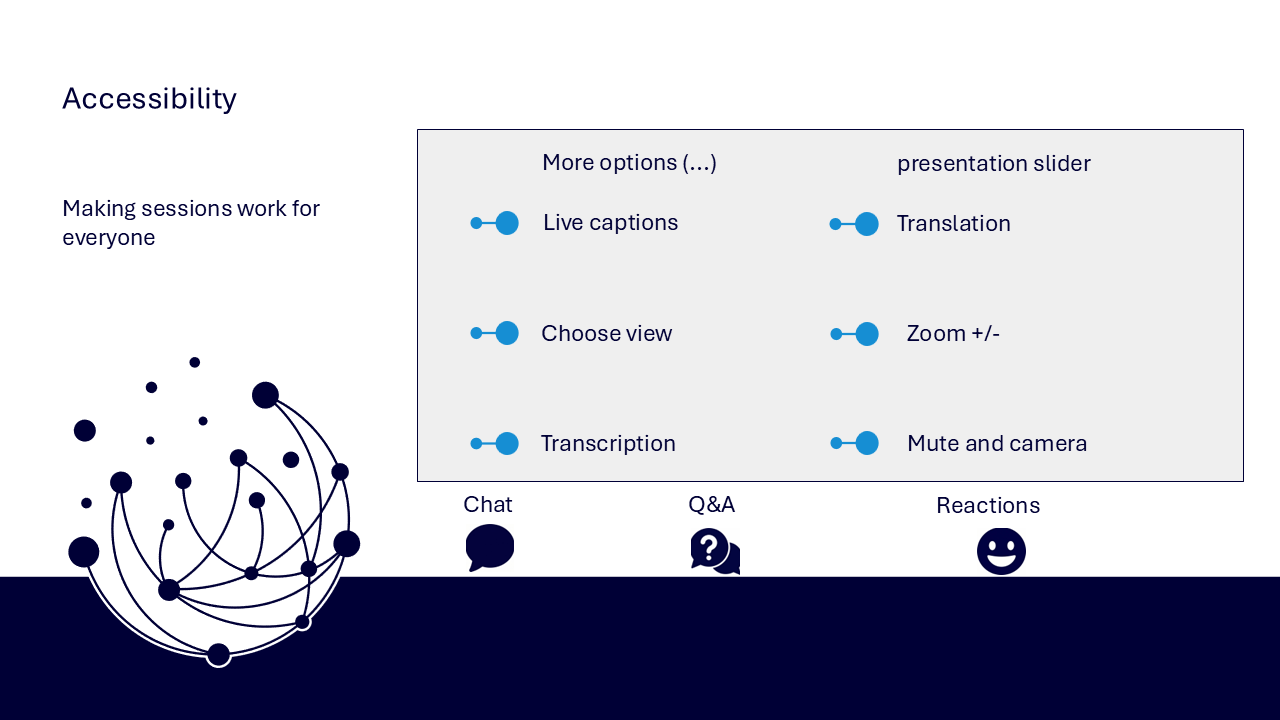
- use live captions or translation from the three-dots menu
- choose a view that gives you the clearest layout
- use the presentation slider to zoom in or out
- keep your camera and microphone off unless you are invited to use them
- use Q&A for questions and keep chat closed when you are not typing
- use reactions or another participation route if that works better for you
- share respectful feedback and use the key links provided in chat
Everyone can build confidence
These sessions are for everyone, whatever your starting point. The aim is to understand one dependable SharePoint journey rather than tour every feature.
Navigator and WeChange.AI
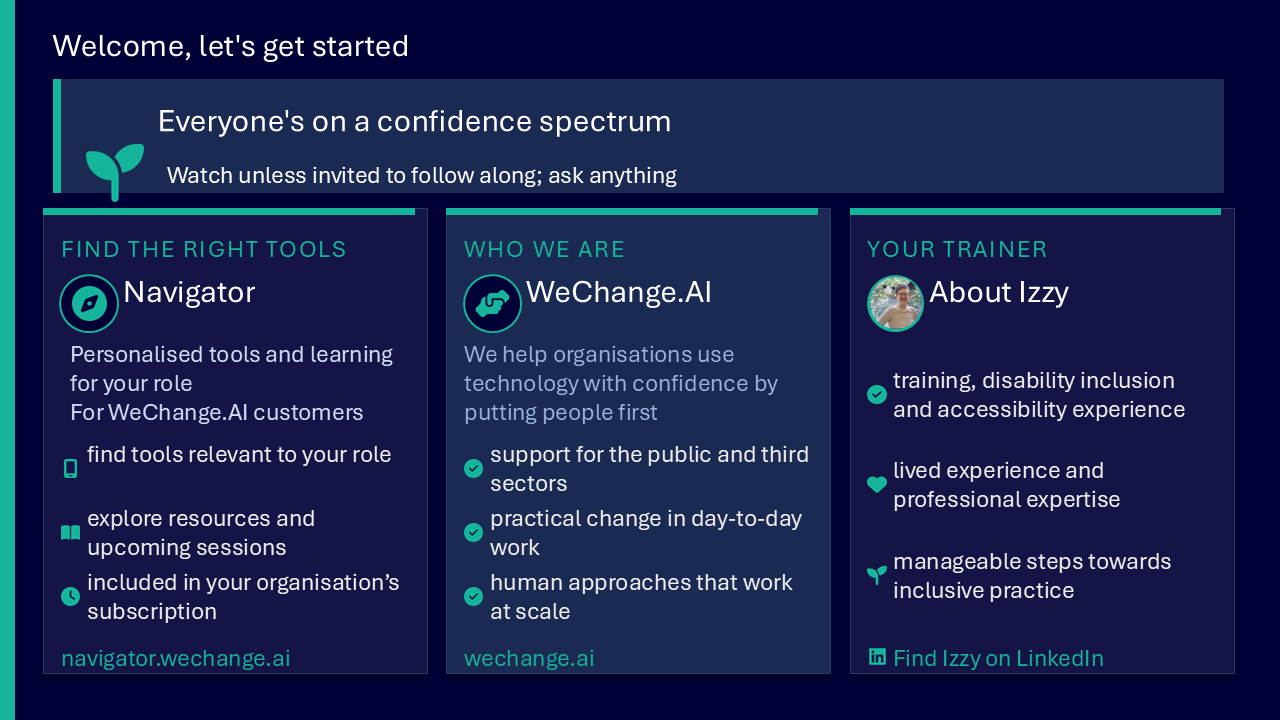
Navigator is a personalised platform for WeChange.AI customers. It helps you find Microsoft 365 tools, resources and upcoming sessions relevant to your role.
WeChange.AI supports public and third sector organisations to use technology with confidence, purpose and impact. The focus is practical, people-centred change in day-to-day work.
Key concepts
The challenge
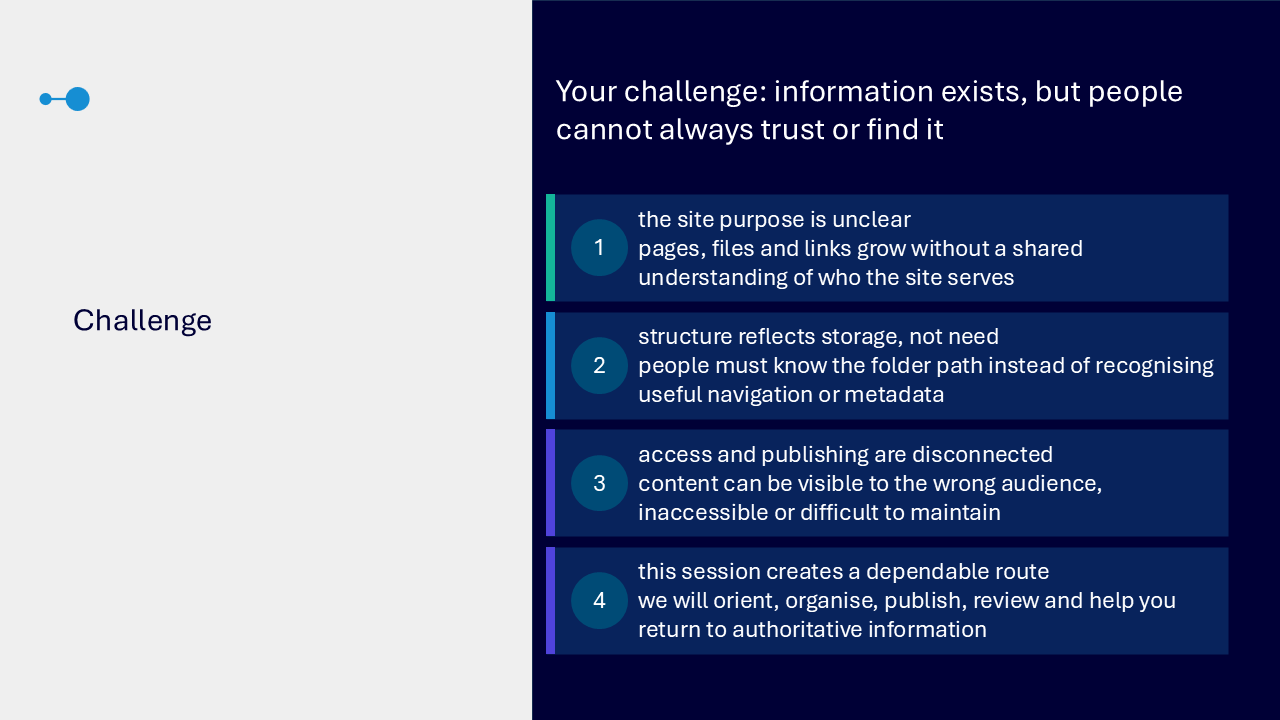
The challenge visual shows how information can exist without being dependable. A site may grow without a shared understanding of its audience. Storage structures may force people to know a folder path. Access and publishing may become disconnected. The session therefore follows one route through orientation, organisation, publishing, review and retrieval.
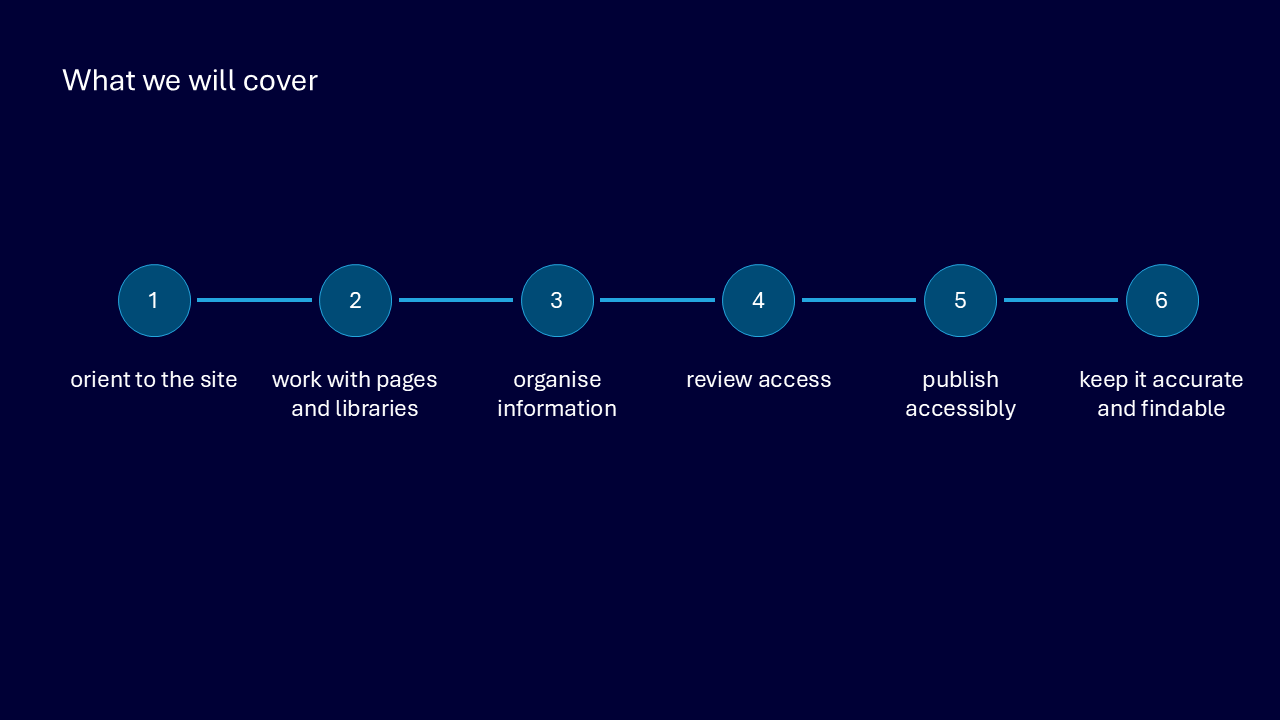
Your route through the session
- orient to the site
- work with pages and libraries
- organise information
- review access
- publish accessibly
- keep information accurate and findable
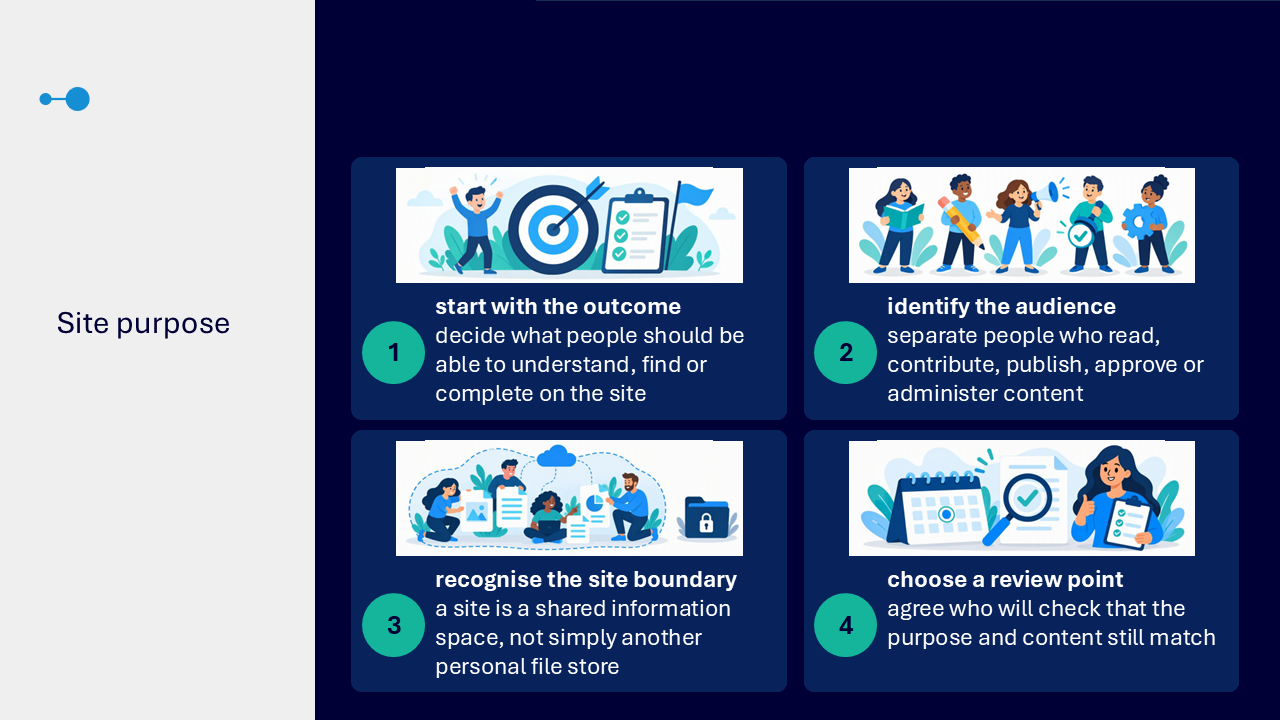
Make the site purpose and audience explicit
- start with what people should be able to understand, find or complete
- identify who reads, contributes, publishes, approves or administers content
- treat the site as a shared information space rather than another personal file store
- agree who will check that the purpose and content remain aligned
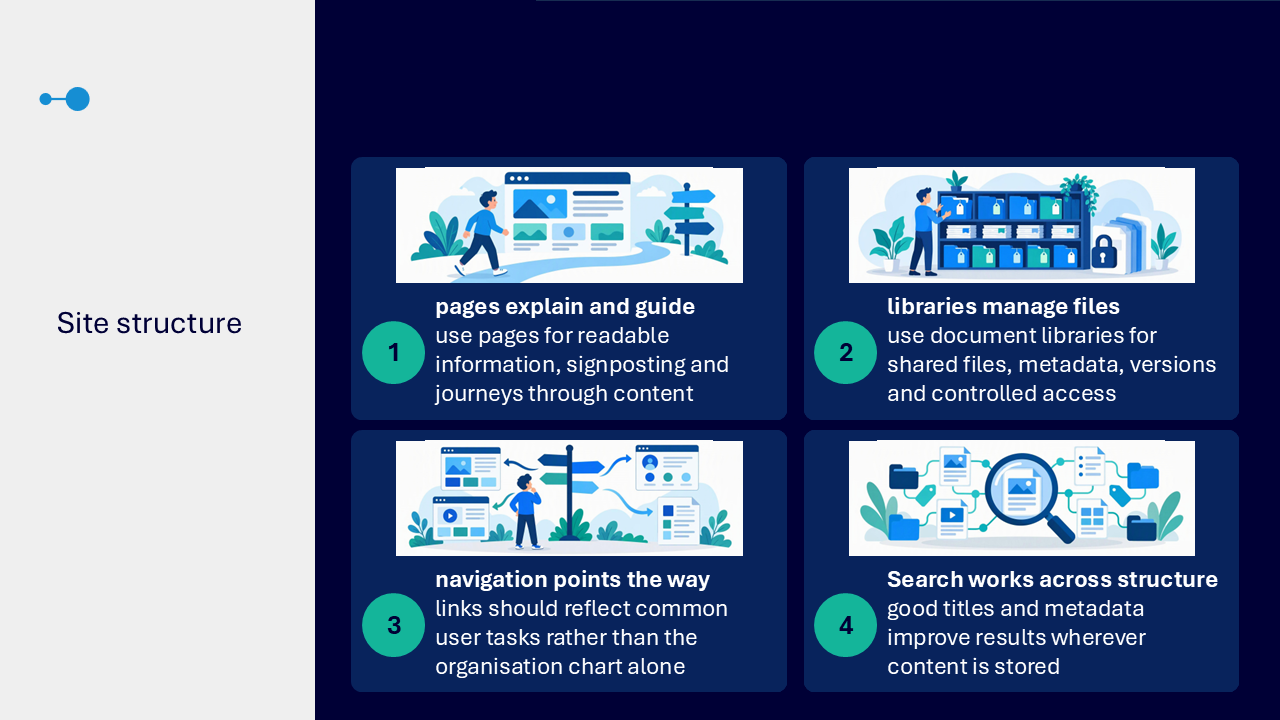
Understand the site structure
- pages explain information and guide people through content
- document libraries manage shared files, metadata, versions and controlled access
- navigation points to common user tasks and useful destinations
- Search works across the structure, supported by clear titles and metadata
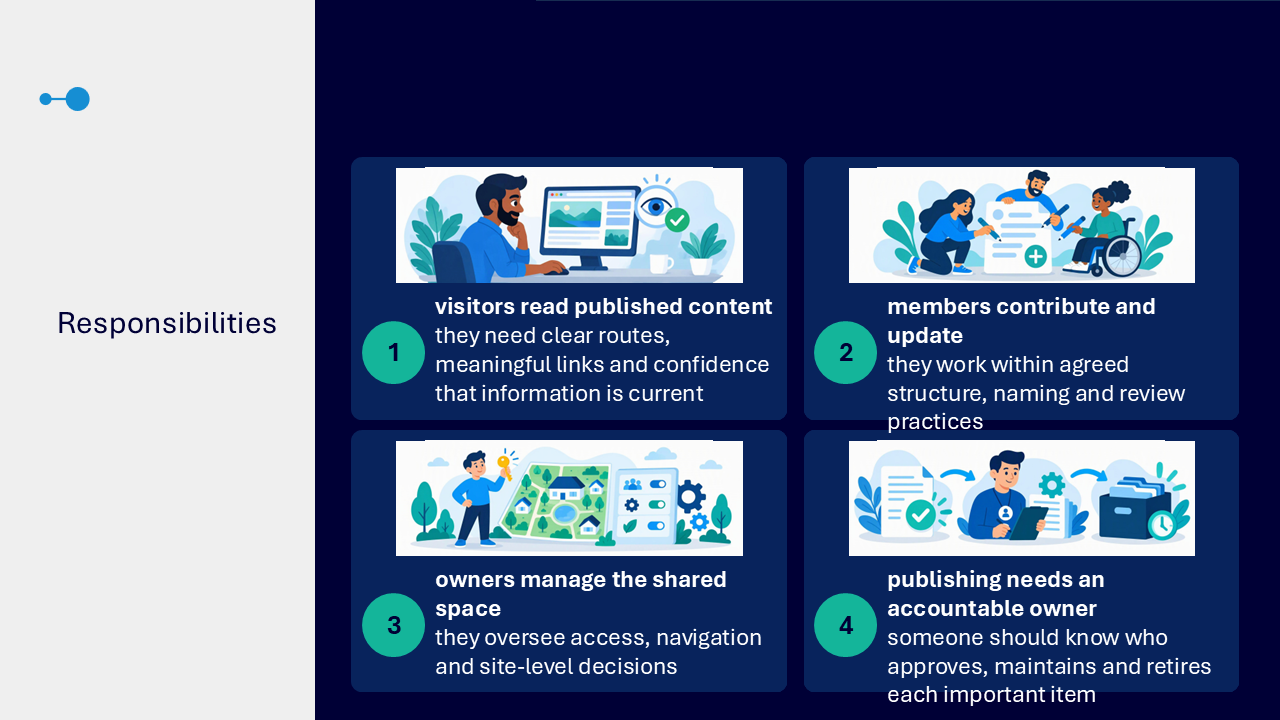
Understand access and responsibility
- visitors read published content and need clear routes to current information
- members contribute and update within agreed naming, structure and review practices
- owners oversee access, navigation and site-level decisions
- important published content needs an accountable approver and maintainer
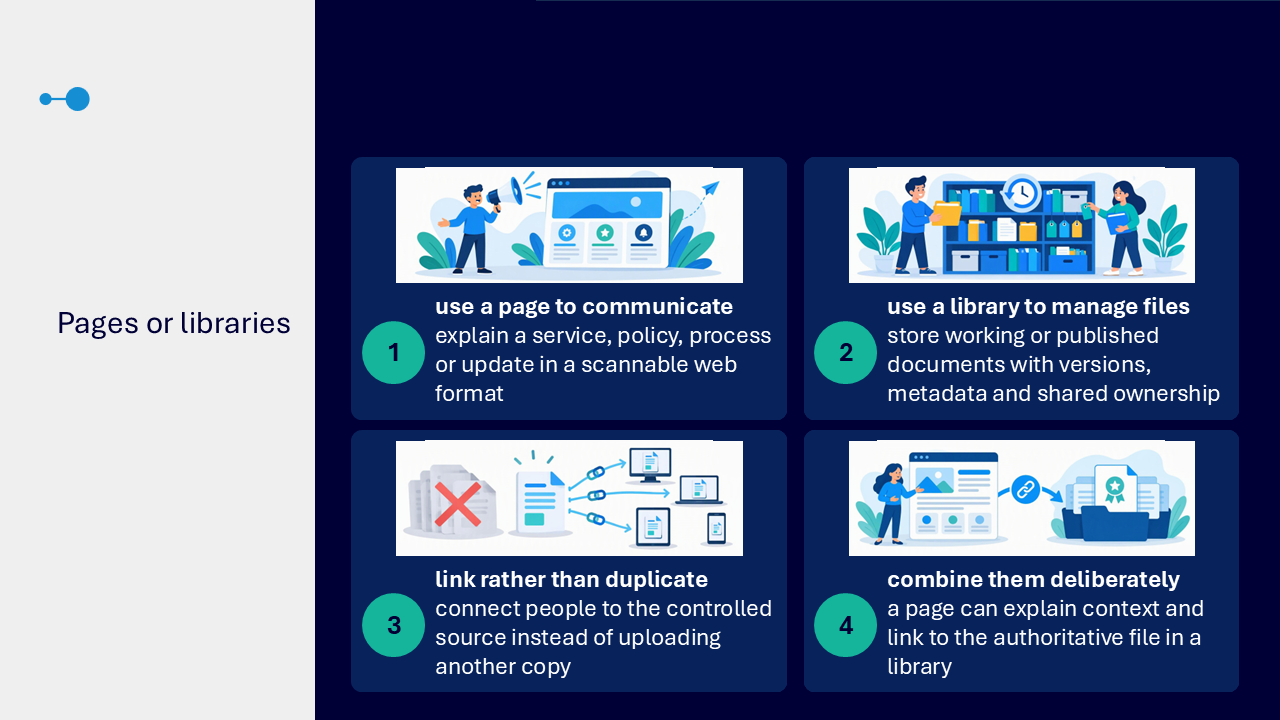
Choose pages or libraries by purpose
- use a page to explain a service, policy, process or update in a scannable web format
- use a library to manage working or published files with versions and metadata
- link to the controlled source rather than uploading another copy
- combine a page and library when the page provides context and the library holds the authoritative file
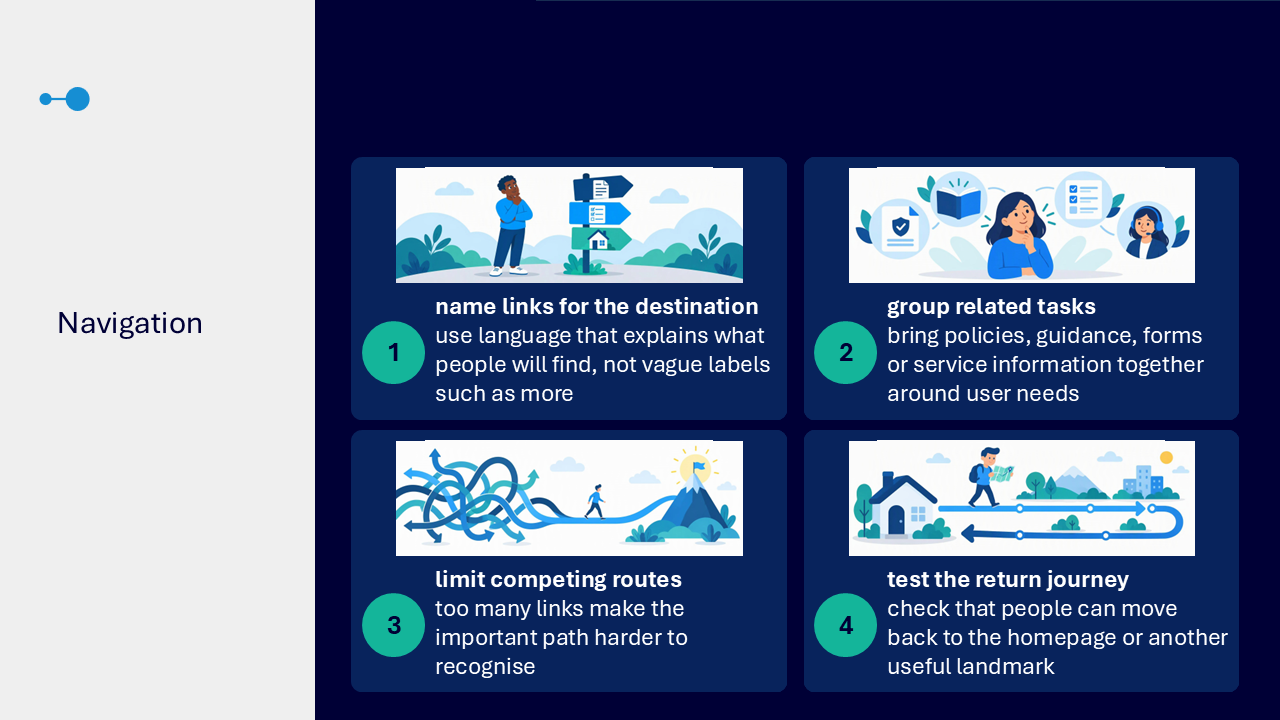
Create navigation around user needs
- name links for the destination or action
- group related policies, guidance, forms or services around common tasks
- limit competing routes so the important path remains recognisable
- test that people can return to the homepage or another useful landmark
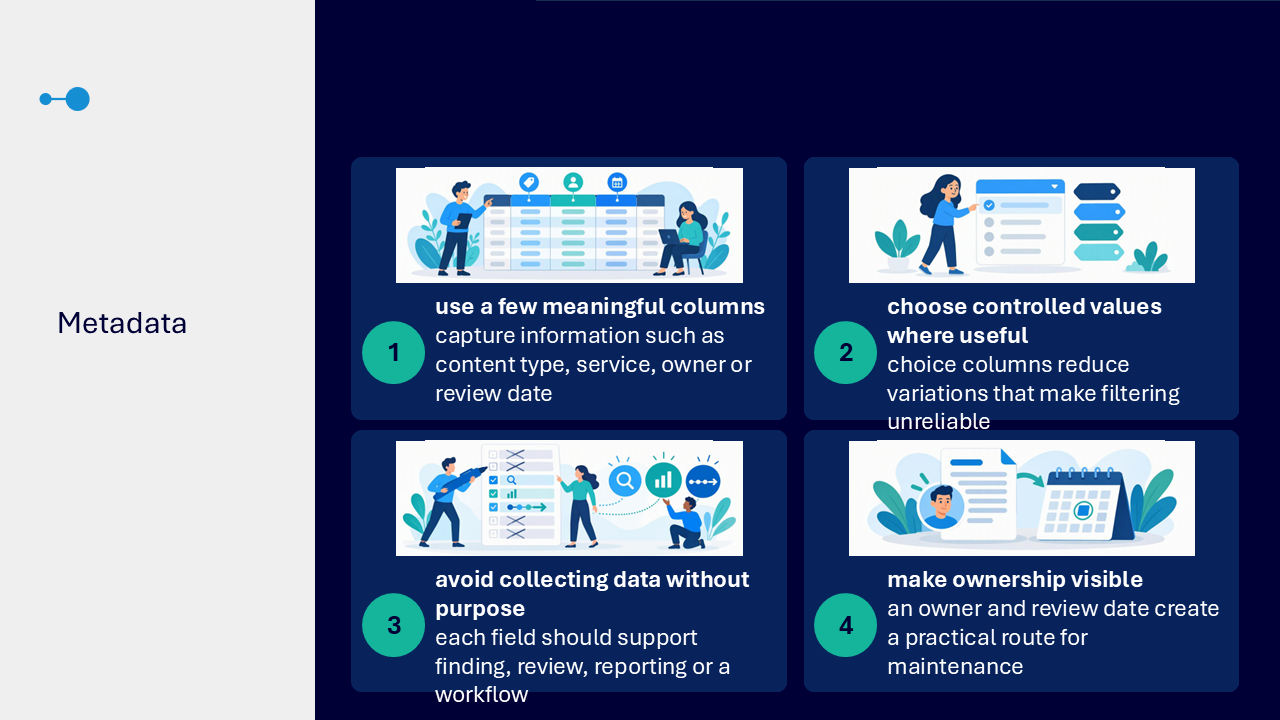
Use metadata beyond folders
Metadata describes content so it can be filtered, sorted, grouped, reviewed and found without relying only on a folder path.
- use a small number of meaningful columns such as content type, service, owner or review date
- use controlled choices where consistent values improve filtering
- collect a field only when it supports finding, review, reporting or a workflow
- make ownership and the review date visible
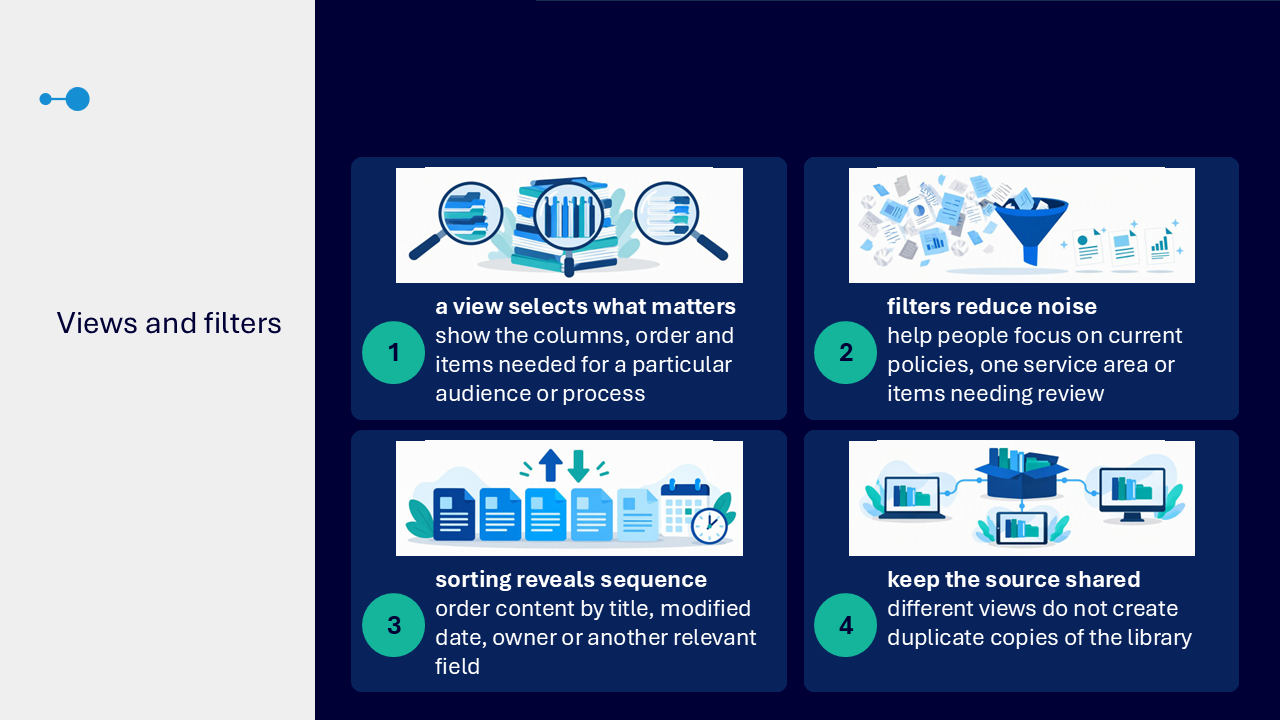
Use views for different tasks
- show the columns, order and items needed by a particular audience or process
- filter the library to reduce noise and focus on relevant items
- sort by title, modified date, owner or another useful field
- use several views of the same shared library without creating duplicate copies
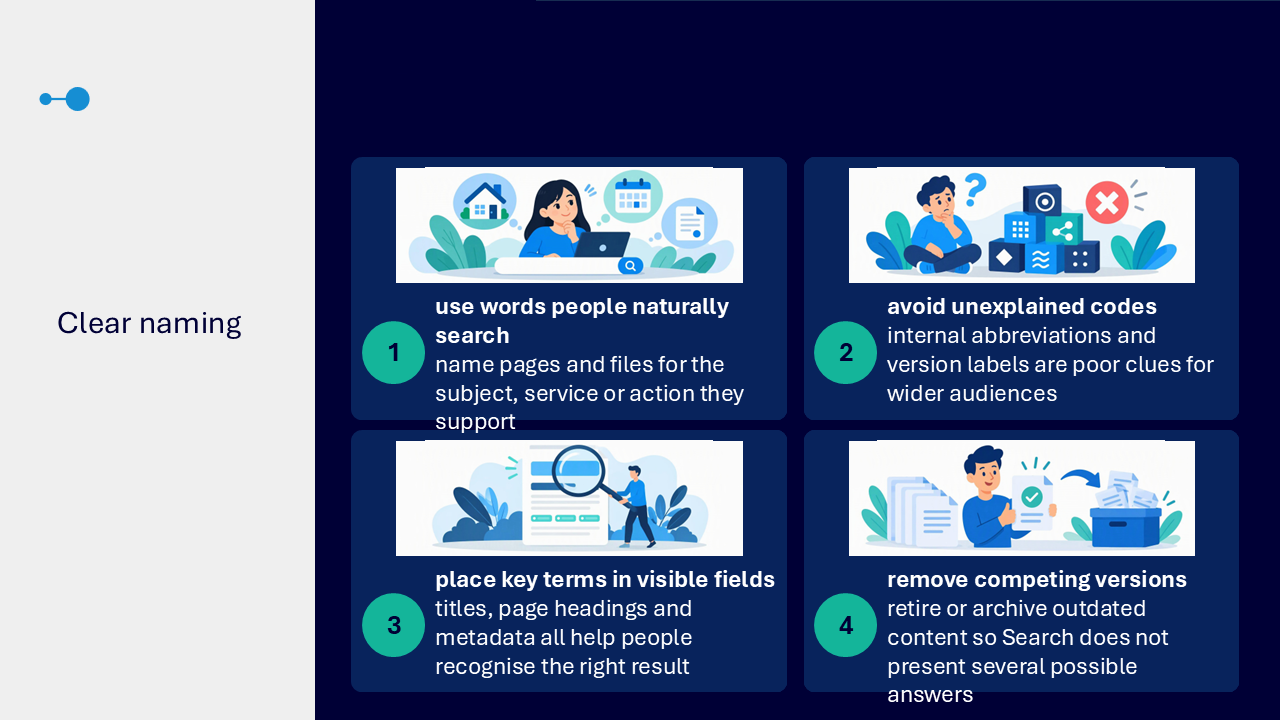
Use clear titles and descriptions
- use words people naturally search
- name pages and files for the subject, service or action they support
- avoid unexplained codes and internal abbreviations
- put useful terms in titles, page headings and metadata
- retire or archive competing versions so Search does not present several possible answers
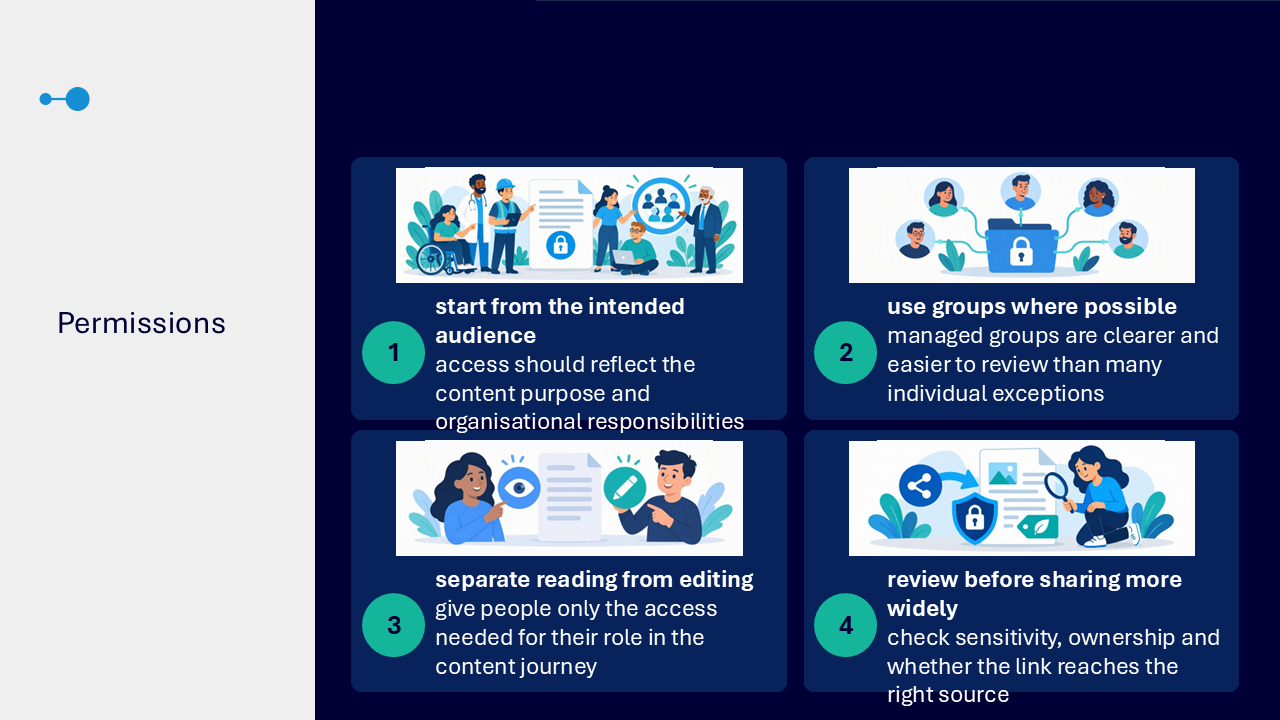
Review permissions before sharing
- start with the intended audience and content purpose
- use managed groups where possible instead of many individual exceptions
- separate reading from editing
- give people only the access needed for their role
- check sensitivity, ownership and whether the link reaches the right source
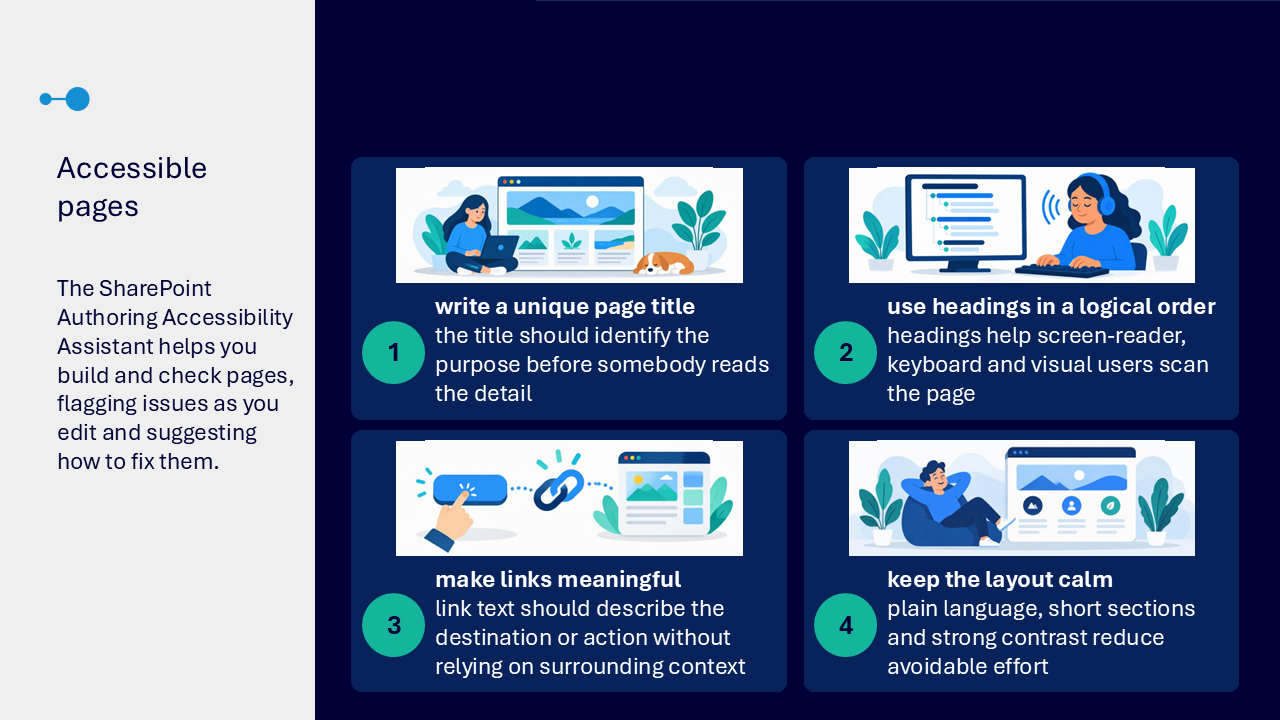
Create accessible SharePoint pages
- write a unique page title that identifies the purpose
- use headings in a logical order
- write meaningful link text that explains the destination or action
- use plain language and short sections
- use strong contrast and a calm layout
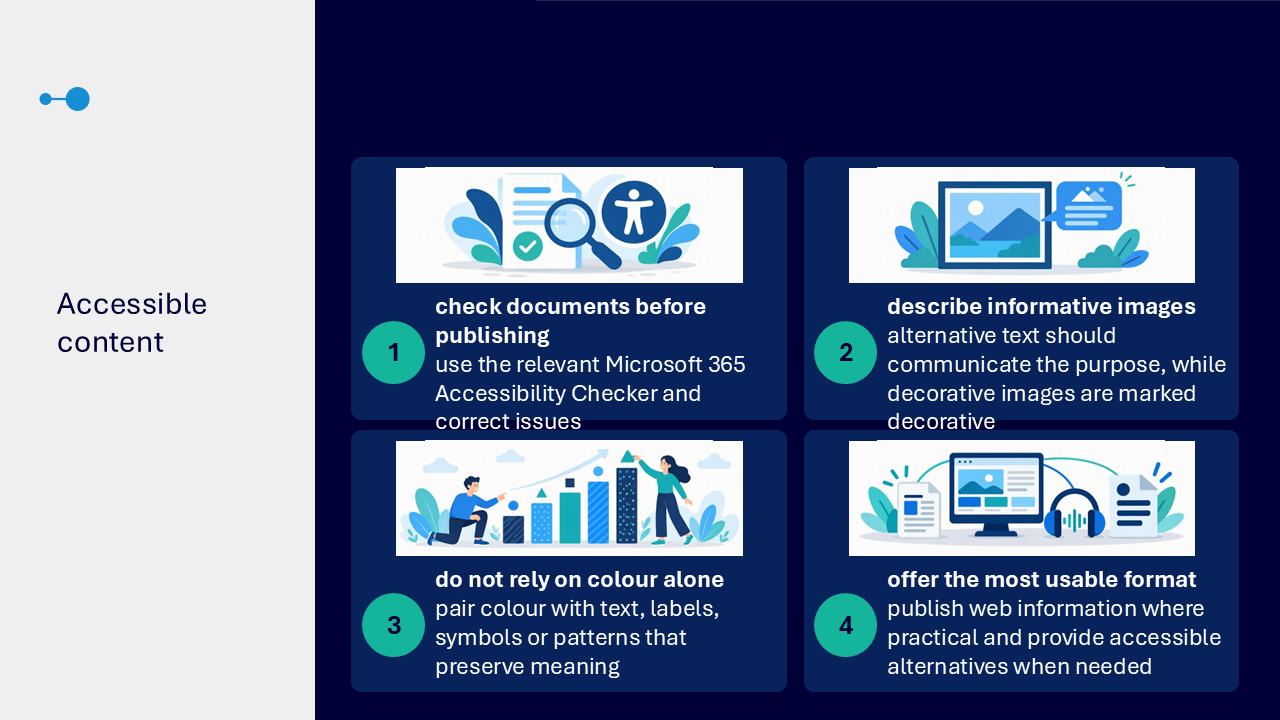
Keep files and visuals accessible
- run the relevant Microsoft 365 Accessibility Checker before publishing a file
- describe the purpose of informative images with alternative text
- mark decorative images as decorative
- pair colour with text, labels, symbols or patterns
- publish information as accessible web content where practical and provide accessible alternatives when needed
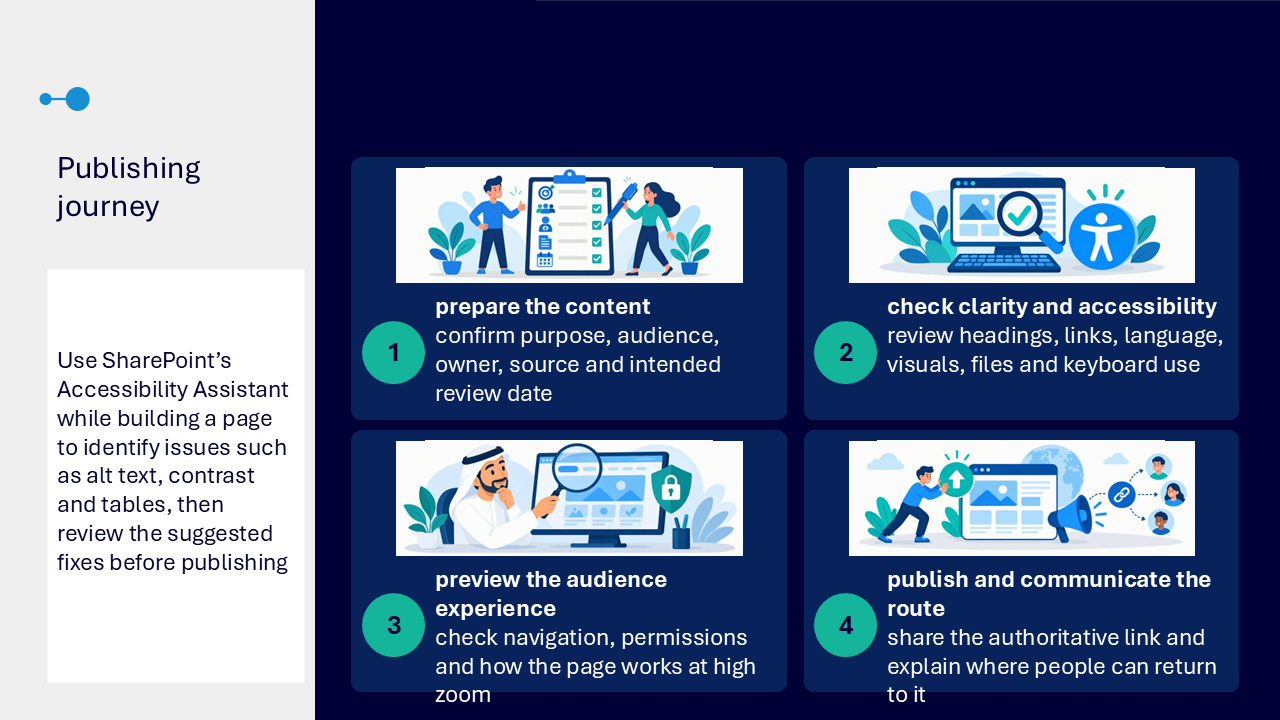
Treat publishing as a decision
- confirm purpose, audience, owner, source and intended review date
- check headings, links, language, visuals, files and keyboard use
- preview navigation, permissions and the page at high zoom
- publish the authoritative source and explain where people can return to it
The deck identifies SharePoint Accessibility Assistant as an authoring tool that can flag issues such as alternative text, contrast and tables. Suggested fixes still need review before publishing.
Use light-touch review
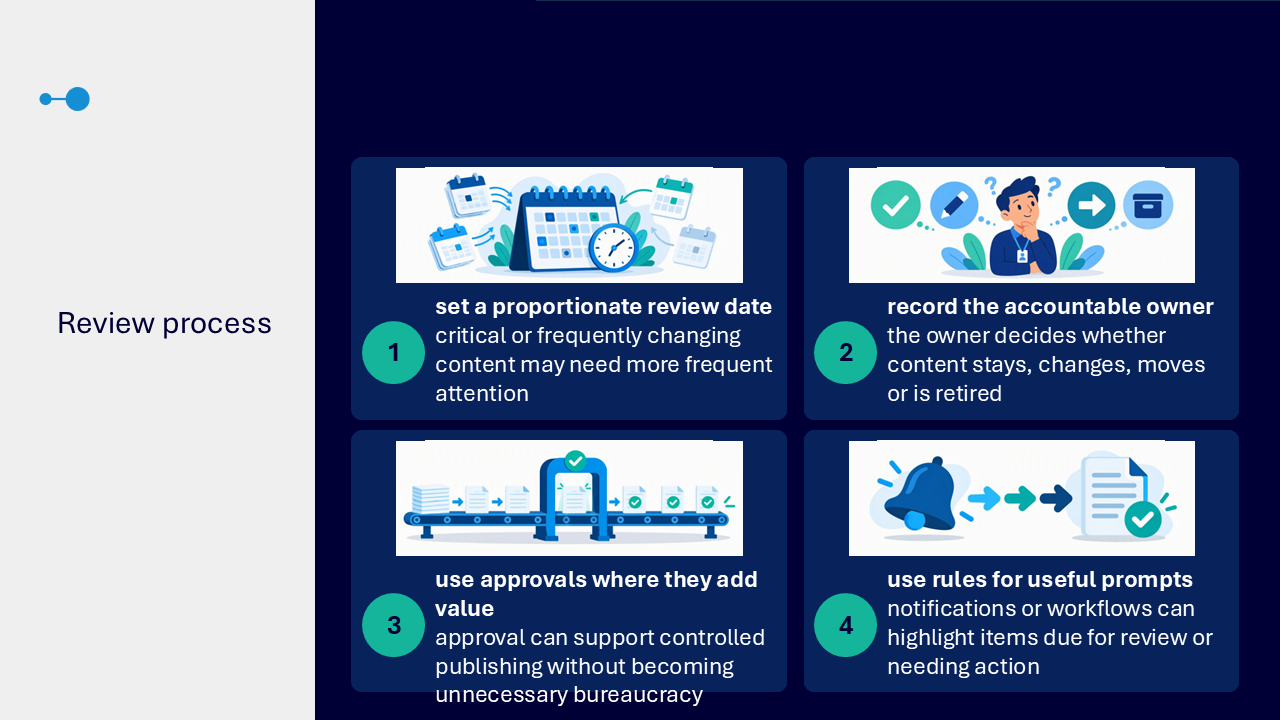
- set a proportionate review date
- record the accountable owner
- use approvals where they add value to controlled publishing
- use notifications or workflows to prompt review or action where useful
- decide whether content should stay, change, move or be retired
Show that information is authoritative
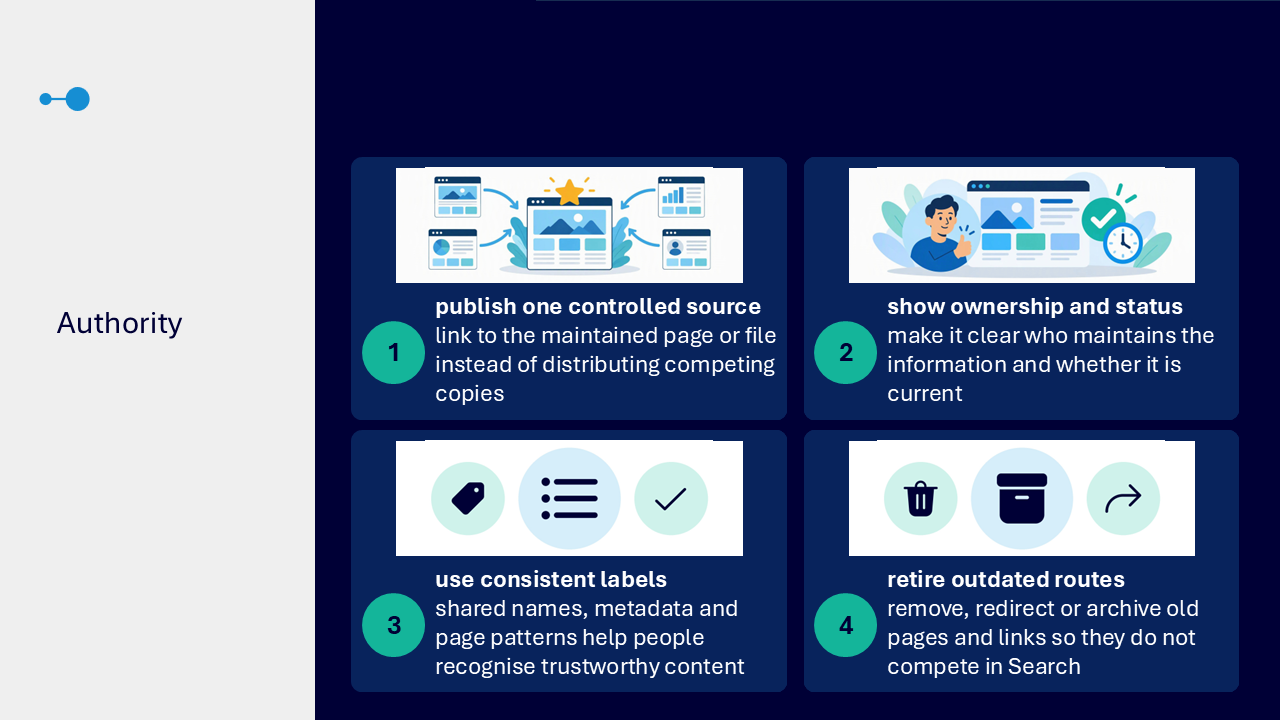
- publish one controlled source
- show who maintains the information and whether it is current
- use consistent names, metadata and page patterns
- remove, redirect or archive outdated pages and links
What the visuals and demonstrations showed
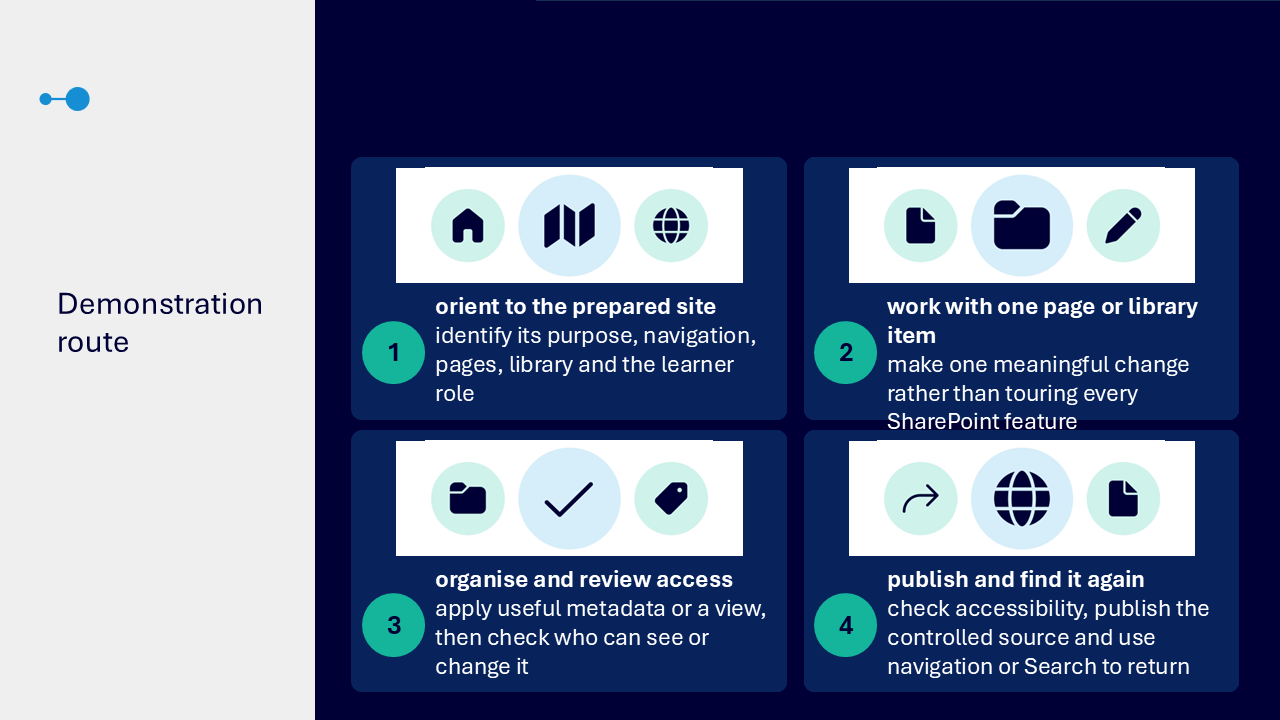
The demonstration follows one item from site orientation to reliable publication and retrieval.
- identifying the site purpose, navigation, pages, library and learner role
- making one meaningful change to a page or library item
- changing one metadata value such as status or review date
- using a filtered, sorted or grouped view to find the item
- checking who can read, edit or share
- reviewing headings, links, alternative text and layout
- previewing the audience experience and permissions
- publishing one controlled source
- using navigation or Search to return to it
Key takeaways
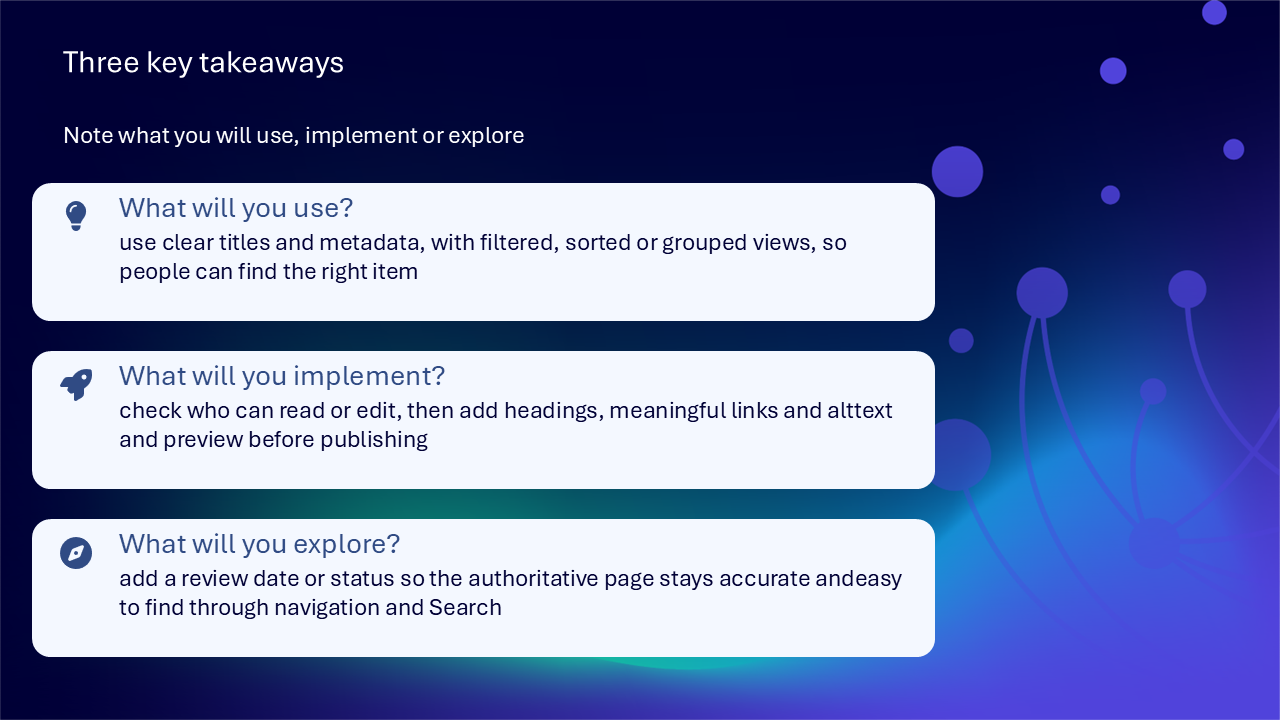
- use clear titles and useful metadata so people can find the right item
- use filtered, sorted or grouped views without duplicating the library
- check who can read or edit before publishing
- add headings, meaningful links and alternative text
- preview the page and audience experience
- add ownership, status or a review date to help maintain accuracy
- retire outdated routes so the authoritative source remains recognisable
A dependable SharePoint journey
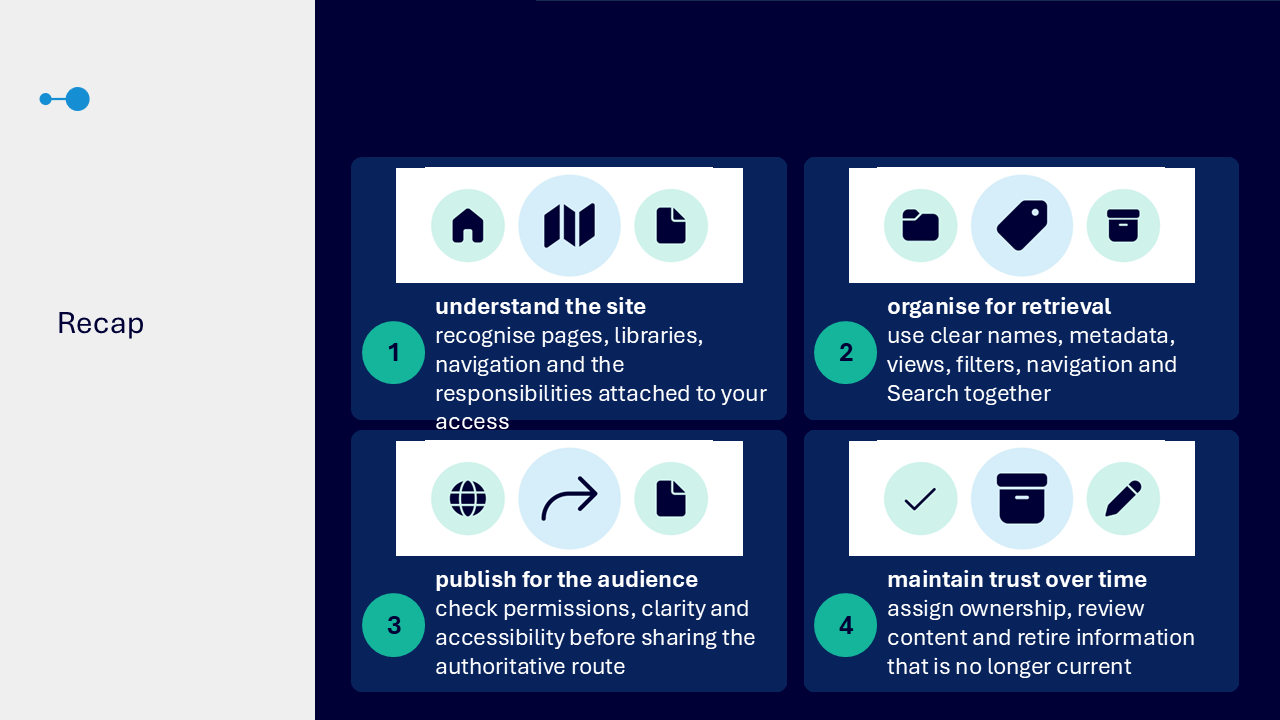
- understand the site purpose, audience and responsibilities
- choose a page or library according to the content need
- organise content with clear names, metadata and views
- check access and ownership
- publish an accessible authoritative source
- communicate the route back
- review and retire content over time
Actions you can take
Try the tip of the month
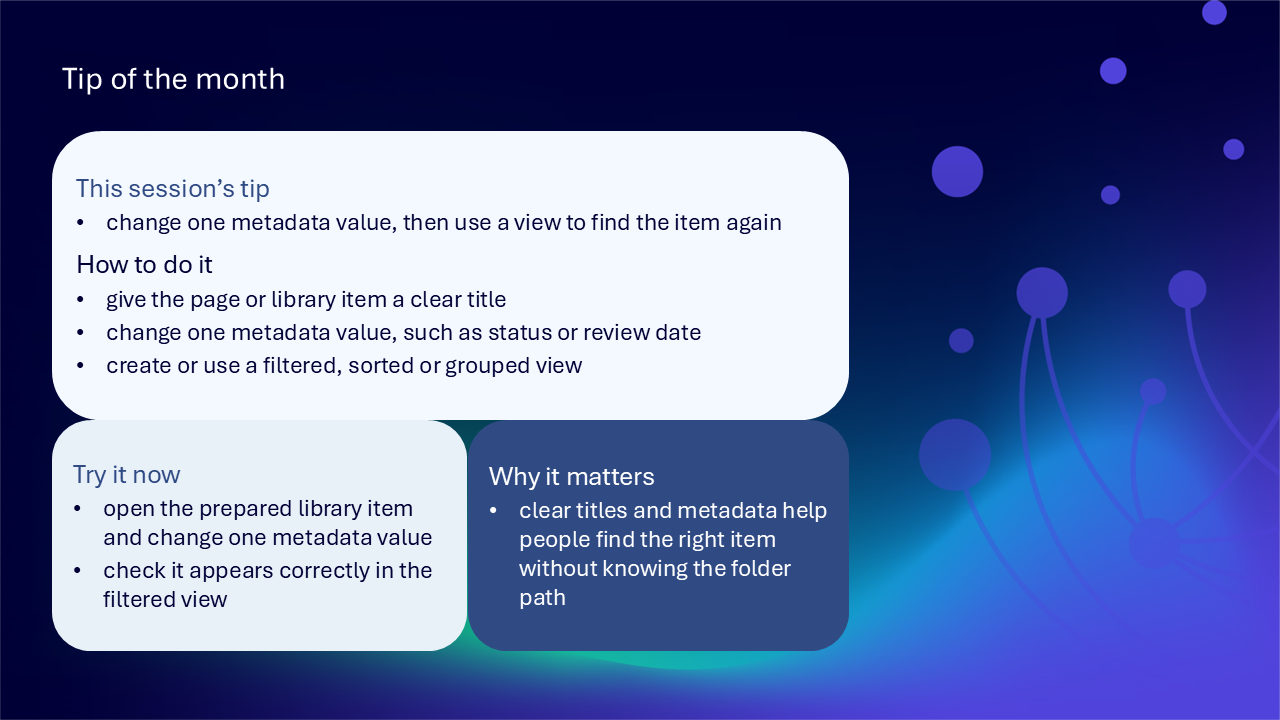
This session’s tip: change one metadata value, then use a view to find the item again
How to do it: give the page or library item a clear title, change a metadata value such as status or review date, then use a filtered, sorted or grouped view
Why it matters: clear titles and metadata help people find the right item without knowing the folder path
Try it now: update one prepared library item and check that it appears correctly in a filtered view
Build confidence with one practical route
- state what one SharePoint site should help people understand, find or complete
- identify its readers, contributors, publishers and owner
- choose one page or library item and confirm why that content type fits
- improve its title or metadata
- find it through a suitable view
- check reading and editing access
- review its headings, links and visual descriptions
- preview the audience experience
- record an owner and review date
- publish or share the authoritative route
Questions and feedback
Questions are welcome. If something is unclear, ask for it to be explained another way or demonstrated again. Feedback helps WeChange.AI understand what matters to you.
Complete the Support and Skilling Week feedback form
Contact WeChange.AI
For skilling queries, email training@wechange.ai.
Andrew Boxall, Managing Director: andrew@wechange.ai
Paul Ford, Industry Director for Education and Philanthropies: paul@wechange.ai
Josh Wilson, Industry Specialist: josh@wechange.ai
Elle Avilla, Customer Success and Delivery Skilling Lead: elle@wechange.ai
Izzy Pochin, Resources and Accessibility Lead: izzy@wechange.ai
Activity sheet
Follow one item from site purpose and structure through to metadata, access, accessible publication, review and a reliable route back.
How to use this activity sheet
This sheet supports Session 15: Microsoft SharePoint. Use it after the live session, or follow selected steps while your trainer demonstrates one prepared site and one page or library item.
- work at your own pace and pause after each activity
- use a prepared practice site or non-sensitive content
- complete only actions permitted by your SharePoint role
- check ownership and access before publishing or sharing
- keep one authoritative source rather than creating competing copies
What you will achieve
- state a site purpose, audience and review point
- recognise the different roles of pages, libraries, navigation and Search
- distinguish visitor, member, owner and publishing responsibilities
- choose between a page and a library item
- create task-focused navigation and a reliable return route
- use clear titles and purposeful metadata
- create a filtered, sorted or grouped library view
- review permissions and separate reading from editing
- prepare an accessible SharePoint page and linked files
- preview, publish and communicate an authoritative route
- record an owner, status and review date
- retire outdated content that competes in Search
Your learning route
| Stage | You will practise |
|---|---|
| 1. Orient to the site | purpose, audience, boundary and role |
| 2. Choose the content route | pages, libraries and controlled links |
| 3. Organise for retrieval | navigation, titles, metadata and views |
| 4. Review access | read, edit, publish and administer |
| 5. Publish accessibly | page structure, links, visuals and preview |
| 6. Maintain trust | ownership, review, approval and retirement |
| 7. Find it again | navigation, Search and the authoritative source |
Before you start
- open the prepared SharePoint site provided for practice
- identify whether you are a visitor, member or owner
- choose one safe prepared page or library item
- avoid personal, confidential or sensitive information
- make only changes you are authorised to make
- allow about 45 to 60 minutes, or complete one activity at a time
Notice: SharePoint editing, permissions, approvals, Accessibility Assistant and automation vary by organisational settings and your assigned role. If a command is unavailable, record what you can see and use your local support route.
Activity 1: State the site purpose and audience
Outcome: Define what people should be able to understand, find or complete on the site.
- Write the outcome the site supports.
- Identify the main audience.
- Separate people who read, contribute, publish, approve or administer.
- Describe what belongs inside the site boundary.
- Choose a point when the purpose and content should be reviewed.
| Planning question | Your answer |
|---|---|
| What should people understand, find or complete? | |
| Who is the main audience? | |
| Who reads, contributes, publishes or administers? | |
| What belongs inside the site boundary? | |
| When or why should the site purpose be reviewed? |
Pause and check
Activity 2: Orient to pages, libraries, navigation and Search
Outcome: Recognise the job each SharePoint area performs.
| Site area | Main purpose | Your example |
|---|---|---|
| page | explain, guide and signpost in a readable web format | |
| document library | manage files, metadata, versions and controlled access | |
| navigation | point people towards common tasks and destinations | |
| Search | find content across the structure using titles and metadata |
- Open the site homepage.
- Identify a page used to explain or guide.
- Open a document library.
- Follow one navigation link.
- Use Search for a clear subject or action word.
- Return to the homepage or another recognised landmark.
My most reliable route back: ____________________________________________________________________
Pause and check
Activity 3: Recognise access and responsibility
Outcome: Understand what your role allows and who remains accountable for important content.
| Role or responsibility | Typical contribution | Current arrangement |
|---|---|---|
| visitor | read published content | |
| member | contribute and update within agreed practices | |
| owner | manage access, navigation and site-level choices | |
| publisher or approver | confirm important content is ready for its audience | |
| content owner | maintain, review or retire the item |
- Identify your current site role.
- Check what you can read.
- Check what you can edit.
- Identify who approves or publishes important content.
- Identify who owns the selected item after publication.
Pause and check
Activity 4: Choose between a page and a library item
Outcome: Match the content type to communication or file-management needs.
- Describe what the audience needs from the content.
- Choose a page if people need a scannable explanation, service route, policy summary or update.
- Choose a document library if files need versions, metadata and shared ownership.
- Where both are useful, use the page for context and link to the authoritative file.
- Remove any planned duplicate upload.
| Decision | Your plan |
|---|---|
| audience need | |
| page purpose, if used | |
| library item purpose, if used | |
| authoritative source | |
| duplicate avoided |
Pause and check
Activity 5: Improve navigation around user tasks
Outcome: Help people recognise their route without knowing the internal site structure.
- Review one navigation label.
- Replace vague wording with the destination or action.
- Group related policies, guidance, forms or service information.
- Remove or deprioritise one competing route.
- Follow the route to its destination.
- Test how you return to the homepage or another landmark.
| Navigation check | Before | After |
|---|---|---|
| destination label | ||
| related task group | ||
| competing route | ||
| return route |
Pause and check
Activity 6: Add purposeful metadata
Outcome: Describe content so it can be filtered, reviewed and found without relying only on folders.
- Give the prepared item a clear title.
- Choose one useful metadata field such as content type, service, owner, status or review date.
- Enter or update the value.
- Use a controlled choice value where consistent filtering matters.
- Check that every field supports finding, review, reporting or a workflow.
- Remove or question a field with no stated purpose.
| Metadata field | Value | Purpose |
|---|---|---|
| clear title | recognition and Search | |
| content type or service | ||
| owner | maintenance | |
| status | ||
| review date |
Pause and check
Activity 7: Create a useful library view
Outcome: Show the columns and items needed for a particular audience or task without creating another copy of the library.
- Open the prepared library.
- Choose the columns needed for the task.
- Sort by a useful field such as title, modified date, owner or review date.
- Apply a filter, for example current policies, one service or items needing review.
- Group by one meaningful field where it improves scanning.
- Save the view with a clear name if authorised.
- Change one metadata value and confirm the item appears correctly in the view.
| View decision | Your choice |
|---|---|
| audience or task | |
| columns shown | |
| sort order | |
| filter | |
| grouping, if useful | |
| view name |
Notice: A view changes how one shared library is presented. It does not create a duplicate copy of the files.
Pause and check
Activity 8: Use clear naming for Search
Outcome: Make pages and files recognisable through visible titles, headings and metadata.
- Choose a page or file with a vague, coded or version-heavy name.
- Rename it using words the audience is likely to search.
- Replace unexplained abbreviations where appropriate.
- Place important terms in the title, page heading or metadata.
- Search using the audience wording.
- Check whether an outdated competing version appears.
| Naming check | Existing wording | Improved wording |
|---|---|---|
| subject or service | ||
| action or content type | ||
| unexplained code | ||
| version or status cue |
Pause and check
Activity 9: Review permissions before sharing
Outcome: Ensure people have only the access needed for their role in the content journey.
- Start with the intended audience.
- Review who can read the site or selected item.
- Review who can edit.
- Prefer managed groups where your organisation uses them.
- Identify any individual exception that needs review.
- Check sensitivity, ownership and the link destination before sharing more widely.
| Permission check | Your finding | Action |
|---|---|---|
| intended readers | ||
| editors or contributors | ||
| owners or administrators | ||
| group-based access | ||
| individual exception | ||
| sharing boundary |
Pause and check
Activity 10: Prepare an accessible SharePoint page
Outcome: Give the audience clear structure, meaning and usable choices.
- Write a unique page title that identifies the purpose.
- Use headings in a logical order.
- Break dense content into short, meaningful sections.
- Replace vague link text with the destination or action.
- Add alternative text to informative images.
- Mark decorative images appropriately.
- Use strong contrast and do not rely on colour alone.
- Check linked Microsoft 365 documents with the relevant Accessibility Checker.
| Page check | Finding | Action |
|---|---|---|
| unique title | ||
| heading order | ||
| plain-language sections | ||
| meaningful links | ||
| image descriptions | ||
| colour and contrast | ||
| linked file accessibility |
Pause and check
Activity 11: Preview and publish deliberately
Outcome: Treat publication as a decision about purpose, audience, access and maintenance.
- Confirm the purpose, audience, content owner and source.
- Set or record the intended review date.
- Use Accessibility Assistant where available while editing.
- Review headings, links, language, visuals, tables and linked files.
- Preview the audience experience.
- Check navigation and permissions.
- Check the page at high zoom.
- Publish only when the controlled source is ready.
- Share the authoritative link and explain the return route.
| Publishing check | Your entry |
|---|---|
| purpose and audience | |
| owner and source | |
| review date | |
| accessibility finding | |
| permission check | |
| high-zoom or preview finding | |
| authoritative route shared |
Notice: Accessibility Assistant can support authoring checks where available, but suggested fixes still need review before publishing.
Pause and check
Activity 12: Plan light-touch review and retirement
Outcome: Keep important information accurate without creating unnecessary process.
- Set a proportionate review date.
- Record the accountable owner.
- Decide whether approval adds value for this item.
- Identify a useful notification or workflow prompt where authorised.
- Define what should happen if the content is still current.
- Define what should happen if it needs updating, moving or retiring.
- Remove, redirect or archive an outdated practice route.
| Maintenance decision | Your plan |
|---|---|
| review date or trigger | |
| accountable owner | |
| approval, if useful | |
| prompt or workflow, if useful | |
| update or retain action | |
| retirement or redirect action |
Pause and check
Put it into practice: publish one dependable service route
Scenario
A team has a guidance document, an outdated page and several links to different versions. People need one accessible, current route that can be maintained and found again.
- define the site outcome and audience
- identify your role and the accountable content owner
- choose a page for context and a library for the controlled file
- replace duplicate uploads with links to the authoritative source
- use an audience-centred navigation label
- add title, service, owner, status and review-date metadata
- create a view for current guidance or items needing review
- review read and edit permissions
- prepare the page with headings, meaningful links, alt text and strong contrast
- preview, publish and communicate the return route
- retire outdated pages and links
- use navigation or Search to find the published item again
The site outcome and audience: ____________________________________________________________________
The authoritative source: ____________________________________________________________________
The metadata and view: ____________________________________________________________________
The access and accessibility checks: ____________________________________________________________________
The review and retirement route: ____________________________________________________________________
Quick reference: choose the SharePoint route
| If you need to… | Try… |
|---|---|
| explain, guide or signpost | a SharePoint page |
| manage shared files and versions | a document library |
| help people move through common tasks | task-focused navigation |
| describe content beyond folders | purposeful metadata |
| show one library for a particular task | a filtered, sorted or grouped view |
| improve Search recognition | clear titles, headings and metadata |
| define who can read or edit | group-based permissions where possible |
| prepare an accessible page | unique title, logical headings, meaningful links, alt text and contrast |
| identify authoring barriers | Accessibility Assistant, where available, plus human review |
| maintain trust | owner, status, review date and proportionate approval |
| prevent competing answers | retire, redirect or archive outdated content |
| help people return | navigation, Search and the authoritative link |
Your three takeaways
My most useful learning: ____________________________________________________________________
What I will implement: ____________________________________________________________________
What I will explore further: ____________________________________________________________________
If you need help
- name the site, page, library, view or permission area involved
- describe whether you were reading, contributing, publishing or administering
- note the exact wording of any message or unexpected result
- ask your local support route about ownership, permissions, approvals or unavailable features
- avoid sharing screenshots containing personal, confidential or sensitive information
Confidence grows through a dependable SharePoint journey: make the purpose explicit, organise around user needs, review access, publish one accessible source and keep it accurate and findable.
Reflective journal
Why we ask you to reflect
Continuing Professional Development (CPD) is formative and it is about what it achieves for you and your organisation.
Instead of formally assessing your learning, we ask you to write a reflective note. This should reflect on how the learning was relevant and how it will impact your working practices.
Taking time to reflect on your learning makes it more likely you will embed it in your future practice.
What to cover and when
What your reflection should cover
- how the learning was relevant to you
- how the learning will impact your practice
When to complete it
Reflect as soon as possible following the skilling session. This keeps your note contemporaneous (written close to the time) and meaningful. Fill it in on your device, so the boxes expand as you type.
| Topic | What to know |
|---|---|
| Timing | Complete the note as soon as possible after the training event. |
| Purpose | To embed the learning within your subsequent practice. |
| Focus | How the learning was relevant and how it will impact your practice. |
Your reflective note
Complete each row below. Write in your own words. Your notes are private to you unless you choose to share them.
| Prompt | Your response |
|---|---|
| Skilling session title | |
| Date of the skilling session | |
| Date you completed this note | |
| How was the learning relevant to you and your work? | |
| How will the learning impact your practice? |
Recommended resources
These curated resources accompany the WeChange.AI skilling offer of Continuing Professional Development (CPD) accredited, and non-accredited, sessions. Use them before a session to build familiarity, or afterwards to revisit and apply the learning in day-to-day work.
Alongside these resources, Navigator helps WeChange.AI customers find personalised recommendations and available learning on Microsoft 365 tools, accessibility and AI relevant to their role. Returning to Navigator after a session can help you connect new knowledge with practical workplace needs, choose a useful next step and keep learning visible as confidence grows.
The SharePoint support hub, with resources for managing documents and working together. A useful bookmark for looking up a feature after the session.
Explains how a library keeps files together with folders or metadata, so teams stop emailing attachments. It helps you see how structure supports finding information later.
Shows how to apply filters in library and list views. It helps people find the right information without scrolling.
For site owners, explains adding people as owners, members or visitors. If you are not an owner, your invitation may create an access request for an owner to approve.
Explains how permissions work for different types of site, including team sites linked to Microsoft 365 groups. It helps you understand how access is managed for each type.
Explains how to add a page, add web parts and share ideas through images, documents and video. It also covers tools such as Immersive Reader and checking spelling and grammar with Editor.