

Accessible summary
What this session covers
This intermediate session explains how Microsoft Loop can keep selected shared work live and connected as ideas become plans, decisions and actions. It focuses on choosing an appropriate Loop surface, creating a useful structure, sharing agendas and notes, developing checked Copilot content and making progress visible.
- choosing between a Loop component, page and workspace
- building structure around the purpose and audience
- keeping agendas, notes and follow-up connected
- developing a grounded Copilot Page through human review
- recording decisions, owners, dates and progress
- creating a dependable route back to the current work
Making the session work for you
The session is delivered through a Microsoft Teams webinar using PowerPoint Live. You can personalise how you follow and take part. The session is recorded, and you can watch rather than follow along unless the trainer asks you to try something.
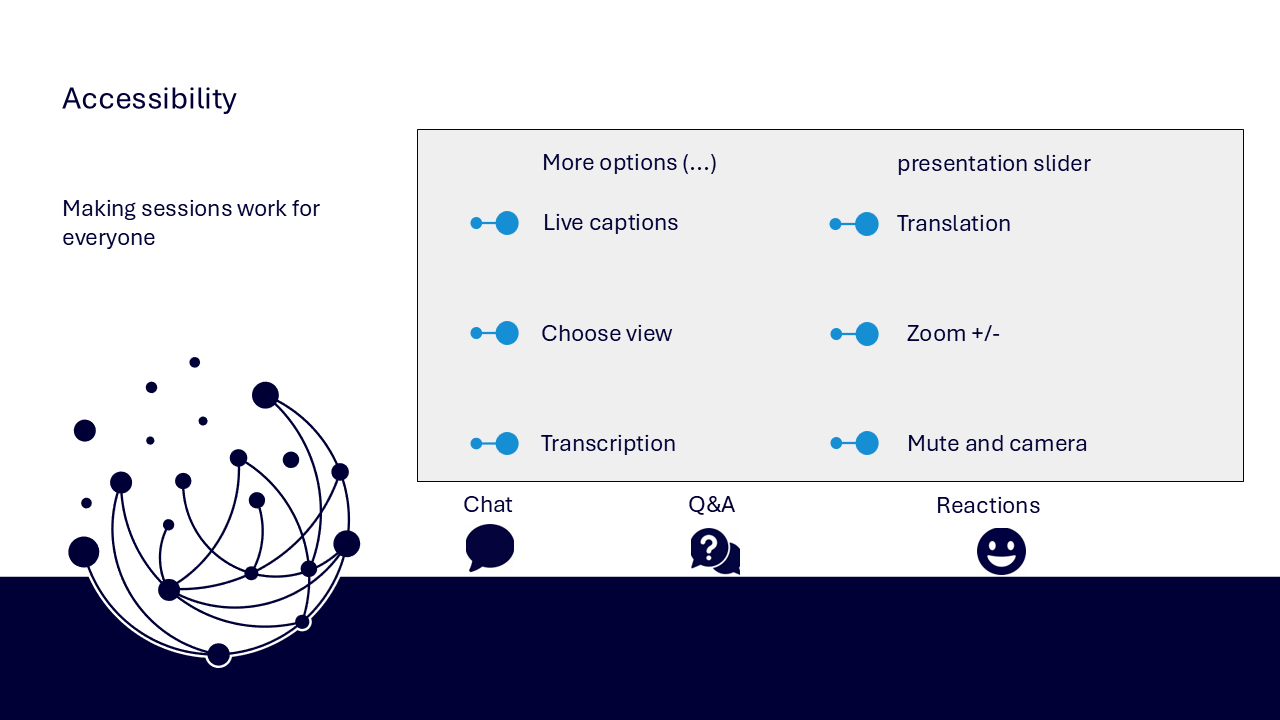
- use live captions or translation from the three-dots menu
- choose a view that gives you the clearest layout
- use the presentation slider to zoom in or out
- keep your camera and microphone off unless you are invited to use them
- use Q&A for questions and keep chat closed when you are not typing
- use reactions or another participation route if that works better for you
- share respectful feedback and use the key links provided in chat
Everyone can build confidence
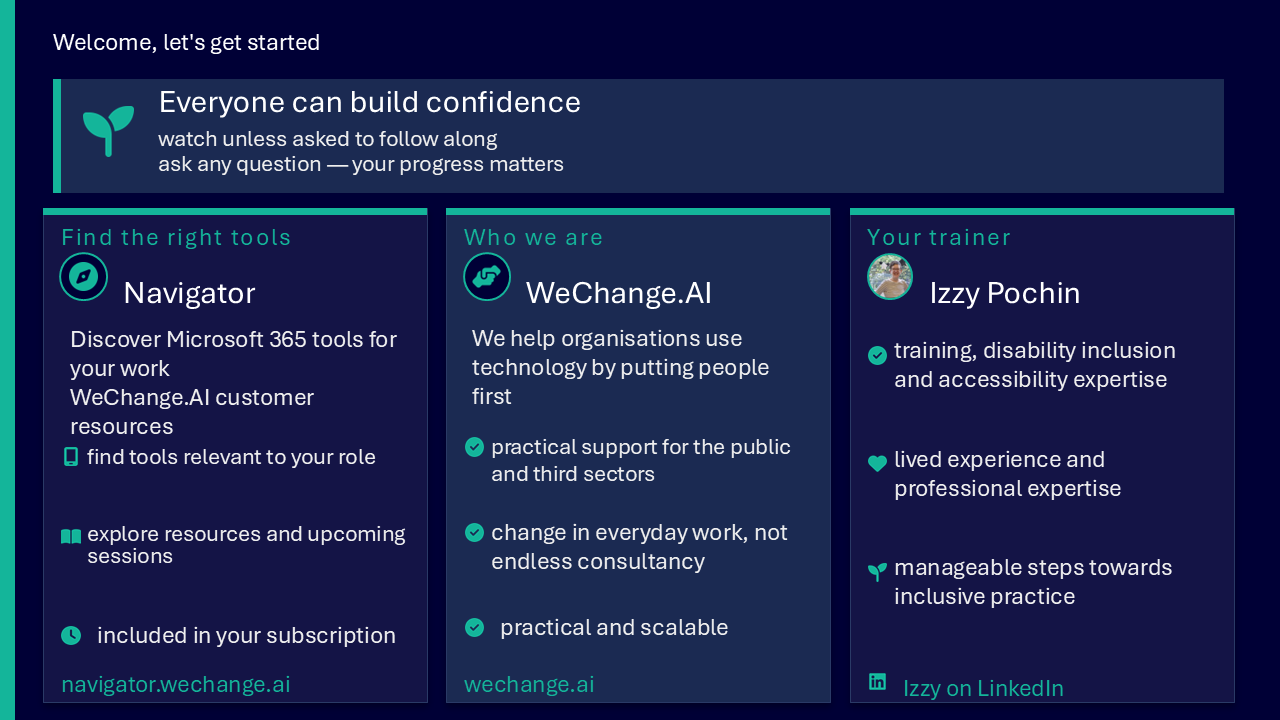
These sessions are for everyone, whatever your starting point. You do not need to remember every Loop feature. The aim is to understand the difference between the main surfaces and choose the lightest structure that supports the work.
Navigator and WeChange.AI
Navigator is a personalised platform for WeChange.AI customers. It helps you find Microsoft 365 tools, resources and upcoming sessions relevant to your work.
WeChange.AI supports public and third sector organisations to use technology with confidence, purpose and impact. The focus is practical, people-centred change in day-to-day work.
Key concepts
The challenge
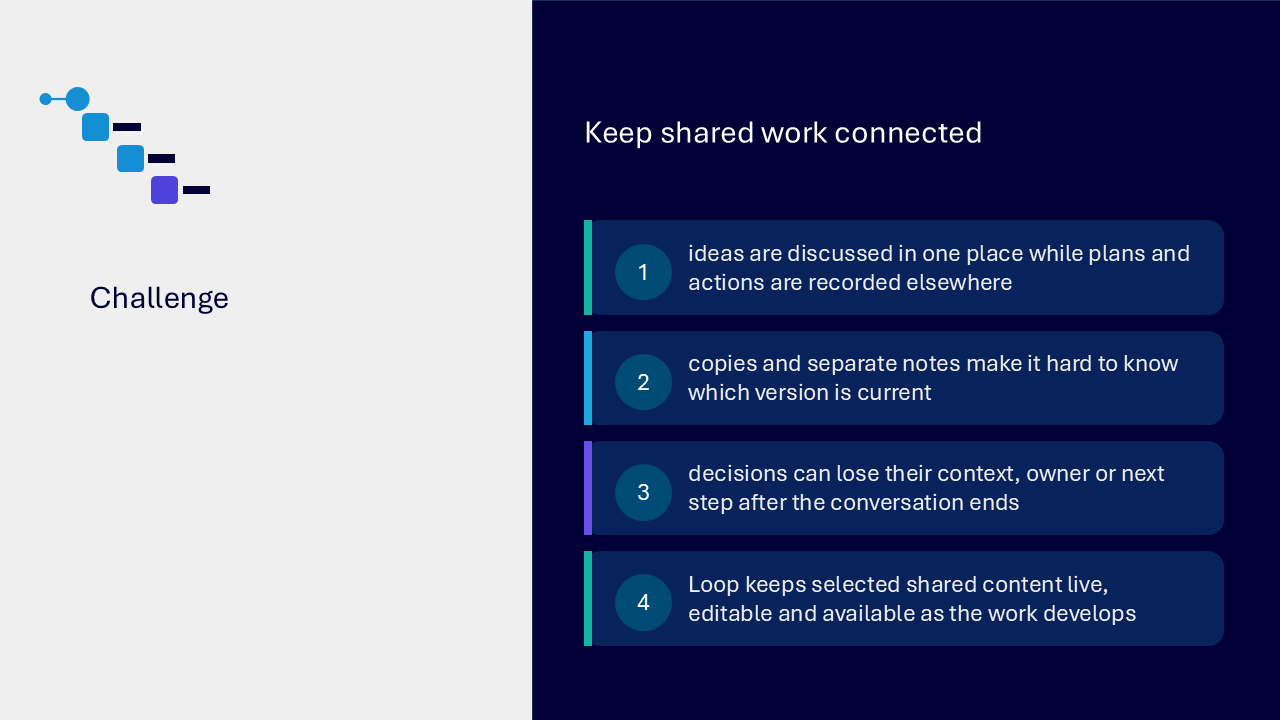
The challenge visual links four issues. Ideas may be discussed in one place while plans and actions are recorded elsewhere. Copies and separate notes make the current version difficult to identify. Decisions can lose their context, owner or next step. Loop can keep selected shared content live, editable and available as the work develops.
Your route through the session
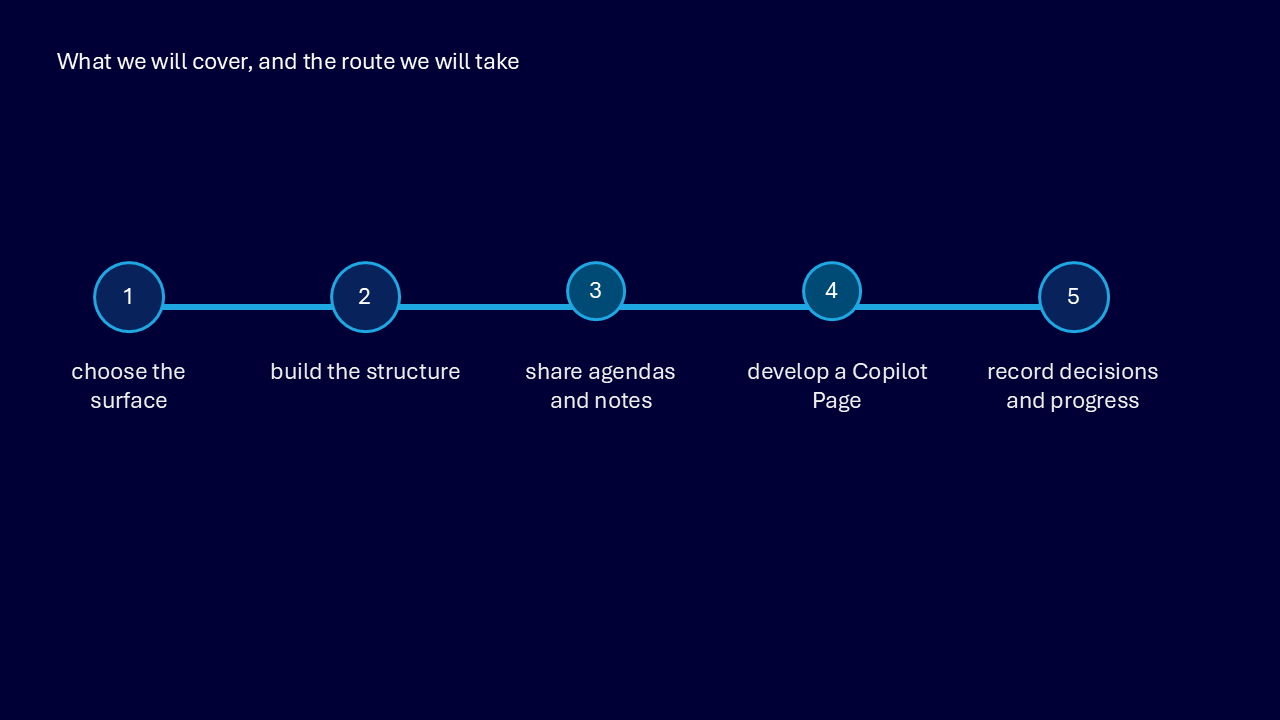
The route graphic presents five connected stages.
- choose the surface
- build the structure
- share agendas and notes
- develop a Copilot Page
- record decisions and progress
Choose the right Loop surface
Loop provides three main levels of structure. Start with the lightest surface that supports the audience, purpose and duration of the work.
- component: a focused piece of live content that can travel into supported applications
- page: related content brought together with headings, links and room to develop
- workspace: several connected pages organised for longer-running collaborative work
Keep focused contributions live with a component
A Loop component is suited to a bounded contribution where portability matters more than a large surrounding structure.
- use a table, checklist, voting table, notes or another focused contribution
- let people edit the same live content instead of sending copied versions
- use the component link as a route back to the content and its context
- place the component in a supported conversation where contributors are already working
Develop context on a page
A Loop page gives developing work more context and structure than one component without requiring a whole workspace.
- use clear headings to show the purpose, audience and current stage
- bring together components, explanatory text, links and supporting material
- keep decisions and next actions near the information that produced them
- use descriptive content that helps people understand what the page is for
Connect pages in a workspace
A Loop workspace organises several pages around longer-running shared work.
- name the workspace for the outcome or project rather than the application
- organise pages so people can find plans, notes, decisions and progress again
- invite people who need to contribute to or follow the work
- review the structure as the work changes instead of creating unnecessary pages
Build around the shared work
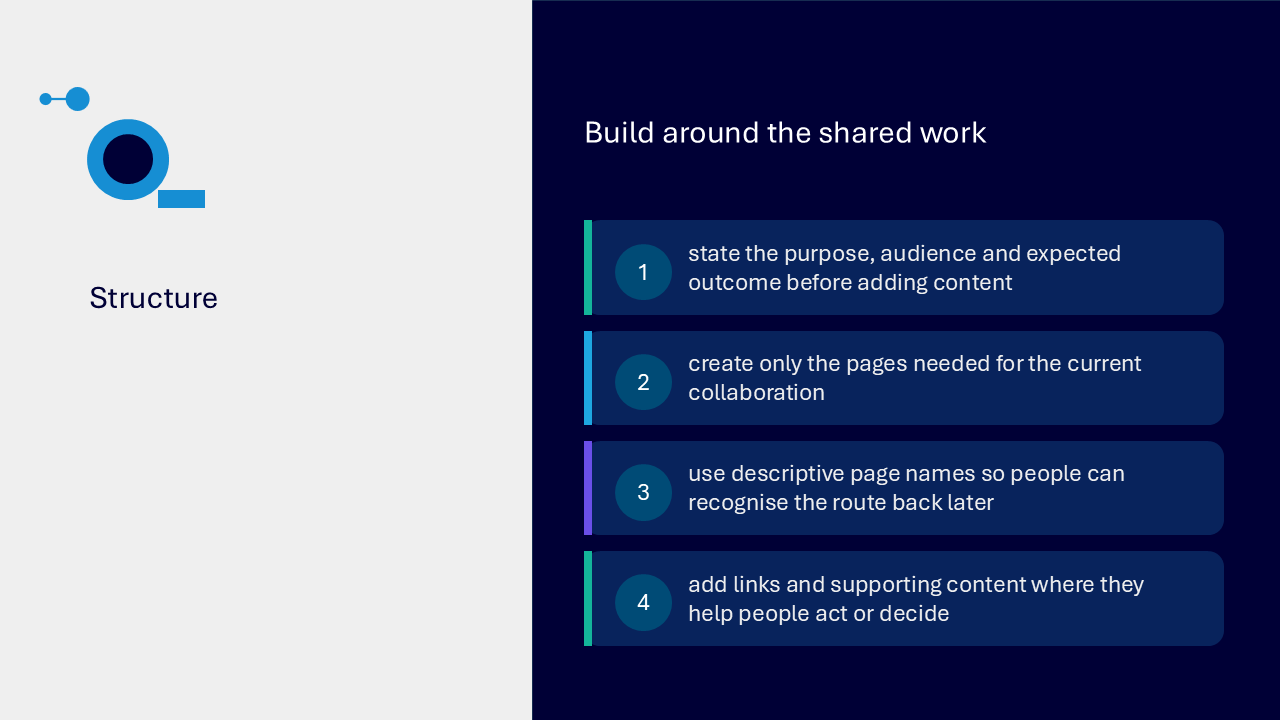
The structure visual starts with the work rather than with a feature tour. State the purpose, audience and expected outcome before adding content.
- create only the pages needed for the current collaboration
- use descriptive page names that provide a clear return route
- add links and supporting content where they help people act or decide
- review whether the structure still fits as the work develops
Compare components, pages and workspaces
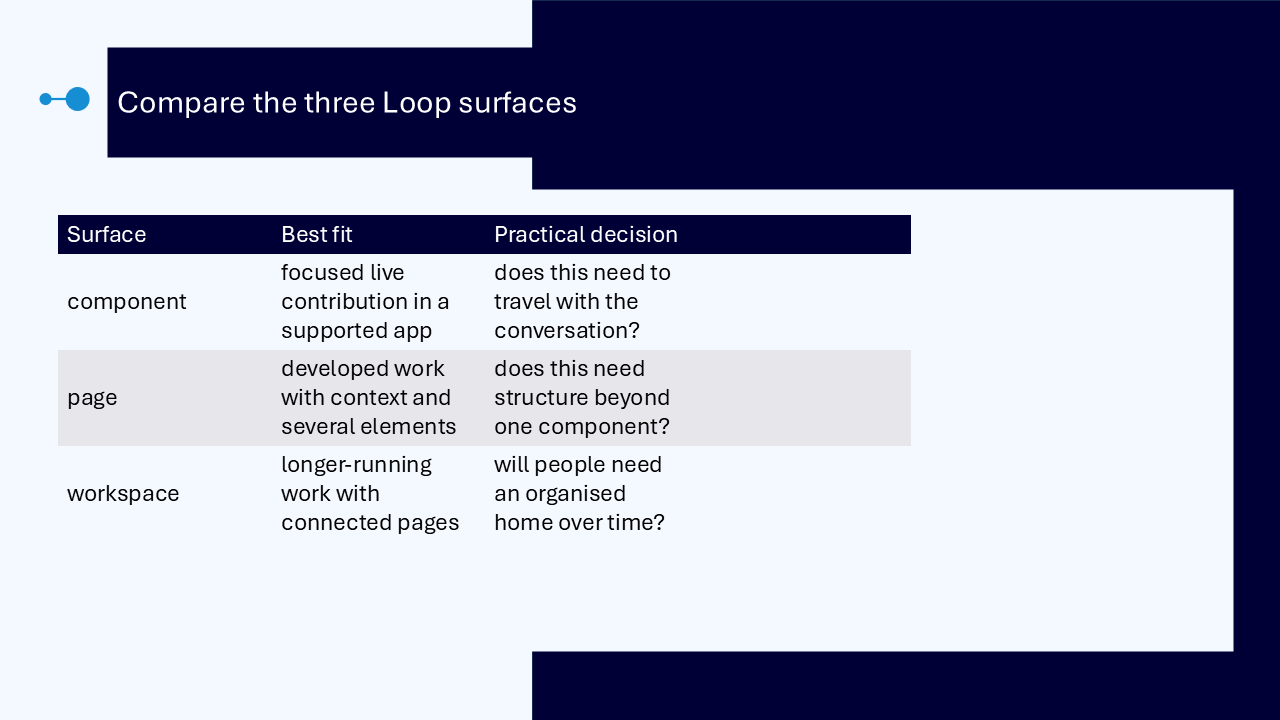
The comparison visual uses three practical questions.
- choose a component when focused live content needs to travel with a conversation
- choose a page when work needs context and structure beyond one component
- choose a workspace when people need an organised home for connected pages over time
Keep agendas and follow-up connected
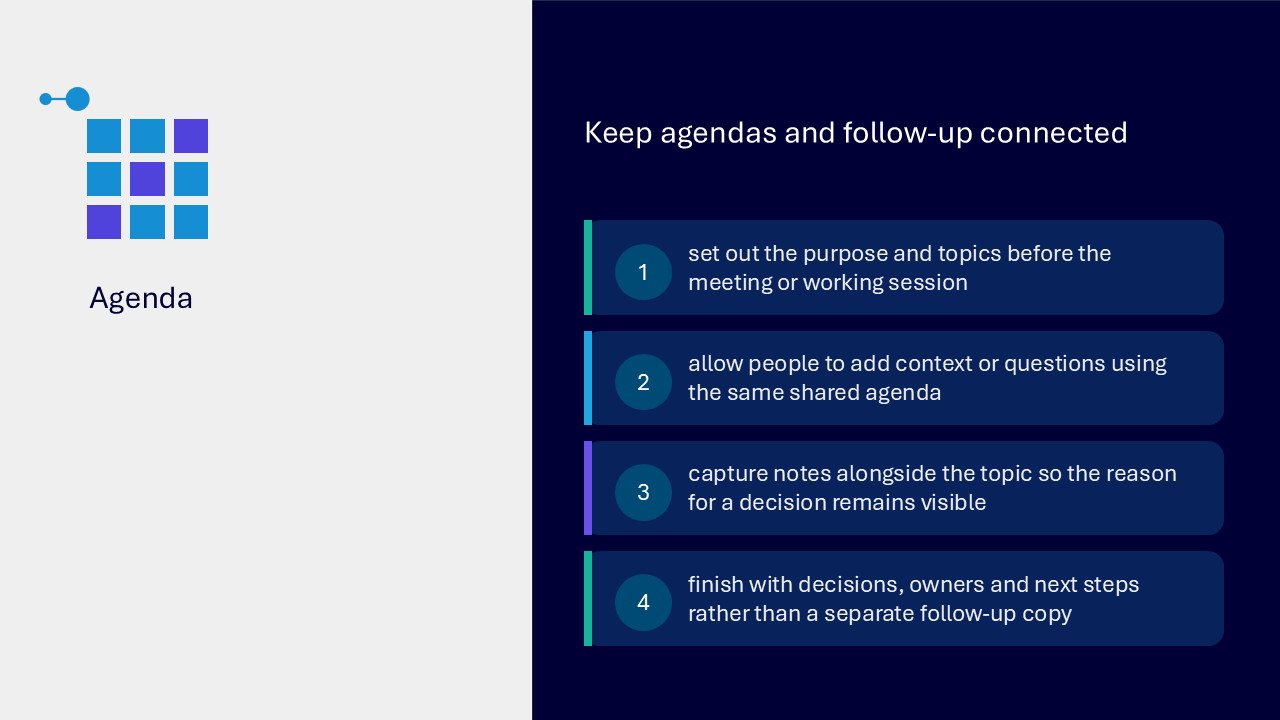
A shared agenda can connect preparation, discussion and follow-up instead of creating separate copies at each stage.
- set out the purpose and topics before the meeting or working session
- allow people to add context or questions using the same shared agenda
- capture notes alongside the relevant topic so the reason for a decision remains visible
- finish with decisions, owners and next steps in the live content
Use one live component
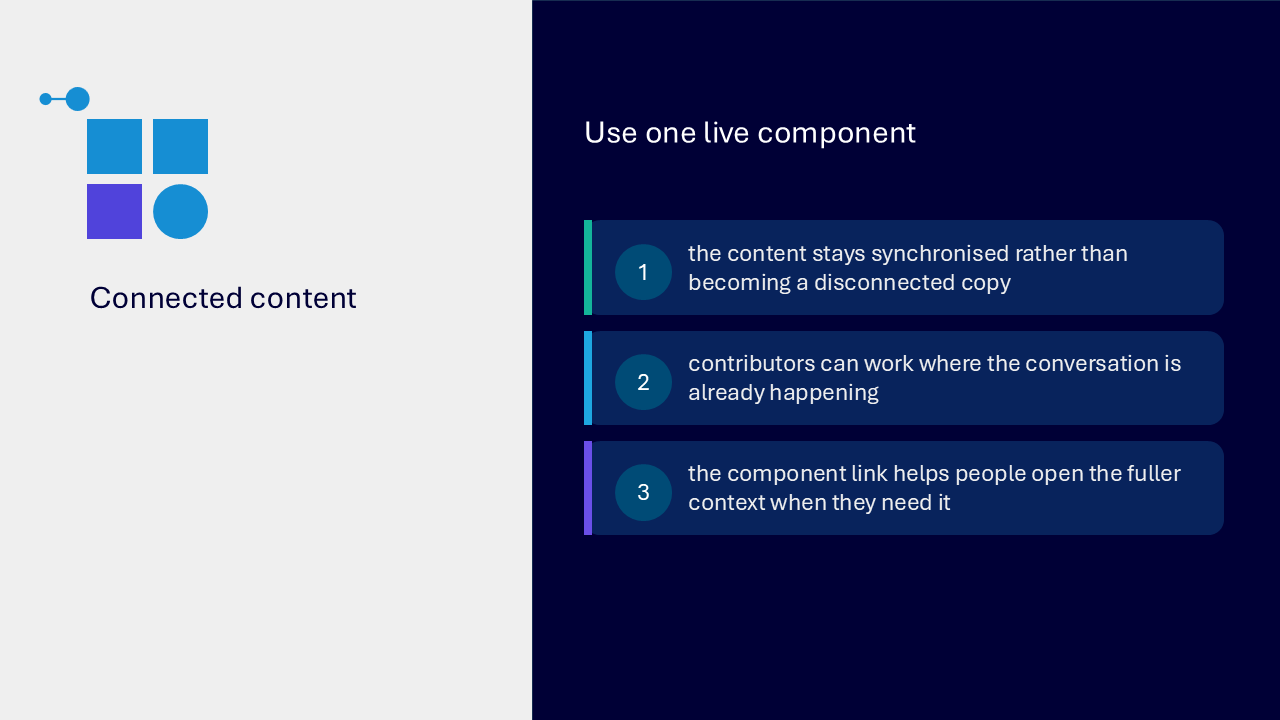
The same component can remain synchronised in supported Microsoft 365 locations:
- contributors work with the live content rather than a disconnected copy
- people can contribute where the conversation is already happening
- the component link provides a route to the fuller context when needed
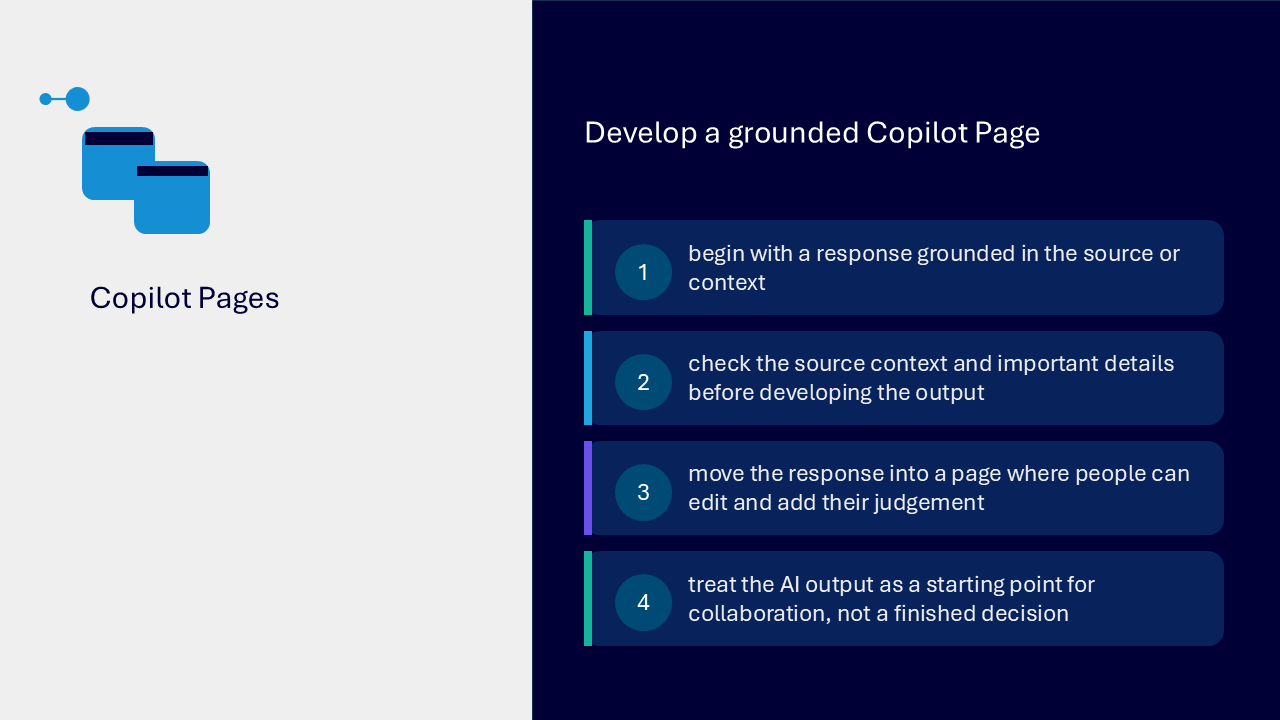
Develop a grounded Copilot Page
A Copilot Page can move a checked response into editable shared work. The AI output remains a starting point for collaboration, not a finished decision.
- begin with a response grounded in the available source or context
- check the source context and important details before developing the output
- move the response into a page where people can edit and add their judgement
- retain a clear distinction between generated material and confirmed organisational decisions
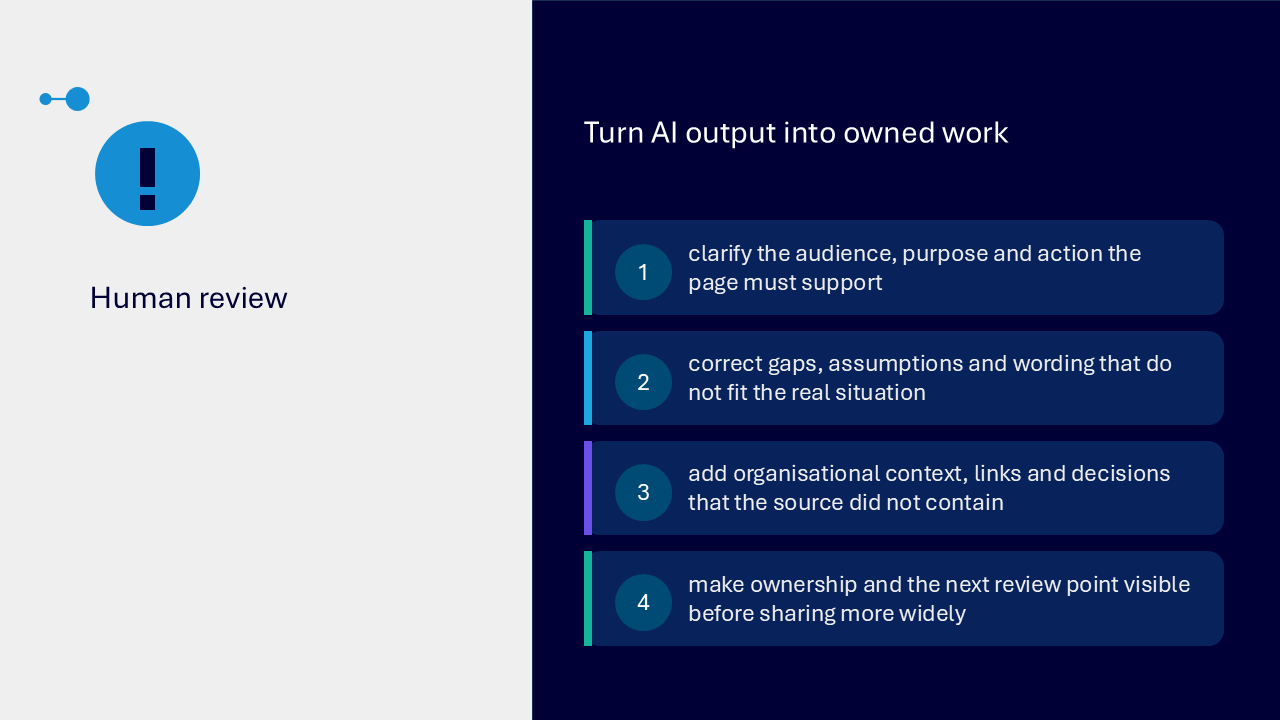
Turn AI output into owned work
Human review turns generated content into work that fits the real situation and has visible ownership.
- clarify the audience, purpose and action the page must support
- correct gaps, assumptions and wording that do not fit the situation
- add organisational context, links and decisions that were not in the source
- make ownership and the next review point visible before wider sharing
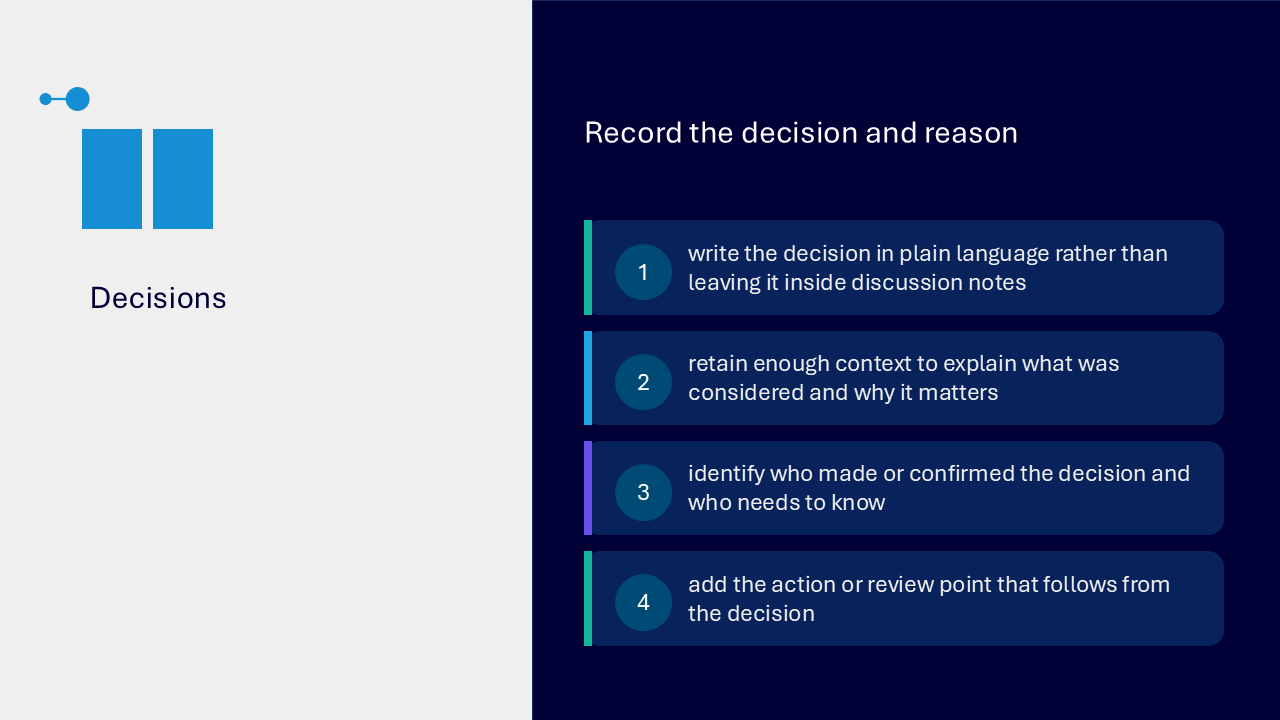
Record the decision and reason
The decisions visual keeps the outcome close to its context rather than leaving it inside discussion notes.
- write the decision in plain language
- retain enough context to explain what was considered and why it matters
- identify who made or confirmed the decision and who needs to know
- add the action or review point that follows
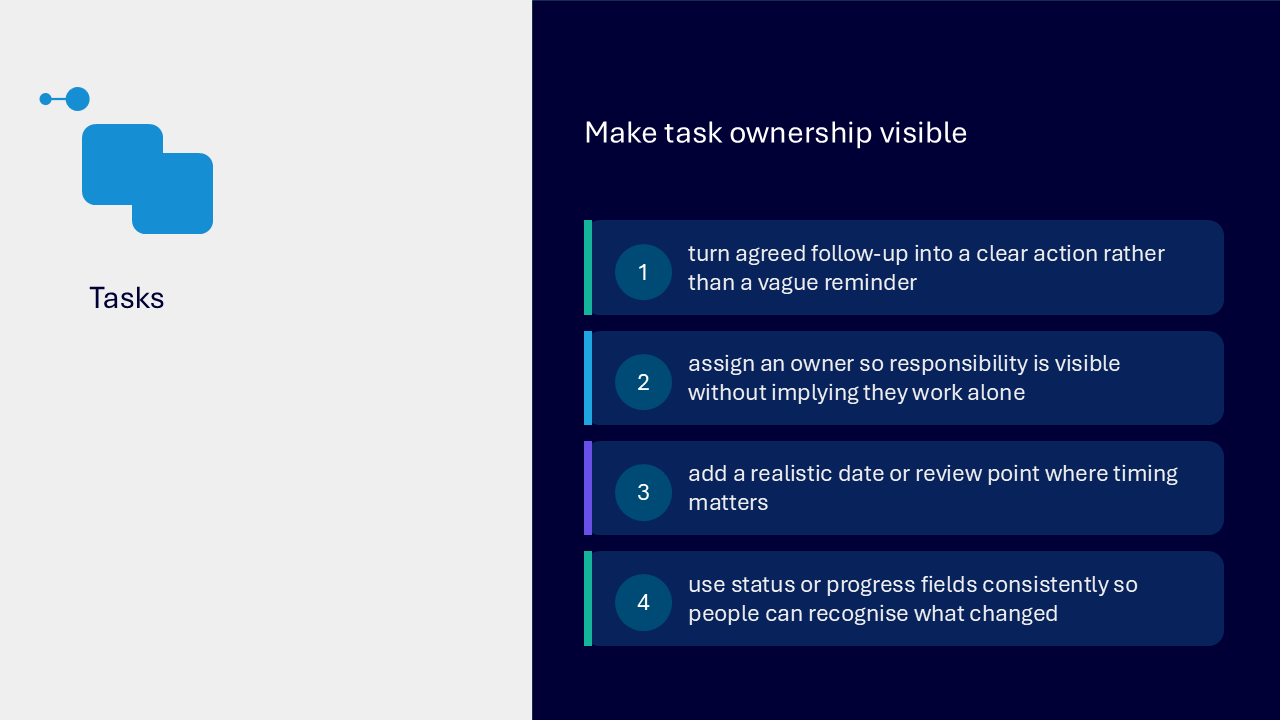
Make task ownership visible
Tasks should translate agreed follow-up into a clear and visible commitment.
- turn the follow-up into a specific action rather than a vague reminder
- assign an owner so responsibility is visible without implying they work alone
- add a realistic date or review point where timing matters
- use status or progress fields consistently so changes are recognisable
Check connected task behaviour
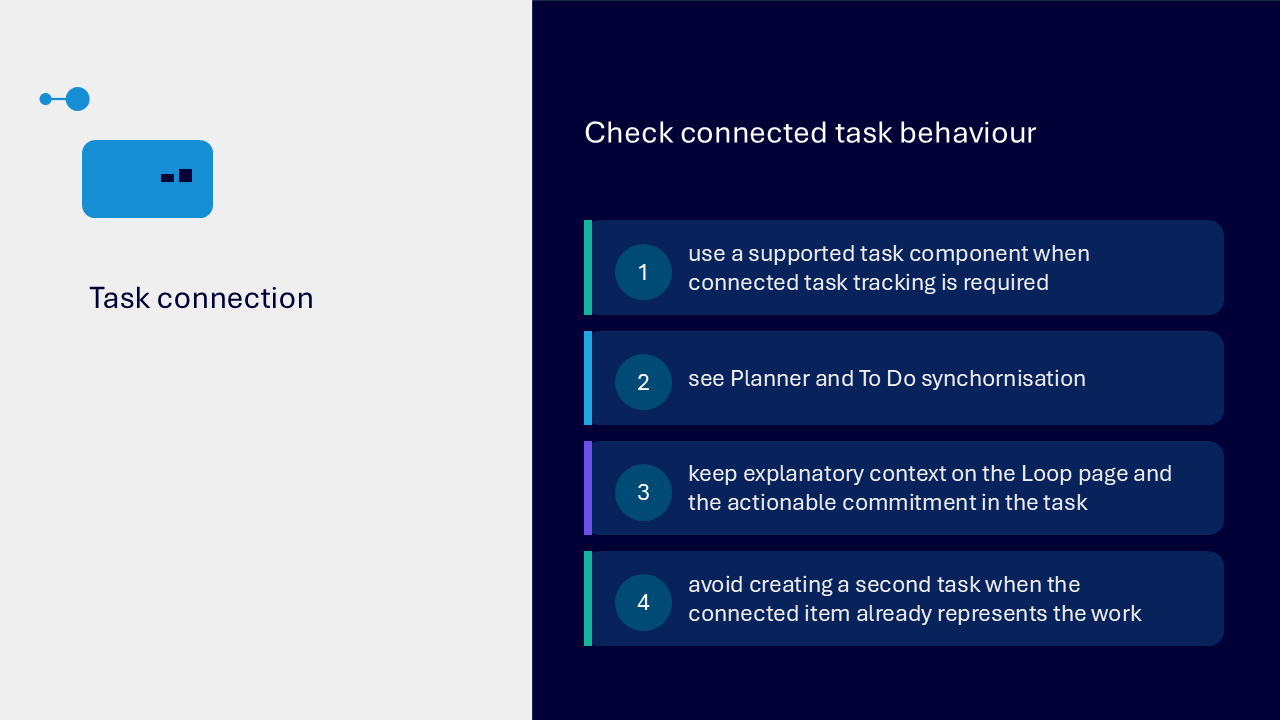
Not every Loop item becomes a connected task elsewhere. Use a supported task component when connected tracking is required and check how the item behaves across Loop, Planner and To Do.
- keep explanatory context on the Loop page
- keep the actionable commitment in the connected task
- avoid creating a second task when the connected item already represents the work
- check synchronisation before relying on another task view
Connect purpose, decisions and follow-up
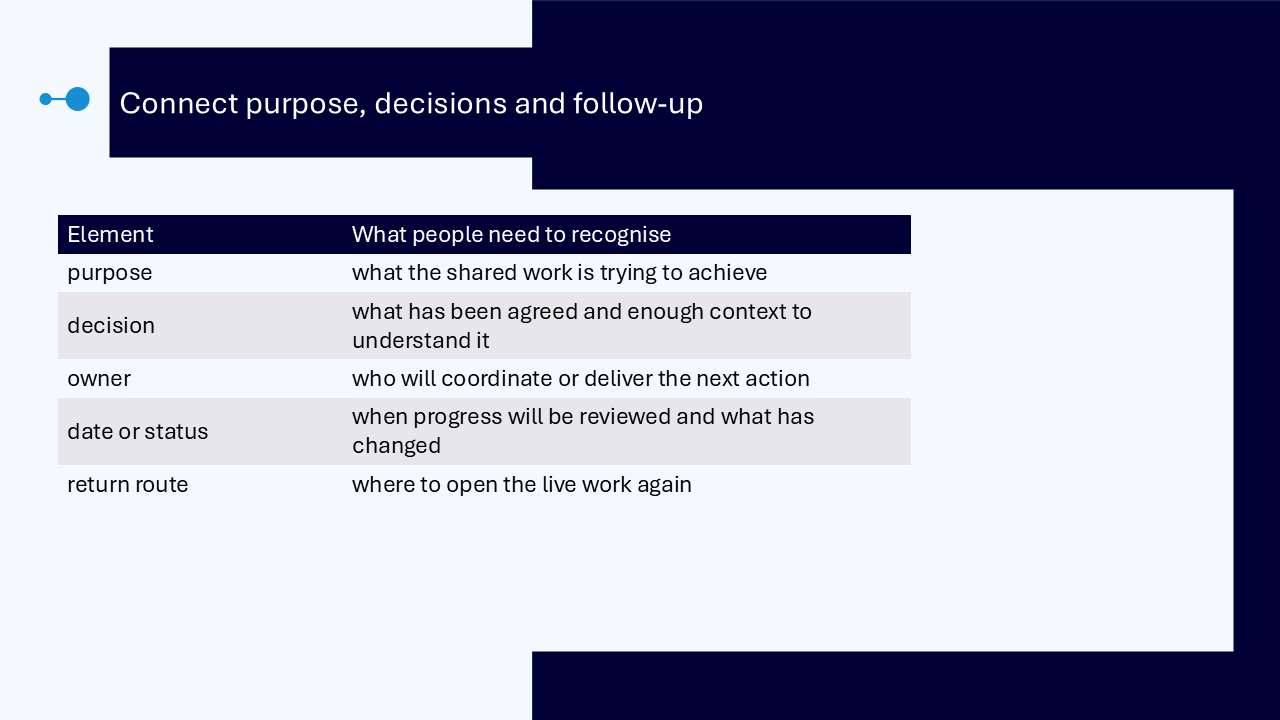
The visible-record visual brings five elements together.
- purpose: what the shared work is trying to achieve
- decision: what has been agreed and enough context to understand it
- owner: who will coordinate or deliver the next action
- date or status: when progress will be reviewed and what has changed
- return route: where to open the live work again
Keep a dependable route back
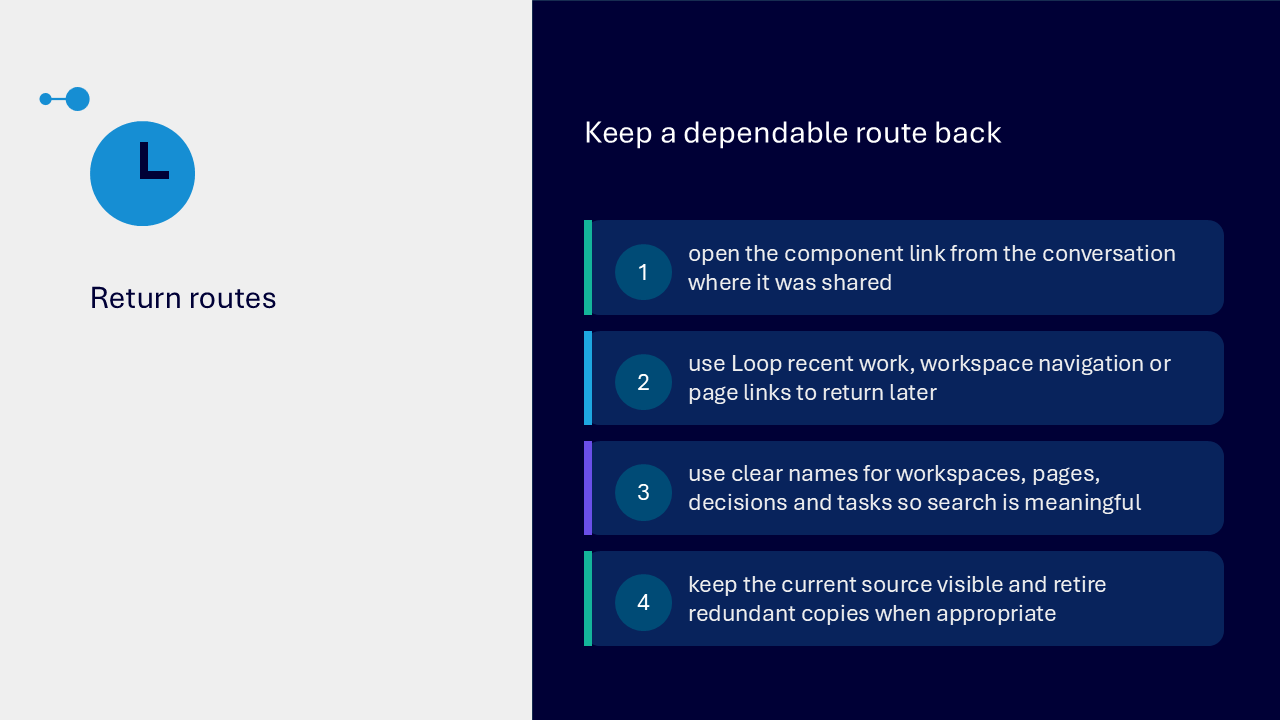
Return routes keep the work usable after a meeting or message.
- open the component link from the conversation where it was shared
- use Loop recent work, workspace navigation or page links to return later
- use clear names for workspaces, pages, decisions and tasks so search is meaningful
- keep the current source visible and retire redundant copies when appropriate
What the visuals and demonstrations showed
The visual sequence followed shared work from choosing a Loop surface through to a visible decision, owner, date and return route.
- comparing a component, page and workspace by portability, depth and duration
- creating structure from the purpose and audience
- using one live agenda or notes component
- moving a checked Copilot response into an editable page
- applying human judgement and organisational context
- recording decisions and their reasons
- assigning actions with owners and dates
- checking connected task behaviour
- returning through component links, recent work, workspace navigation or page links
Key takeaways
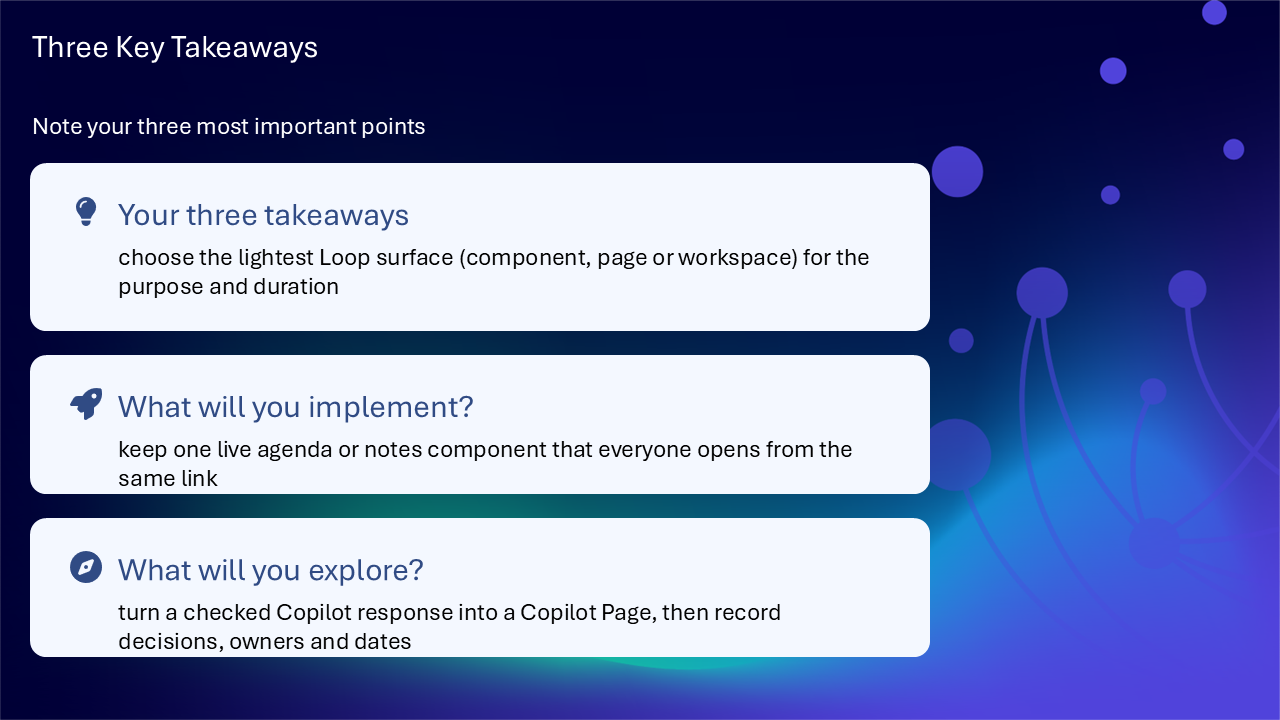
- choose the lightest Loop surface for the purpose and duration
- keep one live agenda or notes component that everyone opens from the same link
- turn a checked Copilot response into a Copilot Page before developing it collaboratively
- record decisions, owners and dates where people can find the context
- maintain a dependable route back to the current work
A clear route through shared work
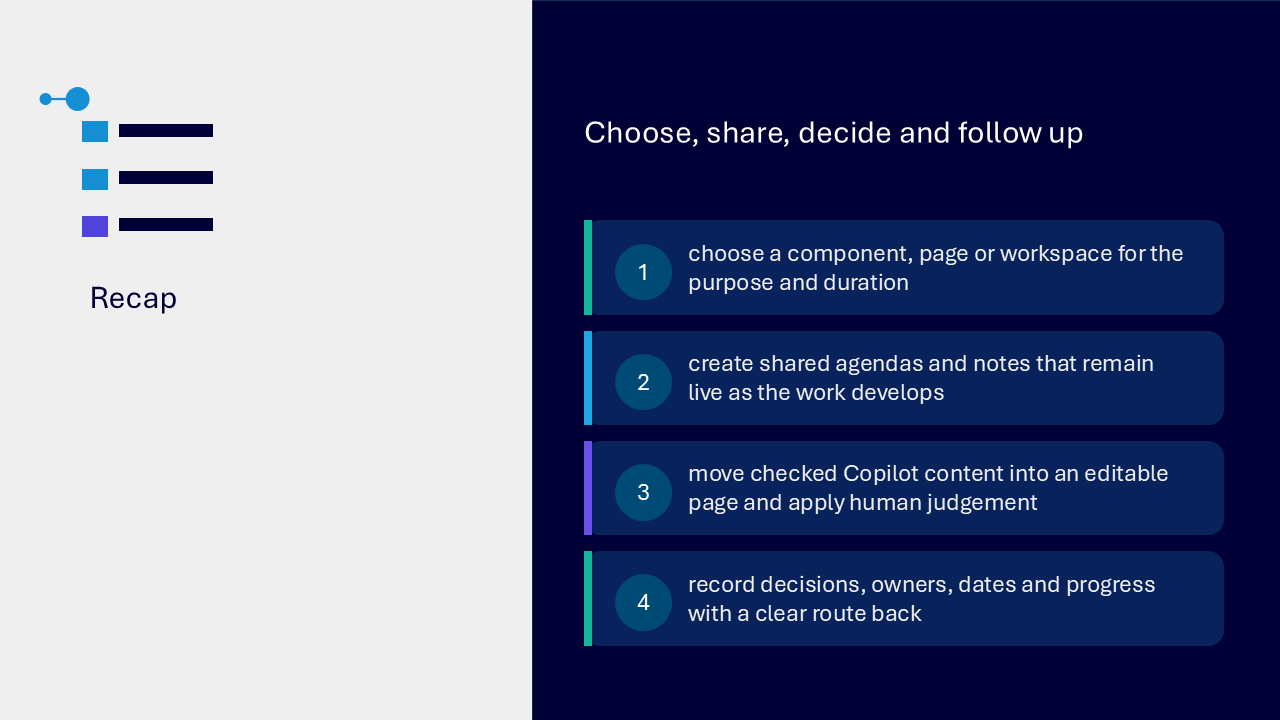
- choose a component, page or workspace
- build only the structure the current work needs
- keep agendas and notes live
- check generated content and apply human judgement
- record decisions and follow-up clearly
- make ownership, dates, progress and the return route visible
Actions you can take
Try the tip of the month
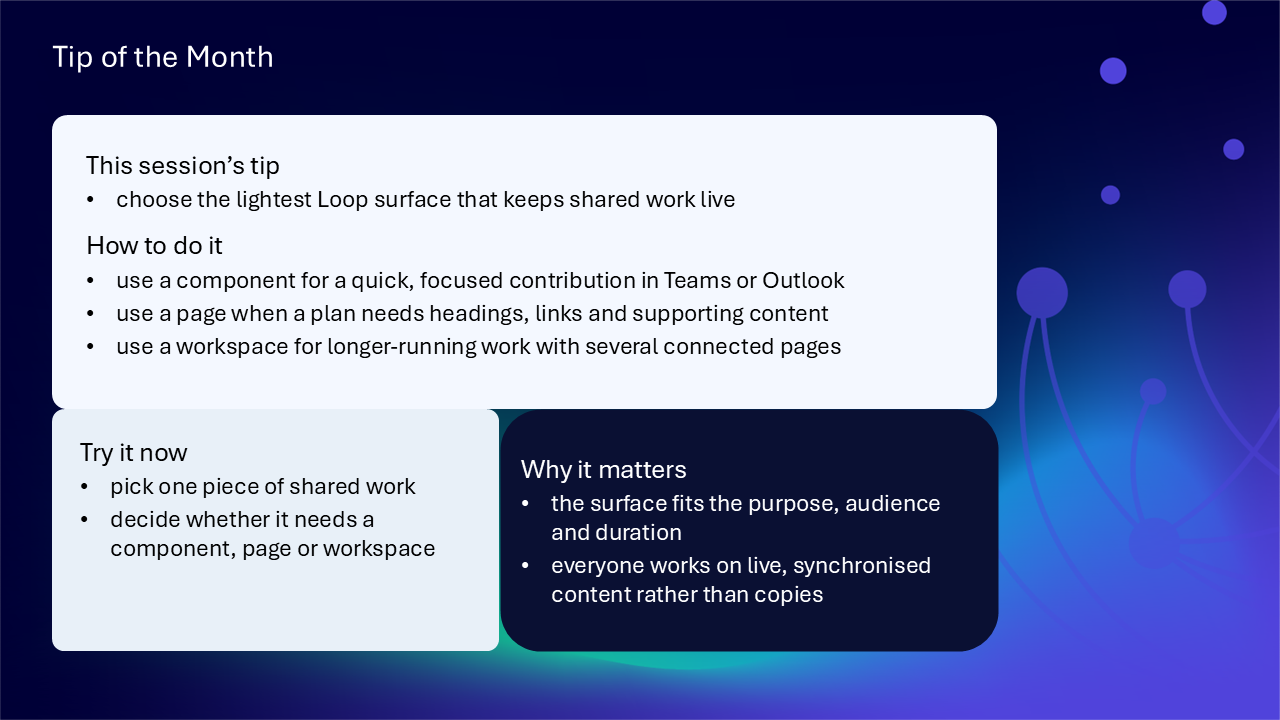
This session’s tip: choose the lightest Loop surface that keeps shared work live
How to do it: use a component for a quick focused contribution, a page when a plan needs headings and supporting content, or a workspace for longer-running work with connected pages
Why it matters: the surface fits the purpose, audience and duration, while everyone works on live synchronised content rather than copies
Try it now: choose one piece of shared work and decide whether it needs a component, page or workspace
Build confidence with one practical route
- identify one shared item that currently exists in several copies
- choose whether a component, page or workspace is the lightest suitable surface
- give the content a descriptive name that provides a clear return route
- add the purpose, audience and expected outcome
- record one decision with its reason
- add one action with an owner and realistic date or review point
- check whether any connected task already represents the work
- share the live link rather than creating another copy
Questions and feedback
Questions are welcome. If something is unclear, ask for it to be explained another way or demonstrated again. Feedback helps WeChange.AI understand what matters to you.
Complete the Support and Skilling Week feedback form
Contact WeChange.AI
For skilling queries, email training@wechange.ai.
Andrew Boxall, Managing Director: andrew@wechange.ai
Paul Ford, Industry Director for Education and Philanthropies: paul@wechange.ai
Josh Wilson, Industry Specialist: josh@wechange.ai
Elle Avilla, Customer Success and Delivery Skilling Lead: elle@wechange.ai
Izzy Pochin, Resources and Accessibility Lead: izzy@wechange.ai
Activity sheet
Follow one practical route from choosing the lightest useful Loop surface through to recording decisions, ownership, progress and a dependable route back.
How to use this activity sheet
This sheet supports Session 7: Microsoft Loop. Use it after the live session, or follow selected steps while your trainer demonstrates components, pages, workspaces, shared agendas and connected follow-up.
- work at your own pace and pause after each activity
- use practice or non-sensitive content
- complete only activities your organisation has enabled and you have permission to perform
- your screen may differ because licences, settings and supported applications vary
- keep one current live source rather than creating unnecessary copies
What you will achieve
- choose between a Loop component, page and workspace
- create a simple structure around purpose, audience and outcome
- use one live component for a focused contribution
- keep an agenda, notes, decisions and next steps connected
- review a grounded Copilot response before developing it on a page, where available
- record decisions, owners, dates and progress visibly
- check connected task behaviour and avoid duplicate tasks
- create a dependable route back to the live work
Your learning route
| Stage | You will practise |
|---|---|
| 1. Choose the surface | component, page or workspace |
| 2. Build the structure | purpose, audience, outcome and page names |
| 3. Share live content | a focused component and return link |
| 4. Connect agendas and notes | preparation, discussion and follow-up |
| 5. Develop a Copilot Page | grounding and human review, where available |
| 6. Record decisions | reason, owner, action and review point |
| 7. Track progress | task ownership, date and status |
| 8. Return to the work | recent work, links and clear names |
Before you start
- sign in to Microsoft Loop with your organisational account
- choose a small fictional or non-sensitive piece of shared work
- decide who the practice audience would be
- close or minimise anything you should not display
- allow about 45 to 60 minutes, or complete one activity at a time
Activity 1: Choose the lightest useful Loop surface
Outcome: Match the surface to the purpose, audience, depth and duration of the work.
| Surface | Best fit | Decision question |
|---|---|---|
| component | a focused live contribution in a supported application | does this need to travel with the conversation? |
| page | developing work with context and several elements | does this need structure beyond one contribution? |
| workspace | longer-running work with connected pages | will people need an organised home over time? |
- Name the shared outcome.
- Identify the people who need to contribute or follow progress.
- Decide how much context the work needs.
- Consider how long the work is likely to develop.
- Choose the lightest surface that supports the work.
The shared work: ____________________________________________________________________
The surface I would choose: ____________________________________________________________________
My reason: ____________________________________________________________________
Pause and check
Activity 2: Create a focused Loop component
Outcome: Keep one bounded contribution live rather than circulating separate copies.
- Create a practice component such as a checklist, table, voting table or notes area in a M365 app.
- Add a clear title or opening line that states the purpose.
- Add three short practice entries.
- Share or copy the component link only within your authorised practice route.
- Open the same live content from the link and make one small change.
- See the live component update, no copies.
The component type: ____________________________________________________________________
The contribution it supports: ____________________________________________________________________
My route back: ____________________________________________________________________
Pause and check
Activity 3: Develop context on a Loop page
Outcome: Build a page that gives shared work enough context and structure.
- Create a practice page.
- Give it a descriptive name based on the work or outcome.
- Add a short purpose statement and identify the audience.
- Use clear headings for context, current work, decisions and next actions.
- Add the practice component or a supporting link if useful.
- Remove any section that is not needed for the current collaboration.
| Page element | Your content |
|---|---|
| purpose | |
| audience | |
| expected outcome | |
| current stage | |
| decision area | |
| next actions area |
Pause and check
Activity 4: Connect pages in a workspace
Outcome: Create an organised home only when the work needs several connected pages over time.
- Create or open a safe practice workspace if this scale is justified.
- Name it for the outcome or project rather than the application.
- Add only the pages needed now.
- Use descriptive page names for plans, notes, decisions or progress.
- Invite only people who need to contribute to or follow the work, if authorised.
- Review the structure and remove any unnecessary practice page.
Workspace outcome: ____________________________________________________________________
Pages needed now: ____________________________________________________________________
People who need access: ____________________________________________________________________
Pause and check
Activity 5: Keep an agenda and follow-up connected
Outcome: Use one live agenda or notes area from preparation through to decisions and next steps.
- Create a practice agenda component or page.
- State the meeting or working-session purpose.
- Add the topics in a logical order.
- Leave a place for colleagues to add context or questions.
- Capture notes beside the relevant topic.
- Finish with a decision, owner and next step rather than creating a separate follow-up copy.
| Topic | Context or question | Notes | Decision or next step |
|---|---|---|---|
| practice topic 1 | |||
| practice topic 2 |
Notice: The same live agenda helps retain the reason for a decision and reduces disconnected versions.
Pause and check
Activity 6: Develop a checked Copilot response on a page
Outcome: Treat AI output as a starting point for human-owned collaborative work.
Notice: Complete this activity only where Copilot Pages is available. Otherwise, use the review checklist with a fictional response.
- Begin with a Copilot response grounded in the source or context available to you.
- Check the source context and important details before developing the output.
- Move the checked response into a Copilot Page where the option is available.
- Clarify the audience, purpose and action the page must support.
- Correct gaps, assumptions and wording that do not fit the situation.
- Add organisational context, links and decisions that were not in the source.
- Make ownership and the next review point visible before wider sharing.
| Human review check | Your note |
|---|---|
| source or context checked | |
| gaps or assumptions corrected | |
| organisational context added | |
| decision or judgement added | |
| owner visible | |
| next review point visible |
Pause and check
Activity 7: Record a decision and its reason
Outcome: Make the decision, context, confirmation and follow-up easy to recognise.
- Open the decision area on your practice page.
- Write the decision in plain language.
- Add enough context to explain what was considered and why it matters.
- Identify who made or confirmed the decision.
- Record who needs to know.
- Add the action or review point that follows.
| Decision record | Your entry |
|---|---|
| decision | |
| reason or context | |
| confirmed by | |
| people to inform | |
| action or review point |
Pause and check
Activity 8: Make task ownership and progress visible
Outcome: Turn agreed follow-up into a clear action without implying the owner works alone.
- Create a practice task list or supported task component.
- Write one clear action.
- Assign an owner or coordinator.
- Add a realistic date or review point where timing matters.
- Choose a status or progress value and use it consistently.
- Add supporting context on the Loop page rather than overcrowding the task.
| Task element | Your entry |
|---|---|
| action | |
| owner or coordinator | |
| contributors or support | |
| date or review point | |
| status or progress | |
| link to context |
Pause and check
Activity 9: Check connected task behaviour
Outcome: Understand whether a supported task component connects with Planner or To Do and avoid duplicate tasks.
- Use a supported task component only where connected task tracking is required.
- Open the relevant Planner or To Do view available to you.
- Check whether the practice task appears there.
- Return to Loop and make one safe practice update.
- Check how the connected item changes.
- Do not create a second task when the connected item already represents the work.
- Delete the practice task if it should not remain.
Where the connected task appeared: ____________________________________________________________________
What changed after the update: ____________________________________________________________________
Notice: Not every Loop item becomes a connected task elsewhere. Keep explanatory context on the Loop page and the actionable commitment in the task.
Pause and check
Activity 10: Keep a dependable route back
Outcome: Make the current live source easy to reopen after the message, meeting or working session.
- Open the component link from the conversation where it was shared.
- Use Loop recent work to return to the practice content.
- Use workspace navigation or a page link to find the relevant page.
- Check that workspace, page, decision and task names are meaningful in search.
- Identify the current live source.
- Retire or clearly label any redundant practice copy where appropriate.
My preferred route back: ____________________________________________________________________
The name that will be meaningful later: ____________________________________________________________________
How people will recognise the current source: ____________________________________________________________________
Pause and check
Put it into practice: connect purpose, decisions and follow-up
Scenario: A cross-service group is developing a new working approach. People need to add ideas, prepare for a discussion, record an agreed decision and track follow-up over several weeks.
- choose the lightest Loop surface that supports the duration and audience
- state the purpose, audience and expected outcome
- keep one live agenda or notes area
- place decisions near their supporting context
- record who confirmed the decision and who needs to know
- turn follow-up into a clear action with visible ownership
- add a realistic date or review point
- use a consistent status and a dependable return route
The Loop surface: ____________________________________________________________________
The live agenda or notes route: ____________________________________________________________________
The decision record: ____________________________________________________________________
The task and owner: ____________________________________________________________________
The route back: ____________________________________________________________________
Quick reference: choose the Loop route
| If the work needs… | Try… |
|---|---|
| one focused live contribution | a Loop component |
| related content, headings and context | a Loop page |
| several connected pages over time | a Loop workspace |
| preparation, discussion and follow-up in one place | a live agenda or notes component |
| AI output developed collaboratively | a checked Copilot response moved to a Copilot Page, where available |
| a visible decision | decision, reason, confirmer and follow-up |
| an actionable commitment | owner, date or review point and consistent status |
| connected task tracking | a supported task component, checked in Planner or To Do |
| a reliable way back | component link, recent work, page link or workspace navigation |
Your three takeaways
My most useful learning: ____________________________________________________________________
What I will implement: ____________________________________________________________________
What I will explore further: ____________________________________________________________________
If you need help
- describe whether you were using a component, page, workspace or Copilot Page
- say which Microsoft 365 application contained the Loop content
- note the exact wording of any message shown
- ask your local support route about permissions, licences, sharing or connected tasks
- avoid sharing screenshots containing personal, confidential or sensitive information
Confidence grows through one live route: choose the lightest surface, keep context connected, record decisions clearly and make progress easy to recognise.
Reflective journal
Why we ask you to reflect
Continuing Professional Development (CPD) is formative and it is about what it achieves for you and your organisation.
Instead of formally assessing your learning, we ask you to write a reflective note. This should reflect on how the learning was relevant and how it will impact your working practices.
Taking time to reflect on your learning makes it more likely you will embed it in your future practice.
What to cover and when
What your reflection should cover
- how the learning was relevant to you
- how the learning will impact your practice
When to complete it
Reflect as soon as possible following the skilling session. This keeps your note contemporaneous (written close to the time) and meaningful. Fill it in on your device, so the boxes expand as you type.
| Topic | What to know |
|---|---|
| Timing | Complete the note as soon as possible after the training event. |
| Purpose | To embed the learning within your subsequent practice. |
| Focus | How the learning was relevant and how it will impact your practice. |
Your reflective note
Complete each row below. Write in your own words. Your notes are private to you unless you choose to share them.
| Prompt | Your response |
|---|---|
| Skilling session title | |
| Date of the skilling session | |
| Date you completed this note | |
| How was the learning relevant to you and your work? | |
| How will the learning impact your practice? |
Recommended resources
These curated resources accompany the WeChange.AI skilling offer of Continuing Professional Development (CPD) accredited, and non-accredited, sessions. Use them before a session to build familiarity, or afterwards to revisit and apply the learning in day-to-day work.
Alongside these resources, Navigator helps WeChange.AI customers find personalised recommendations and available learning on Microsoft 365 tools, accessibility and AI relevant to their role. Returning to Navigator after a session can help you connect new knowledge with practical workplace needs, choose a useful next step and keep learning visible as confidence grows.
An introduction to co-creating and planning with Loop. It explains the idea of live content that updates wherever it appears.
Explains how Loop components in Teams chats support real-time creation. It helps avoid copies by keeping contributions in one place.
Covers sharing live, interactive components for updates and task tracking in Teams. A good next step once you have tried a component in a chat.
Shows how to add shared notes and action lists to a message. Recipients see the same current content rather than a snapshot.
Explains how tasks created in Loop can be created, synced and managed across Microsoft apps. It helps keep follow-up visible in the places people already look.
Explains how to create a page from a new chat or an existing response, edit it directly and share it. Availability depends on your account and storage, so check what your organisation has enabled.