




Accessible summary
What this session covers
This foundational session explains how OneDrive and SharePoint support controlled, collaborative work. It focuses on keeping one cloud file, sharing the right link, choosing proportionate access, contributing clearly, recovering earlier work and reviewing who can access the file.
- the difference between sharing a cloud link and sending an attachment
- how the location of a file affects ownership and control
- how to choose view, edit, comment or mention for the contribution needed
- how co-authoring, comments and notifications keep work connected
- how version history can support careful recovery
- how Manage access helps keep permissions aligned with the current need
Making the session work for you
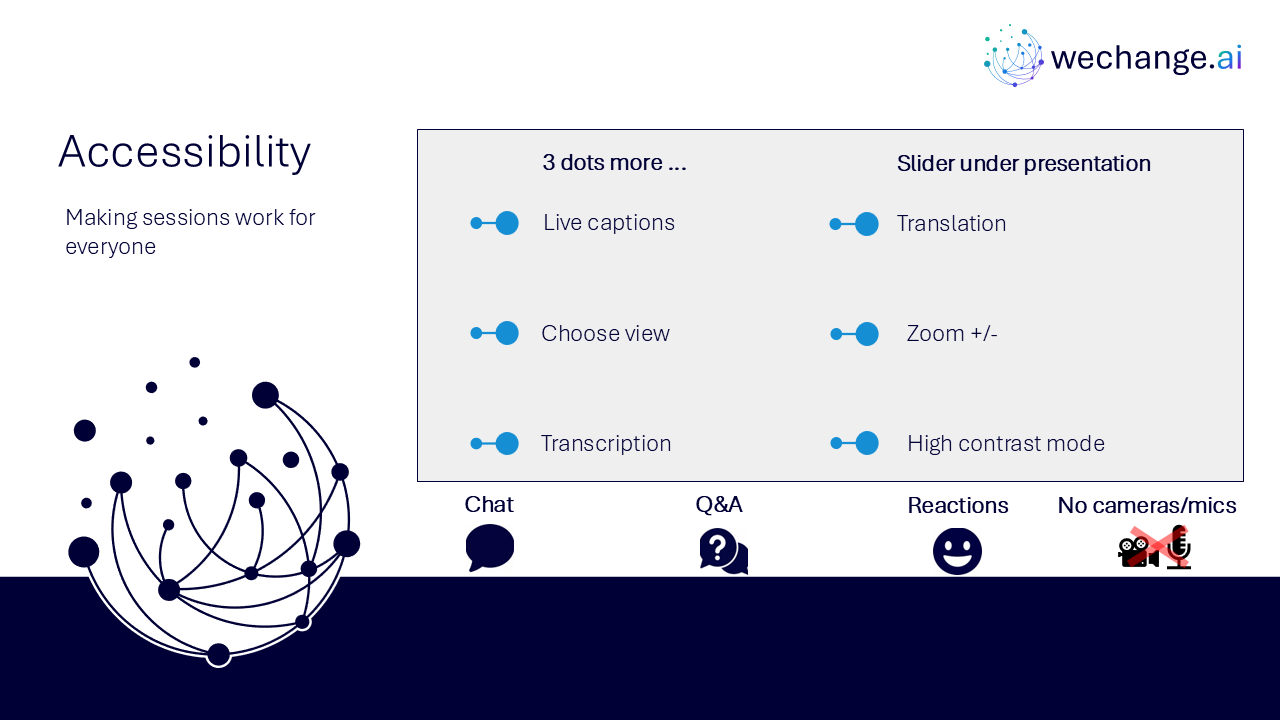
The session is delivered through a Microsoft Teams webinar using PowerPoint Live. You can personalise how you follow and take part. The session is recorded, and you can watch rather than follow along unless the trainer asks you to try something.
- use live captions or translation from the More options menu
- choose a view that gives you the clearest layout
- use the presentation slider to zoom in or out
- keep your camera and microphone off unless you are invited to use them
- use Q&A for questions and keep chat closed when you are not typing
- use reactions or another participation option if that works better for you
- share respectful feedback and use the key links provided in chat
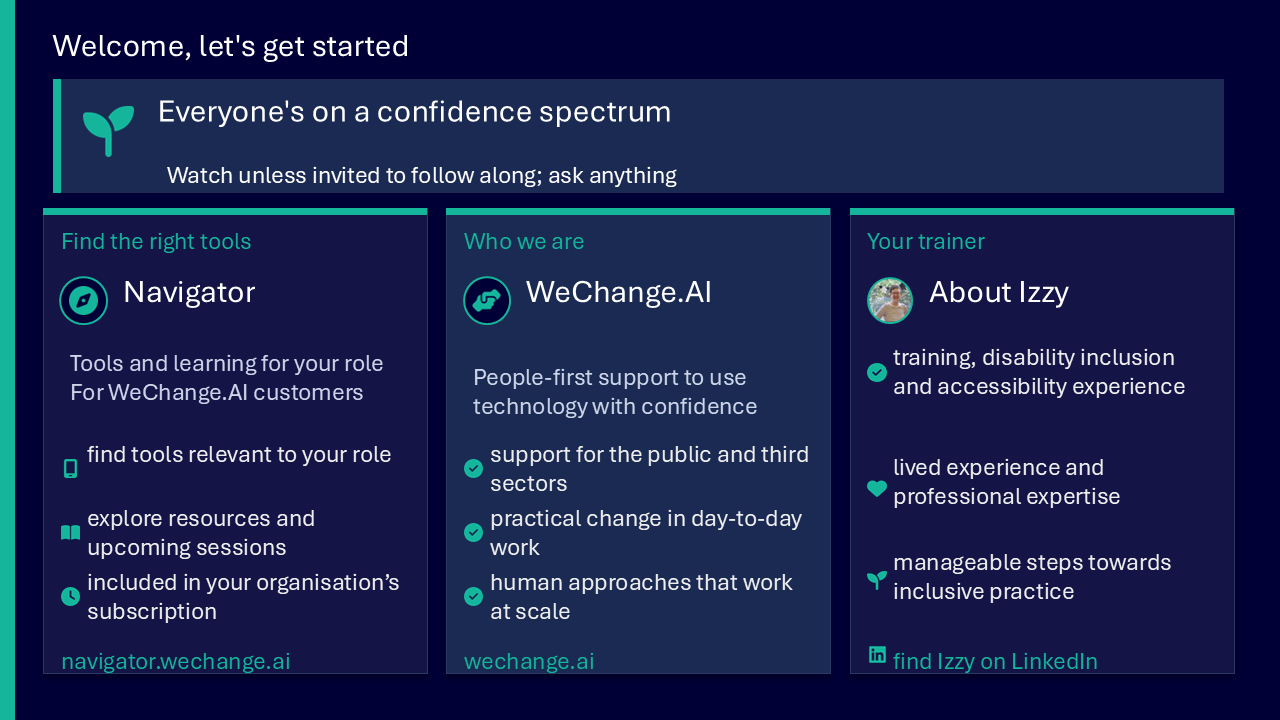
Everyone is on a confidence spectrum
These sessions are for everyone, whatever your starting point. You do not need to remember every sharing option. The aim is to understand the purpose of the file, choose a safe route and know where to check access.
Navigator and WeChange.AI
Navigator is a personalised platform for WeChange.AI customers. It helps you find Microsoft 365 applications, features, resources and upcoming sessions that are relevant to your role. Visit navigator.wechange.ai.
WeChange.AI supports public and third sector organisations to use technology with confidence, purpose and impact. The focus is practical, people-centred change in day-to-day work. Visit wechange.ai.
Key concepts
The collaboration challenge
The challenge graphic shows four connected reasons shared work can become confusing. Attachments can create several files with similar names. People may need different types of access. Changes and decisions can become separated across copies. One shared cloud file gives the group a controlled place to contribute and return to.
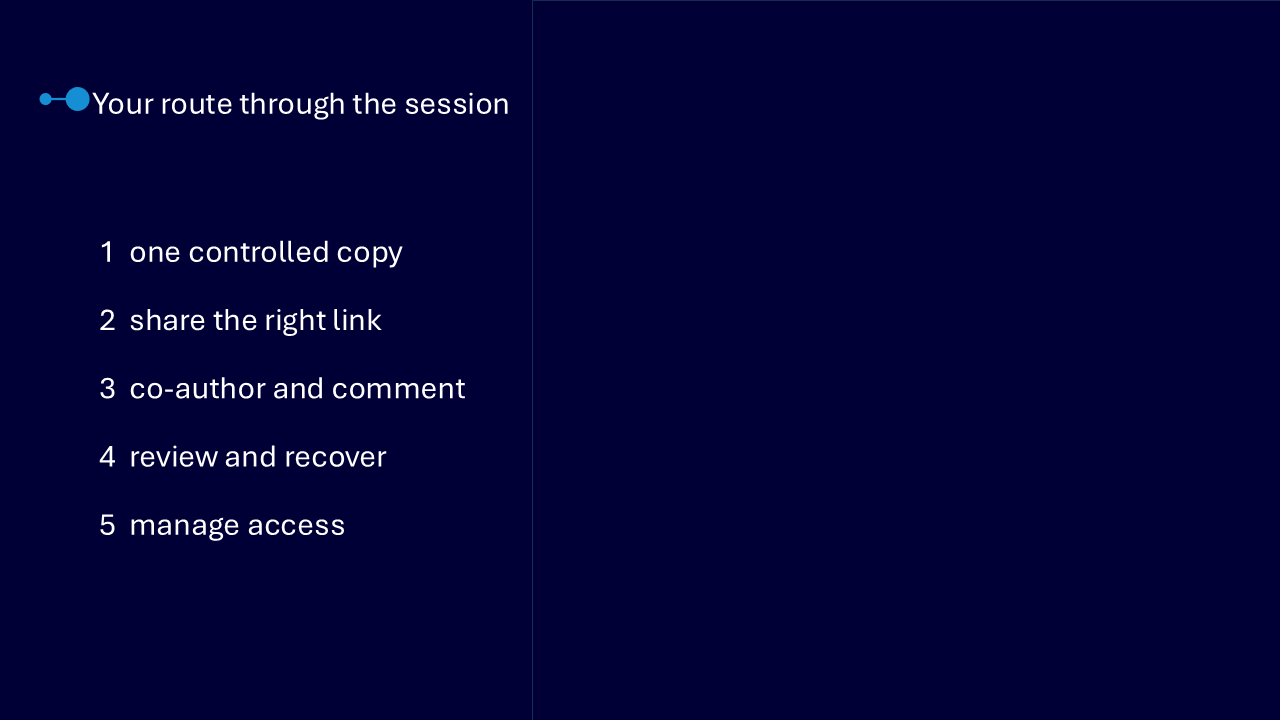
Your route through the session
The route diagram presents five stages. Each stage keeps the file, the people contributing and the controls around the work connected.
- one controlled copy
- share the right link
- co-author and comment
- review and recover
- manage access
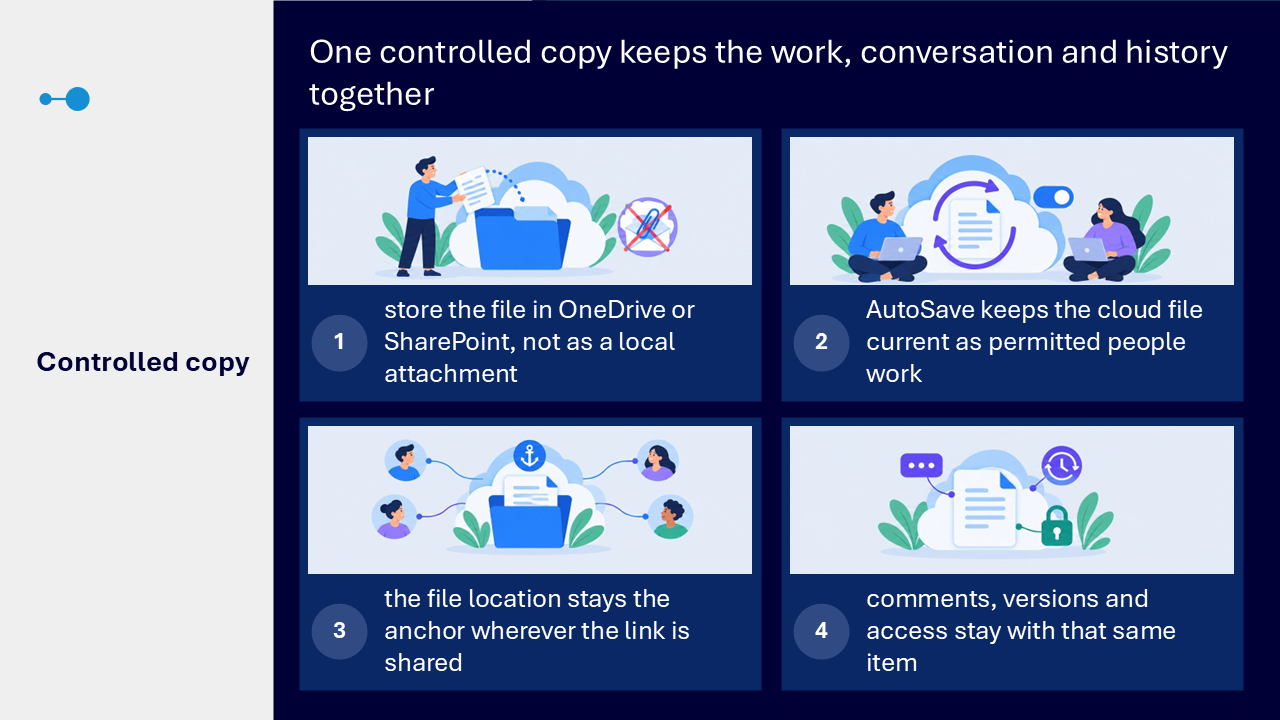
One controlled copy
A controlled copy is the cloud file stored in OneDrive or SharePoint. The location remains the anchor when a link is shared through Teams, Outlook or another approved route. Edits, comments, version history and access remain connected to the same item.
- start with the file stored in OneDrive or SharePoint rather than a local attachment
- use AutoSave so permitted changes return to the current cloud file
- keep the file location as the dependable route back to the work
- avoid creating competing downloads or renamed copies
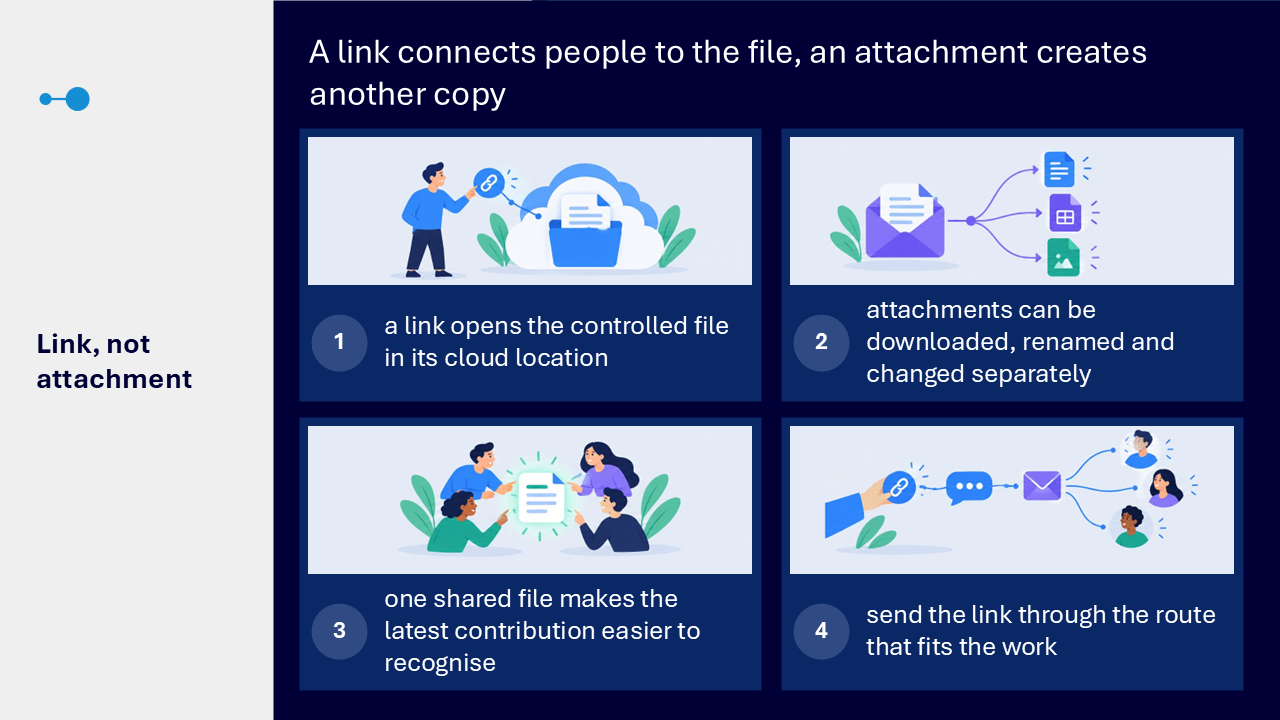
Share a link, not another copy
A sharing link connects people to the file in its existing cloud location. An attachment can be downloaded, renamed and changed separately. When everyone uses one controlled file, the latest contribution and the current discussion are easier to recognise.
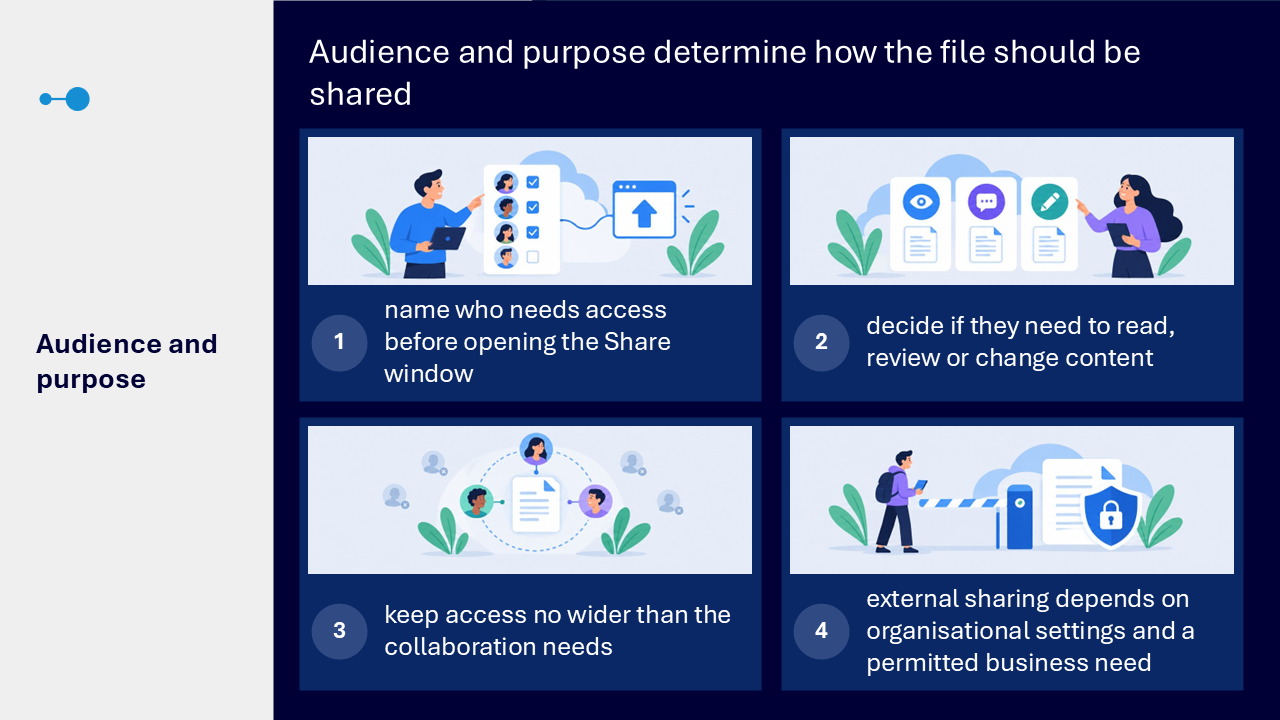
- identify the audience and purpose before opening Share
- select access that is no wider than the work requires
- copy the link and send it through the communication route where the work is happening
- check the selected audience and permission before sending
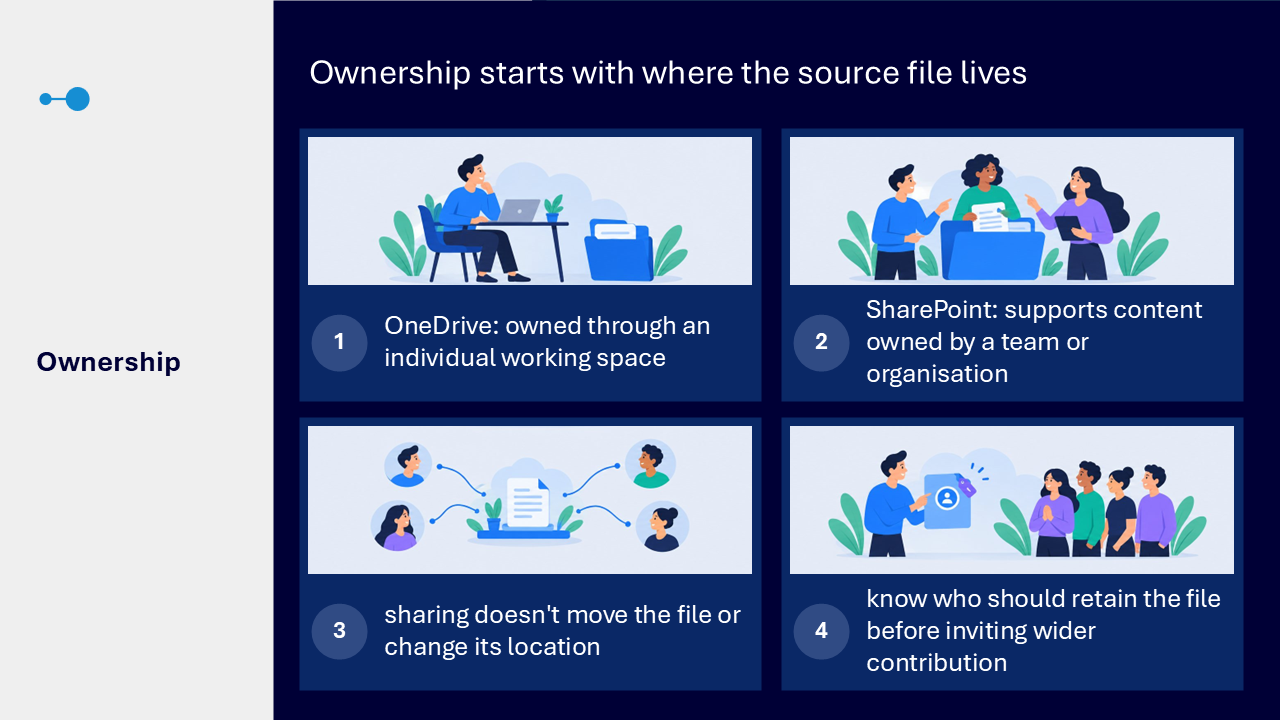
Ownership starts with location
A file stored in an individual OneDrive working space is owned through that space. A file stored in a SharePoint library supports team or organisational ownership. Sharing a link does not move the file or change its underlying location, so consider who should retain the source before inviting wider contribution.
Choose access for the purpose
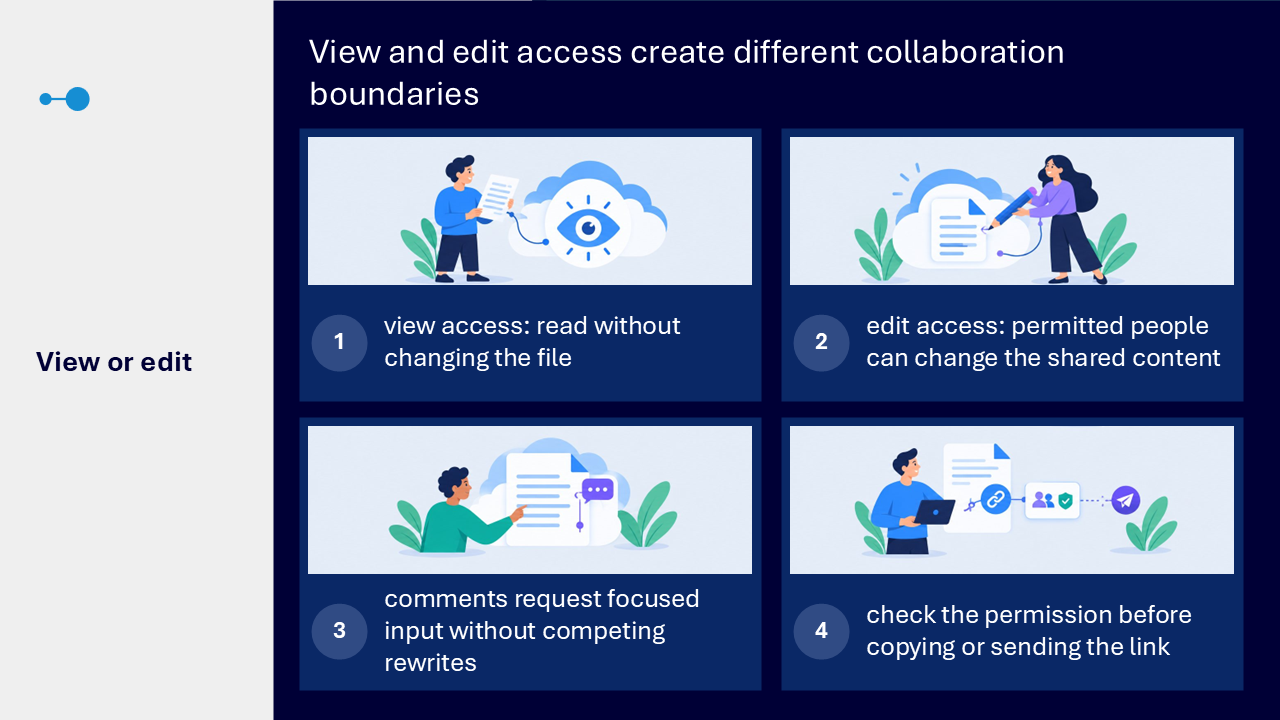
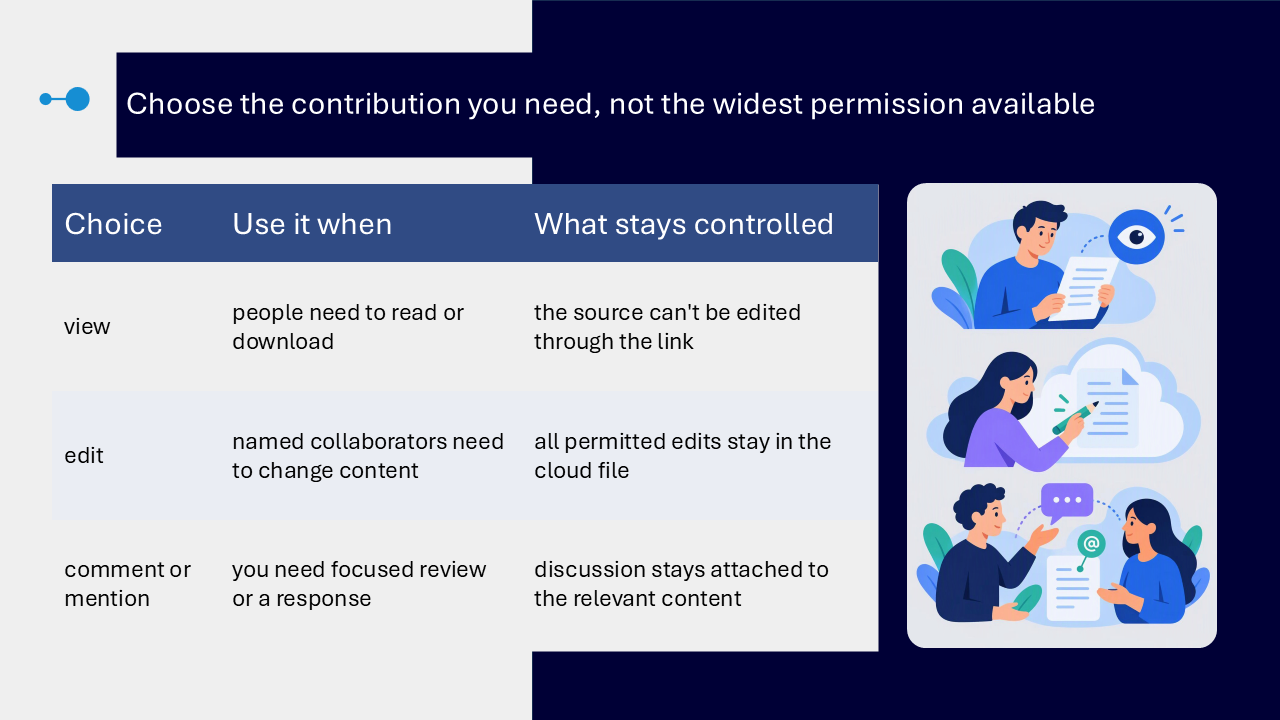
The audience and the contribution needed should determine the sharing choice. Reading, editing and reviewing are different activities, so the widest permission is not always the most suitable permission.
| Choice | Use it when | What stays controlled |
|---|---|---|
| View | people need to read or download | the source cannot be edited through the link |
| Edit | named collaborators need to change content | permitted edits remain in the cloud file |
| Comment or mention | you need focused review or a response | discussion remains attached to the relevant content |
Link audiences and organisational settings
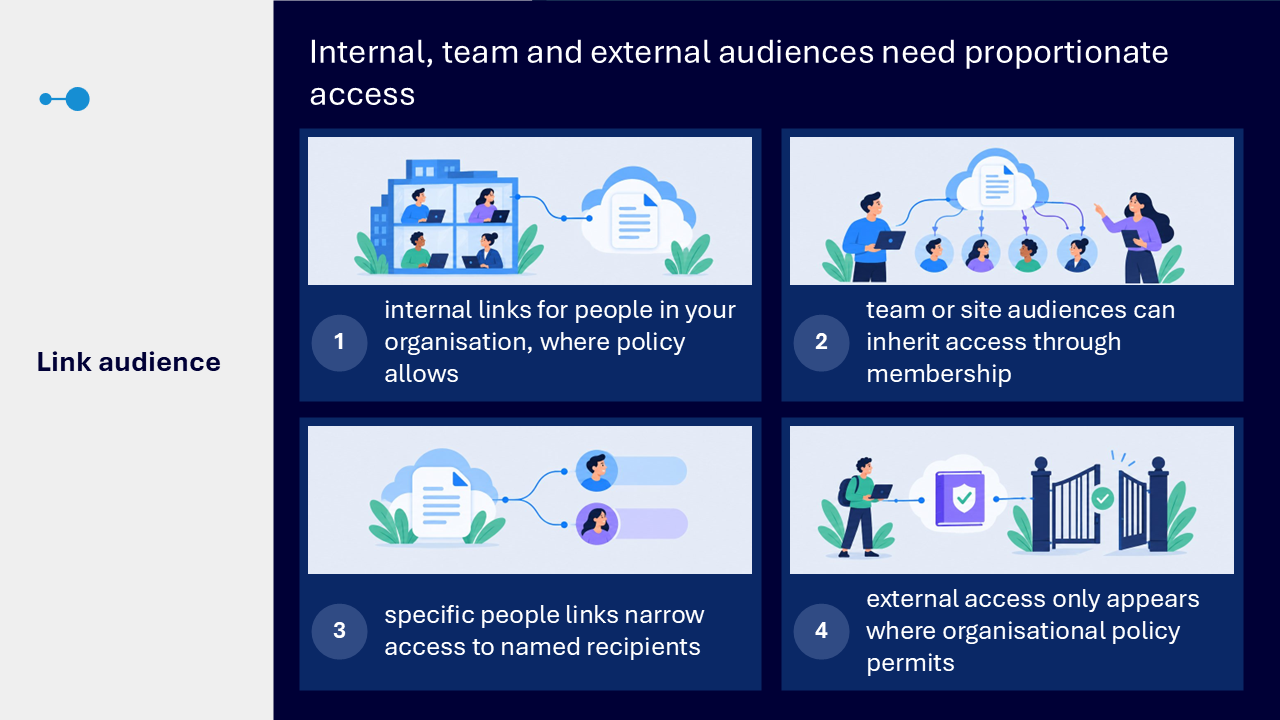
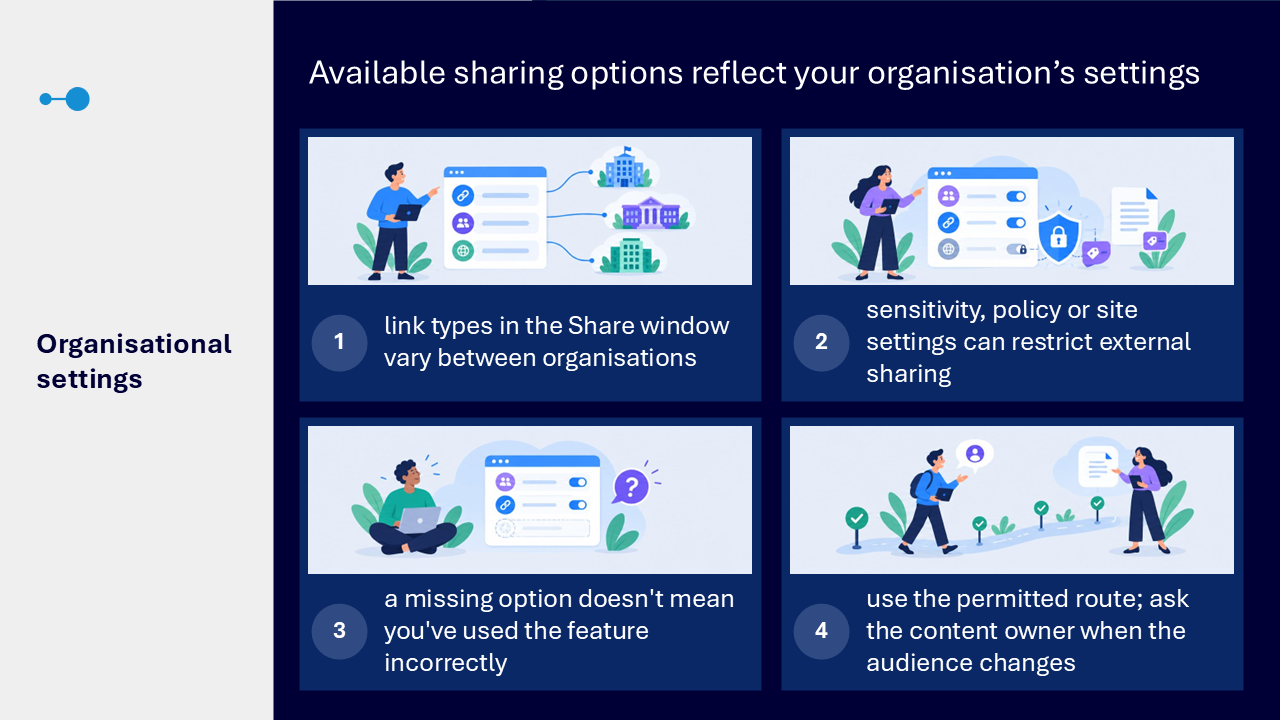
The Share window may offer different link types in different organisations. Internal, team, specific-people and external options depend on organisational policy, site settings, sensitivity and the permitted business need. A missing option does not mean you have used the feature incorrectly.
- use an internal link where organisational policy allows
- remember that a team or site audience may receive access through membership
- use a specific-people link when access should be limited to named recipients
- use external sharing only when organisational policy permits it
- ask the content owner when the audience or purpose changes
Co-authoring keeps contributions in one file
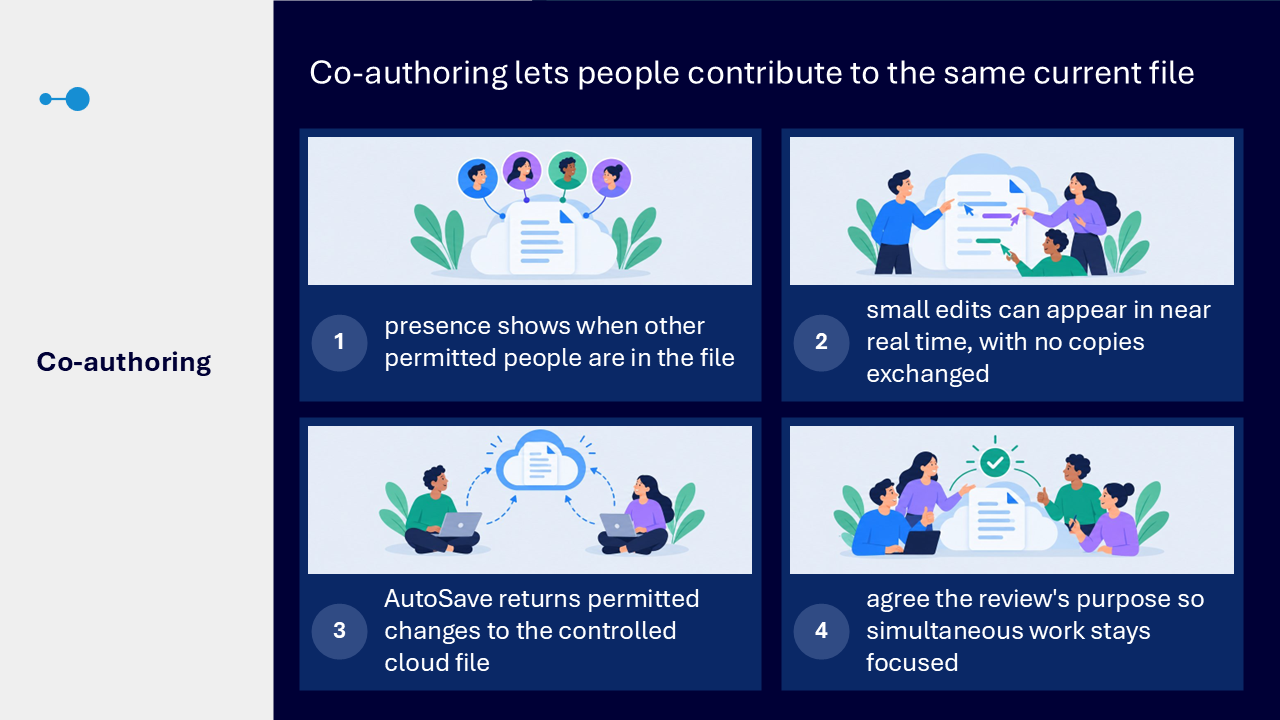
Co-authoring allows permitted people to work in the same current cloud file. Presence indicators show that another person has the file open, while small edits can appear in near real time. Agreeing the purpose of the review helps simultaneous work stay focused.
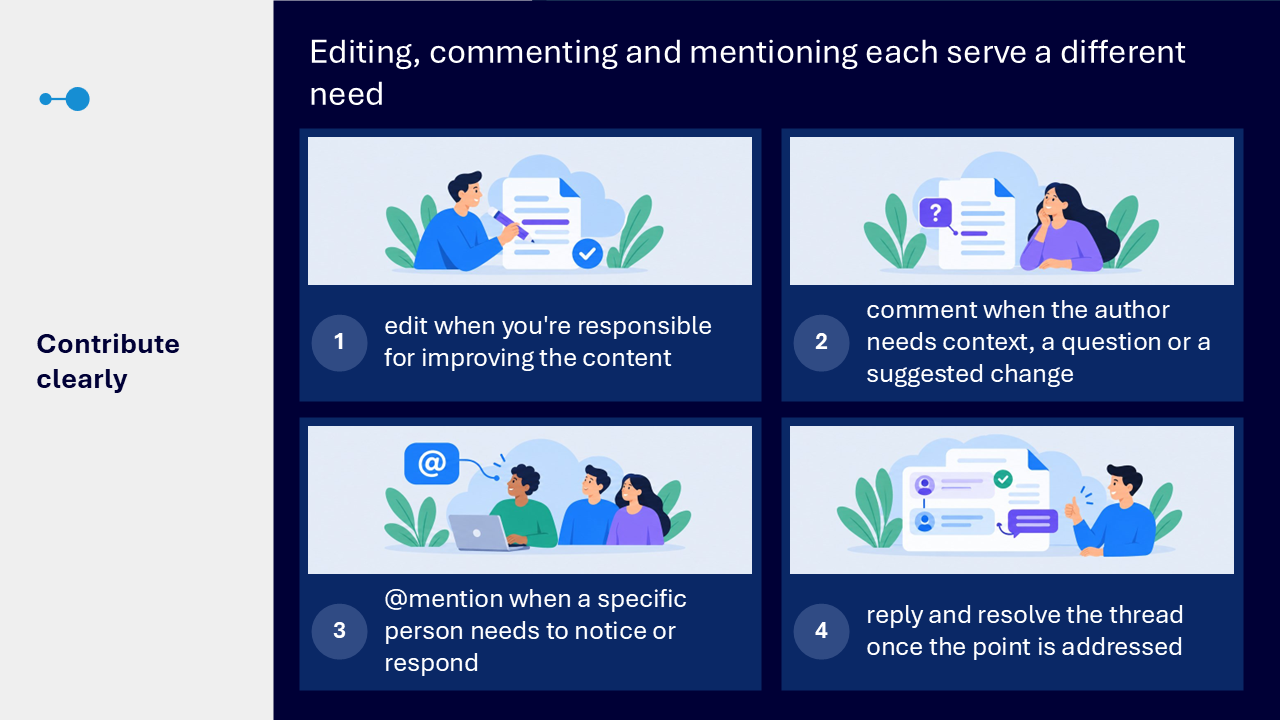
- edit when you are responsible for improving the content itself
- comment when the author needs context, a question or a suggested change
- use an @mention when a specific person needs to notice or respond
- reply and resolve a comment thread when the point has been addressed
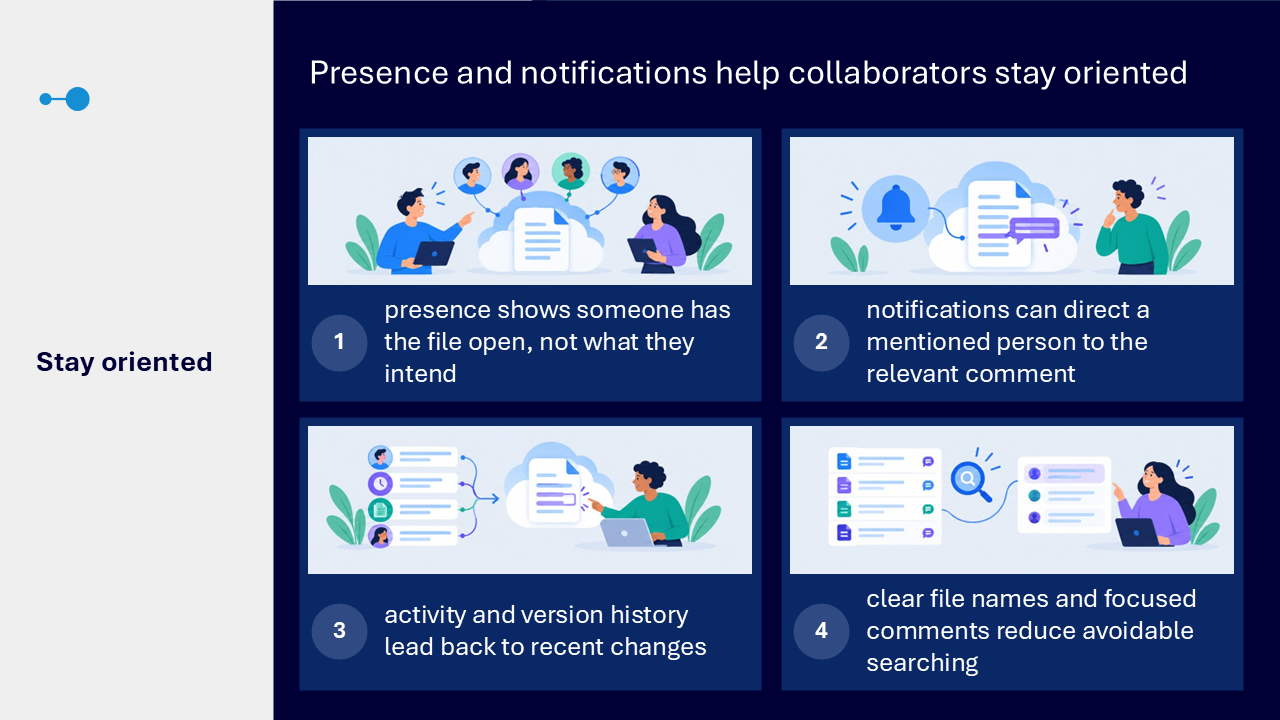
- remember that presence shows a file is open, not what another person intends
Stay oriented during shared work
Notifications can direct a mentioned person to the relevant comment. Activity and version history provide routes back to recent changes. Clear file names and focused comments reduce avoidable searching and help collaborators understand what requires attention.
Version history supports safe recovery
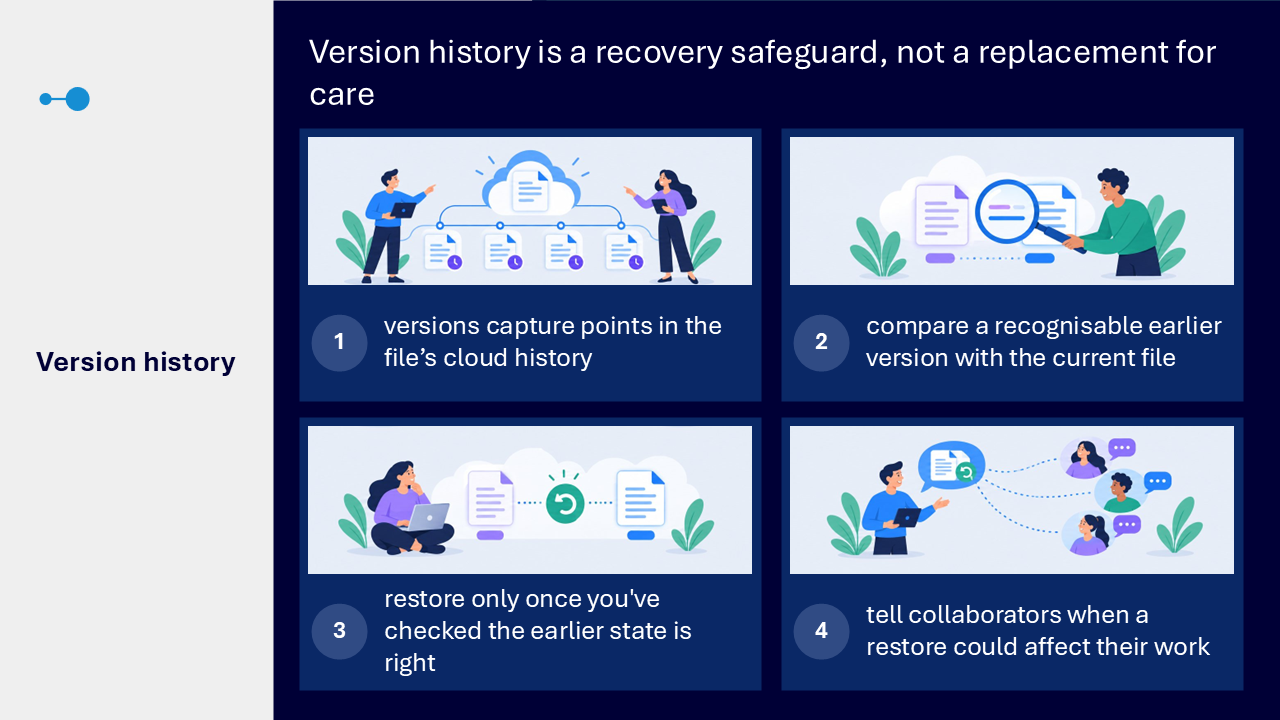
Version history records points in a cloud file’s history. It can help you compare a recognisable earlier version with the current file and restore an earlier state when recovery is appropriate. It is a safeguard, not a replacement for checking carefully before making a change.
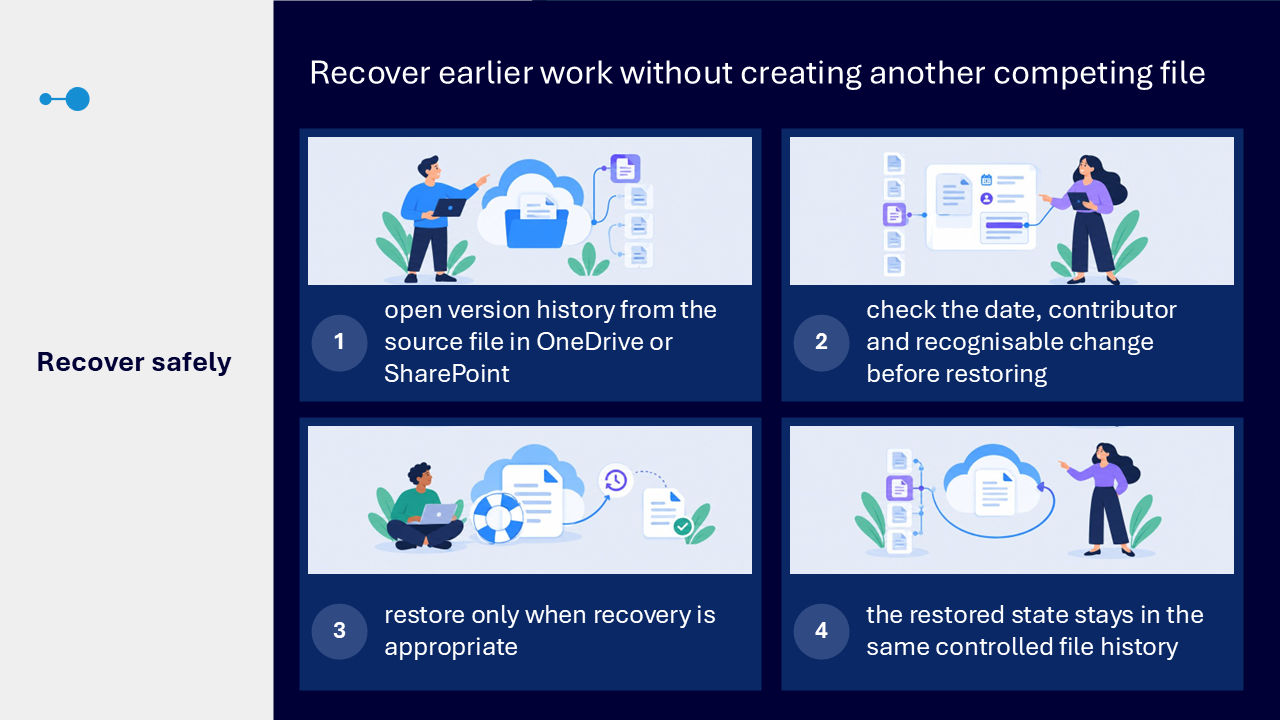
- open version history from the source file in OneDrive or SharePoint
- check the date, contributor and recognisable change before restoring
- restore only after confirming that the earlier state is the right one
- tell collaborators if a restore could affect work they are doing
- keep recovery within the same controlled file rather than creating another copy
Manage access as needs change
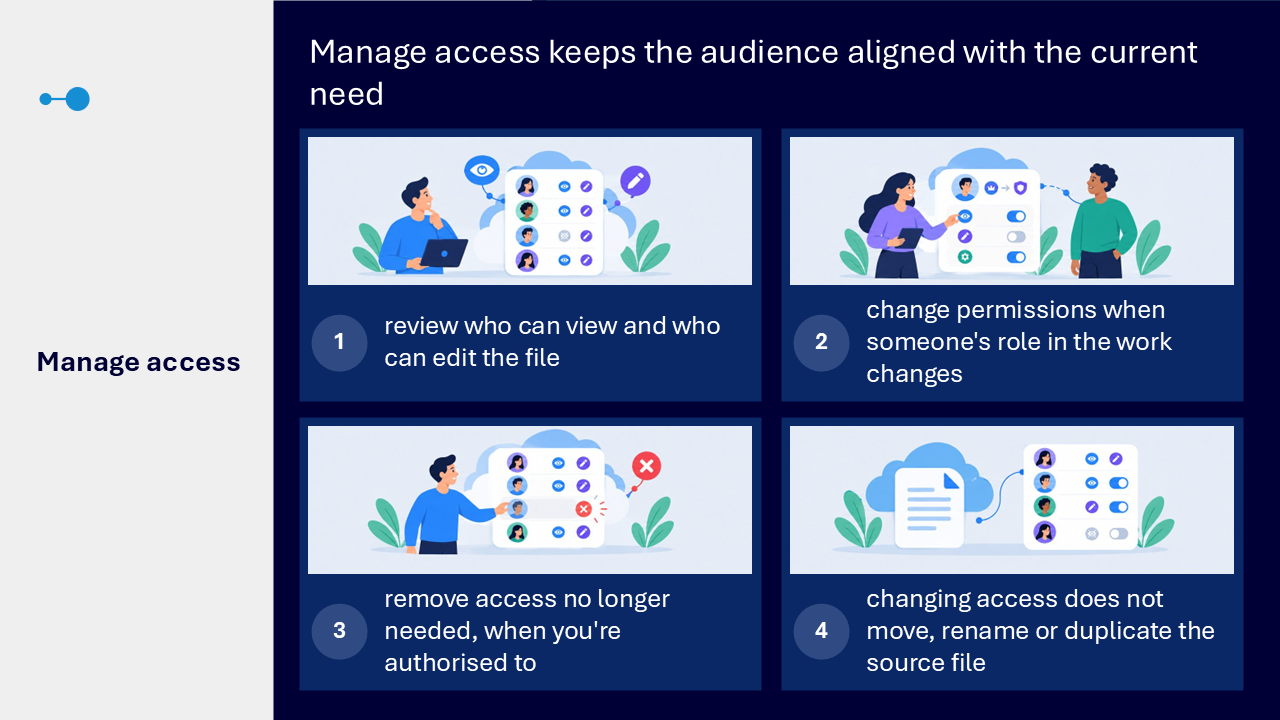
Manage access shows who can view or edit the file. Where you are authorised to do so, you can change or remove permissions when someone’s role in the work changes. Adjusting access does not move, rename or duplicate the source file.
Find the shared file again
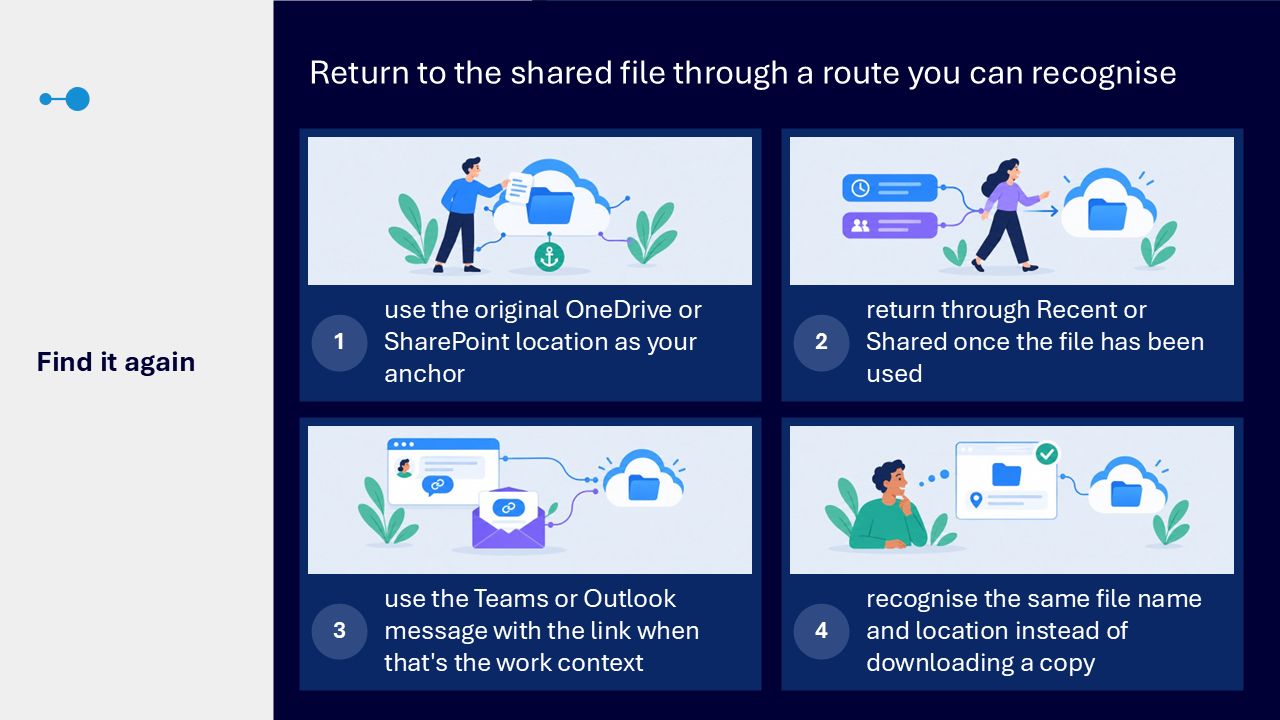
Use the original OneDrive or SharePoint location as the dependable anchor. You can also return through Recent, Shared, or the Teams or Outlook message containing the link. Check the file name and location instead of downloading another copy.
What the visuals and demonstration showed
The diagrams moved through a single collaboration journey: choose the correct cloud location, share a link with proportionate access, contribute in the same file, use version history carefully and review access when the need changes. The demonstration showed why each choice affects control, clarity and recovery.
- opening Share on a safe cloud file
- checking who can open the link and whether they can view or edit
- copying the link instead of attaching another file
- recognising presence indicators during co-authoring
- using comments and @mentions for focused review
- opening version history and checking an earlier state before restoring
- reviewing current permissions in Manage access
Key takeaways
- one controlled copy keeps edits, comments, version history and access connected
- access should match the intended audience, purpose and contribution
- comments, @mentions, version history and Manage access support focused review and safe recovery
A clear collaboration route
- start with one cloud file in the location that should own it
- share a link rather than creating another copy
- choose view, edit, comment or mention for the contribution needed
- co-author and respond in the same current file
- review version history carefully if recovery is needed
- check Manage access when the audience or purpose changes
- return through OneDrive, SharePoint, Recent, Shared or the original message link
Actions you can take
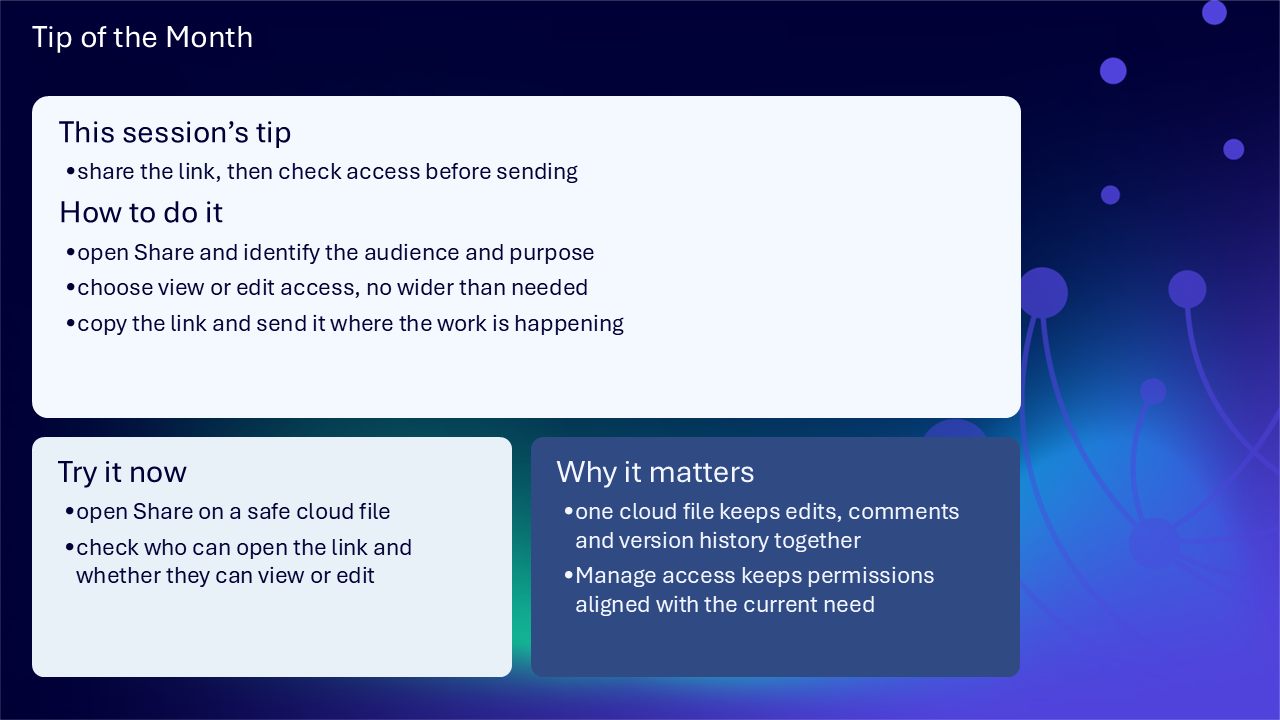
Try the tip of the month
This session’s tip: share the link, then check access before sending
How to do it: open Share, identify the audience and purpose, choose view or edit access no wider than needed, then copy the link and send it where the work is happening
Why it matters: one cloud file keeps edits, comments and version history together, while Manage access keeps permissions aligned with the current need
Try it now: open Share on a safe cloud file, then check who can open the link and whether they can view or edit
Build confidence with one safe practice file
- choose a non-sensitive cloud file that is safe to practise with
- identify whether OneDrive or SharePoint is the right long-term location
- open Share and compare the audience and permission options available to you
- create a view-only link and check the setting before copying it
- add a focused comment and practise an @mention if appropriate
- open version history and inspect an earlier entry without restoring it
- open Manage access and review who can currently view or edit
Questions and feedback
Questions are welcome. If something is unclear, ask for it to be explained another way or demonstrated again. Feedback helps WeChange.AI understand what matters to you.
Complete the Support and Skilling Week feedback form: forms.office.com/e/U6PAsYFqdQ
Contact WeChange.AI
For skilling queries, email training@wechange.ai.
- Andrew Boxall, Managing Director: andrew@wechange.ai
- Paul Ford, Industry Director for Education and Philanthropies: paul@wechange.ai
- Josh Wilson, Industry Specialist: josh@wechange.ai
- Elle Avilla, Customer Success and Delivery Skilling Lead: elle@wechange.ai
- Izzy Pochin, Resources and Accessibility Lead: izzy@wechange.ai
Activity sheet
Follow the route at your own pace. Use a safe practice file and the sharing options permitted by your organisation.
How to use this activity sheet
This sheet supports Session 3: OneDrive and SharePoint. You can use it after the live online session, or follow selected steps while your trainer demonstrates them. The activities move from choosing the right cloud location to sharing, co-authoring, reviewing changes and managing access.
- work at your own pace and pause after each activity
- use a practice file containing no personal, confidential or sensitive information
- practise in the web versions of OneDrive, SharePoint and Word unless your trainer or organisation tells you otherwise
- your screen and available sharing choices may look different because your organisation controls licences, policies and settings
- do not add a real colleague during practice unless they have agreed to take part
- if a step does not match your screen, note what you can see and ask your trainer or local support team
What you will achieve
- recognise when OneDrive or SharePoint is the appropriate home for a file
- work from one controlled cloud copy instead of creating competing attachments
- share a link with view or edit access that fits the audience and purpose
- co-author, comment and use an @mention in a shared Microsoft 365 file
- review version history and restore only when it is safe and appropriate
- review and change access when you are authorised to do so
- return to a shared file through a route you can recognise
Your learning route
- Choose the file home: OneDrive for individual work, SharePoint for team-owned work
- Create one controlled copy: open the file from its cloud location
- Share the right link: match access to audience and purpose
- Contribute clearly: edit, comment and mention
- Review and recover: inspect version history before restoring
- Manage access: keep the audience aligned with the current need
- Find it again: return without creating another copy
Before you start
- sign in to your organisation’s Microsoft 365 account in a browser
- open OneDrive and, if available to you, a SharePoint team site or document library
- create or choose a safe Word practice file that you are permitted to share
- identify a practice partner only if they have agreed to help with sharing and co-authoring
- allow about 45 to 60 minutes, or complete one activity at a time
Activity 1: Choose where the source file should live
Outcome: Decide whether the source file belongs in OneDrive or SharePoint and identify the owner of the work.
Start with purpose and ownership
OneDrive is an individual working space. SharePoint document libraries support content owned and managed by a team or organisation. Sharing a file does not move it from its original location, so choose the right home before inviting wider contribution.
Make a simple decision
- Read the two practice scenarios below.
- scenario A: you are drafting an early idea that is yours to develop before anyone else needs it
- scenario B: your team needs to maintain a current procedure that should remain available when team membership changes
- For each scenario, choose OneDrive or SharePoint as the intended home.
- Write your choices and one reason for each.
Scenario A location and reason: ______________________________________________
Scenario B location and reason: ______________________________________________
Check your practice file
- Open OneDrive or the SharePoint document library that currently contains your practice file.
- Select the file once, without opening it, and look at the location shown in the browser.
- Identify whether the location is your individual OneDrive or a team SharePoint site.
- Write down who should retain responsibility for the source file after the activity.
The source file is stored in: _________________________________________________
The person or team that should retain it is: __________________________________
Notice: The location of the source file is your anchor. A shared link connects other people to that file without changing where it lives.
Pause and check
Activity 2: Work from one controlled cloud copy
Outcome: Open and rename one cloud file, then recognise why a link is safer than sending extra attachments.
Create or prepare the practice file
- In OneDrive, select New or Add new, then choose Word document. If you are using SharePoint, open the correct document library first and choose New, then Word document.
- Rename the file to Session 3 shared practice followed by your initials. Do not include confidential information in the name.
- Add the heading Shared working notes.
- Add one short, non-sensitive sentence, such as This file is being used to practise safe collaboration.
- Wait until Word shows that the file is saved before closing the browser tab or returning to the library.
Recognise the controlled copy
- Return to OneDrive or the SharePoint library and select the file once.
- Check the file name and location before you continue.
- Do not download or attach the file. The next activities use a link to this same cloud item.
Notice: One cloud file keeps edits, comments, version history and access connected to the same item.
Pause and check
Activity 3: Share a link with access that fits the purpose
Outcome: Choose an audience and decide whether they need view or edit access before creating a sharing link.
Plan before you open Share
Use the smallest audience and permission that will support the task. Your organisation may restrict some link types, particularly external sharing.
- Choose one permitted practice audience. This may be your agreed practice partner, or you can stop before sending the link.
- Decide what they need to do with the file.
- view: they need to read the file without changing it
- edit: they need to change the shared content
- comment or mention: they need to give focused feedback in the document
My practice audience is: ____________________________________________________
They need to: ☐ view ☐ edit ☐ comment or respond to a mention
Open the sharing settings
- In OneDrive or SharePoint, select the practice file and choose Share.
- Review the audience or link type shown in the Share window.
- If your organisation offers more than one audience, choose the narrowest permitted option that fits your practice purpose, such as Specific people.
- Choose Can view or Can edit to match the contribution you identified.
- Review the selection before you continue. A missing option may be restricted by your organisation.
Create and use the link safely
- If you have an agreed practice partner, enter their name or email address and send the invitation, or choose Copy link and place it in the agreed work conversation.
- If you do not have a practice partner, stop before sending and describe the link you would have created.
- Tell the recipient what you need them to do, for example: Please add one comment to the shared practice file.
- Keep the browser tab open so you can continue with the same source file.
Notice: Check who can open the link and whether they can view or edit before sending it.
Pause and check
Activity 4: Co-author, comment and mention
Outcome: Make a small contribution to the same cloud file, then use a comment and @mention for focused feedback.
Practise co-authoring
- Open the practice file from its OneDrive or SharePoint location.
- If your agreed practice partner has opened it, look for their presence indicator. This only shows that the file is open, not what they intend to do.
- Add a new line containing your first name or initials and one short, non-sensitive sentence.
- Pause and check that the file remains saved to the cloud.
Add a focused comment
- Select a short word or sentence in the practice file.
- Choose New comment from the Review tab or the comment control shown in Word for the web.
- Write a specific request, such as Could you check whether this sentence is clear?
- Select Post comment.
Mention a person only when a response is needed
- In a new comment or reply, type @ followed by your agreed practice partner’s name.
- Select the correct person from the suggestions.
- Add a short action or question so the person knows why they were mentioned.
- When the point has been addressed, reply if useful and choose Resolve thread.
Notice: Edit the content when you are responsible for changing it. Use a comment for context or a question, and an @mention when a specific person needs to notice or respond.
Pause and check
Activity 5: Review version history and recover carefully
Outcome: Open version history, identify an earlier version and decide whether restoring it would be appropriate.
Create a recognisable change
- Open the practice file and add the line Version history practice change.
- Wait until the change is saved.
- Close the file or return to its OneDrive or SharePoint location.
Inspect version history
- Select the file and open More options, shown as three dots, or select the file name inside Word.
- Choose Version history. The route may vary slightly between OneDrive, SharePoint and Word.
- Review the available versions and look for the date, time and contributor details shown by your organisation.
- Open or preview an earlier version if that option is available.
- Compare it with the current file and identify the recognisable change.
Decide before restoring
- Do not restore during the activity unless you own the practice file and are certain no one else is working in it.
- Ask: Is this the correct earlier state, and could restoring it affect another person’s recent work?
- If a restore is appropriate, tell any collaborators first, then use Restore on the chosen version.
- Return to the current file and confirm the result.
Notice: Version history is a recovery safeguard, not a replacement for care. Inspect the earlier state before restoring it.
Pause and check
Activity 6: Review and manage access
Outcome: Review who can open the file and change or remove access only when you are authorised to do so.
Open Manage access
- Return to the practice file in OneDrive or SharePoint.
- Select the file, choose Share, then open Manage access. You may also find Manage access under More options or Details.
- Review the people, groups and links that can access the file.
- Identify which entries can view and which can edit.
Align access with the current need
- Choose the practice person or link you created earlier.
- If you are authorised and the practice purpose has finished, change the permission or remove access.
- If you are not authorised, do not change anything. Record what you would ask the file owner to review.
- Return to the file and confirm that its name and location have not changed.
The access I reviewed was: __________________________________________________
The action taken, or the action I would request, was: __________________________
Notice: Changing access does not move, rename or duplicate the source file.
Pause and check
Activity 7: Find the shared file again
Outcome: Return to the same source file through a route you can recognise, without downloading or creating another copy.
Try safe routes back
- Close the practice file, but keep your browser signed in.
- Return through its original OneDrive or SharePoint location.
- Open Recent in Microsoft 365 or OneDrive and look for the same file name.
- Open Shared if the file was shared with you rather than owned by you.
- If a link was sent in Teams or Outlook, return to that message and recognise the same file name and location before opening it.
Choose one reliable route
- Open the file using the route that felt easiest to recognise.
- Check the file name and location.
- Close it and repeat the same route once more.
My reliable route back to the shared file is: _________________________________
Notice: You only need one route you can repeat confidently. Avoid downloading another copy simply to make the file easier to find.
Pause and check
Put it into practice: the complete collaboration journey
- start with one cloud file in the location that should own it
- identify the audience, purpose and required contribution before sharing
- share a link with view or edit access no wider than needed
- edit, comment and mention so changes and discussion stay connected
- review version history before deciding whether to restore
- use Manage access to keep permissions aligned with the current need
- return through a recognisable route to the same source file
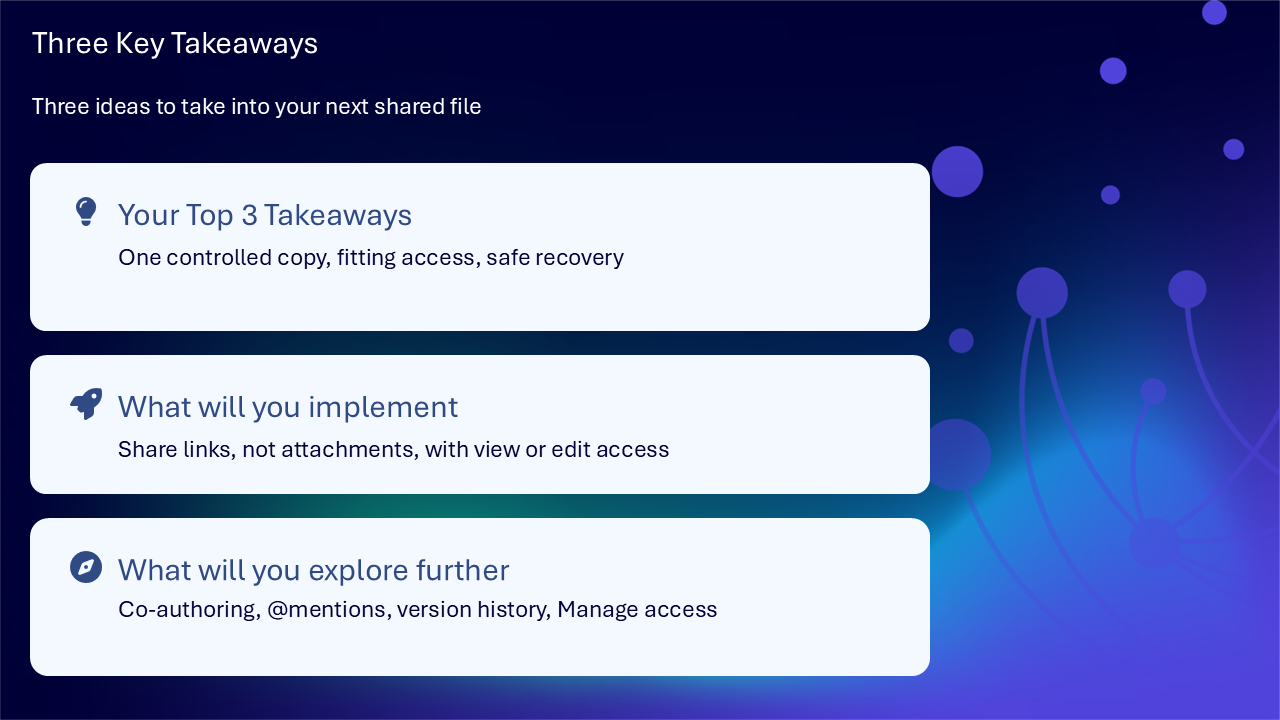
Your three takeaways
My most useful learning: _____________________________________________________
What I will implement: ______________________________________________________
What I will explore further: _________________________________________________
If you need help
- describe what you were trying to do and whether the file was in OneDrive or SharePoint
- give the file name and its cloud location, but do not include sensitive content in a support message
- say which sharing audience and permission you selected
- copy the exact wording of any message shown on screen
- ask the file owner, your trainer or local support team about missing choices, external sharing or organisation-specific policies
Confidence grows by following one safe collaboration route repeatedly, not by remembering every option at once.
Reflective journal
Why we ask you to reflect
Continuing Professional Development (CPD) is formative and it is about what it achieves for you and your organisation.
Instead of formally assessing your learning, we ask you to write a reflective note. This should reflect on how the learning was relevant and how it will impact your working practices.
Taking time to reflect on your learning makes it more likely you will embed it in your future practice.
What to cover and when
What your reflection should cover
- how the learning was relevant to you
- how the learning will impact your practice
When to complete it
Reflect as soon as possible following the skilling session. This keeps your note contemporaneous (written close to the time) and meaningful. Fill it in on your device, so the boxes expand as you type.
| Topic | What to know |
|---|---|
| Timing | Complete the note as soon as possible after the training event. |
| Purpose | To embed the learning within your subsequent practice. |
| Focus | How the learning was relevant and how it will impact your practice. |
Your reflective note
Complete each row below. Write in your own words. Your notes are private to you unless you choose to share them.
| Prompt | Your response |
|---|---|
| Skilling session title | |
| Date of the skilling session | |
| Date you completed this note | |
| How was the learning relevant to you and your work? | |
| How will the learning impact your practice? |
Recommended resources
These curated resources accompany the WeChange.AI skilling offer of Continuing Professional Development (CPD) accredited, and non-accredited, sessions. Use them before a session to build familiarity, or afterwards to revisit and apply the learning in day-to-day work.
Alongside these resources, Navigator helps WeChange.AI customers find personalised recommendations and available learning on Microsoft 365 tools, accessibility and AI relevant to their role. Returning to Navigator after a session can help you connect new knowledge with practical workplace needs, choose a useful next step and keep learning visible as confidence grows.
Shows how to store files in the cloud and share them with colleagues so everyone opens the same copy. It helps reduce duplicate versions and the back and forth of emailed attachments.
Explains how to share OneDrive content using links and how to control access. Useful when you need to decide between letting people read a file and letting them change it.
Explains how several people can work on one file at once when it is stored in OneDrive or SharePoint. It helps everyone stay on the latest version without sending copies around.
Shows how to tag someone in a comment so they are notified and know what you need from them. It keeps feedback inside the file rather than scattered across emails and chats.
Explains how to see older versions of a file stored in OneDrive and bring one back. Useful if a change was made by mistake or you prefer an earlier draft.
Covers opening version history in a library or list and restoring an earlier version. It notes that the restored version becomes the latest version, so the version you replaced is not lost.
Explains how to upload a file to OneDrive or SharePoint and share it from Outlook. A practical alternative when an attachment is too big to send.