
Overview
We’ll start with some basic computer skills to introduce the concept of digital literacy, and help you familiarise yourself with your device.
Next, we’ll explore file management principles and practices, including File Explorer and the difference between local and cloud storage.
Keeping secure and safe is absolutely critical and we’ll talk about how to keep your device and data safe.
Since the Covid pandemic, we’ve seen an exponential rise in the number of online meetings – there are lots of similarities between platforms and we’ll talk you through some of the common features and how to use them.
Keyboard shortcuts and tips will enable you to save time and energy on common tasks you do all the time, something that can help us maximise our productivity.
What Is Digital Literacy?
- digital literacy means knowing how to use technology like computers, tablets, and phones
- it helps you do everyday things like writing documents, joining video calls, sending messages, and searching for information online
- you don’t need to know everything – just enough to feel confident and safe
What Is a Digital Tool?
- a digital tool is something you use on a device to help you do a task
- it could be a program like Microsoft Teams for video calls, a website like YouTube for watching videos, or an app like Word for writing documents
- digital tools help you work, learn, talk to people, and have fun
- you open digital tools by clicking on their icons or names, usually from the Start menu or desktop
Step 1: Turning On
- find the power button on your device It may be on the front, side, or top of your computer or laptop
- press it once
- wait for the screen to turn on and the computer to start
Step 2: Turning Off
- this closes everything properly before turning off to turn off your computer safely click the Start button to open the menu
- find and click the option labelled Power
- then click Shut Down
Using a Mouse, Touchpad, and Keyboard
Mouse
- a mouse is a small device you move with your hand
- when you move the mouse, a pointer moves on the screen
- click the left button to select or open things
- click the right button to open a menu with extra options
Touchpad
- a touchpad is built into laptops
- move your finger across the pad to move the pointer
- tap once to click Tap twice quickly to double-click
Keyboard
- a keyboard is used to type letters, numbers, and symbols
- each key has a label
- press one key at a time to type
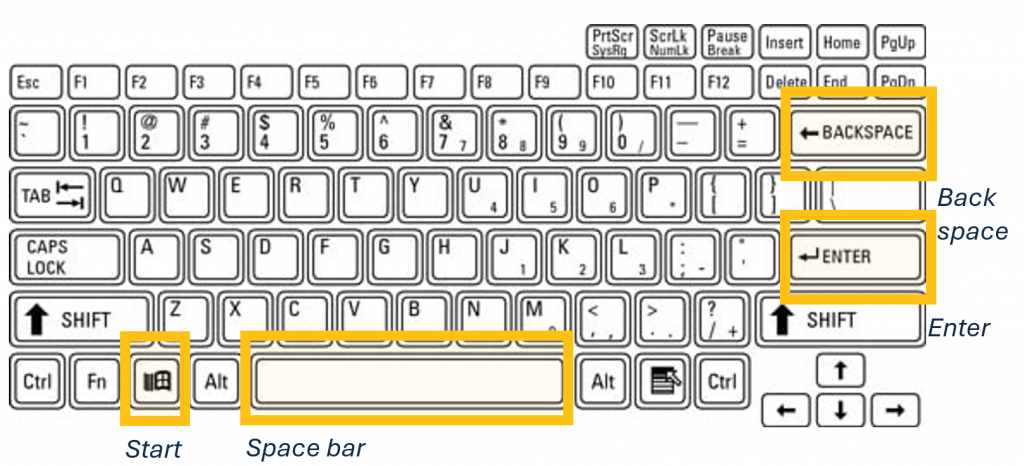
- the long key at the bottom is the space bar – it adds a space between words
- the Enter key starts a new line or confirms a choice
- here is a picture of the keyboard on a laptop with yellow squares around buttons you need to know about
Clicking – Single, Double, Left, and Right
- clicking means pressing a button on the mouse or touchpad
- a single click means pressing once
- a double click means pressing twice quickly
- use the left click to open or select things
- use the right click to open a menu with extra options, like ‘Open’, ‘Rename’, or ‘Delete’
Connecting to Wi-Fi
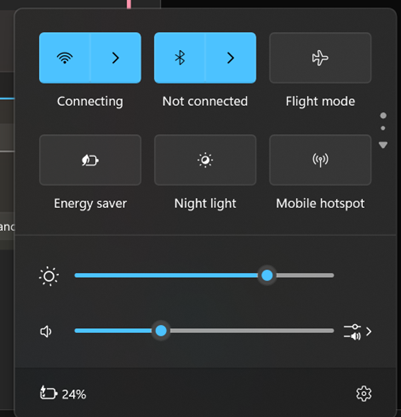
Step 1: Open Wi-Fi Settings
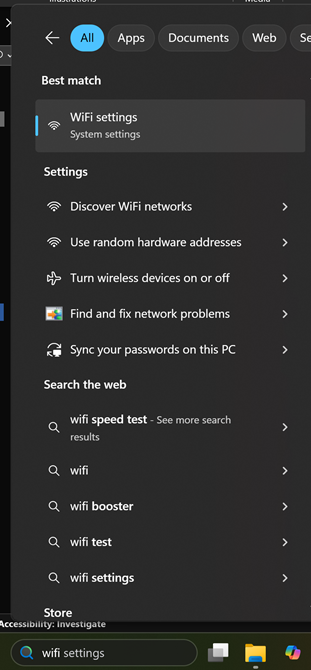
- click the Start button and type ‘Wi-Fi settings’
- click the result that says Wi-Fi settings
Step 2: Choose a Network
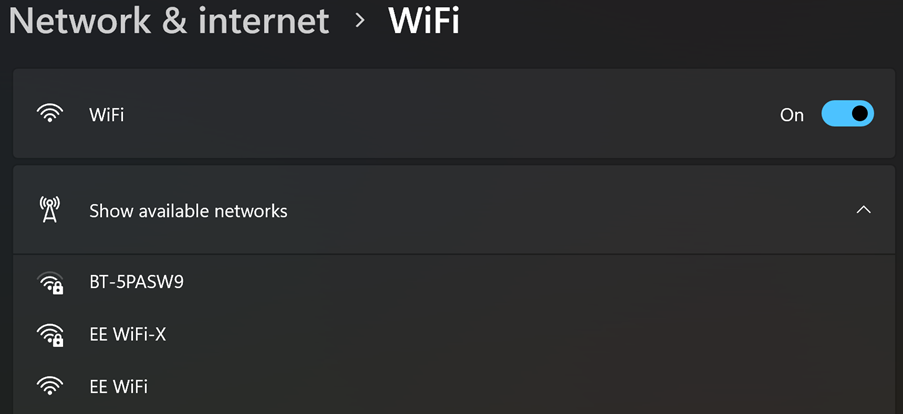
- a list of available networks will appear
- click the name of your network – for example, ‘Home Wi-Fi’ or ‘School Network’
Step 3: Enter the Password
- if asked, type the Wi-Fi password
- click Connect
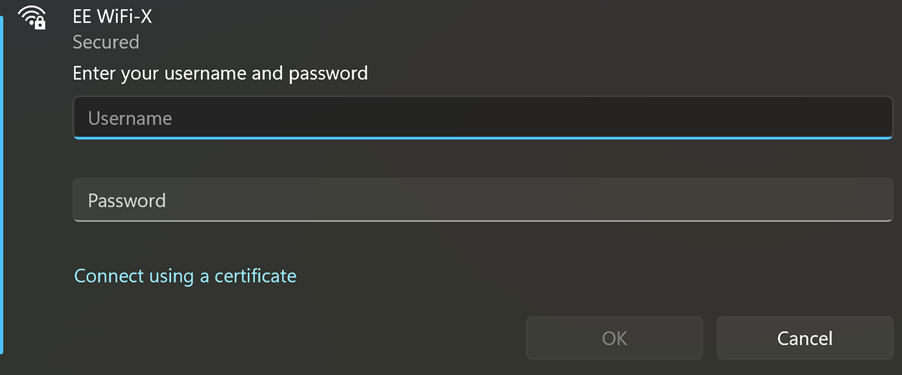
- once connected, your device can access the internet
Understanding Desktop, Taskbar, and Start Menu
Desktop
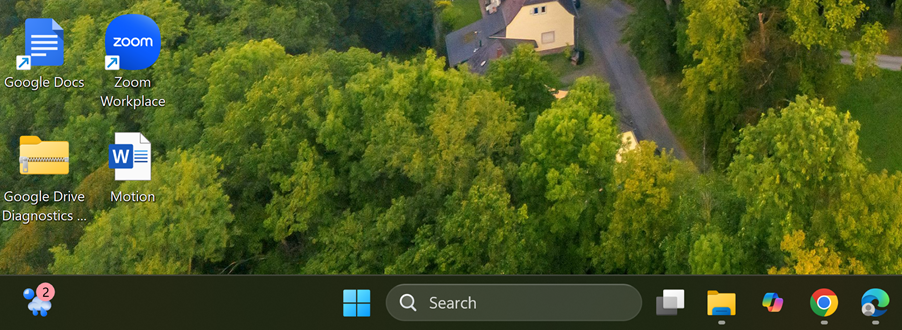
- the desktop is the main screen you see when your computer starts
- it may show icons – small pictures with names – that you can click to open programs
Taskbar
- the taskbar shows which programs are open
- it also shows the time, volume, and internet connection
- you can use it to switch between programs

Start Menu
- the Start menu helps you find and open programs
- click the Start button to open it
- you’ll see a list of apps and settings
- you can type the name of a program to search for it