
Shortcuts and tips

Tiles

Keyboard Shortcuts & Tips Cheat Sheet

For Microsoft Word, Excel, PowerPoint, Outlook, Teams, and Microsoft 365 homepage

Microsoft Search Bar

The Search bar is a powerful tool available at the top of most Microsoft apps and the Microsoft 365 homepage.

It helps you find:

It is useful because:

Step-by-Step:
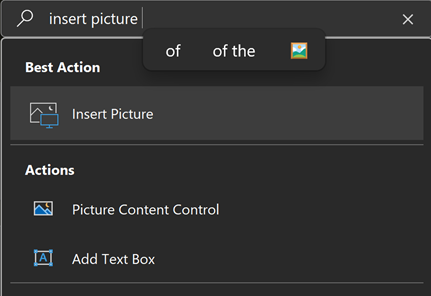
  1. Find the Search bar at the top of the app or homepage.
  2. Click in the bar or hold down ‘Alt’ + tap ‘Q’ (Windows shortcut).
  3. Type what you need:
  4. Choose a result:
Image showing the Microsoft search bar and how to navigate it.

Examples of Use:

Microsoft Word

Common Shortcuts

Hold down ‘Ctrl’, then tap the letter below to use the shortcut:

Formatting Shortcuts

Format Painter copies formatting (like font, size, colour, borders) from one part of your content and applies it to another. 

The "paste" icon for all Microsoft products.

This can help:

How to use:

  1. Select the text or object with the formatting you want to copy.
  2. Click the Format Painter button
  3. Highlight or click the text or object you want to format.
  4. If you double-clicked, press Esc when you’re done to turn it off.

Microsoft Excel

Common Shortcuts
Formatting shortcuts

Microsoft PowerPoint

Common Shortcuts

Microsoft Outlook

Common Shortcuts

Microsoft Teams

Common Shortcuts

Accessibility Benefits of Shortcuts & Tools

This Essential Digital Skills series

That’s all from this essential digital skills series for now. We’ll be adding more content as people request it. We’re fortunate at WeChange.AI to have experts across a range of technology, change and other fields, so we’re delighted to share anything we can that might help others get the benefits from technology.

The posts in this short digital literacy series: