

Shortcuts and tips
Tiles
Keyboard Shortcuts & Tips Cheat Sheet
For Microsoft Word, Excel, PowerPoint, Outlook, Teams, and Microsoft 365 homepage
Microsoft Search Bar
The Search bar is a powerful tool available at the top of most Microsoft apps and the Microsoft 365 homepage.
It helps you find:
- commands and tools (e.g. “print”, “bold”, “insert table”)
- help topics (e.g. “how to use format painter”)
- files and documents (e.g. “budget.xlsx”, “meeting notes.docx”)
- emails and contacts (in Outlook)
- Teams messages and chats (in Teams)
It is useful because:
- saves time and effort
- helps learners who struggle with memory, navigation, or reading menus
- supports screen reader users by reducing the need to explore complex interfaces
Step-by-Step:
- Find the Search bar at the top of the app or homepage.
- Click in the bar or hold down ‘Alt’ + tap ‘Q’ (Windows shortcut).
- Type what you need:
- a tool: “insert picture”
- a help topic: “how to use styles”
- a file name: “project plan”
- a person’s name: “Izzy Pochin”
- Choose a result:
- the Best Action is usually the top result
- scroll down for Other Actions, help articles, or matching files
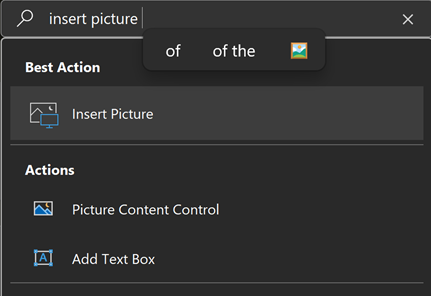
Examples of Use:
- in Word: Type “table” to insert a table without searching the ribbon.
- in Excel: Type “sum” to find the formula tool.
- in Outlook: Type “Izzy” to find emails from Izzy.
- in Teams: Type “meeting notes” to find a chat or file.
- in Microsoft 365 homepage: Type “invoice” to find a file across OneDrive, Outlook, or Teams.
Microsoft Word
Common Shortcuts
Hold down ‘Ctrl’, then tap the letter below to use the shortcut:
- Ctrl + A selects all text, for example before you change font or copy everything
- Ctrl + C copies the selected text, for example to copy a paragraph to paste elsewhere
- Ctrl + V pastes the copied text, for example to a new spot
- Ctrl + X cuts the selected text, for example to move a sentence to different section
- Ctrl + Z undoes the last action, for example if you accidentally delete something
- Ctrl + N opens anew document, for example to start a new file quickly
- Ctrl + O opens an existing document, for example to access your saved work
- Ctrl + P opens the print menu, for example to print your document
Formatting Shortcuts
- Ctrl + B creates bold text
- Ctrl + L left aligns your text
Format Painter copies formatting (like font, size, colour, borders) from one part of your content and applies it to another.

This can help:
- keep our work looking consistent
- save time
- reduce the need for manual formatting
- support learners with motor or cognitive challenges
How to use:
- Select the text or object with the formatting you want to copy.
- Click the Format Painter button
- single click: apply formatting once
- double click: keep Format Painter active to apply formatting to multiple places
- Highlight or click the text or object you want to format.
- If you double-clicked, press Esc when you’re done to turn it off.
Microsoft Excel
Common Shortcuts
- Ctrl + A/C / V / X / Z / N / O / P have the same uses as in Word and can help with data entry
- Ctrl + Arrow Keys enable you to jump to edge of data, for example when navigating large spreadsheets
- Ctrl + Shift + L add/remove filters to find relevant data more quickly and easily
Formatting shortcuts
- Ctrl + 1 opens format cells to change number format or borders, for example
- Ctrl + B highlights your data bold
Microsoft PowerPoint
Common Shortcuts
- Ctrl + M creates a new slide
- F5 starts your slideshow
- Shift + F5 starts from the current slide
Microsoft Outlook
Common Shortcuts
- Ctrl + N opens a new email
- Ctrl + R will open a reply window to respond to an email
- Ctrl + F will open a forward window to send the email to someone else
- Ctrl + Enter allows you to send the email without clicking
- Ctrl + Shift + M enables you to write a new message from anywhere in Outlook, for example if you were in Calendar
Microsoft Teams
Common Shortcuts
- Ctrl + N will start a new chat conversation
- Ctrl + E opens search so you can find messages and files
- Ctrl + Shift + M will mute/unmute you during meetings
- Ctrl + Shift + O will turn your camera on/off during meetings
- Ctrl + . shows all shortcuts to support your learning and productivity
Accessibility Benefits of Shortcuts & Tools
- keyboard shortcuts reduce reliance on a mouse, helping users with motor impairments
- Format Painter simplifies formatting, reducing cognitive load and repetitive actions
- Search bar helps users with memory, executive function, or visual processing difficulties find tools quickly
- consistent formatting improves readability for screen reader users and neurodivergent learners
- shortcuts support faster navigation and reduce fatigue
This Essential Digital Skills series
That’s all from this essential digital skills series for now. We’ll be adding more content as people request it. We’re fortunate at WeChange.AI to have experts across a range of technology, change and other fields, so we’re delighted to share anything we can that might help others get the benefits from technology.