
Accessible summary
What this session covers
This foundational session explains how four connected Microsoft 365 experiences can support different needs during the working day. It shows how to find organisational information through a SharePoint Hub, discuss approved updates in Viva Engage, find and keep relevant learning in Viva Learning, and use Viva Insights as a prompt for reflection and focus planning.
- using a SharePoint Hub as a role-relevant front door
- following information to an authoritative SharePoint source
- connecting through Viva Engage communities and storylines
- choosing clear and purposeful contribution types
- finding, checking, saving and resuming learning
- reflecting on working habits and protecting realistic time to act
Making the session work for you
The session is delivered through a Microsoft Teams webinar using PowerPoint Live. You can personalise how you follow and take part. The session is recorded, and you can watch rather than follow along unless the trainer asks you to try something.
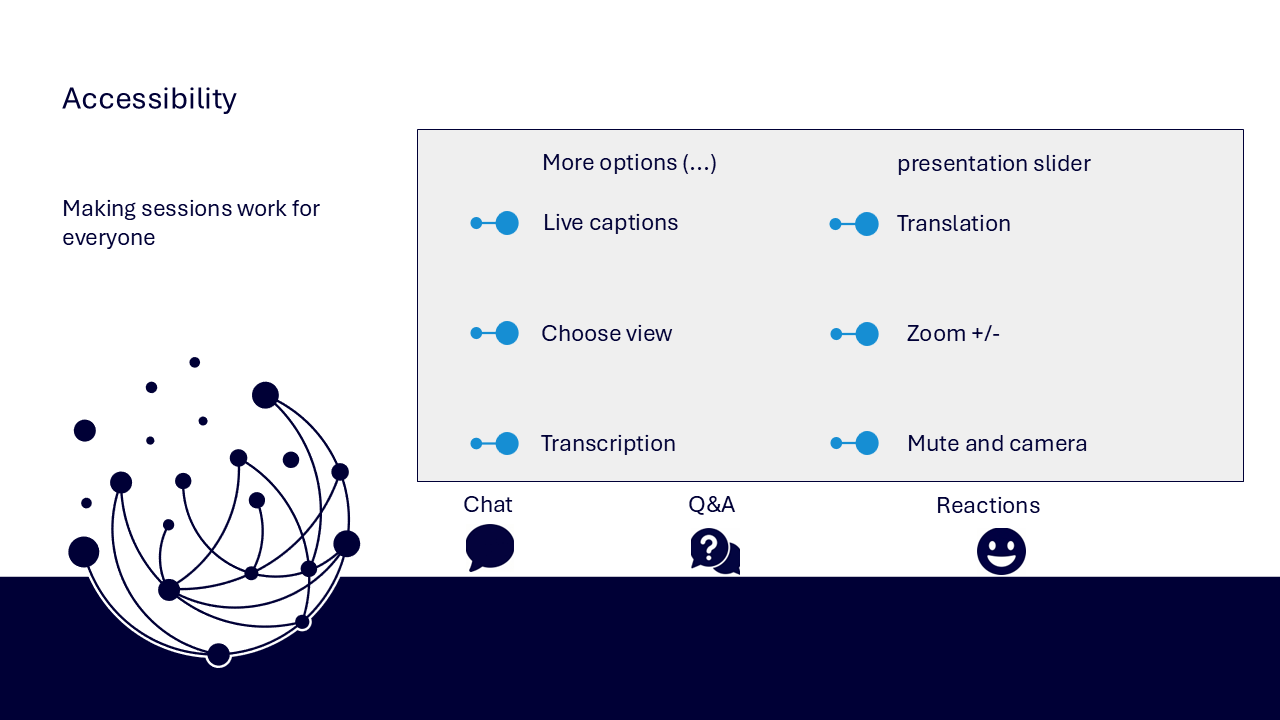
- use live captions or translation from the three-dots menu
- choose a view that gives you the clearest layout
- use the presentation slider to zoom in or out
- keep your camera and microphone off unless you are invited to use them
- use Q&A for questions and keep chat closed when you are not typing
- use reactions or another participation route if that works better for you
- share respectful feedback and use the key links provided in chat
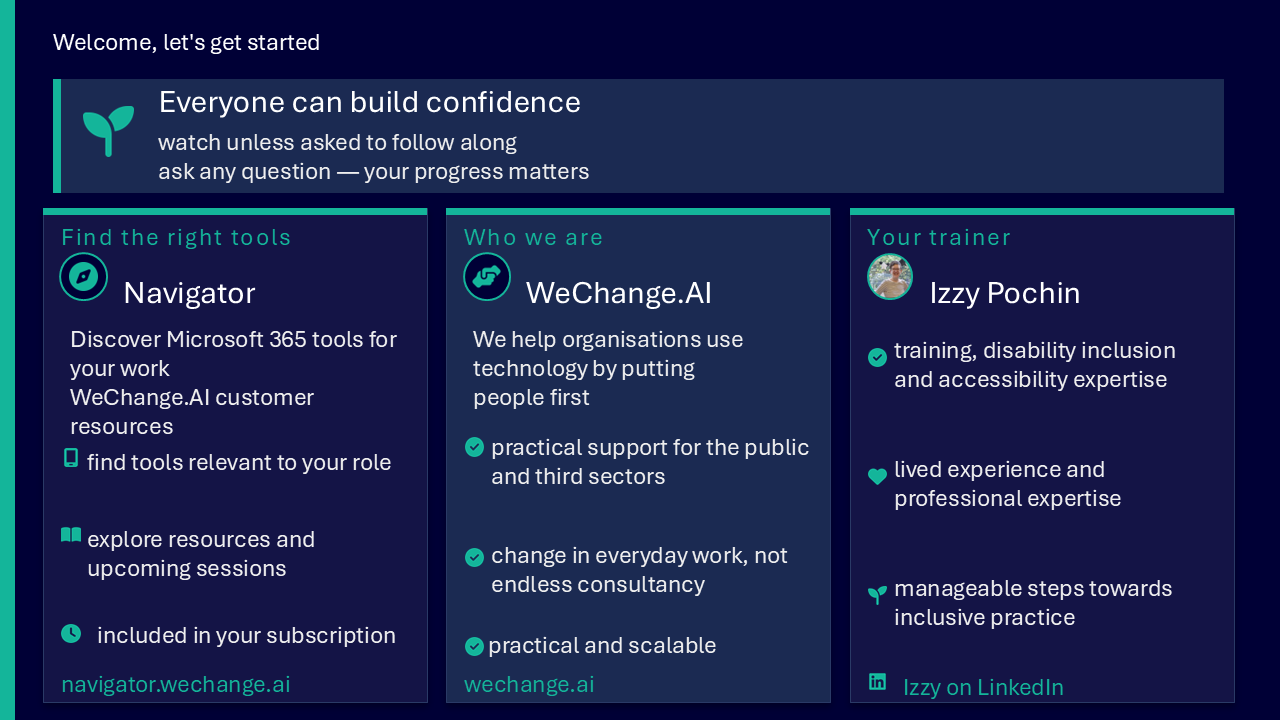
Everyone can build confidence
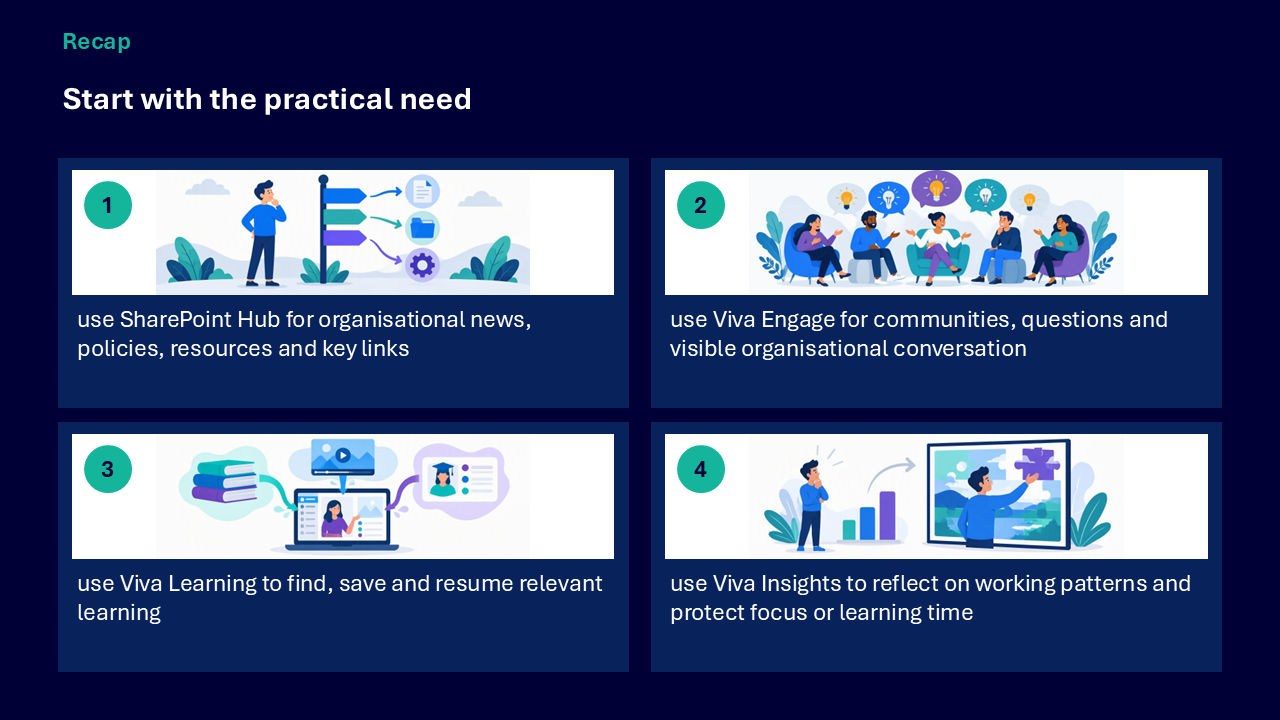
These sessions are for everyone, whatever your starting point. You do not need to remember every application or route. The aim is to start with the practical need and choose the experience that supports it.
Navigator and WeChange.AI
Navigator is a personalised platform for WeChange.AI customers. It helps you find Microsoft 365 tools, resources and upcoming sessions relevant to your role.
WeChange.AI supports public and third sector organisations to use technology with confidence, purpose and impact. The focus is practical, people-centred change in day-to-day work.
Key concepts
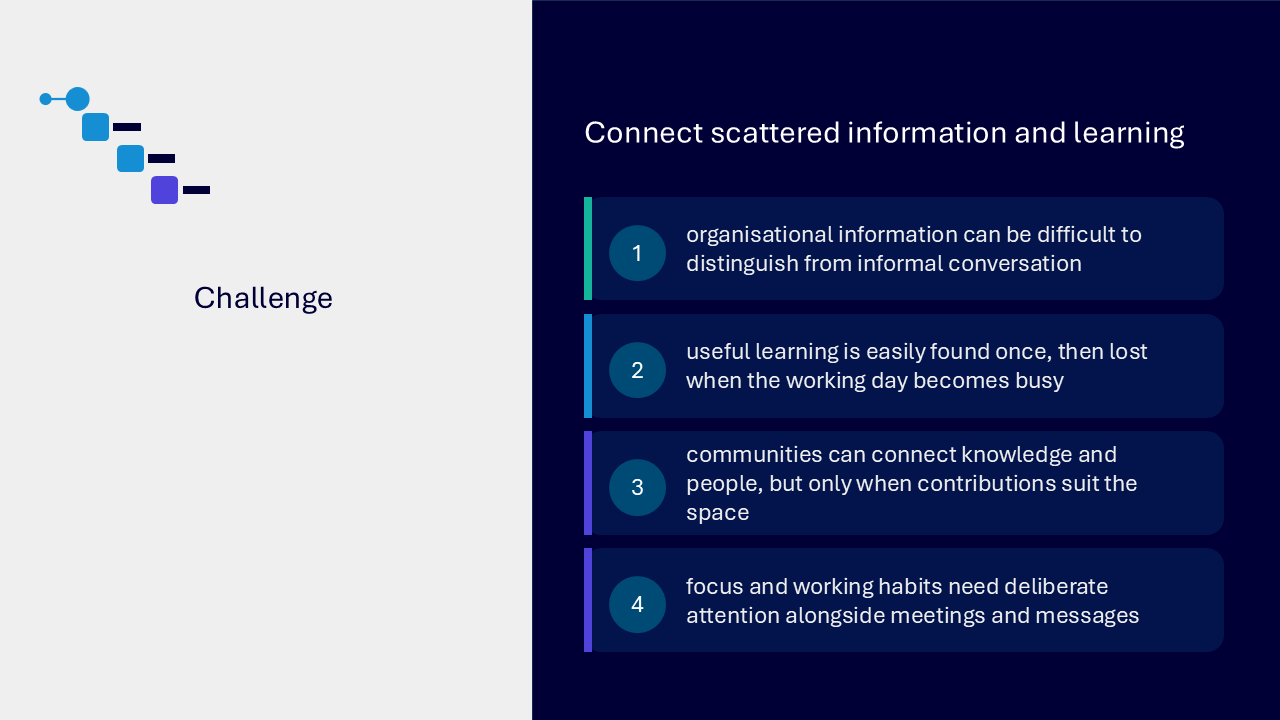
The challenge
The challenge visual brings together four pressures. Organisational information can be difficult to distinguish from informal conversation. Useful learning can be found once and then lost. Communities only help when contributions suit the space. Focus and working habits need deliberate attention alongside meetings and messages.
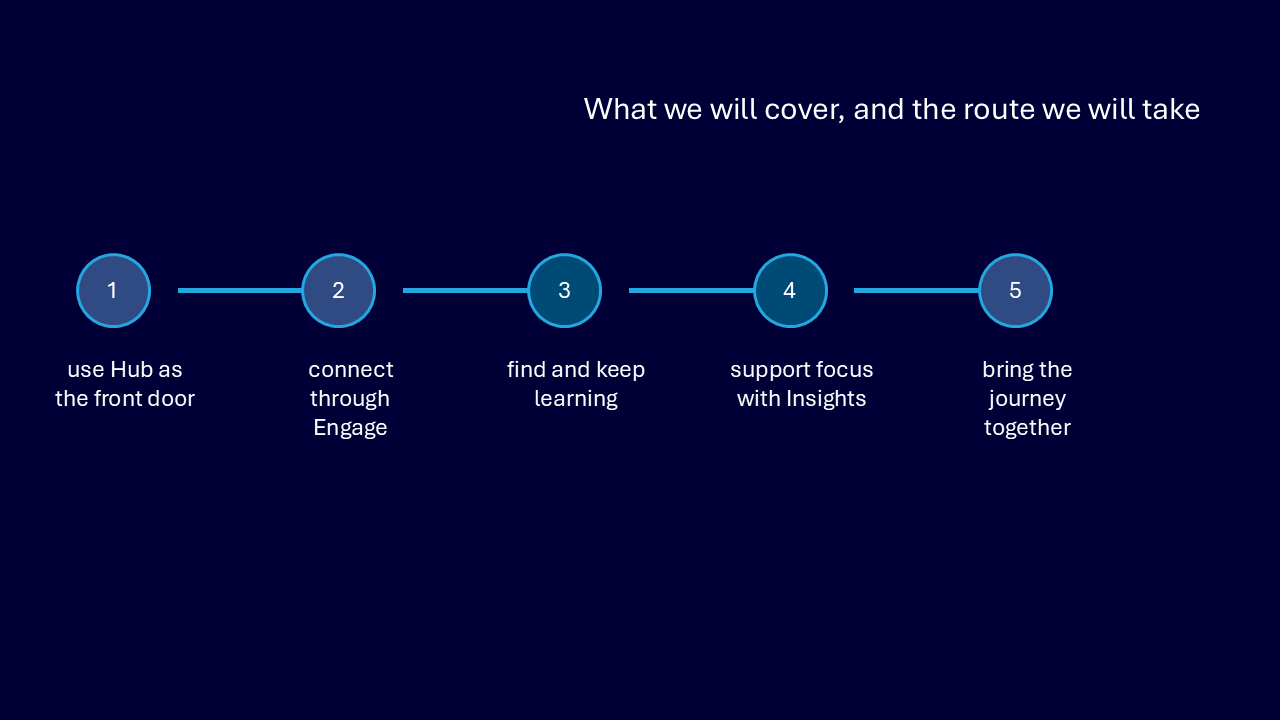
Your route through the session
The route graphic presents five connected stages.
- use the Hub as the front door
- connect through Viva Engage
- find and keep learning
- support focus with Viva Insights
- bring the journey together
Use the SharePoint Hub as your front door
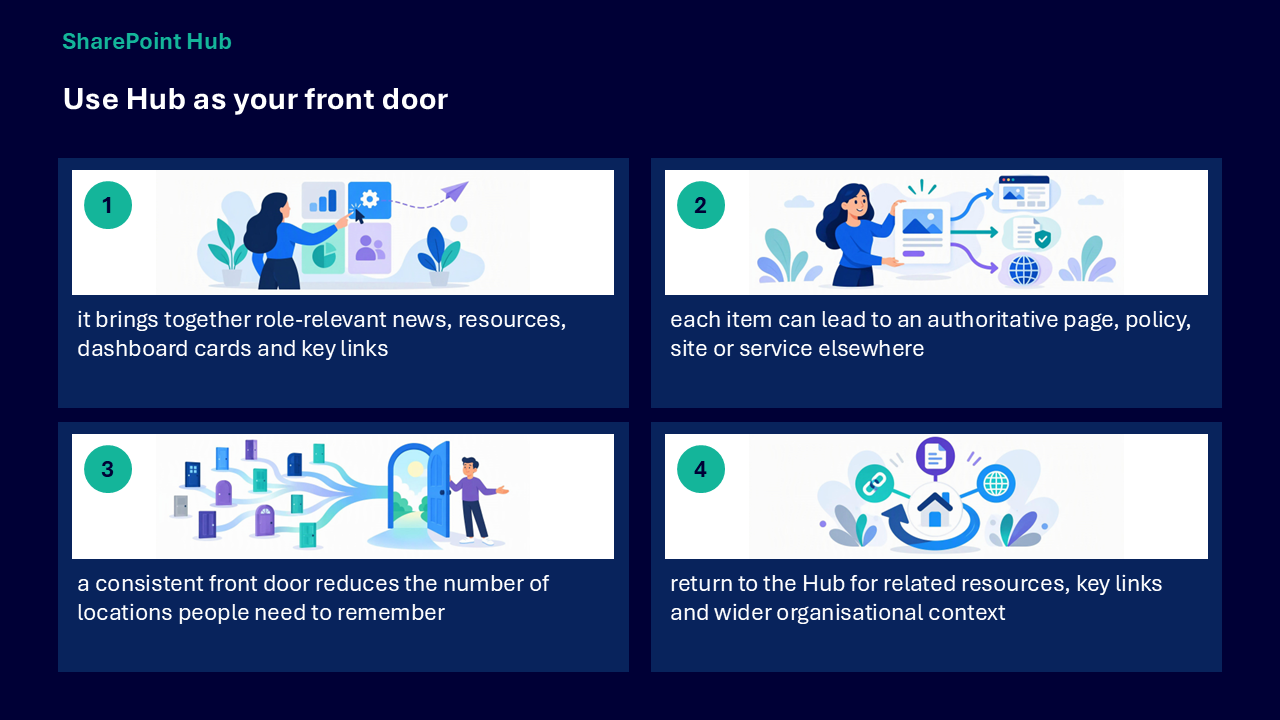
The SharePoint Hub brings together role-relevant news, resources, dashboard cards and key links. It is a consistent starting point, while each item may lead to an authoritative page, policy, site or service elsewhere.
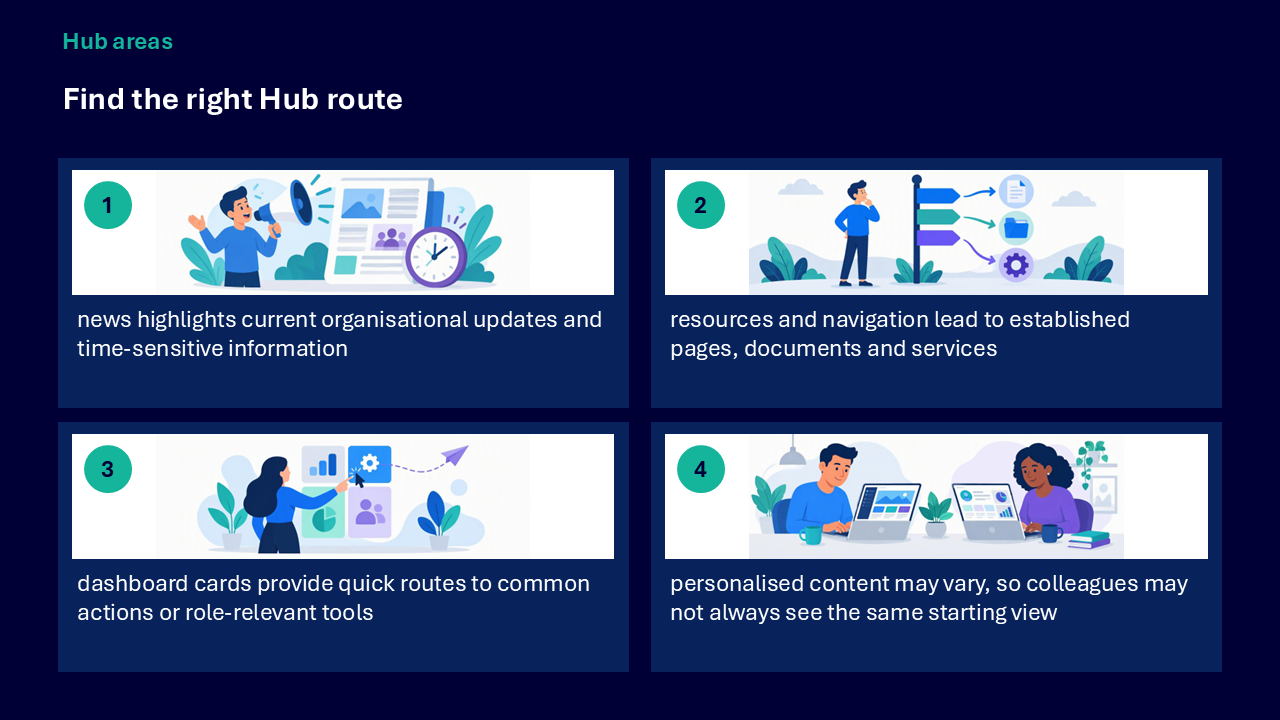
- use news for current organisational updates and time-sensitive information
- use resources and navigation to reach established pages, documents and services
- use dashboard cards as quick routes to common actions or role-relevant tools
- return to the Hub for related resources, key links and wider organisational context
- remember that personalised content may mean colleagues see different starting views
Follow information to its source
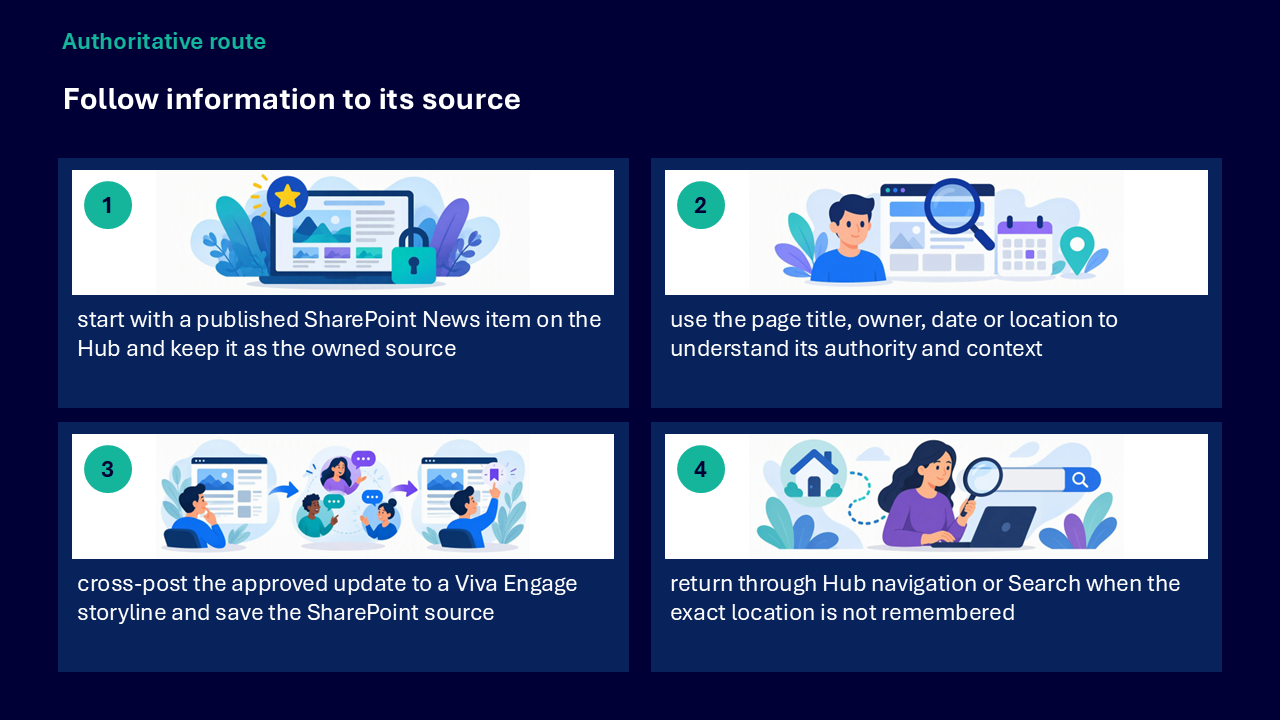
A published SharePoint News item can remain the owned source while Viva Engage supports discovery and conversation. Check the title, owner, date and location to understand the item’s authority and context.
- start with the published SharePoint News item on the Hub
- keep the approved SharePoint page as the authoritative source
- cross-post the approved update to a relevant Viva Engage storyline or community
- include the source link so colleagues can return for the full detail
- use Hub navigation or Search when the exact location is not remembered
Connect through Viva Engage
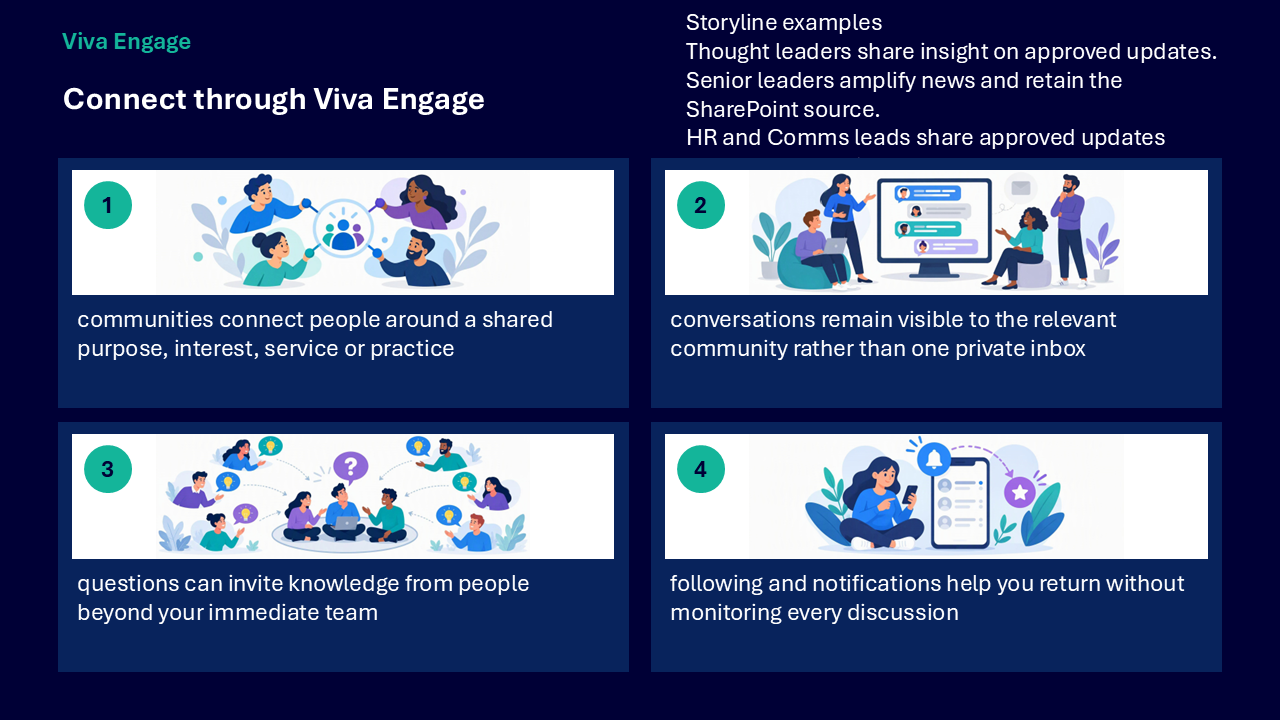
Viva Engage supports visible organisational conversations. Communities connect people around a shared purpose, interest, service or practice, while questions can invite knowledge from beyond an immediate team.
- use following and notifications to return without monitoring every discussion
- share insight on an approved update while retaining the SharePoint source
- amplify organisational news through an appropriate storyline
- make approved information visible where relevant conversations happen
- treat role examples as illustrative rather than fixed permissions
Match the contribution to its purpose
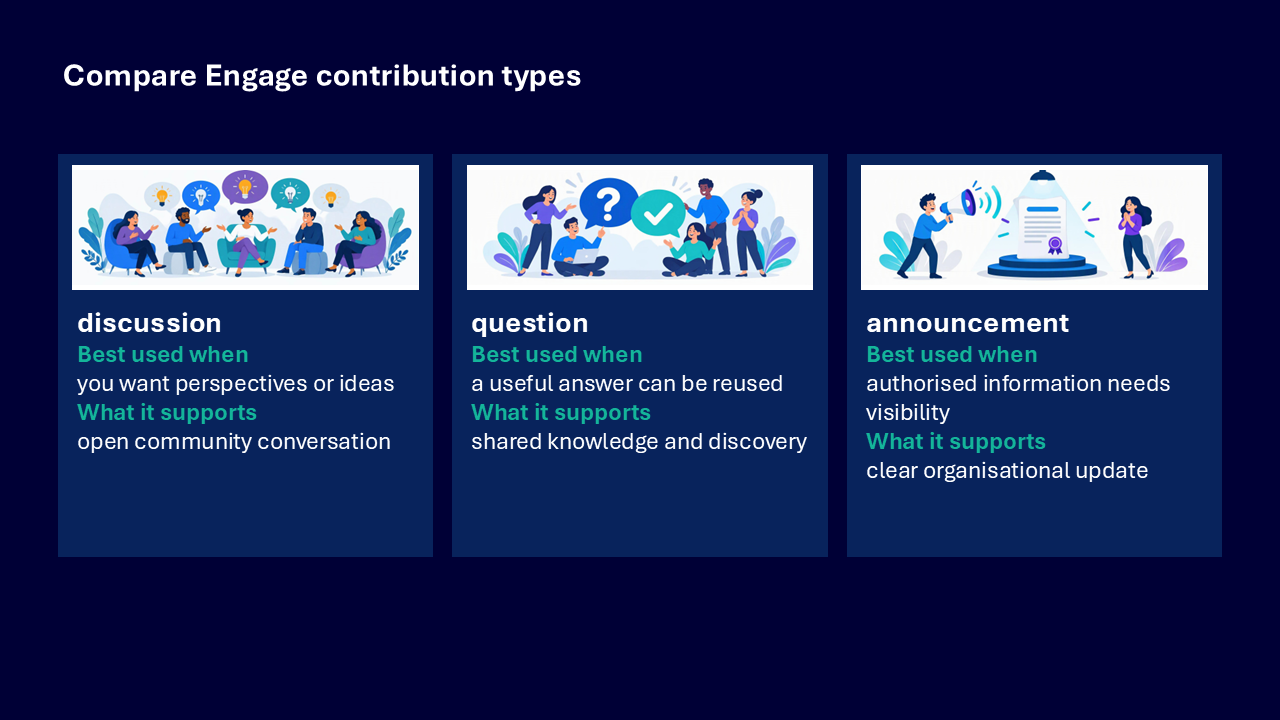
The contribution comparison shows that different formats support different outcomes.
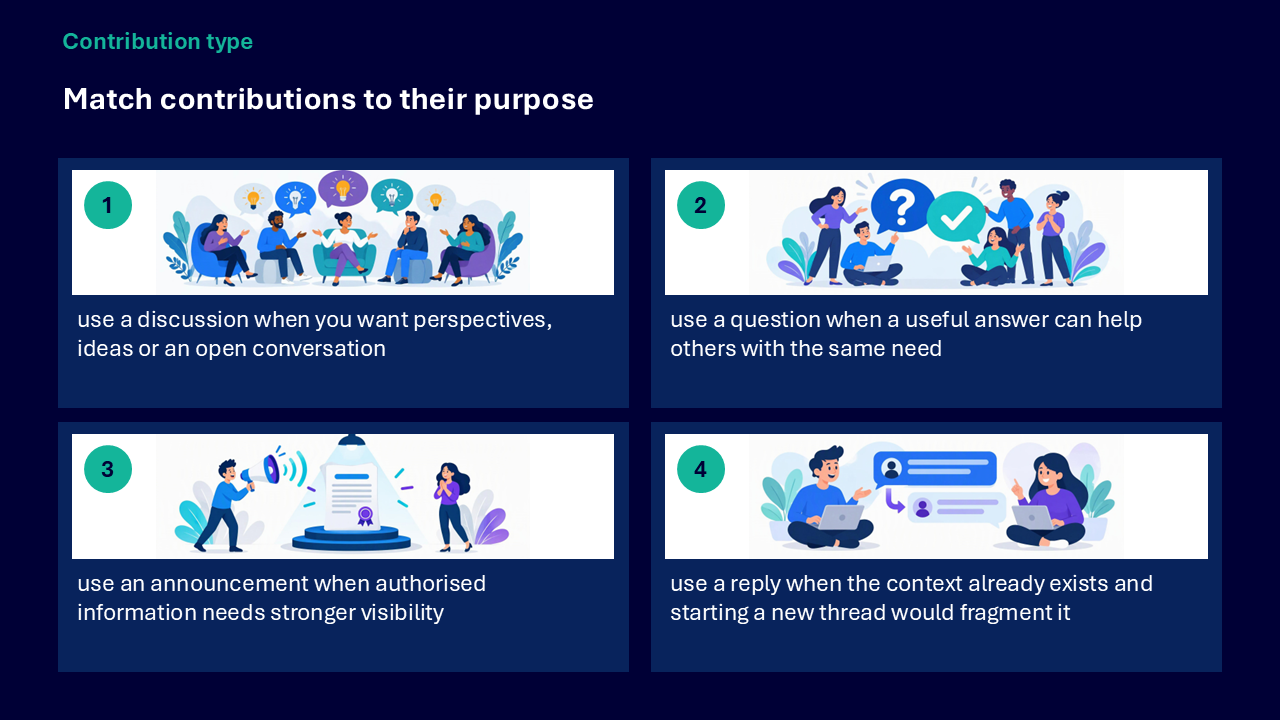
- discussion: use when you want perspectives, ideas or an open community conversation
- question: use when a useful answer may help others with the same need
- announcement: use when authorised information needs stronger visibility
- reply: use when the context already exists and a new thread would fragment it
Make contributions clear and findable
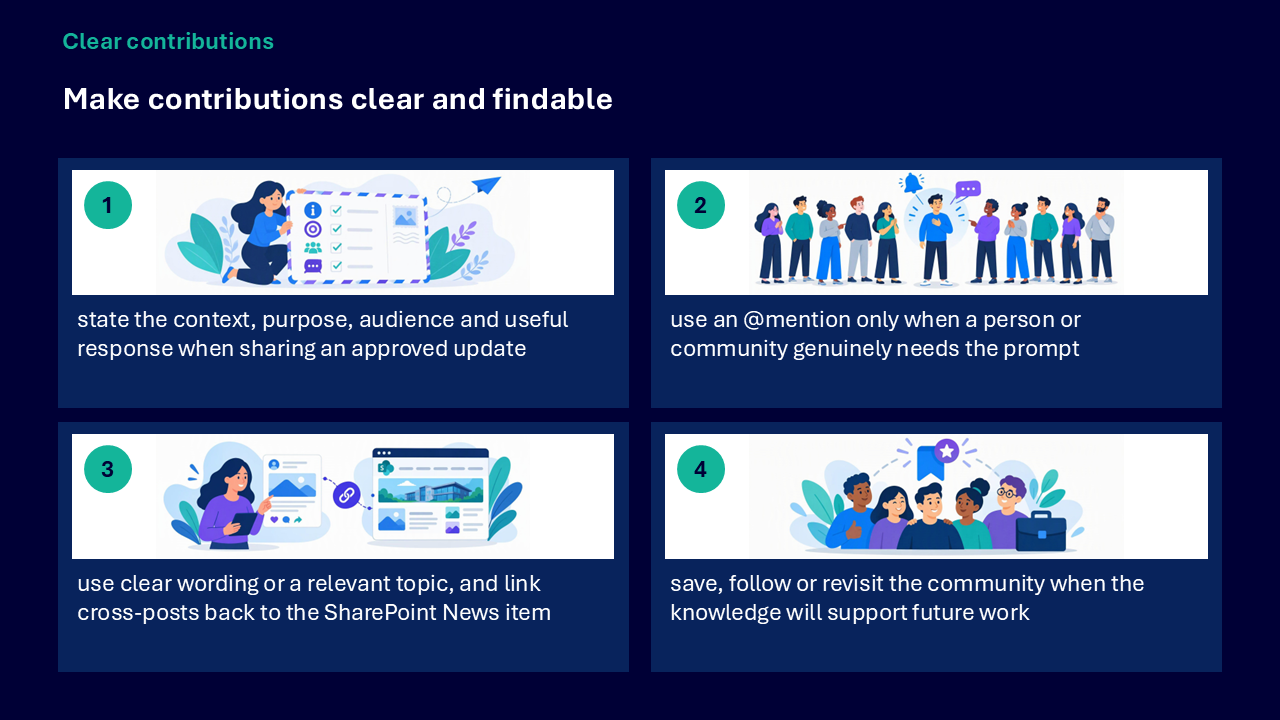
A useful Viva Engage contribution gives people enough context to understand why it matters and what response would be helpful.
- state the context, purpose, audience and useful response
- use an @mention only when a person or community genuinely needs the prompt
- use clear wording or a relevant topic
- link cross-posts back to the SharePoint News item
- save, follow or revisit the community when the knowledge may support future work
Bring learning into your work
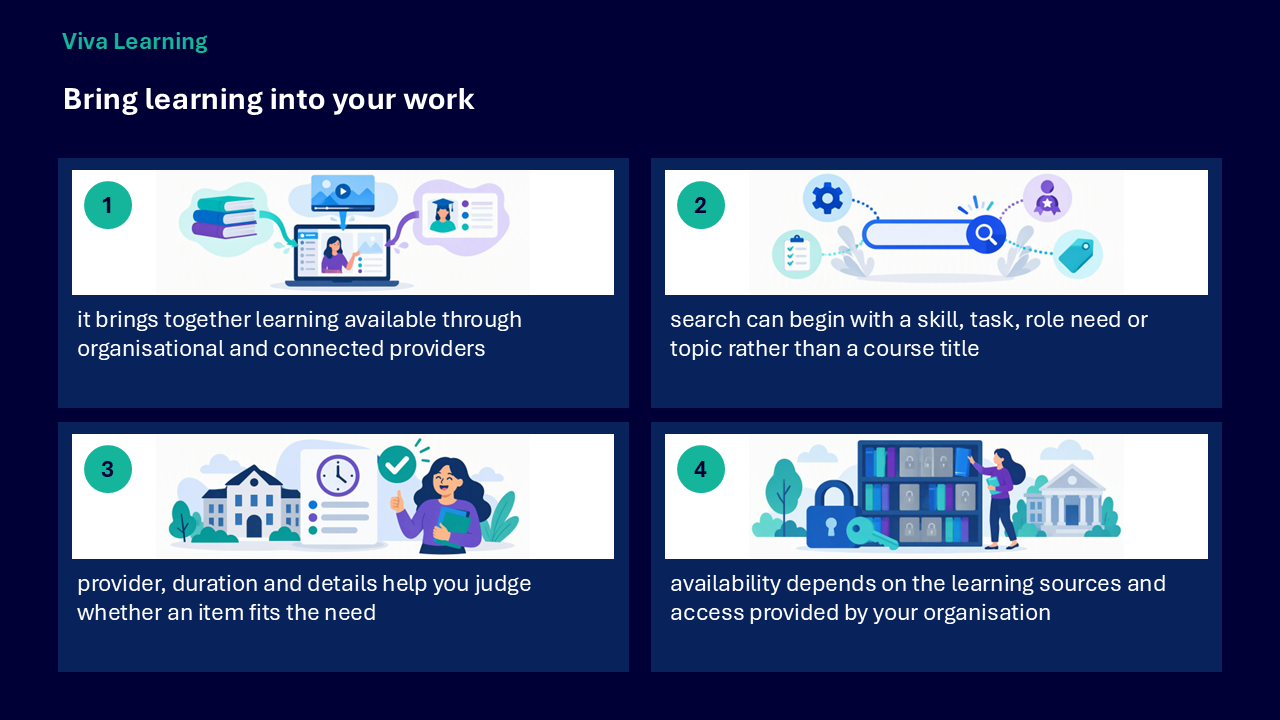
Viva Learning brings together learning available through organisational and connected providers. Search can begin with a skill, task, role need or topic rather than a course title. Availability depends on the sources and access supplied by the organisation.
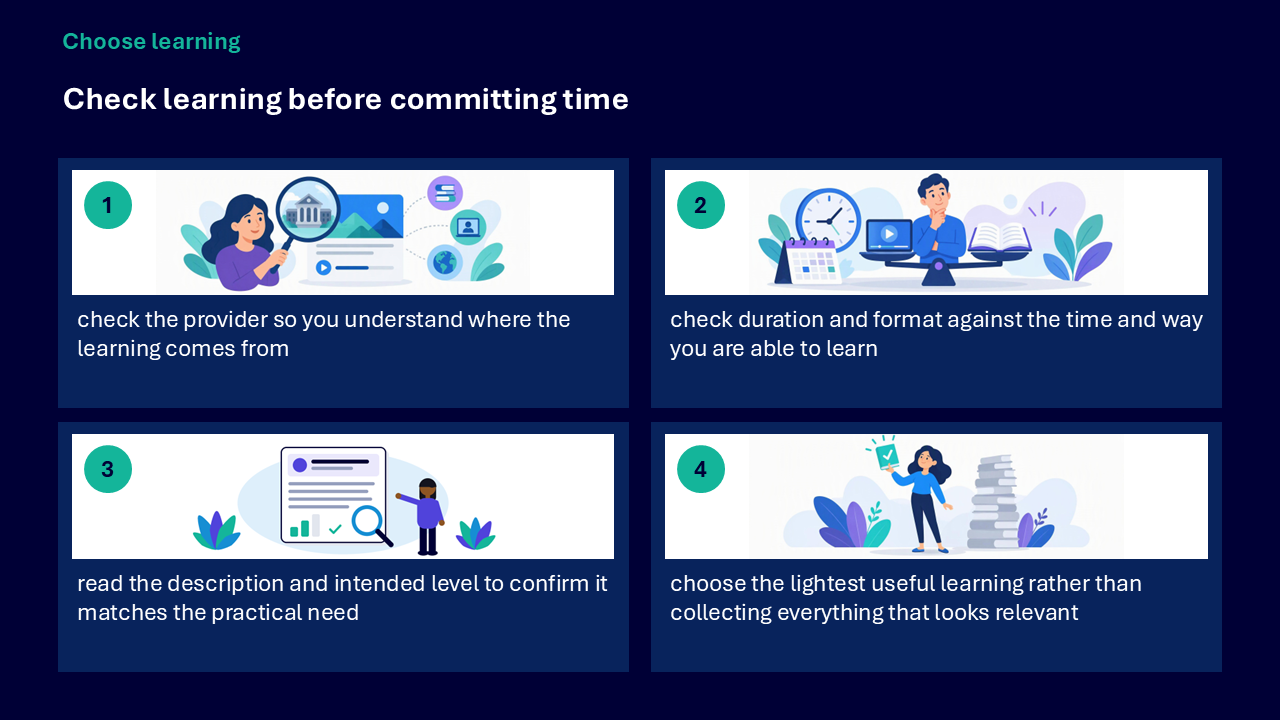
Check learning before committing time
- check the provider so you understand where the learning comes from
- check the duration and format against the time and way you are able to learn
- read the description and intended level
- confirm that the item matches the practical need
- choose the lightest useful learning rather than collecting everything that appears relevant
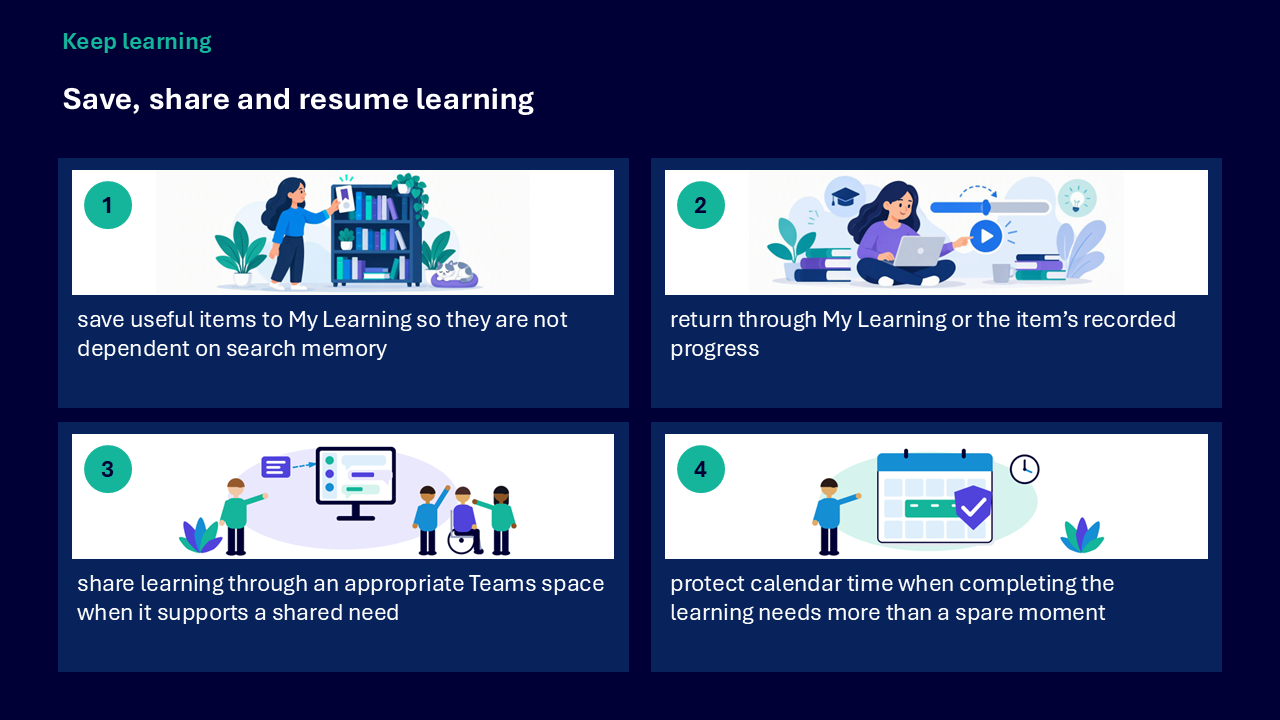
Save, share and resume learning
- save useful items to My Learning so they do not depend on search memory
- return through My Learning or recorded progress
- share learning through an appropriate Teams space when it supports a shared need
- protect calendar time when completing the learning requires more than a spare moment
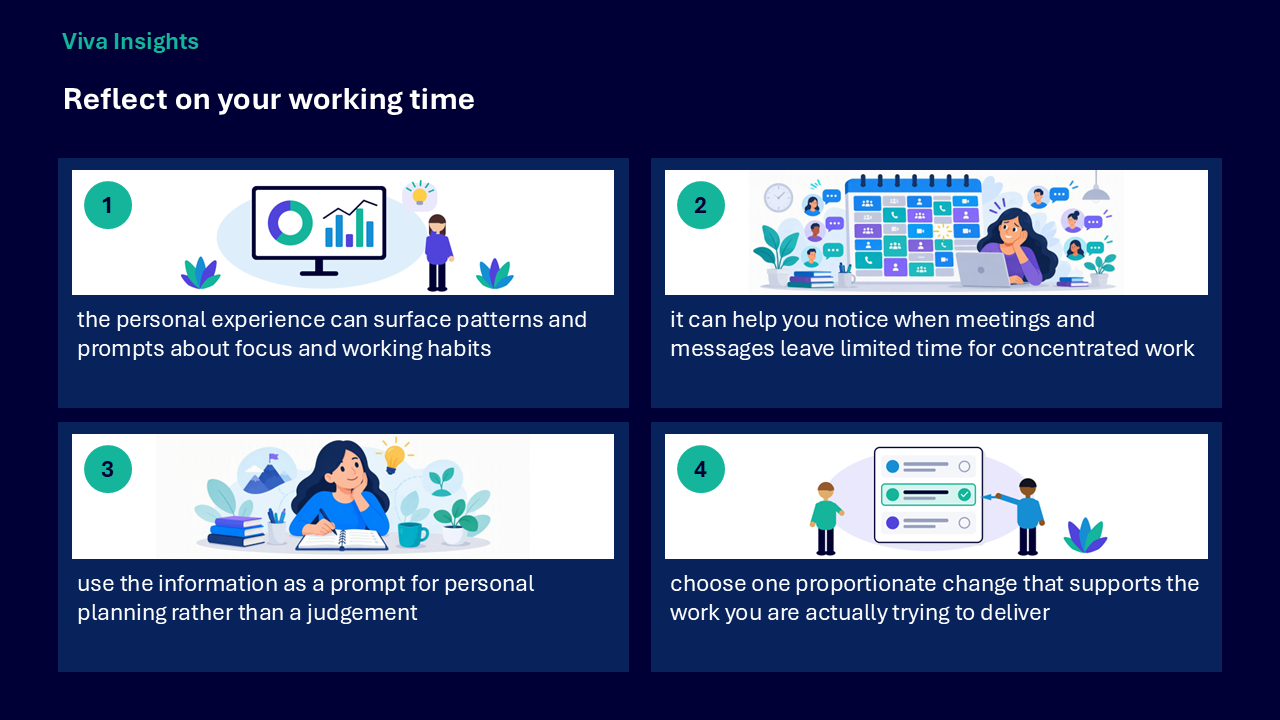
Reflect on your working time
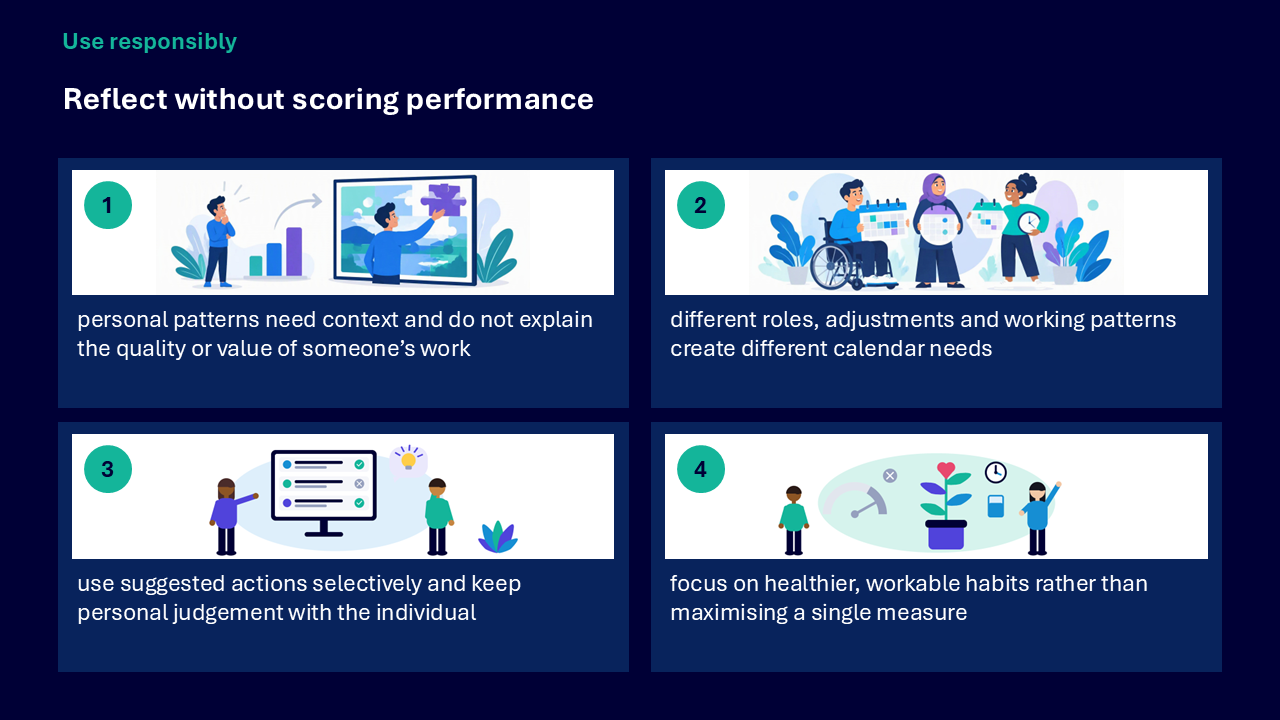
The personal Viva Insights experience can surface patterns and prompts about focus and working habits. Use this information as a prompt for personal planning rather than a judgement about the quality or value of work.
- notice when meetings and messages leave limited time for concentrated work
- consider the context of your role, working pattern and adjustments
- choose one proportionate change that supports the work you are trying to deliver
- use suggested actions selectively and keep personal judgement with the individual
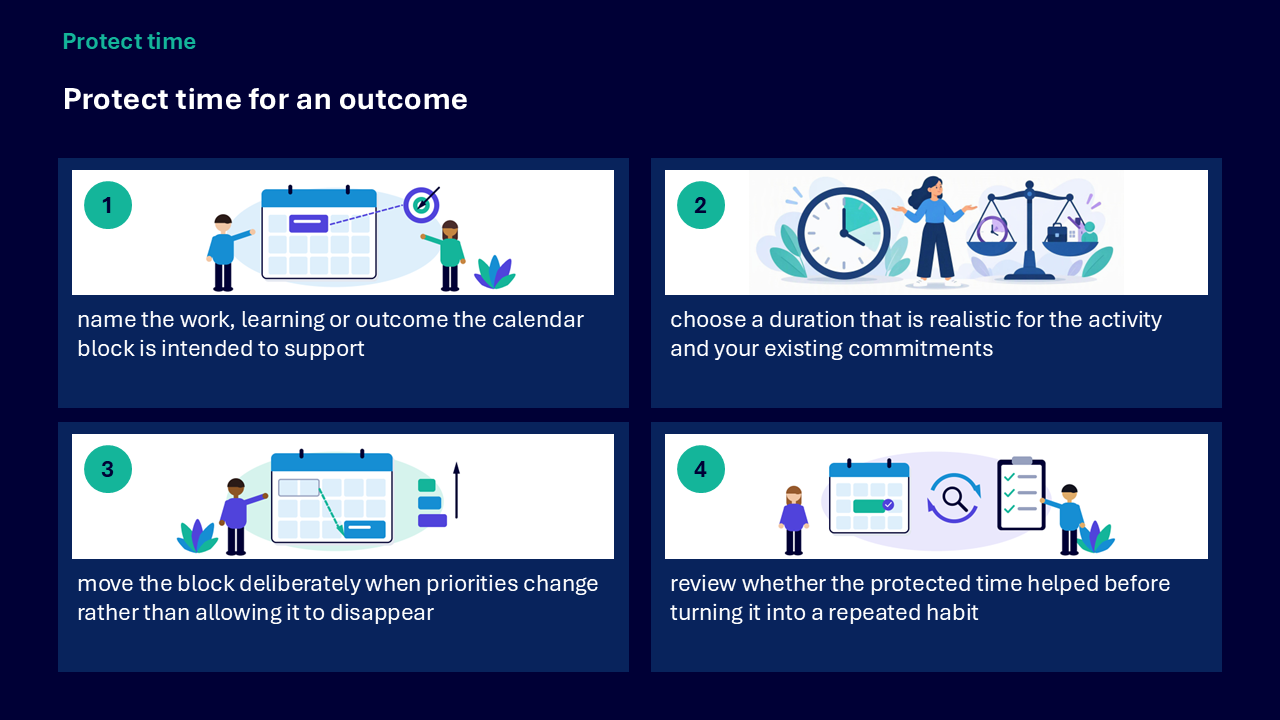
Protect time for an outcome
- name the work, learning or outcome the calendar block supports
- choose a realistic duration around existing commitments
- move the block deliberately when priorities change
- review whether the protected time helped before making it a repeated habit
Choose the right experience
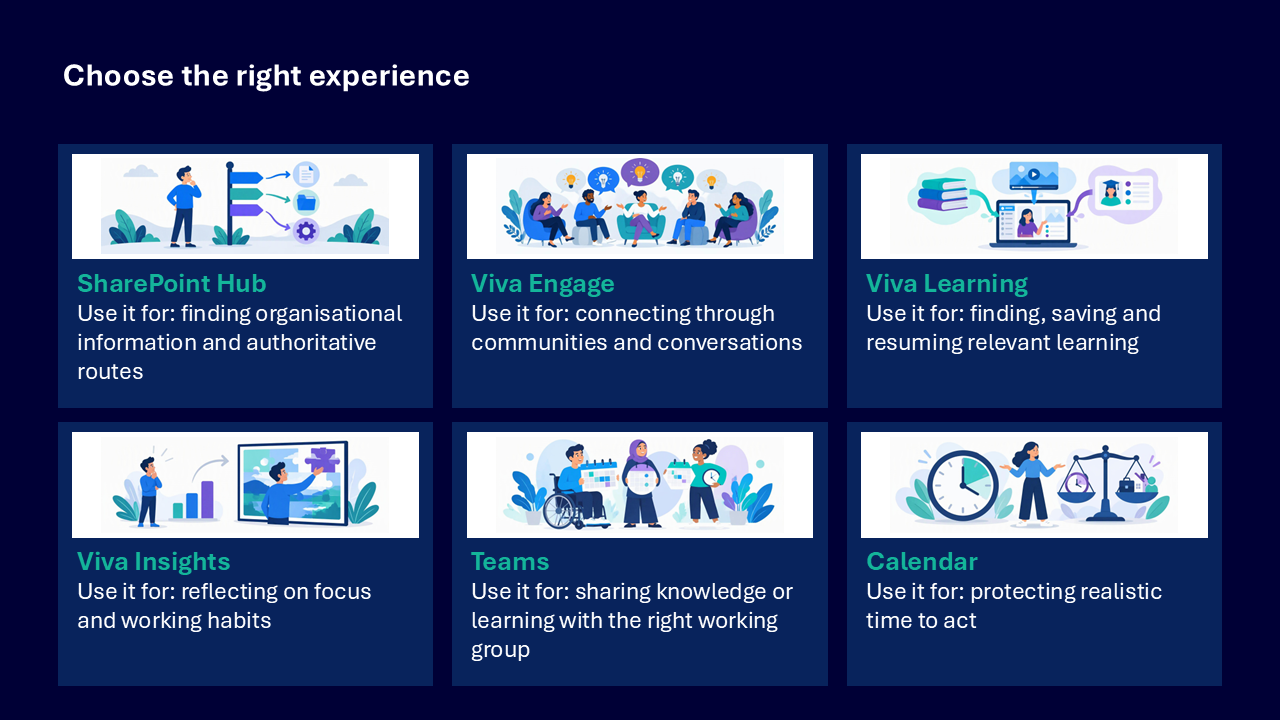
The comparison visual matches each experience to a different practical need.
- SharePoint Hub: finding organisational information and authoritative routes
- Viva Engage: connecting through communities and conversations
- Viva Learning: finding, saving and resuming relevant learning
- Viva Insights: reflecting on focus and working habits
- Teams: sharing knowledge or learning with the right working group
- Calendar: protecting realistic time to act
What the visuals and demonstrations showed
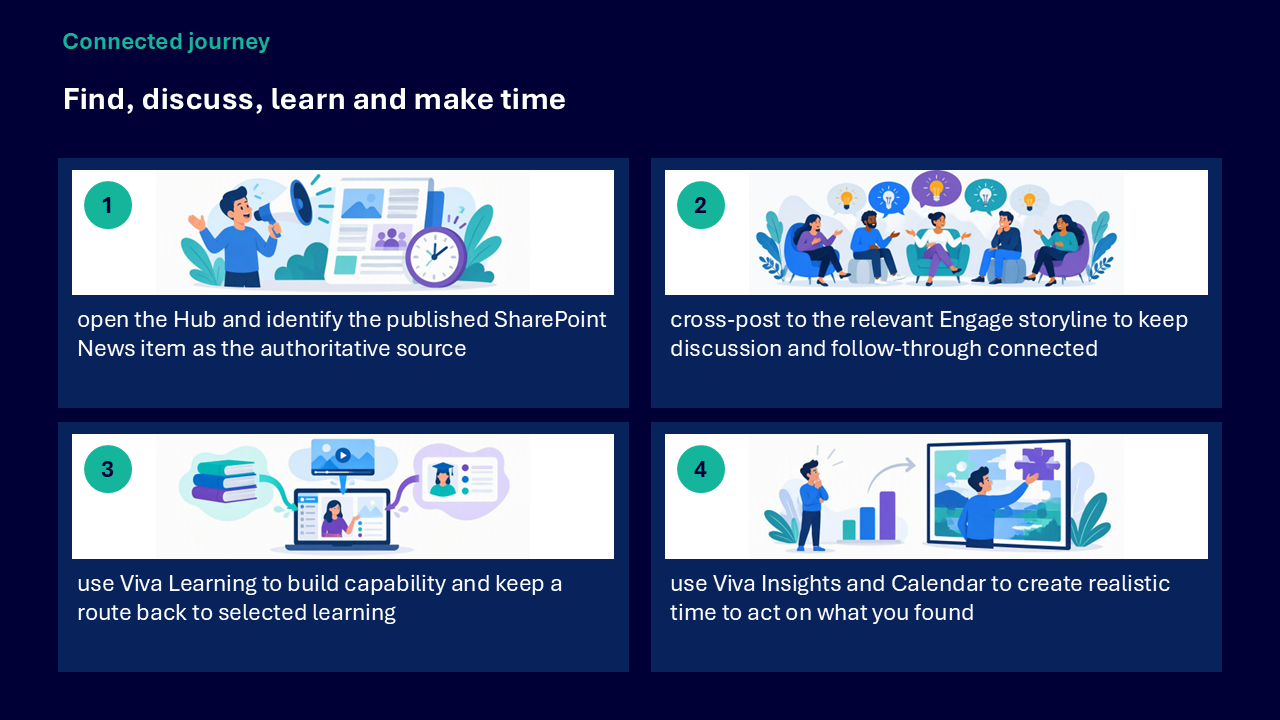
The visual sequence follows one information journey: find an approved source, support discovery and discussion, build capability, then make realistic time to act.
- opening the Hub and identifying a published SharePoint News item
- checking the source title, owner, date and location
- cross-posting the approved update to a relevant Viva Engage storyline
- making the purpose, audience and source clear in the Engage post
- choosing between a discussion, question, announcement and reply
- searching for learning by a practical skill or need
- checking the provider, duration, format and level
- saving worthwhile learning to My Learning
- using Viva Insights as a reflection prompt
- protecting focus or learning time in Calendar
Key takeaways
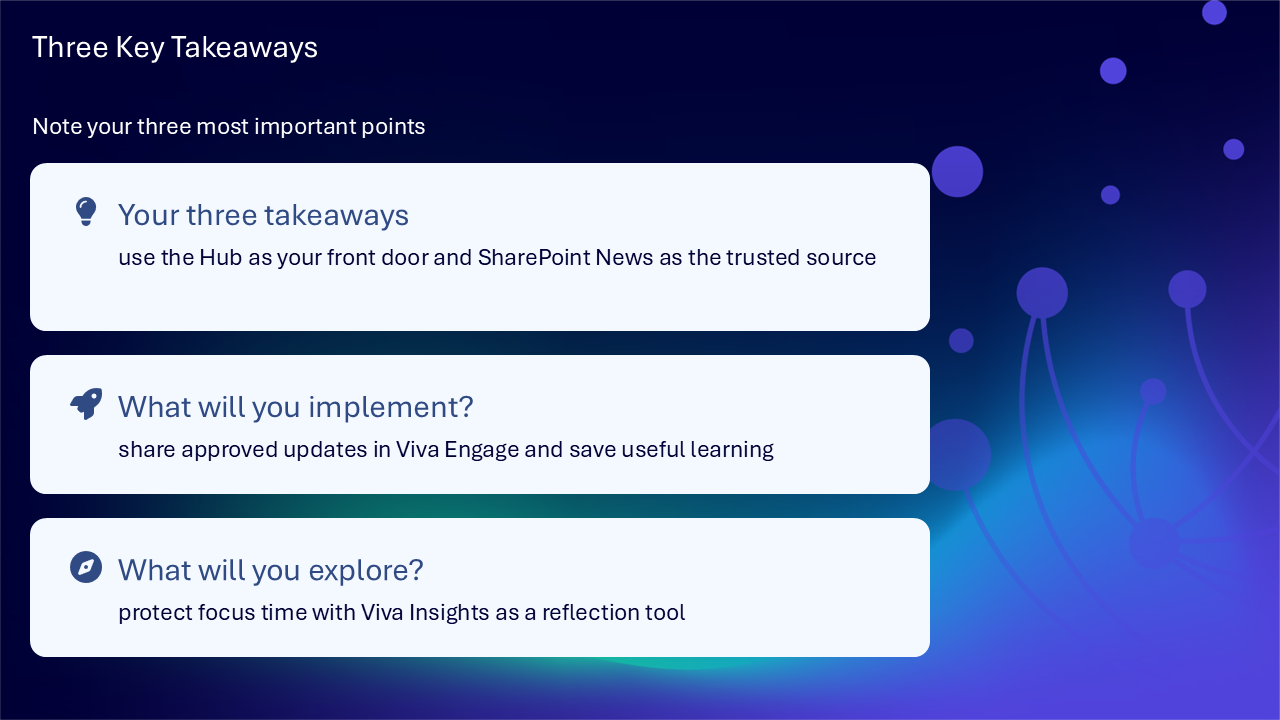
- use the Hub as your front door and SharePoint News as the trusted source
- share approved updates in Viva Engage rather than creating a second version
- save useful learning so there is a dependable route back
- use Viva Insights as a reflection tool rather than a performance score
- protect realistic time to act on information or learning
A connected route through the working day
- find the authoritative information through the Hub
- discuss or amplify it in an appropriate Engage space
- return people to the SharePoint source for full detail
- find and save relevant learning
- use reflection prompts to identify a proportionate change
- protect time in Calendar for the intended outcome
Actions you can take
Try the tip of the month
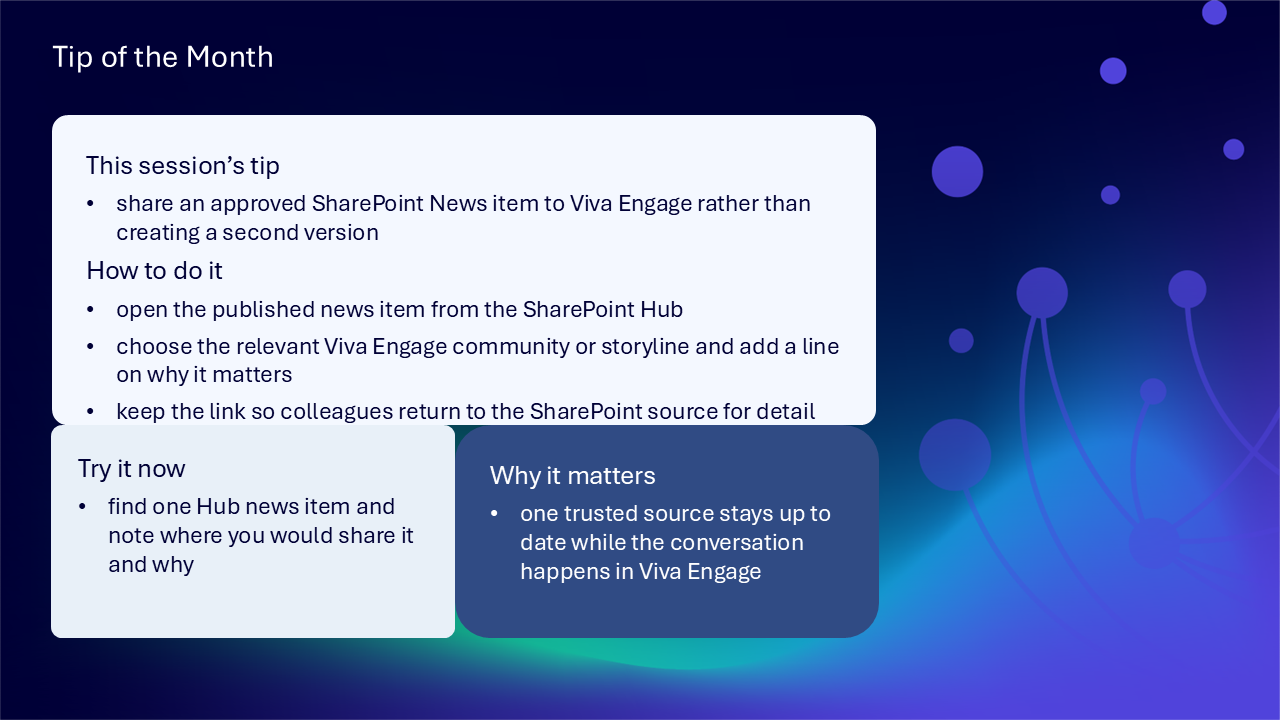
This session’s tip: share an approved SharePoint News item to Viva Engage rather than creating a second version
How to do it: open the published news item from the SharePoint Hub, choose the relevant Viva Engage community or storyline, explain why it matters and retain the link to the SharePoint source
Why it matters: one trusted source remains current while discovery and conversation happen in Viva Engage
Try it now: find one Hub news item and note where you would share it and why
Build confidence with one practical route
- open your organisation’s SharePoint Hub and identify one useful route
- check the source information on one published news item
- choose an appropriate Engage contribution type for one communication need
- write one short cross-post that explains the purpose and links to the source
- search Viva Learning using a skill, task or role need
- save one relevant item to My Learning
- identify one outcome that needs protected time
- create a realistic calendar block and review whether it helped
Questions and feedback
Questions are welcome. If something is unclear, ask for it to be explained another way or demonstrated again. Feedback helps WeChange.AI understand what matters to you.
Complete the Support and Skilling Week feedback form
Contact WeChange.AI
For skilling queries, email training@wechange.ai.
Andrew Boxall, Managing Director: andrew@wechange.ai
Paul Ford, Industry Director for Education and Philanthropies: paul@wechange.ai
Josh Wilson, Industry Specialist: josh@wechange.ai
Elle Avilla, Customer Success and Delivery Skilling Lead: elle@wechange.ai
Izzy Pochin, Resources and Accessibility Lead: izzy@wechange.ai
Activity sheet
Follow one connected journey from finding trusted organisational information through to discussing it, choosing useful learning and protecting realistic time to act.
How to use this activity sheet
This sheet supports Session 8 on the Viva Suite. Use it after the live session, or follow selected steps while your trainer demonstrates SharePoint Hub, Viva Engage, Viva Learning and Viva Insights.
- work at your own pace and pause after each activity
- use approved, published or non-sensitive practice information
- complete only activities you are authorised to perform
- your screen and available features may differ because your organisation controls licences and settings
- keep the SharePoint source link when discussing an approved update elsewhere
What you will achieve
- use SharePoint Hub as a front door to news, resources and authoritative routes
- identify and save the source behind a Hub item
- choose a suitable Viva Engage contribution type
- share an approved SharePoint News item without creating a second version
- find, assess, save and resume relevant learning
- use Viva Insights as a prompt for personal reflection rather than performance scoring
- protect realistic focus or learning time in Calendar
- connect the route from finding information to discussing, learning and acting
Your learning route
| Stage | You will practise |
|---|---|
| 1. Use the Hub | find news, resources, cards and key links |
| 2. Follow the source | check title, owner, date and location |
| 3. Connect through Engage | choose discussion, question, announcement or reply |
| 4. Cross-post responsibly | retain one trusted SharePoint source |
| 5. Find learning | search by skill, task, role need or topic |
| 6. Keep learning | save, share, resume and protect time |
| 7. Reflect with Insights | notice patterns without scoring performance |
| 8. Bring it together | find, discuss, learn and make time |
Before you start
- sign in to Microsoft 365
- open your organisation’s SharePoint Hub via Teams
- choose one approved or fictional news item
- avoid sharing personal, confidential or sensitive information
- allow about 45 to 60 minutes, or complete one activity at a time
Notice: Viva applications, Hub personalisation, learning providers and available insights vary according to organisational configuration, licence and access.
Activity 1: Use SharePoint Hub as your front door
Outcome: Recognise which Hub area answers the current need and follow the route to the underlying source.
| Hub area | Use it for |
|---|---|
| news | current organisational updates and time-sensitive information |
| resources and navigation | established pages, documents and services |
| dashboard cards | quick routes to common actions or role-relevant tools |
| key links | repeat routes to important organisational destinations |
- Open the Hub.
- Identify the news area.
- Find one resources or navigation area.
- Find one dashboard card or key link, where available.
- Open one item and notice that the Hub leads to another page, site, policy or service.
- Return to the Hub for wider context.
The Hub route I used: _________________________
The destination it opened: _________________________
Pause and check
Activity 2: Follow information to its trusted source
Outcome: Check the information context and save a dependable route back.
- Open an existing published SharePoint News item from the Hub.
- Check the page title.
- Check the owner, author or publishing context shown.
- Check the publication or update date where available.
- Notice the site or location that owns the information.
- Add the site to your Quick Links or Follow it.
- Return through Hub navigation or Search.
| Source check | What you found |
|---|---|
| title | |
| owner or author | |
| date, where shown | |
| site or location | |
| route back |
Pause and check
Activity 3: Choose the right Viva Engage contribution
Outcome: Match the contribution type to the purpose and existing context.
| Type | Best used when | What it supports |
|---|---|---|
| discussion | you want perspectives or ideas | open community conversation |
| question | a useful answer can help others | shared knowledge and discovery |
| announcement | authorised information needs stronger visibility | a clear organisational update |
| reply | the context already exists | one connected thread rather than fragmented discussion |
- Identify the audience and community.
- Decide whether you want perspectives, a reusable answer or visibility for authorised information.
- Check whether an existing thread already provides the context.
- Choose the contribution type.
- Record why it fits the purpose.
The contribution type: _________________________
The purpose: _________________________
Why this suits the audience: _________________________
Pause and check
Activity 4: Make an Engage contribution clear and findable
Outcome: Draft a contribution that states the context, purpose, audience and useful response.
- Open a safe practice community, storyline or fictional planning space.
- State what the contribution is about.
- Explain why it matters to the intended audience.
- Make the useful response clear.
- Use an @mention only when a person or community genuinely needs the prompt.
- Use clear wording or a relevant topic so the contribution can be found later.
- Review the draft before posting, or keep it as an unsent exercise.
Context: _________________________
Purpose: _________________________
Audience: _________________________
Useful response: _________________________
Pause and check
Activity 5: Cross-post an approved SharePoint News item
Outcome: Make an approved update visible in Viva Engage while retaining SharePoint as the trusted source.
Notice: Post only information you are authorised to share. Use a fictional plan if you do not have permission to cross-post a live item.
- Open the published SharePoint News item.
- Choose ‘Promote’ to the relevant Viva Engage community or storyline.
- Add people if needed.
| Cross-post element | Your plan |
|---|---|
| SharePoint News source | |
| Engage community or storyline | |
| why it matters |
Pause and check
Activity 6: Find learning for a practical need
Outcome: Search Viva Learning by the capability you need, then assess the item before committing time.
- Open Viva Learning, where available.
- Search by a skill, task, role need or topic rather than relying on a course title.
- Open one relevant result.
- Check the provider.
- Check the duration and format.
- Read the description and intended level.
- Decide whether it is the lightest useful learning for the need.
| Learning check | Your finding |
|---|---|
| practical need | |
| search words | |
| provider | |
| duration and format | |
| intended level | |
| why it fits or does not fit |
Pause and check
Activity 7: Save, share and resume learning
Outcome: Keep a dependable route back to selected learning and connect it to real work.
- Bookmark a useful practice item to My Learning, where available.
- Open My Learning and find the saved item.
- Notice any recorded progress or resume route.
- Decide whether the learning supports only you or a shared team need.
- If it supports a shared need, click to ‘Share’ it to a chat or channel.
- Record what action the learning should support.
The learning item: _________________________
My route back: _________________________
The work it should support: _________________________
Where I would share it, if appropriate: _________________________
Pause and check
Activity 8: Reflect on working time with Viva Insights
Outcome: Use personal insights as a prompt for planning, not as a judgement about performance.
- Open Viva Insights via Teams or the app launcher/waffle.
- From the Productivity tab, review one pattern or prompt about focus or working habits.
- Consider the context, including your role, adjustments and working pattern.
- Identify one proportionate change connected to work you are trying to deliver.
- Keep personal judgement with you rather than treating a single measure as a score.
| Reflection prompt | Your note |
|---|---|
| pattern or prompt noticed | |
| important context | |
| work or outcome affected | |
| one proportionate change | |
| how you will review whether it helped |
Notice: Personal patterns do not explain the quality or value of someone’s work. Different roles, adjustments and working patterns create different calendar needs.
Pause and check
Activity 9: Protect time for an outcome
Outcome: Create realistic calendar time for learning, focus or follow-through.
- Name the work, learning or outcome the block will support.
- Review existing commitments.
- Use Viva Insights (or the action in Outlook) to enrol on the Focus, Lunch, or Quiet Time plan and choose days and durations to suit.
- Calendar entries will follow free/busy/detail information.
- Move the block deliberately if priorities change or an invite clash nudges you.
- Afterwards, review whether the protected time helped before repeating it as a habit.
| Calendar decision | Your plan |
|---|---|
| outcome | |
| duration | |
| availability shown to others | |
| what would justify moving it | |
| review question |
Pause and check
Activity 10: Bring the connected journey together
Outcome: Move from trusted organisational information to discussion, learning and realistic action without losing the source.
Scenario: Your organisation publishes an approved SharePoint News item about a new service approach. Colleagues need to discover it, discuss what it means, build one relevant skill and make time to act.
- open the Hub and identify the published SharePoint News item as the source
- check its title, owner, date and location
- cross-post the approved source to the relevant Engage community or storyline
- find the lightest useful learning for the practical need
- save the learning and share it only where it supports a shared need
- use Insights as a reflection prompt
- protect realistic Calendar time for the action or learning
The trusted source: _________________________
The Engage audience and contribution type: _________________________
The learning need: _________________________
The protected outcome: _________________________
The route back: _________________________
Quick reference: choose the right experience
| Experience | Use it for |
|---|---|
| SharePoint Hub | finding organisational information and authoritative routes |
| Viva Engage | communities, questions and visible organisational conversation |
| Viva Learning | finding, saving and resuming relevant learning |
| Viva Insights | reflecting on focus and working habits |
| Teams | sharing knowledge or learning with the right working group |
| Calendar | protecting realistic time to act |
Your three takeaways
My most useful learning: _________________________
What I will implement: _________________________
What I will explore further: _________________________
If you need help
- describe whether you were using SharePoint Hub, Viva Engage, Viva Learning or Viva Insights
- note the exact title or wording shown on screen
- ask your local support route about access, publishing permissions, providers or unavailable features
- check with the information owner before sharing an item more widely
- avoid screenshots containing personal, confidential or sensitive information
Confidence grows through a connected route: find the trusted source, discuss it in the right space, choose useful learning and protect realistic time to act.
Reflective journal
Why we ask you to reflect
Continuing Professional Development (CPD) is formative and it is about what it achieves for you and your organisation.
Instead of formally assessing your learning, we ask you to write a reflective note. This should reflect on how the learning was relevant and how it will impact your working practices.
Taking time to reflect on your learning makes it more likely you will embed it in your future practice.
What to cover and when
What your reflection should cover
- how the learning was relevant to you
- how the learning will impact your practice
When to complete it
Reflect as soon as possible following the skilling session. This keeps your note contemporaneous (written close to the time) and meaningful. Fill it in on your device, so the boxes expand as you type.
| Topic | What to know |
|---|---|
| Timing | Complete the note as soon as possible after the training event. |
| Purpose | To embed the learning within your subsequent practice. |
| Focus | How the learning was relevant and how it will impact your practice. |
Your reflective note
Complete each row below. Write in your own words. Your notes are private to you unless you choose to share them.
| Prompt | Your response |
|---|---|
| Skilling session title | |
| Date of the skilling session | |
| Date you completed this note | |
| How was the learning relevant to you and your work? | |
| How will the learning impact your practice? |
Recommended resources
These curated resources accompany the WeChange.AI skilling offer of Continuing Professional Development (CPD) accredited, and non-accredited, sessions. Use them before a session to build familiarity, or afterwards to revisit and apply the learning in day-to-day work.
Alongside these resources, Navigator helps WeChange.AI customers find personalised recommendations and available learning on Microsoft 365 tools, accessibility and AI relevant to their role. Returning to Navigator after a session can help you connect new knowledge with practical workplace needs, choose a useful next step and keep learning visible as confidence grows.
Session 8: Viva Engage, Viva Learning, Viva Insights and SharePoint Hub: Connect, learn, find information and manage your working day
The Viva Engage support hub. It helps you find where to start and what is available in your organisation.
Explains how to find your communities in Teams, join new ones and organise how they appear in your chat list. It also describes the Catch me up summaries of what has happened since you last visited.
Explains how to discover, share and manage learning in Microsoft Viva Learning. It helps you build learning into your working week.
Describes personalised insights into how you work. It helps you spot patterns in your day and make small changes that protect focus time.
The Microsoft Support page is titled Viva Connections, the earlier name for SharePoint Hub. It shows how to reach organisational news, resources and tools without leaving Teams.
Explains how to create news on team and communication sites and where it appears, such as the SharePoint start page. Useful for understanding where trusted organisational updates come from.