

Understanding File Explorer and Saving Your Work Safely
Thing of managing files as your digital filing cabinet, helping you find, open, and organise your documents. When we say files, these could be a wide range of things, word documents, videos, pictures, Excel spreadsheets and literally thousands more. The important point to recognise is that managing them effectively is important.
As you learn to manage your files, it is important to save your work in the cloud rather than only on your computer. For Microsoft users, OneDrive and SharePoint keep your documents backed up automatically, making them easy to access from any device, and protect them if something happens to your laptop or PC.
If you prefer opening your files through File Explorer, make sure your OneDrive is linked so you can browse your cloud folders in the same way you view Documents or Downloads. Saving to the cloud keeps everything safer, easier to find, and ready for you whenever you need it.
Local vs Cloud Storage
This is really important – Local storage means saving files directly on your device – like your computer.
You don’t need the internet to access them but if your device breaks, you could lose your files.
Cloud storage means saving files online – such as in OneDrive or SharePoint. You can access them from any device with internet.
Saving files online is important for many reasons. As noted, if your device breaks, is stolen or for any reason is unavailable, you can still access your files from “the cloud” (OneDrive etc). Further, as people use Artificial Intelligence (AI), you can gain significant benefits from having your documents in the cloud.
For the purposes of this post, we’ll explain both, noting you can navigate to your OneDrive or SharePoint sites (cloud) from the file explorer – which many people do for simplicity.
Using File Explorer in Windows 11
File Explorer is like your personal digital filing cabinet.
It helps you find, open, move, and organise your files and folders.
How to Open File Explorer
- Click the Start button
- Type File Explorer
- Click the result that says File Explorer
- You’ll see folders like Documents, Pictures, Downloads, and Desktop
- These are places where your files are usually saved.
Creating and Naming Folders
To Create a New Folder
- Open File Explorer
- Go to the folder where you want to create a new one (e.g. Documents)
- Right-click anywhere in the empty space
- Choose New, then Folder
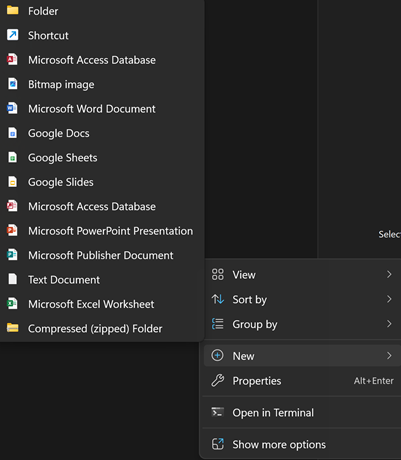
- Type a name for the folder and press Enter to save its name

How to Rename a Folder
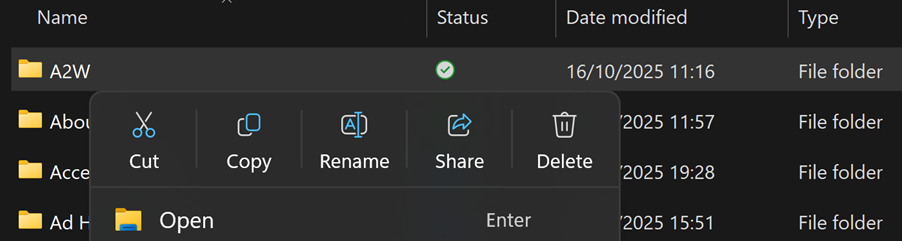
- Right-click the folder
- Choose Rename
- Type the new name and press Enter to save the new name
Saving and Moving Files
Save a File
When you’re working in a program like Word or Excel:
- Click File
- Choose Save As
- Navigate to the folder where you want to save your file
- Double click to open that folder
- Type a name for the file
- Click Save
Move a File
To move a file to a different folder:
- Open File Explorer
- Navigate to your file
- If the folder you want to move it to is visible in the navigation pane, you can click and hold the file, then drag it over the new folder. When the folder highlights, you can release your click
- If the folder you want to move it to is not visible, single click on the file you want to move
- Hold down Ctrl and tap ‘x’ or right-click and click ‘Cut’
- Navigate to the folder you want to move the file to and click in the folder space
- Hold down Ctrl and tap ‘v’ or right-click and click ‘Paste’
- This removes the file from the old location and moves it to the new location
You can also delete files using the right-click option
Using OneDrive (Cloud Storage)
OneDrive is Microsoft’s cloud storage tool.
It works well with Windows 11 and Microsoft 365.
To Use OneDrive:
- Click the Start button
- Type OneDrive
- Click the app to open it
- Sign in with your Microsoft email address and password
- You are now ready so next time you want to save a file, you can navigate to OneDrive in your list of folders through the Save As menu
Access OneDrive (or SharePoint) from the cloud
A really useful way to use your Microsoft package is to access it via “the cloud”. You can do this by visiting office.com or M365Copilot.com – both will take you to the same place.
Once you’ve accessed your Microsoft account, you’ll find a search bar at the top of the page, as well as an incredible search function in Copilot itself. You can also navigate to the OneDrive or SharePoint applications.

Why Use OneDrive?
- files are backed up automatically
- you can access them from other devices
- you can share links instead of sending attachments
- if you have Microsoft 365, it works with Word, Excel, and other apps