Why Security and Privacy Matter
Security protects your devices and data from harm. Privacy keeps your personal information safe. Simple habits help you stay in control when using technology.
This section is a very brief introduction to security – if you’re even unsure, do not risk your safety – ask an expert.
Protect Your Device and Data
Use your own account: Sign in with your own profile and lock the screen when you leave a device.
Create strong, unique passwords:
- Use long, memorable combinations of words, numbers, and symbols.
- Do not reuse passwords across accounts.
- Use a password manager if needed.
- Turn on 2‑Step Verification for extra protection.
Keep everything updated: Enable automatic updates for your device and apps to stay protected.
Use antivirus and a firewall: Make sure built‑in security tools are on and run regular scans.
Stay Safe Online
Avoid phishing: Look out for odd email addresses, spelling mistakes, urgent messages, unexpected attachments, or requests for personal details. When in doubt, do not click and check the sender through an official website.
Browse safely:
- Use trusted sites with https:// and a padlock icon.
- Avoid strange pop‑ups or download offers.
- Use modern browsers that warn you about risky sites.
- Be cautious on public Wi‑Fi, especially when logging in to important accounts.
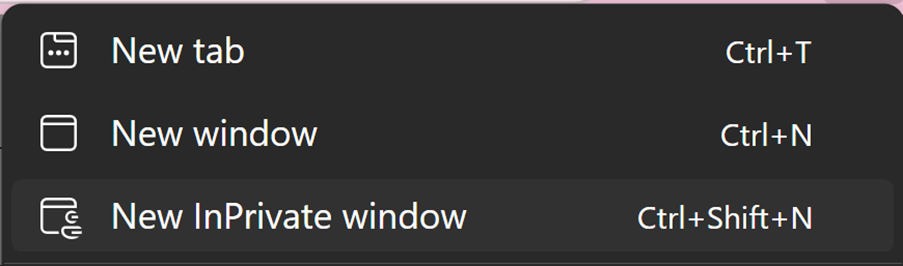
Use private browsing on shared devices: Incognito or InPrivate windows prevent your history and logins from being saved. Always log out and close the window when finished.
The Essentials
Strong passwords, updates, secure browsing, and awareness of scams all help keep you safe online. Small habits make a big difference.
What Is Security and Privacy – and Why Does It Matter?
Security means protecting your device and information from harm.
Privacy means keeping your personal information safe -so only you and people you trust can see it.
When you use a digital device, like a computer or phone, you often share or store personal things – like your name, photos, passwords, or messages.
If your device isn’t protected, someone else could access or steal that information.
This guide will help you stay safe and in control.
Protecting Your Device and Data
Use Your Own Account
Always sign in with your own account.
This keeps your files, settings, and apps private.
If someone else uses your device, they should use a guest account or their own login.
Use a Password
Your account should be protected with a password.
This stops other people from getting into your device or apps.
Creating a Secure Password
What Makes a Good Password?
A good password is:
- hard for others to guess
- easy for you to remember
- made of a mix of letters, numbers, and symbols
How to Make One
You can use:
- a nonsense phrase like blue!apple7rain
- a mix of words and symbols like Tree$Book#92
- something only you would understand, but not your name or birthday
Don’t Write It Down
Never write your password on paper or share it with others.
If you’re worried about forgetting it, use a password manager.
For example, Microsoft Edge has a built-in password manager that can:
- save your passwords securely
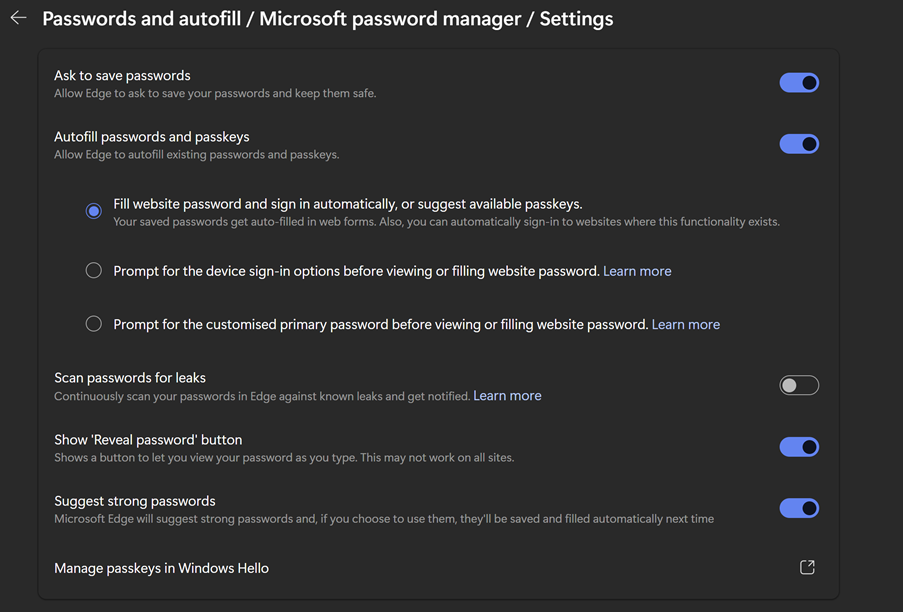
- suggest strong passwords
- sync your passwords across devices (if you sign in with a Microsoft account)
To use it:
- Open Microsoft Edge
- Click the menu button (…)
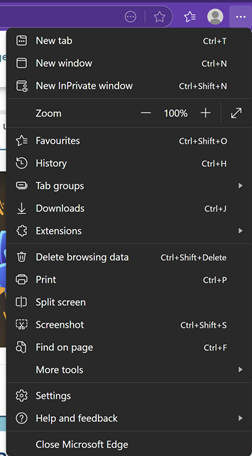
- Choose Settings
- Choose Passwords
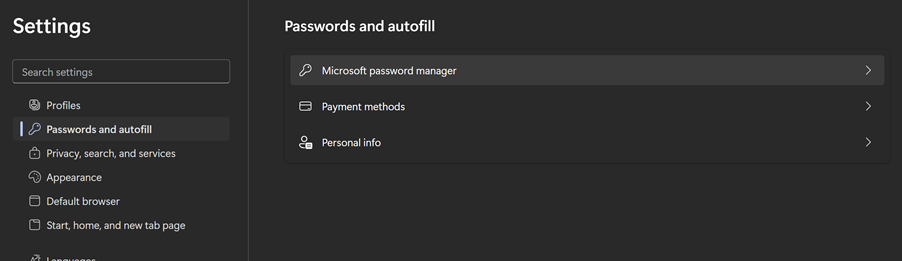
- Click on Microsoft Password Manager which will open in a new tab
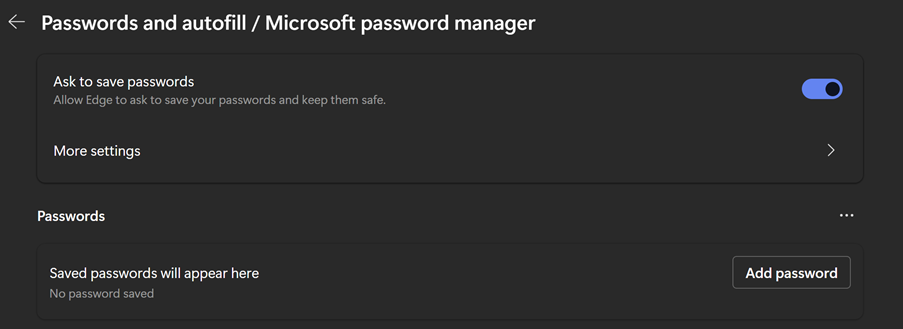
- Turn on Offer to save passwords and to Fill website password and Suggest strong passwords
Keep Devices and Apps Updated
Updates fix problems and add protection.
They help your device run smoothly and stay secure.
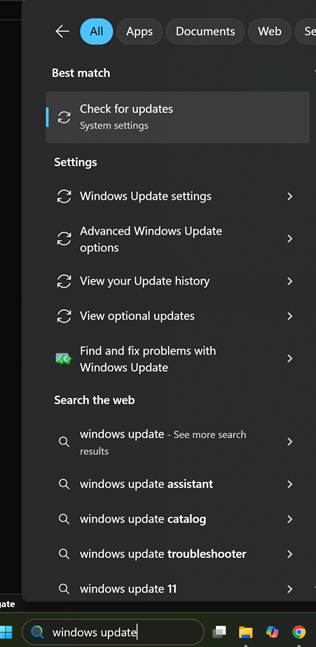
How to Check for Updates
- Click the Start button
- Type Windows Update
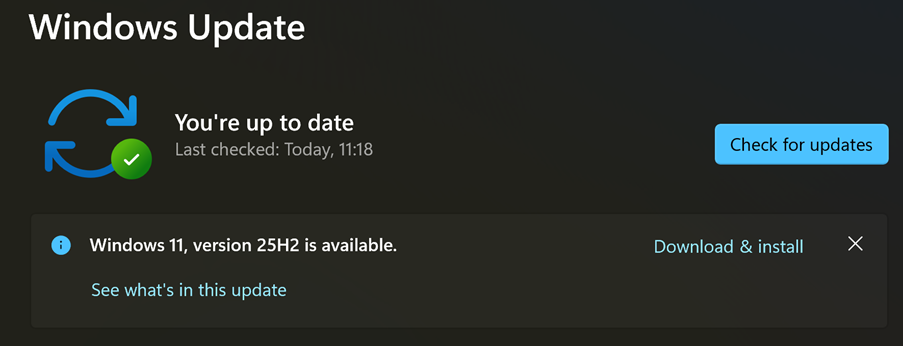
- Click Check for updates
- Install any updates shown
How Often?
- Check for updates at least once a week
- Or turn on automatic updates so your device does it for you – (this is a safer approach as it’s easy to forget)
Run a Security Scan
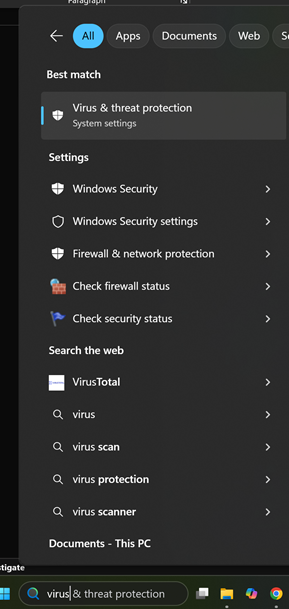
- Click the Start button
- Type Virus & threat protection
- Click Quick scan
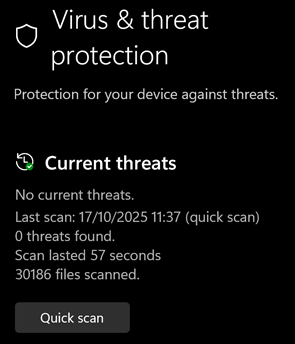
Do this once a week or more often if something seems wrong.
Firewalls and Scans
What Is a Firewall?
A firewall helps block unwanted access to your device.
It’s usually turned on by default.
How to Check It
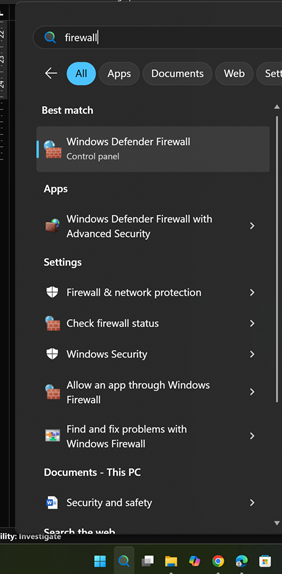
- Click the Start button
- Type Firewall
- Click Windows Defender Firewall
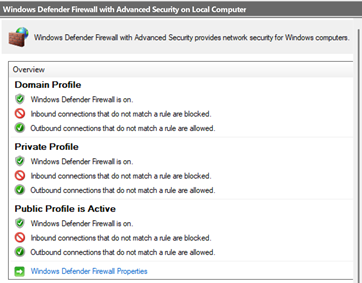
- Make sure it says On
Spotting Phishing Emails
Phishing emails try to trick you into giving away personal information.
They may look real but are fake.
How to Spot Them
Be careful if the email:
- has words in the email address unrelated to the stated sender or spelling mistakes, for example: “Amazoon”
- says your account will be closed unless you click a link
- asks for your password or bank details
- feels urgent or scary
What to Do
If you’re not sure, don’t click anything.
Ask someone you trust.
You can delete the email or report it as spam.
Safe Browsing
What Is a Trusted Website?
A trusted website is one that is:
- well-known (like gov.uk, nhs.uk, bbc.co.uk)
- used by schools, workplaces, or services you know
- has a web address that starts with https:// -the ‘s’ means secure
- doesn’t ask for personal details unless you expect it to
What Is Not Trusted?
Be careful with websites that:
- have spelling mistakes in the address
- ask for personal info without a good reason
- show lots of pop-ups or ads
- say you’ve won a prize or need to act fast
Why Use a Private Browser Window?
A private window doesn’t save your history, searches, or logins.
This is helpful if:
- you’re using a shared or public computer
- you don’t want others to see what you’re doing
- you’re logging into a personal account on someone else’s device
How to Open One
- Open your browser
- Click the (…) button

- Choose New InPrivate window (in Edge) or New Incognito window (in Chrome)